🔐 SAP SU01 - What It Does and Why Every Administrator Needs It
Today we are going to explain SAP transaction SU01 - the User Maintenance transaction used to reset passwords, lock and unlock user accounts, and manage every other detail of a SAP user's master record. SU01 is one of the very first transactions any SAP Basis administrator or security team member learns, because forgotten passwords and locked accounts are among the most common support requests in any SAP S/4HANA or ECC 6.0 landscape. In this guide we cover exactly how to reset or change a user's password, how to lock and unlock a user, what each option on the SU01 initial screen does, why the "Too Many Attempts" error appears, and the security best practices every administrator should follow before making any change. Whether you are a fresher learning SAP security for the first time or an end user trying to understand what your Basis team just did to your account, this guide explains it step by step.
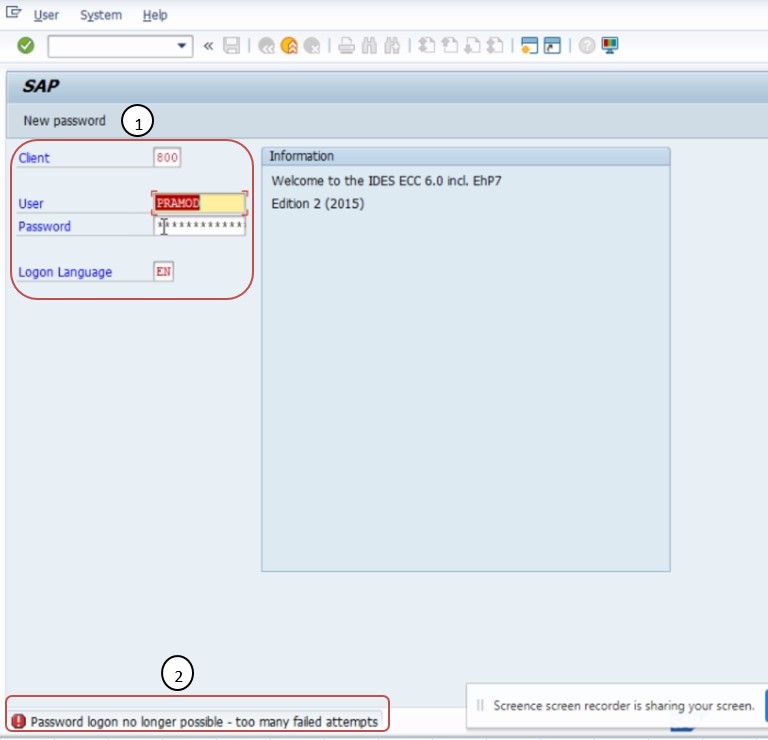
A locked SAP logon screen after too many failed password attempts - exactly the kind of issue SU01 is used to fix.
Reset or Change a Password
Step-by-step instructions to change any user's password using SU01, including what happens on the user's next logon.
Lock And Unlock a User
How administrators lock a user account for security reasons, and how to unlock one after too many failed login attempts.
Every SU01 Option Explained
Create, Change, Display, Delete, Copy, Lock/Unlock, and Change Password - what each option on the initial screen actually does.
⚙️ What Is SU01? The User Maintenance Transaction
SU01 is the standard SAP transaction code used to maintain user master records - the underlying data that defines who a SAP user is, what they are allowed to do, and how they log in. It works the same way in both SAP S/4HANA and the older SAP ERP ECC 6.0.
🔎 In Plain Terms
Every person who logs in to SAP has a user master record stored in the system. That record holds their username, their assigned roles and authorizations, their password, their email address, and a lock status (locked or unlocked). Transaction SU01 is the screen administrators use to view and change any part of that record - most commonly to reset a forgotten password or unlock an account after too many failed login attempts.
Important: before making any change in SU01, make sure you have administrator authorization in your system, and follow your company's password and security policies. It is also good practice to inform the affected user once their password has been changed.
To get started, go to the SAP command field, type SU01, and press Enter. The screen below is what you will land on once the transaction opens.
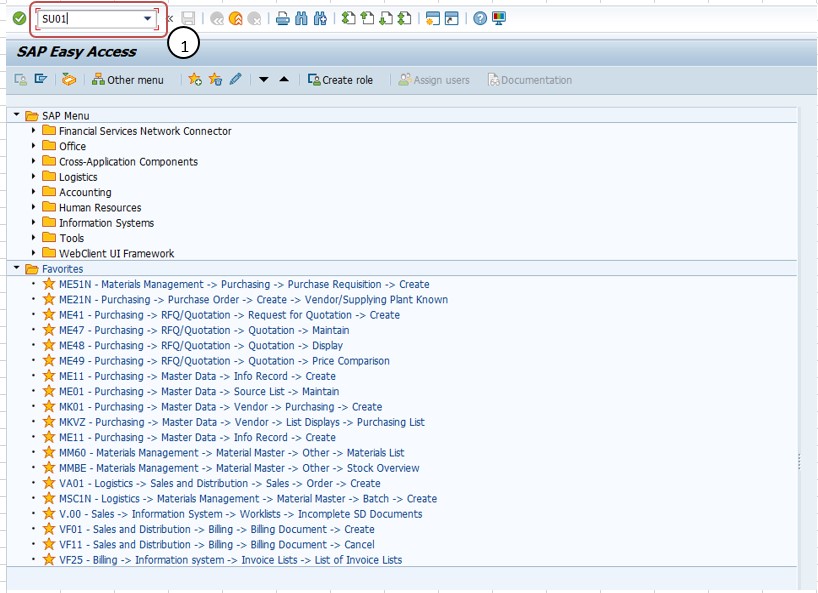
The SU01 initial entry screen, where you type in the user ID before choosing Create, Change, Display, or another action.
The Seven Options on the SU01 Initial Screen
When you open SU01 and enter a user ID, you will see several action options. Here is exactly what each one does.
Used to create a brand-new SAP user, defining the username, user type, and initial password. Administrators use this option whenever a new employee or consultant needs system access.
The most frequently used option. Lets an administrator update an existing user's name, contact details, password, roles, validity dates, or lock status.
Shows the complete details of a user account in read-only mode, letting an administrator review settings without the ability to make any changes.
Permanently removes a user account from the SAP system. Typically used when an employee leaves the company, after appropriate approval and data retention checks.
Replicates an existing user's roles and settings to quickly create a new user with the same access profile - useful for onboarding employees with similar job roles.
Found under the Logon Data tab. Administrators use this to block a user's access entirely, or to remove a lock after a password issue or security concern has been resolved.
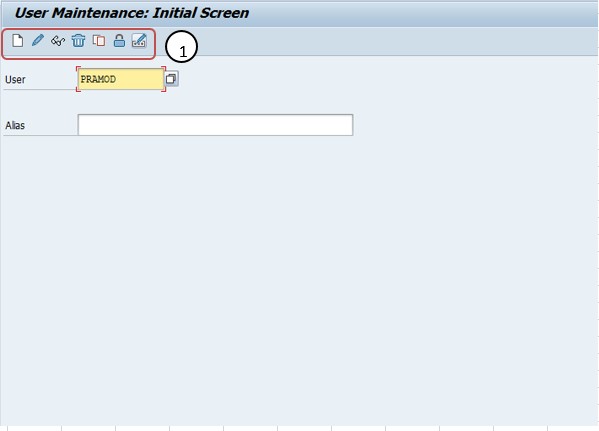
All seven action buttons on the SU01 initial screen, ready to use once you've entered a valid user ID.
It's worth noting that none of these buttons actually do anything until you have typed a valid user ID into the field above them and pressed Enter at least once - SAP needs to know which user record you intend to work with before any of Create, Change, Display, Delete, Copy, or Lock/Unlock becomes meaningful. A frequent beginner mistake is clicking Change with the user ID field still blank, which simply returns an error rather than opening a record.
The Change Password option: this is the seventh and most commonly searched-for action. Only administrators with the right authorization can use it to help a user change their password when they have forgotten it or been locked out.
🔑 How to Reset or Change a SAP User Password Using SU01
Follow these steps exactly to change or reset a user's password in SAP S/4HANA or ECC 6.0. The process takes less than a minute once you are familiar with it.
Open Transaction SU01
Log in to SAP and type SU01 in the command field at the top left, then press Enter to open the User Maintenance screen.
T-Code: SU01Enter the User ID and Click Change
Type the username of the account whose password needs resetting, then click the Change (pencil) icon to open that user's master record.
Open the Logon Data Tab
Inside the user's record, click the Logon Data tab. This is where the password fields and the lock/unlock status are located.
Click "Change Password"
Select the Change Password button or field. Enter the new password, then enter the exact same password again in the Repeat Password field to confirm there is no typing mistake.
Save the Changes
Press Enter or click the Save icon. SAP will display a confirmation message that the password was changed, along with the date and time of the update.
Inform the User
Notify the user that their password has been reset, following your company's security policy. Most systems will prompt the user to set their own new password the next time they log on.
Here is what the confirmation actually looks like on screen once you save - SAP gives you two clear visual signals that the password change was accepted.
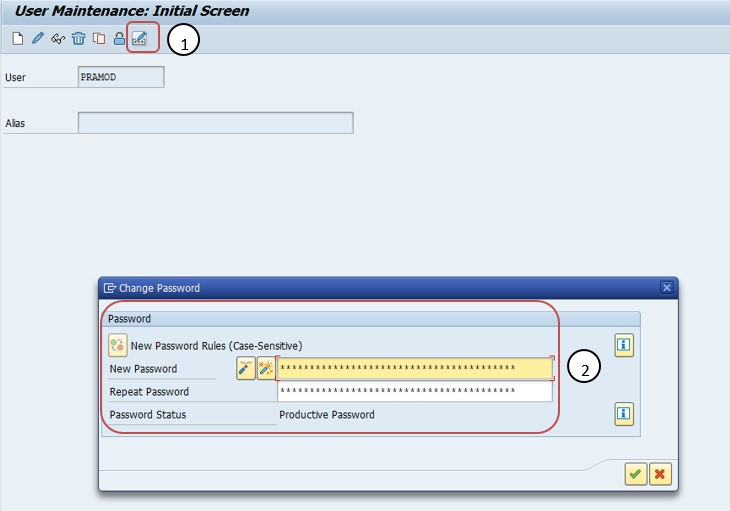
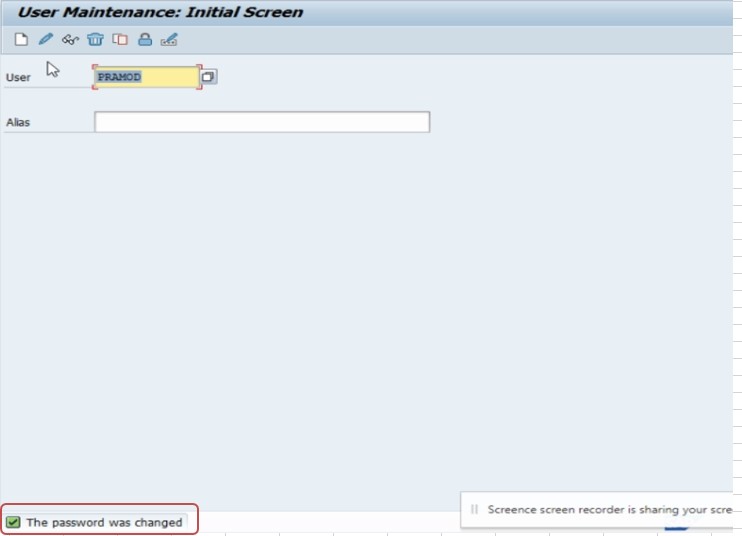
Left: the system message confirming the password was changed. Right: the Logon Data tab reflecting the updated status after saving.
Tip: after saving, scroll down on the Logon Data tab to view the "Password changed on" date and other status fields - this confirms exactly when the change took effect and can help when troubleshooting login issues later.
🔒 How to Lock or Unlock a SAP User Account
Locking and unlocking is the second most common SU01 task. A user account can be locked manually by an administrator for security reasons, or automatically by the system after repeated failed login attempts.
⚠️ The "Too Many Attempts" Error
"Too Many Attempts" is a message that appears when a user enters the wrong password too many times in a row, exceeding the limit configured in the system (commonly 3 to 5 attempts). To protect the account from brute-force guessing, SAP automatically locks it. The user cannot log in again until an administrator removes the lock using SU01, even if they later remember the correct password.
Open SU01 and Select Change
Enter transaction SU01, type the locked user's ID, and click Change to open their record.
Go to the Logon Data Tab
Open the Logon Data tab, where the current lock status of the account is displayed.
Use the Lock/Unlock Option
Click the Lock or Unlock icon as needed. Unlocking removes any failed-attempt lock immediately, allowing the user to try logging in again.
Save and Confirm
Save the change. It is good practice to also reset the user's password at the same time if the lockout was caused by a forgotten password, rather than just unlocking the old one.
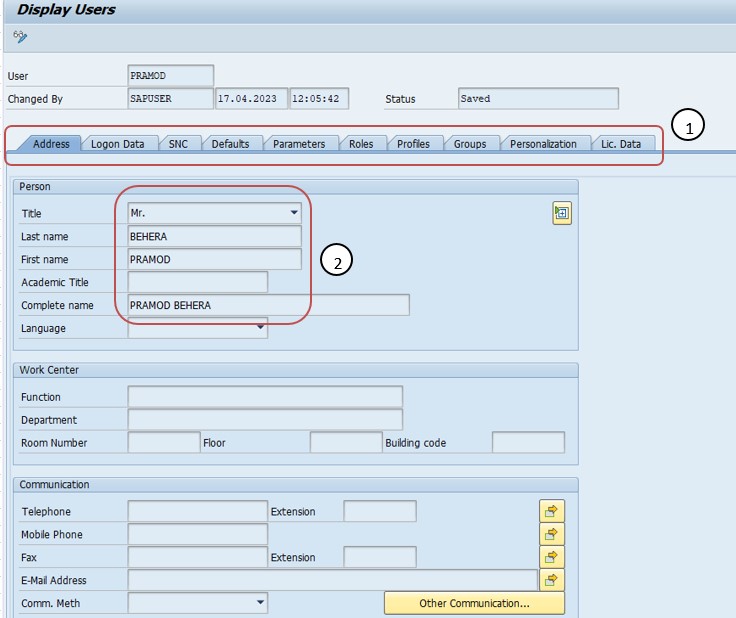
Once a lock is cleared or a password is reset, the Logon Data tab also shows the change timestamp and current status fields - useful evidence when you need to confirm an action was completed.
Bulk unlocking: if many users are locked at once - for example after a company-wide password policy change - administrators can use transaction SU10 to lock, unlock, or update multiple user accounts in a single mass operation instead of repeating SU01 individually for each user.
🧩 Real-World SU01 Scenarios Every Administrator Will See
Reading the steps in isolation only tells half the story. In a live SAP landscape, password and lock issues almost always arrive wrapped in some kind of business urgency - a month-end deadline, a new joiner who needs access immediately, or a consultant who has just returned from leave. Walking through a few realistic situations makes the SU01 process far easier to apply when a ticket actually lands in your queue.
A finance user returns from the weekend, mistypes a password they changed on Friday, tries three or four more times "just to be sure," and ends up locked out right as month-end closing begins. The fix is the same Lock/Unlock flow covered above, but speed matters here - a delayed unlock during closing can hold up postings for an entire team, so many companies treat this category of ticket as priority one for the SAP security desk.
HR confirms a new employee's start date, and the SAP team uses the Create option in SU01 to set up the account with a temporary initial password. The system is normally configured to force a password change the very first time that user logs on, which is exactly why administrators should never reuse the same "Welcome123"-style password across multiple new hires without that forced-change setting enabled.
A consultant or employee returns after months of leave and finds their account has been automatically locked due to inactivity, on top of a password that expired long ago under the company's rotation policy. Here the administrator typically needs to do two things in the same SU01 session - unlock the account and reset the password - rather than assuming one fix alone will restore access.
Security audit findings sometimes force an organisation to roll out a stricter password policy overnight, which can lock out dozens of users simultaneously if everyone's existing password suddenly fails the new complexity rule. This is precisely the situation SU10 exists for - rather than opening SU01 fifty separate times, the administrator selects all affected users and resets or unlocks them in a single batch action.
The pattern to notice: almost every real-world SU01 ticket boils down to one of three root causes - a forgotten or expired password, too many failed login attempts, or a dormant account that has been automatically locked by the system. Once you can recognise which of the three you're dealing with, choosing between Change Password, Lock/Unlock, or both becomes a quick decision rather than a guessing game.
⌨️ SU01 and Related SAP Security T-Codes
| T-Code | Purpose |
|---|---|
| SU01 | Create, change, lock/unlock, and maintain individual SAP user master records, including passwords. |
| SU01D | Display-only version of SU01 - lets a user view account details without authorization to change anything. |
| SU10 | Mass user maintenance - lock, unlock, or update many user accounts at once instead of one at a time. |
| SU3 | Lets a logged-in user maintain their own profile, defaults, and personal settings (not other users' accounts). |
| SUIM | User Information System - used to search and report on users, roles, and authorizations across the system. |
| PFCG | Role maintenance - used to create and assign the authorization roles that get linked to a user via SU01. |
🛠️ Troubleshooting Common SU01 Problems
Even with the right steps followed, SU01 occasionally throws an error or behaves in a way that confuses a new administrator. The table below covers the issues that come up most often, along with what is usually causing each one.
| Symptom | Likely Cause and Fix |
|---|---|
| "User is locked" message reappears right after unlocking | The user is likely entering the same wrong password again and re-triggering the failed-attempt lock. Reset the password instead of only unlocking, and confirm the new password with the user directly. |
| Password change is accepted but the user still cannot log in | Some systems require the new password to be confirmed at first logon before it becomes fully active, or the user may be logging into a different SAP client or system than the one where the password was changed. |
| "Not authorized" error when opening SU01 | The logged-in user does not have the SU01 authorization object assigned to their role. This needs to be resolved by the Basis or security team adjusting role assignments, not by retrying SU01 itself. |
| New password is rejected as "not complex enough" | The password does not meet the system's configured complexity rules - commonly a minimum length, a mix of upper and lower case, and at least one number or special character. Try a longer password that mixes all of these. |
| Lock/Unlock option appears greyed out | The administrator's own authorization may not extend to that particular user group, or the user record may currently be locked centrally rather than just at the application level - check with your Basis team if this persists. |
| Changes in SU01 don't seem to save | Confirm that Enter or Save was actually pressed after each change - SAP requires an explicit save action, and simply navigating away from the tab will discard unsaved edits. |
When in doubt, check the Logon Data tab first. Most "did the change actually work" questions can be answered immediately by looking at the password-changed timestamp and current lock status on that tab, rather than asking the user to try logging in again and waiting for them to report back.
✅ SU01 Best Practices - What to Do and What to Avoid
❓ SAP SU01 - Frequently Asked Questions
The most commonly searched questions about SU01, password resets, and user locking. Click each question to see the answer.
Run transaction SU01, enter the user ID, click Change, open the Logon Data tab, click Change Password, enter and repeat the new password, then save. The user will typically be prompted to choose their own new password on next logon.
It means a user entered an incorrect password too many times in a row, exceeding the system's configured limit. SAP automatically locks the account after this limit is reached, and an administrator must unlock it using SU01 before the user can log in again.
An administrator with the right authorization should run SU01, enter the user ID, click Change, go to the Logon Data tab, and use the Lock/Unlock option to remove the lock. For unlocking several users at once, transaction SU10 is more efficient.
SU01 is used to create, change, lock, unlock, and maintain SAP user master records, including passwords and roles. SU01D is the display-only equivalent, letting someone view account details without the authorization to make any changes.
Yes. Most SAP systems let end users change their own password directly at the standard SAP logon screen using the New Password option, without needing SU01 access. Administrators normally use SU01 only when a user is locked out or has completely forgotten their password.
Access to SU01 is restricted by authorization objects, typically held by SAP Basis administrators or the security team. Regular end users are not normally given SU01 access, since it can modify other users' accounts, roles, and password settings.
Yes. SU01 and the Logon Data tab work in essentially the same way across SAP S/4HANA and ECC 6.0, since user master record maintenance is a stable, long-standing part of SAP Basis functionality that has not fundamentally changed between these releases.
SAP systems are usually configured with password policy parameters that enforce a minimum length and a mix of character types, such as uppercase letters, lowercase letters, and at least one number or special character. If a new password is rejected, try a longer password that combines all of these character types rather than repeating a simple pattern.
It depends on why the account was locked. If the user genuinely forgot their password, unlocking alone won't help - you also need to reset the password. If the lock happened because of a typing mistake and the user is confident they remember the correct password, simply unlocking the account may be enough. When in doubt, doing both at the same time avoids a second support ticket.
This is controlled by password policy parameters set by each organisation's Basis or security team rather than by a fixed SAP default, so the validity period varies from company to company - commonly somewhere between 30 and 90 days. If a password has expired, SAP will normally prompt the user to set a new one automatically at their next logon rather than requiring an administrator to intervene.
Yes. Alongside passwords and lock status, SU01 also includes a Roles tab where administrators can assign or remove the authorization roles a user holds. Those roles themselves are usually built separately in transaction PFCG, and SU01 is simply where they get linked to a specific person's account.