SAP MM: How to Cancel MIGO (Goods Receipt) – Step-by-Step Process
In SAP Materials Management (MM), there might be instances where you need to cancel a Material Document (Goods Receipt or Goods Issue) created using the MIGO transaction. This could be due to various reasons such as errors in posting, incorrect quantities, or other business requirements. This guide walks through the Step-by-Step Procedure to cancel a Material Document, along with how to verify the result using stock overview. If you encounter any errors while following along, feel free to send a screenshot to pramod@learntosap.com, and I will help you resolve the issue.
✅ Canceling a Material Document in SAP MM (MIGO) – Step-by-Step Procedure
In SAP Materials Management (MM), there might be instances where you need to cancel a Material Document (Goods Receipt or Goods Issue) created using the MIGO transaction. This could be due to various reasons such as errors in posting, incorrect quantities, or other business requirements. Whatever the cause, the correct response isn't to manually adjust stock or create an offsetting entry by hand - it's to properly cancel the original Material Document, so both inventory and the GR/IR clearing account are reversed cleanly and consistently.
It helps to think of a Material Document cancellation as an exact mirror image of the original posting. If a Goods Receipt added a certain quantity of a material to stock and created a corresponding GR/IR clearing entry, cancelling it removes exactly that quantity and reverses exactly that clearing entry - nothing more, nothing less. This is what keeps SAP's inventory and accounting records accurate even after a mistaken or unwanted posting has already gone through.
TCode - MIGO
| Transaction | Purpose |
|---|---|
| MIGO | Post a Goods Receipt, Goods Issue, or cancel an existing Material Document using its Cancellation tab. |
| MBST | A standalone transaction alternative for cancelling a Material Document. |
| MMBE | Display stock overview, used to verify inventory before and after a cancellation. |
📋 Follow Steps: Setting Up the Original Goods Receipt
Create PO - ME21N. A Purchase Order was created to order the material that will later be received.
Create MIGO. A Goods Receipt was posted against the Purchase Order, recording the material as received into stock.
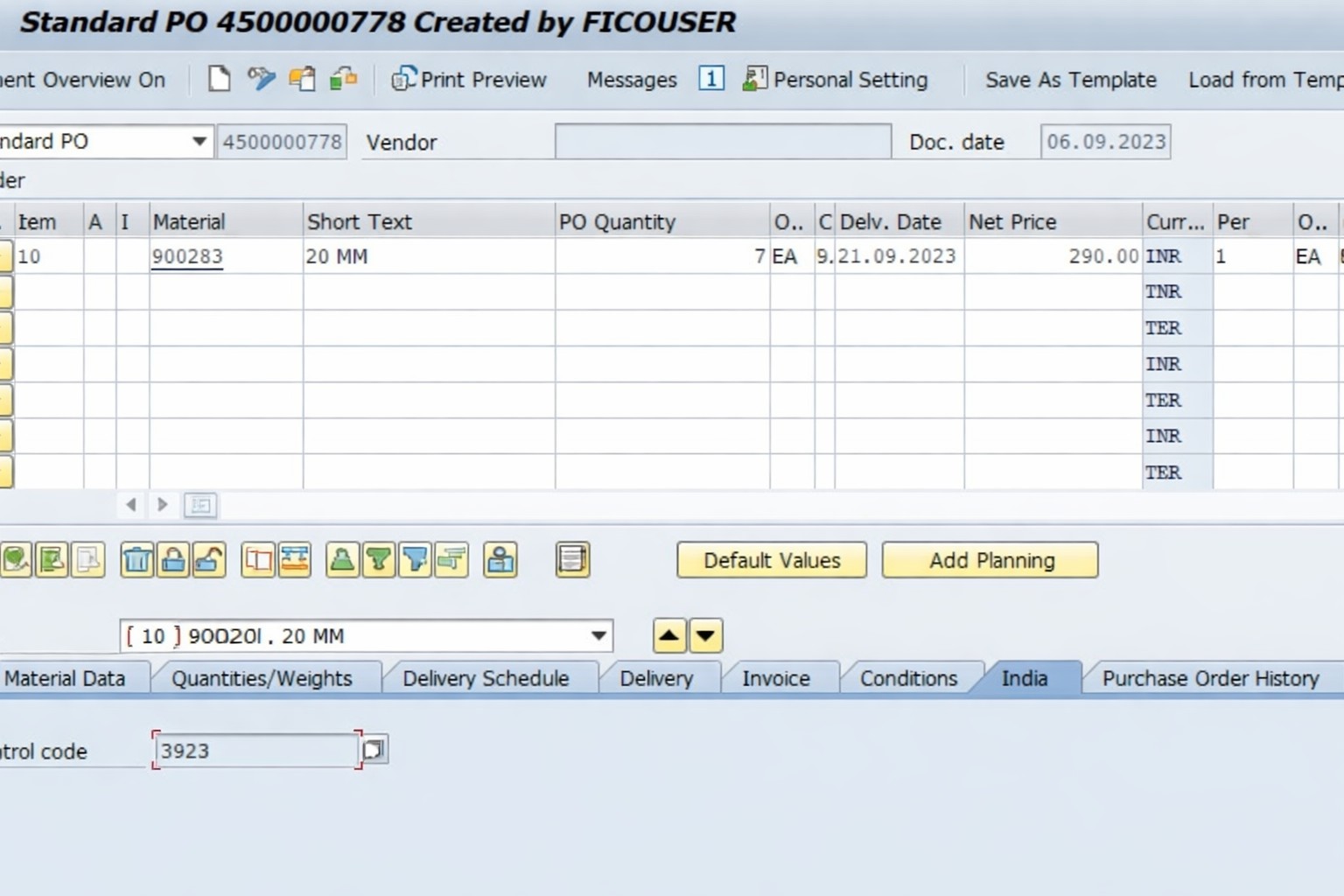
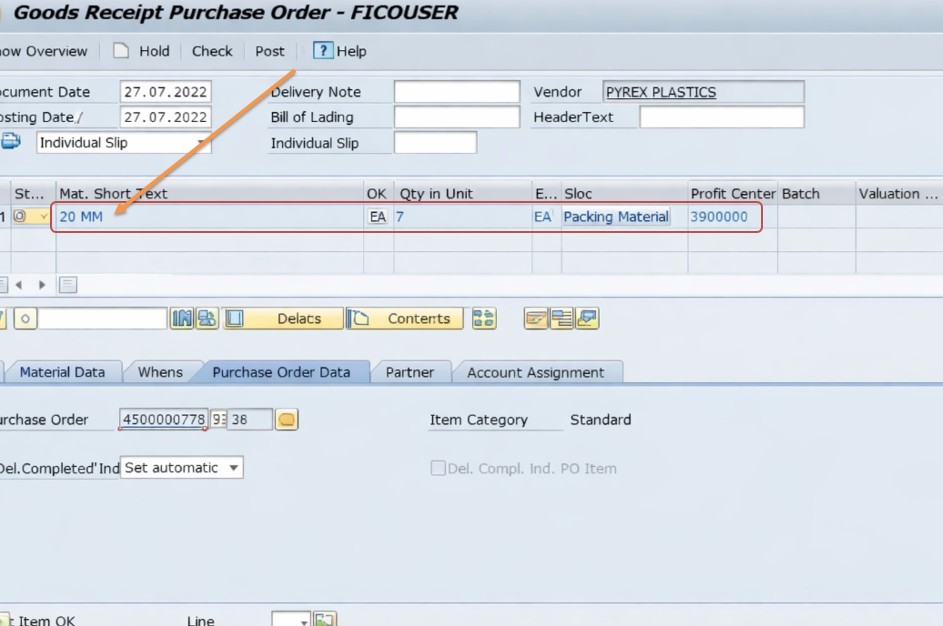
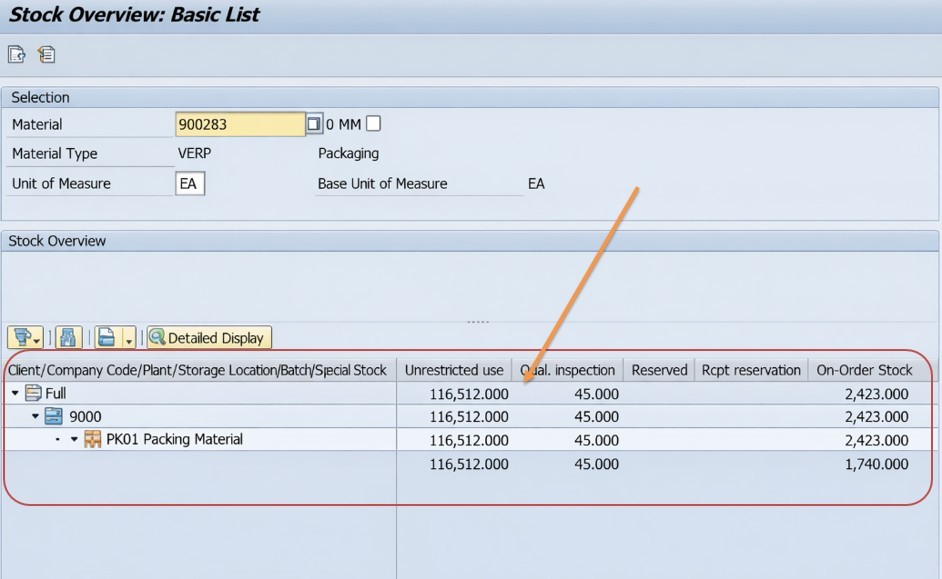
Check Stock - MMBE. Displaying stock overview confirms the received quantity now shows as on-hand inventory, which is the baseline the cancellation will later reverse.
🔧 Cancelled MIGO – Step-by-Step Cancellation Process
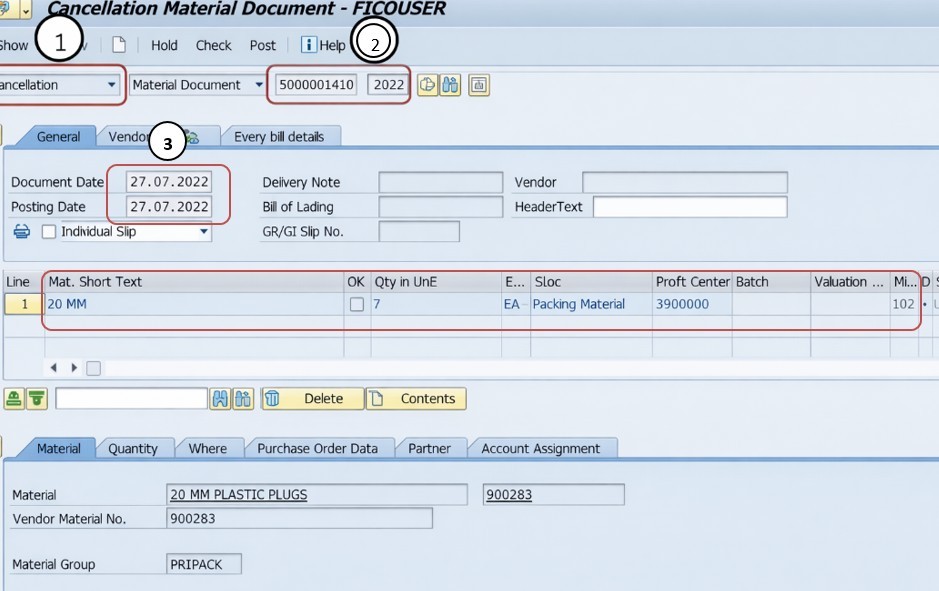
TCode - MIGO.
Select Cancellation. In the MIGO main screen, select the "Cancellation" tab at the top. This tab is used specifically for cancelling Material Documents, as distinct from posting a new Goods Receipt or Goods Issue.
Enter Document Number. In the "Cancellation" tab, you will see fields for entering the document number and fiscal year of the Material Document you want to cancel. Fill in these details, referencing the exact document created by the original Goods Receipt.
Fill Other Data - Document Date, Posting Date, Item OK, and Check. Enter the document date and posting date for the cancellation itself, confirm the item OK indicator for the line being reversed, and run the Check function to catch any issues before posting.
Then Check Stock - MMBE. After posting the cancellation, display stock overview again to confirm the previously received quantity has now been removed, restoring inventory to what it was before the original Goods Receipt.
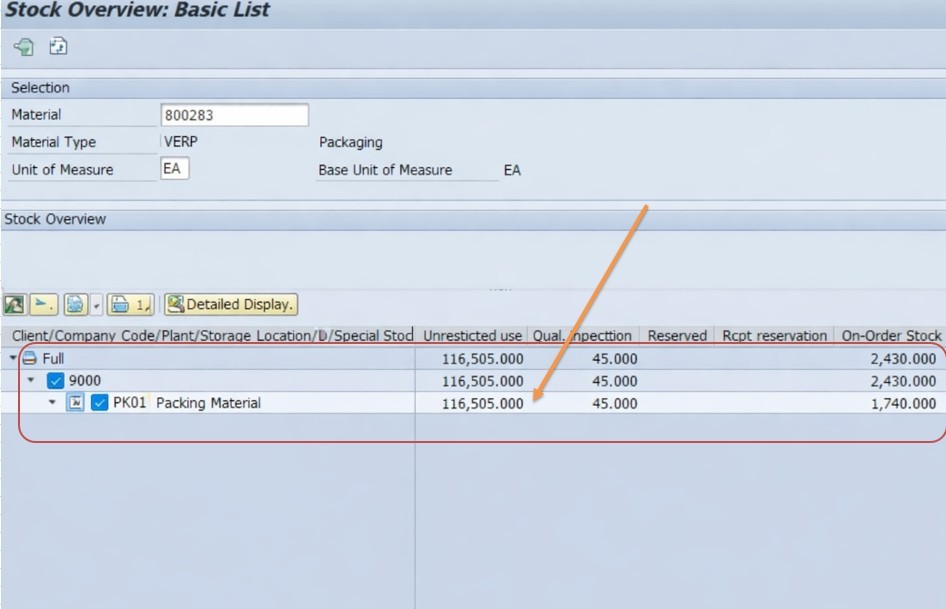
📋 Key Fields Involved in Cancelling a Material Document
| Field | What It Captures |
|---|---|
| Material Document Number | The original Goods Receipt or Goods Issue document being reversed. |
| Fiscal Year | The fiscal year the original document was posted in, required to uniquely identify it for cancellation. |
| Document Date | The date associated with the cancellation document itself. |
| Posting Date | The accounting date the cancellation is recorded against, which can differ from the document date. |
| Item OK Indicator | Confirms the line item being reversed has been reviewed and is ready to post. |
| Stock Quantity (MMBE) | The on-hand inventory figure used to verify the cancellation's effect before and after posting. |
📋 Related SAP Transactions
| Transaction | Purpose |
|---|---|
| ME21N | Create the original Purchase Order that a Goods Receipt is later posted against. |
| MIGO | Post a Goods Receipt, Goods Issue, or cancel an existing Material Document. |
| MBST | Cancel a Material Document as a standalone transaction, an alternative to MIGO's Cancellation tab. |
| MMBE | Display stock overview to verify inventory quantities before and after a cancellation. |
| MB51 | Display a list of Material Documents, useful for locating the exact document number to cancel. |
| MIRO | Post or review an invoice, which may need to be addressed before an underlying Goods Receipt can be cancelled cleanly. |
⚖ Cancellation vs. Other Corrective Options in SAP MM
Cancelling a Material Document isn't the only way SAP lets you correct a goods movement, and it's worth understanding how it differs from the alternatives so the right tool gets used for the right situation. A straightforward cancellation, as covered in this guide, is best suited to a document that was posted entirely in error - wrong quantity, wrong material, duplicate entry - where the cleanest fix is to undo it completely and, if still needed, re-post it correctly from scratch.
A Return Delivery, by contrast, is used when goods genuinely need to physically go back to the vendor after having been received - a quality rejection, for example - rather than a case where the receipt itself was a data entry mistake. And a Return Purchase Order, covered in more detail in the Credit Memo and Return PO tutorial linked below, handles situations where the return needs its own commercial documentation, including a Credit Memo to correct the vendor's invoice. Choosing cancellation when a return was actually needed, or vice versa, tends to leave either the physical stock situation or the vendor's financial records not quite matching what SAP shows - which is exactly the kind of subtle inconsistency that's much easier to avoid upfront than to untangle later.
❗ Common Mistakes When Cancelling a Material Document
- Entering the wrong document number or fiscal year, cancelling a different Material Document than the one actually intended.
- Attempting to cancel a Goods Receipt after an invoice has already been posted and matched against it, without first addressing the invoice.
- Manually adjusting stock instead of properly cancelling the Material Document, which leaves inventory and GR/IR accounts out of sync.
- Skipping the post-cancellation stock check in MMBE, missing the chance to confirm the reversal actually worked as expected.
- Using an inconsistent posting date for the cancellation relative to the original document, complicating period-end reconciliation.
- Not documenting the reason for the cancellation, making it harder to explain the reversal later during an audit or review.
✅ Best Practices for Cancelling Material Documents
- Always confirm the exact document number and fiscal year before entering the Cancellation tab, ideally by looking it up in MB51 first.
- Check whether an invoice already exists against the Goods Receipt before attempting cancellation, and address that invoice first if so.
- Use MMBE to check stock both before and after the cancellation, so the reversal's effect can be clearly verified.
- Keep posting dates for the cancellation consistent with your organization's accounting period rules to avoid reconciliation issues.
- Document the business reason for the cancellation - a posting error, a wrong quantity, a rejected delivery - for audit purposes.
- Cancel a Material Document as soon as the error is identified, rather than letting an incorrect posting linger in the system.
📈 How a Material Document Cancellation Affects Downstream Records
Cancelling a Material Document reverses more than just an inventory figure. The GR/IR clearing account entry created by the original Goods Receipt is also reversed, meaning any invoice verification that was planned against that receipt now has nothing to match against until a new, corrected Goods Receipt is posted if one is still needed. Reports on inventory valuation, stock aging, and open GR/IR balances all reflect the correction immediately once the cancellation is posted, which is exactly why leaving an erroneous Goods Receipt uncancelled - rather than manually working around it - causes problems that compound the longer it's left unresolved.
This is also why the sequencing matters: if an invoice has already been posted and matched to the original Goods Receipt, that invoice typically needs to be addressed first, since cancelling the underlying receipt while a matching invoice still exists can leave the GR/IR account in an inconsistent state that's harder to untangle than if the documents are reversed in the correct order.
✅ Validating a Material Document Cancellation
Before considering a cancellation complete, it's worth running through a short validation checklist. Confirm the correct document number and fiscal year were entered by double-checking against the original Goods Receipt. Confirm no invoice already exists against that document, or that any such invoice has already been properly addressed. Check stock overview (MMBE) both before and after posting the cancellation to confirm the quantity has genuinely reversed as expected. Finally, confirm the posting date used for the cancellation is consistent with your organization's open accounting period.
Skipping this validation is one of the more common reasons a cancellation appears to succeed on screen but leaves inventory or GR/IR records subtly inconsistent - usually traceable to the wrong document being reversed, or an invoice that should have been handled first. A quick second look at both figures side by side, before moving on to the next task, costs very little time compared to the effort of tracing a discrepancy back to its source weeks later.
🎓 Interview-Style Questions and Answers
Q: Why would a Material Document need to be cancelled in SAP MM?
A Material Document might need cancellation due to errors in posting, incorrect quantities entered during the original Goods Receipt, the wrong material being received, or other business requirements that make the original entry inaccurate.
Q: What is the difference between using MIGO's Cancellation tab and using MBST?
Both accomplish the same underlying reversal, but MIGO's Cancellation tab is accessed from within the standard MIGO transaction, while MBST is a separate, standalone transaction specifically dedicated to cancelling Material Documents.
Q: What should be checked before cancelling a Goods Receipt that already has an invoice posted against it?
The invoice should generally be reversed or otherwise addressed first, since cancelling the underlying Goods Receipt while a matching invoice still exists can create an inconsistent GR/IR clearing account balance.
Q: How can you confirm a Material Document cancellation was successful?
Displaying stock overview (MMBE) both before and after the cancellation is posted confirms whether the previously received quantity has actually been reversed back to its original level.
📚 Quick Glossary of Terms Used in This Guide
- Material Document: The record created in SAP whenever a goods movement, such as a Goods Receipt or Goods Issue, is posted.
- Cancellation: The reversal of a previously posted Material Document, undoing its effect on stock and the GR/IR clearing account.
- Fiscal Year: The accounting year a Material Document was originally posted in, required to uniquely identify it for cancellation.
- Item OK Indicator: A confirmation flag on a Material Document line item indicating it has been reviewed and is ready to post.
- Stock Overview (MMBE): A report showing on-hand inventory quantities, used to verify the effect of a cancellation.
- GR/IR Clearing Account: A temporary account holding the value of goods received but not yet invoiced, which is also reversed when the underlying Goods Receipt is cancelled.
📝 Governance for Material Document Cancellations
Because cancelling a Material Document directly affects inventory and financial records, most organizations maintain governance around who is authorized to perform cancellations, what documentation must accompany a cancellation request, and how quickly errors should be reversed once identified. This matters because warehouse operations rely on accurate stock figures for planning, and finance relies on accurate GR/IR balances for period-end reconciliation - both of which are directly affected any time a Material Document is cancelled.
Data quality governance around cancellations follows the same underlying logic as elsewhere in SAP: a cancellation performed carelessly - the wrong document number entered, an invoice left unaddressed first - tends to surface as an inventory discrepancy or a reconciliation problem well after the cancellation was actually posted, at which point it is considerably more disruptive to untangle. A clear cancellation checklist, consistently applied, keeps this corrective process reliable even as transaction volume grows.
💼 Real-World Scenario: Correcting an Incorrect Goods Receipt Quantity
Warehouse clerk Rajesh Saw at Learn Pharmaceuticals had posted a Goods Receipt against a recent Purchase Order, but shortly afterward realized the quantity entered didn't match what had actually been physically received - a data entry slip rather than an issue with the delivery itself. Because the error was in the system record rather than the physical stock, the correct fix was to cancel the Material Document and re-post it accurately, not to manually adjust inventory.
Rajesh checked stock in MMBE first, confirming the erroneous quantity was indeed reflected as on-hand inventory. He opened MIGO, selected the Cancellation tab, and carefully entered the exact document number and fiscal year of the original Goods Receipt he needed to reverse. He filled in the document date and posting date for the cancellation, confirmed the item OK indicator, ran the Check function, and posted the reversal.
Checking stock again in MMBE afterward, Rajesh confirmed the erroneous quantity had been fully reversed, restoring inventory to its state before the mistaken posting. With the incorrect Material Document cleanly cancelled, he was then able to post a fresh, accurate Goods Receipt reflecting the material that had genuinely been received - keeping both inventory and the GR/IR clearing account consistent with what had actually happened at the dock.
📱 This Process in SAP S/4HANA
Transaction MIGO's Cancellation function, along with MBST, works largely the same way in SAP S/4HANA as in classic ECC, since Material Document reversal remains a core Materials Management capability tightly linked to inventory management and Financial Accounting. What has changed in S/4HANA is the availability of Fiori apps for material document display and reversal, offering a more modern, list-based way to locate and cancel Material Documents alongside real-time updates to stock overview without navigating the full MIGO transaction screen. Many S/4HANA implementations continue to use MIGO's Cancellation tab or MBST for direct reversal, while Fiori-based tools are increasingly favored for reviewing recent material documents before deciding whether cancellation is needed.
One practical difference worth noting in S/4HANA environments is the tighter real-time integration between Materials Management and the Universal Journal in Financial Accounting. Because inventory postings and their financial impact are recorded together more immediately than in some classic ECC configurations, a cancellation posted in MIGO tends to be reflected in financial reporting views almost instantly, which can make it easier for finance teams to spot and question an unusual pattern of reversals sooner than they might have in an older system landscape. This closer integration is one more reason to treat cancellations as a governed, documented action rather than a routine correction performed without a clear record of why it was needed.
🎯 Conclusion
Cancelling a Material Document through MIGO is the correct, clean way to undo an erroneous Goods Receipt or Goods Issue, restoring both inventory and GR/IR clearing records to what they should be rather than leaving the system in an inconsistent state. Entering the correct document number and fiscal year, confirming no invoice needs to be addressed first, and checking stock before and after posting are what separate a properly executed cancellation from one that quietly leaves inventory or accounting records out of sync. Keep this guide handy the next time your organization needs to reverse a Material Document in SAP.