HTML Editor Online: Free & Easy HTML Editor for Beginners and Bloggers
HTML Tutorials · Online HTML Editor Easy Use · Step-by-Step Guide
What Is an HTML Editor?
HTML editor is a software application used to write, edit, and manage HTML code. It helps developers create and structure web pages efficiently. HTML editors come with various features like syntax highlighting, auto-completion, and debugging tools, making web development easier and faster.
HTML is a Web browsers use HTML code to show text, images, and layout on a webpage. In practice, this means that whatever code you type into an HTML editor is exactly what a browser reads and turns into the headings, paragraphs, images, and links you see on the screen. The editor itself does not change what HTML is, it simply makes the process of writing and checking that code faster, cleaner, and far less error-prone than typing it in a basic text application with no support tools at all.
Whether you are a complete beginner writing your very first tag, a blogger who occasionally needs to tweak a snippet inside a CMS post, or an experienced developer building a full website, the right HTML editor removes friction from the process. Instead of guessing whether a tag is closed correctly or manually refreshing a saved file every time you make a change, a good editor shows you the structure of your code and, in the case of an online editor, the actual rendered result, side by side and in real time.
✅ Why Use an HTML Editor?
- ✅ Time-Saving – Features like auto-complete and templates speed up development.
- ✅ Error Reduction – Built-in debugging and syntax checking minimize mistakes.
- ✅ Integration with Other Technologies – Many editors support CSS, JavaScript, and frameworks.
Types of HTML Editors
There are two main types of HTML editors:
1) Text-Based Editors (Code Editors)
These editors provide where user or developers manually write HTML code. They offer powerful tools to streamline the coding process. A text-based editor does not hide the underlying markup from you the way a visual tool might; instead, it gives you direct control over every tag, attribute, and line of spacing, while still helping you write that code faster through color-coded syntax, bracket matching, and smart suggestions.
Popular Text-Based HTML Editors:
- 🔴 Notepad++ – A lightweight, free editor with syntax highlighting and multi-tab support.
- 🔴 Visual Studio Code (VS Code) – A powerful, widely used editor with extensions for HTML, CSS, and JavaScript.
- 🔴 Sublime Text – A fast and minimal editor with excellent performance.
- 🔴 Atom – A free, open-source editor developed by GitHub.
Most professional web developers eventually settle on a text-based editor because it scales well to large, multi-file projects, supports version control tools like Git, and can be extended with plugins for almost any framework or language a project might need.
How To Open HTML Editor – Windows 10 or Windows 11
You do not need to download anything to write your very first line of HTML on a Windows machine. Notepad, which is already built into Windows, works perfectly well as a basic HTML editor to get started:
- ✔ Using Run Command
- ✔ Press Win + R
- ✔ Type notepad
- ✔ Press Enter
✅ And save this Notepad File HTML Format Example-htmltutorial1.html
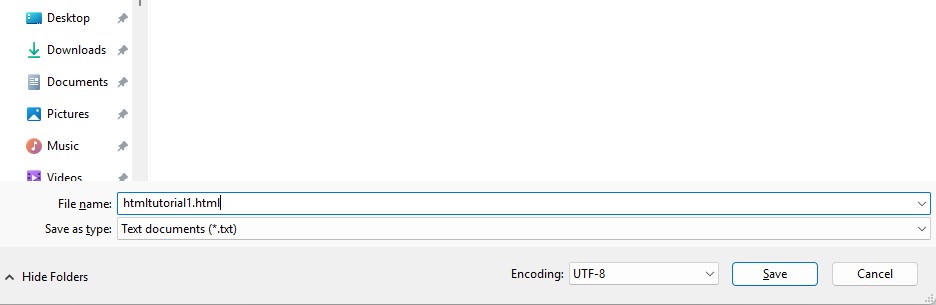
✅ NOTE-You can SAVE .htm or .html as file extension. There is no difference; You can use Both of Two.
2) WYSIWYG Editors
These editors allow users to design web pages visually, without writing code manually. These editors are ideal for beginners and non-coders.
Popular WYSIWYG Editors:
- ✔ Adobe Dreamweaver – A professional-grade editor with both visual and code-based editing.
- ✔ BlueGriffon – A free, open-source WYSIWYG editor with advanced styling options.
- ✔ Google Web Designer – A tool for creating interactive web content.
The trade-off with a WYSIWYG editor is that the code generated behind the scenes is not always as clean or as lightweight as hand-written HTML, which is one reason many learners eventually move toward a text-based editor once they understand the fundamentals covered in this series.
Online HTML Editors: A Third Option
Beyond text-based and WYSIWYG desktop software, there is a third category that has become extremely popular with beginners and bloggers: the online, browser-based HTML editor, exactly like the live playground further down this page. An online HTML editor combines the direct control of a text-based editor with instant, zero-setup feedback, because the preview panel updates the moment you stop typing.
| Editor Type | Best For | Setup Required |
|---|---|---|
| Text-Based (Notepad++, VS Code) | Developers building full websites | Download and install |
| WYSIWYG (Dreamweaver, BlueGriffon) | Non-coders designing pages visually | Download and install |
| Online HTML Editor (this page) | Beginners, bloggers, quick tests | None – works in the browser |
Because an online HTML editor runs entirely inside your browser tab, it is ideal for the exact situations covered by this tutorial series: trying out a tag you just learned, testing a small snippet before pasting it into a blog post, or following along with a tutorial without needing to switch between a text editor and a separate browser window.
Which Editor Should a Beginner Start With?
With text-based, WYSIWYG, and online editors all available, it is natural to wonder which one to pick first. There is no single correct answer, but a few practical guidelines help most beginners choose confidently:
- Just getting started with HTML tags? Stay with an online editor like the one on this page, or plain Notepad. You will learn faster by focusing purely on the tags themselves, without extra software features to learn at the same time.
- Comfortable with the basics and ready to build real pages? Move to a text-based editor such as VS Code, which adds helpful features without hiding the underlying code from you.
- More interested in design than in code? A WYSIWYG editor such as Dreamweaver may suit your workflow better, though understanding basic HTML still helps you fix issues the visual tool cannot always handle on its own.
- Need to test a snippet quickly, regardless of your usual tool? An online editor remains the fastest option, since there is nothing to open, configure, or save first.
Many learners actually move through all three categories over time: starting with an online editor to learn the basics, adopting a text-based editor as projects grow, and occasionally reaching for a WYSIWYG tool for fast visual layout work.
Example of HTML Code Display
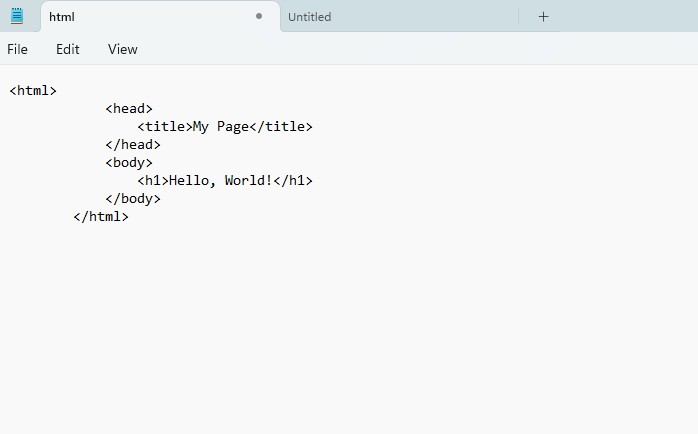
Copy this code snippet and test it out in any text editor or browser:
<html>
    <head>
        <title>My Page</title>
    </head>
    <body>
        <h1>Hello, World!</h1>
    </body>
</html>
Try It Yourself (Copy This Code and Paste. See how it works). Or skip copy-pasting into a separate file entirely and use the live playground right below to see your changes instantly, with no saving and no refreshing required.
Live Code Preview
Step-by-Step: How to Use This Free Online HTML Editor
Using the live editor above takes only a few seconds to get comfortable with, and the same basic workflow applies to almost every online HTML editor you will come across:
- Clear or select the starter code in the input box, or leave it as-is to see how the default example renders first.
- Type or paste your own HTML directly into the code box, including any tags, text, or attributes you want to test.
- Watch the preview panel update automatically a fraction of a second after you stop typing, without needing to click a separate run button.
- Make small changes and observe the result immediately, which is the fastest way to build an intuitive understanding of how each tag actually behaves.
- Copy your finished code out once you are happy with it, and paste it into your own project file or CMS editor.
This tight feedback loop, type a change, see the result instantly, is exactly why online editors have become such a popular first stop for anyone starting the HTML tutorials on this site.
Key Features to Look for in a Good HTML Editor
Not every HTML editor is created equal. Whether you eventually choose a text-based editor, a WYSIWYG tool, or stick with an online editor like this one, a few core features make the biggest difference to daily usability:
- Syntax highlighting. Color-coding tags, attributes, and values makes it far easier to spot a missing quote or a misplaced bracket at a glance.
- Auto-completion. Suggesting closing tags and common attributes as you type reduces both typing effort and small typo-driven bugs.
- Live or instant preview. Seeing your rendered output immediately, rather than after a manual save-and-refresh cycle, speeds up learning dramatically.
- Error and debugging support. Flagging unclosed tags or invalid nesting before you even switch to the browser saves time troubleshooting later.
- Support for CSS and JavaScript. Since real pages rarely use HTML alone, an editor that also understands CSS and JavaScript keeps your whole workflow in one place.
- No installation barrier (for online tools). Being able to open a browser tab and start typing immediately removes any setup friction for a quick test.
Benefits of an Online HTML Editor for Bloggers and Students
This tutorial series and the live editor on this page are built with two audiences in mind above all others: bloggers and students. Both groups benefit from an online HTML editor in slightly different, but equally practical, ways.
- Bloggers frequently need to insert a small piece of custom HTML into a post, such as an embedded video, a styled button, or a custom table, without wanting to install a full development environment just for a one-off edit.
- Students and beginners benefit from immediate visual feedback while learning, since seeing a heading, list, or image render correctly the moment it is typed reinforces exactly what each tag does far faster than reading about it alone.
- Both groups avoid the overhead of downloading, installing, and configuring desktop software just to test a few lines of markup, which keeps the learning curve focused on HTML itself rather than on tooling.
How an HTML Editor Connects to SEO and Clean Code
The editor you use does not directly change how search engines rank a page, but it has a real, practical effect on the quality of the HTML you end up writing, and clean HTML is closely tied to good SEO. A good editor makes it easier to close every tag properly, nest elements correctly, and add meaningful attributes such as alt text on images, all of which search engines rely on to understand a page's content and structure.
- Well-formed HTML is easier for search engine crawlers to parse than messy, deeply nested, or broken markup.
- Editors with syntax checking catch unclosed tags before they can accidentally break a page's layout or hide content from crawlers.
- Auto-complete for attributes makes it faster to consistently add alt text, title attributes, and semantic tags across a whole site.
In short, a good HTML editor is not just a convenience, it is one of the small habits that, over many pages, adds up to a technically healthier, more search-friendly website. This matters just as much for a personal blog as it does for a large commercial site, since search engines apply the same basic crawling and indexing logic regardless of a site's size.
For SAP professionals working with SAP BTP, Fiori, or SAPUI5-based custom applications, the same principle applies in a slightly different context: Fiori tiles, launchpads, and custom UI5 screens are ultimately rendered using HTML under the hood, so a functional consultant who can read and lightly edit HTML through a simple online editor can communicate more effectively with developers and understand front-end display issues more confidently.
Common Mistakes When Using an HTML Editor
Most issues beginners run into with an HTML editor, online or otherwise, come down to a handful of easy-to-fix habits:
- Ignoring the preview panel. Skipping the live preview and only checking code visually makes it easy to miss a rendering issue that would be obvious at a glance.
- Forgetting to close tags. Even with auto-complete available, it is still possible to delete a closing tag by accident while editing.
- Copy-pasting from formatted sources. Pasting HTML from a word processor or rich-text source can bring along hidden formatting that breaks the intended structure.
- Not testing across browsers. Code that looks correct in one browser's preview should still be checked in at least one other browser before publishing.
- Overusing WYSIWYG shortcuts. Relying entirely on a visual editor without ever looking at the underlying code makes it harder to fix small issues by hand later.
Best Free Online HTML Editors You Can Try
The live playground on this page is designed for quick, beginner-friendly practice while you follow this tutorial series, but it is worth knowing what else is out there once you want to explore further. Here is how a few well-known online editors generally compare:
| Tool | Good For | Note |
|---|---|---|
| LearnToSAP Live Editor (this page) | Following tutorials, quick beginner practice | Zero setup, single HTML/CSS/JS panel |
| CodePen | Front-end demos and design experiments | Separate panels for HTML, CSS, and JS |
| JSFiddle | Sharing small, reproducible code snippets | Popular for asking coding questions online |
| Replit | Slightly larger, multi-file mini projects | Supports many languages beyond HTML |
None of these tools change what HTML actually is or how it behaves, they simply offer different layouts and extra convenience features on top of the same fundamental write-and-preview workflow you are already practicing on this page.
Writing HTML, CSS, and JavaScript Together in One Editor
Although this tutorial focuses on HTML, the live editor above is not limited to HTML alone. Because the preview panel simply renders whatever valid document you type into it, you can include a <style> block for CSS or a <script> block for JavaScript inside the same code box, and the preview will apply all three together, exactly the way a real browser does with a normal web page.
This is a useful habit to build early, since almost no real website is made of HTML alone. Practicing small combinations of HTML for structure, CSS for style, and JavaScript for behavior, even inside a simple online editor like this one, builds the same mental model professional developers use every day when working across larger, multi-file projects.
Using an HTML Editor on Mobile Devices
Because an online HTML editor runs entirely in the browser, it also works on tablets and, for short snippets, even on phones, without installing any app. This makes it a convenient option for a blogger who wants to quickly check how a piece of embed code will look while away from a desktop computer, or a student who wants to review a tag on the go between classes. Typing longer blocks of code comfortably still works best on a physical keyboard, but for checking or tweaking a small snippet, a mobile browser and an online editor are often all you need.
From Practice Code to a Real Website: Next Steps
Once you are comfortable typing HTML into the live editor above and predicting what the preview will show before you even run it, you are ready to start building complete, saved pages of your own rather than one-off snippets. A natural next step is to:
- Move to a saved file. Take a snippet you built in the online editor and save it as a real .html file using Notepad or a text-based editor like VS Code.
- Add more structure. Continue this series with the HTML Basic Tags and HTML Links tutorials to expand what you can build in a single page.
- Layer on styling. Once your HTML structure feels solid, start exploring CSS to control colors, spacing, and layout across your page.
- Keep the online editor as a scratchpad. Even experienced developers keep a browser-based editor bookmarked for quick tests, so there is no need to abandon it once you move to a full desktop setup.
Frequently Asked Questions About Online HTML Editors
What is an HTML editor?
An HTML editor is a software application used to write, edit, and manage HTML code. It helps developers create and structure web pages efficiently, and it usually comes with features like syntax highlighting, auto-completion, and debugging tools.
Is this online HTML editor really free?
Yes. The live editor on this page is completely free to use, requires no sign-up, and needs no installation. You can write HTML, CSS, or JavaScript and see the result instantly in the preview panel.
Do I need to install any software to write HTML?
No. You can write HTML in Notepad on Windows, TextEdit on Mac, or directly in an online editor like the one on this page. A dedicated code editor such as VS Code simply makes the process faster and easier.
What is the difference between a text-based editor and a WYSIWYG editor?
A text-based editor, such as Notepad++ or VS Code, requires you to manually write HTML code. A WYSIWYG editor, such as Adobe Dreamweaver, lets you design a page visually without writing code, which is ideal for beginners and non-coders.
Can I use .htm and .html as the same file extension?
Yes. You can save an HTML file with either the .htm or the .html extension. There is no functional difference between the two, and browsers treat both identically.
Is an online HTML editor good enough for real projects?
For quick experiments, learning, and small snippets, an online HTML editor is perfect. For larger, multi-file projects, most developers eventually move to a desktop code editor that supports file management, extensions, and version control.