HTML Links Tag Tutorial: How to Use <a> Anchor Tag in HTML With Examples for Beginners
By Pramod Behera · Updated: September 14, 2026 · 18 min read
- HTML Links Tag
- Why Links Matter on the Web
- Basic HTML Link Syntax
- HTML Anchor Tag Attributes at a Glance
- Link to an External Website
- Open Link in a New Tab
- Link to a File (PDF or Image)
- Email Link
- Link to a Section on the Same Page
- Link Colors
- HTML Bookmarks (Internal Links)
- Understanding the target Attribute in Depth
- rel="noopener noreferrer" and Link Security
- Styling Links With CSS Pseudo-Classes
- Relative vs Absolute Links
- Real-World Navigation Menu Example
- Accessibility Best Practices for Links
- Common Mistakes to Avoid
- Best Practices for HTML Links
- Try It Yourself – Live Code Preview
- Practice Exercises
- Frequently Asked Questions
HTML Links Tag -
HTML (HyperText Markup Language) is the standard language used to create web pages. HTML, links are created using the <a> (anchor) tag. These are used to navigate from one page to another or to link to files, email addresses, sections of the same page, and more..
Links are arguably the single feature that turns a collection of separate HTML documents into what we actually call "the web." Without the anchor tag, every page would be an isolated island, readable on its own but disconnected from everything else, with no way for a visitor to move from an article to a related article, from a homepage to a contact form, or from a product listing to a checkout page. Understanding the anchor tag thoroughly, not just its most basic form but its full set of attributes and behaviors, is one of the highest-leverage things a beginner can learn early, because nearly every other HTML tutorial you read afterward assumes you already know how to link pages together.
Why Links Matter on the Web
Beyond simple navigation, links carry real weight for two audiences that beginners often forget to consider: search engines and assistive technology users. Search engines follow links to discover new pages and to understand which pages on a site are considered important based on how often they're linked to internally, which is why a well-structured set of anchor tags directly supports SEO, not just usability. Screen readers, meanwhile, often let users jump straight from link to link across a page, which means the actual clickable text inside your anchor tags needs to make sense completely out of context, a phrase like "click here" tells a screen reader user almost nothing useful, while "Download the pricing PDF" tells them exactly what to expect.
It's also worth appreciating that the anchor tag predates almost every other piece of modern web technology you'll learn. It was part of the very first version of HTML designed by Tim Berners-Lee, because the entire original purpose of the web was to let researchers link documents together. Every later addition to HTML, images, forms, tables, video, was built on top of a document format that already knew how to link. That history is a useful reminder that the humble anchor tag is not a beginner-only topic to rush past; it's foundational infrastructure that professional developers still rely on daily.
🔗 Basic HTML Link Syntax:-
✅ href: Specifies the URL of the page the link goes to.
✅ Text between <a> and </a> is what users click on.
<a href="https://www.example.com">Visit Example</a>Reading this line piece by piece: the opening tag <a begins the anchor, the href="https://www.example.com" attribute tells the browser exactly where to navigate to, the words "Visit Example" sitting between the opening and closing tags form the clickable link text that actually appears on the page, and </a> closes the anchor so the browser knows the clickable area has ended. Everything between the opening and closing tags becomes part of the link, which is why you can wrap an image, a heading, or even several paragraphs inside a single anchor tag if the whole block should be clickable.
Anatomy of the <a> Tag
| Part | Purpose |
|---|---|
| <a> | Opening tag that starts the hyperlink. |
| href="..." | The most important attribute; tells the browser the link's destination. |
| Link text/content | What sits between the tags; this is what the visitor sees and clicks. |
| </a> | Closing tag that ends the clickable area. |
HTML Anchor Tag Attributes at a Glance
The examples further down this page each demonstrate one attribute in isolation, but it helps to see the full set side by side first, so you know what's available before you need it.
| Attribute | What It Does |
|---|---|
| href | Sets the destination URL, file path, email address, or on-page anchor. |
| target | Controls where the linked document opens, e.g. _blank for a new tab. |
| rel | Describes the relationship to the linked resource, e.g. noopener noreferrer. |
| download | Tells the browser to download the linked file instead of navigating to it. |
| title | Adds an optional tooltip shown on hover with extra context about the link. |
✅ 📚 Common Link Examples:- Link to an external website-👇
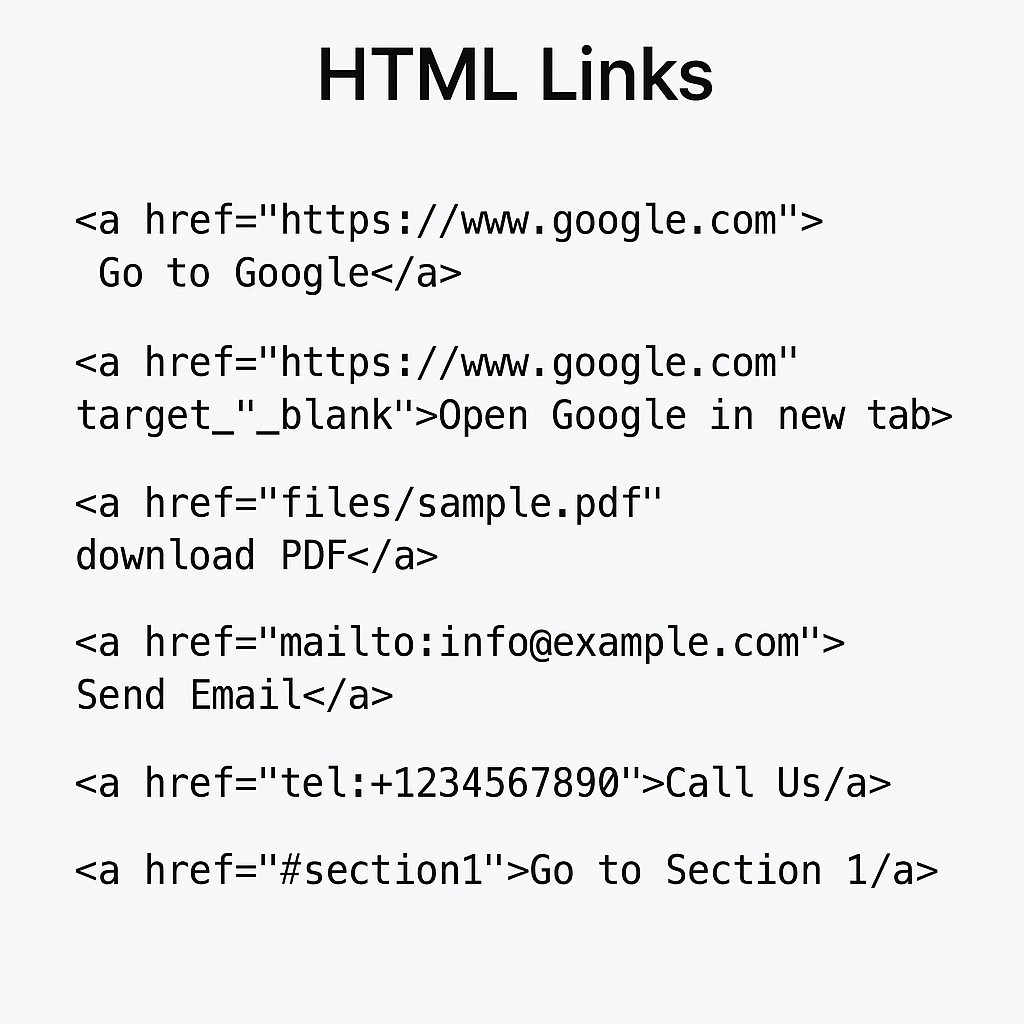
<a href="https://www.google.com">Go to Google</a>An external link like this one points to a completely different website, identified by its full, absolute URL beginning with https://. When a visitor clicks it, the browser leaves your site entirely and loads the destination page, unless you also add a target attribute to change that default behavior, which is exactly what the next example covers.
✅ 📚 Common Link Examples:- Open link in a new tab👇
<a href="https://www.google.com" target="_blank">Open Google in new tab</a>Adding target="_blank" keeps your own page open in its original tab while the destination loads in a brand-new one, which is a common choice for external links so visitors don't lose their place on your site. This attribute is covered in far more depth, including an important security consideration, later in this tutorial.
✅ 📚 Common Link Examples:- Link to a file (e.g., PDF or image)👇
<a href="files/sample.pdf" download>Download PDF</a>The download attribute changes the browser's default behavior from opening the file in a new view to saving it directly to the visitor's device, which is the expected behavior for things like brochures, resumes, and spreadsheets that people generally want on their own computer rather than viewed inline in the browser.
✅ Common Link Examples:-Email link👇
<a href="mailto:info@example.com">Send Email</a>The mailto: prefix tells the browser this isn't a normal web address at all; instead, clicking it opens the visitor's default email application with a new message already addressed to the given email, saving them the step of copying and pasting the address themselves.
✅ Common Link Examples:- Link to a section on the same page👇
<a href="#contact">Go to Contact Section</a>

<!-- Somewhere below on the same page -->

<h2 id="contact">Contact Us</h2>
This pattern, a hash symbol followed by an id, is how the browser scrolls smoothly to a specific spot further down the very same page instead of loading a new document at all. It's the exact same mechanism this tutorial's own Table of Contents above uses to jump you to each section.
✅ Common Link Examples:- 🎨 Link Colors 👇
<!DOCTYPE html>
<html>
<head>
  <style>
    .code-link {
      font-family: monospace;
      background-color: #f4f4f4;
      padding: 4px 8px;
      display: inline-block;
      color: #1e90ff;
      text-decoration: underline;
    }

    .code-link:hover {
      color: #ff4500;
    }
  </style>
</head>
<body>

Check this guide:
<a href="https://learntosap.com" class="code-link">https://learntosap.com</a>

</body>
</html>
Try hovering the live example below, styled with the exact CSS class shown in the code above, to see the color-change effect in action:
📌 Common Link Examples:-HTML Bookmarks (Internal Links)👇
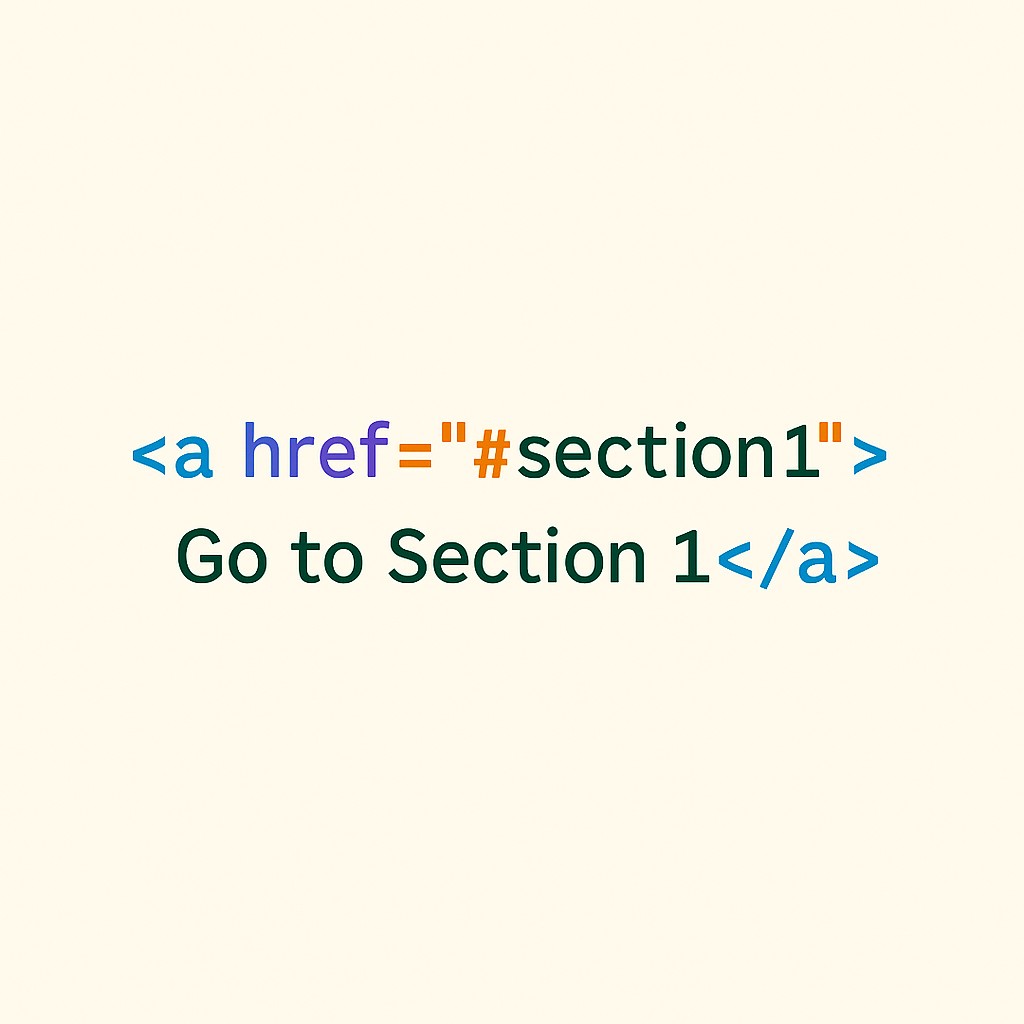
<h2 id="section1">Section 1</h2><a href="#section1">Go to Section 1</a>Bookmarks like this one are especially useful on long pages, glossaries, FAQs, and documentation, anywhere a reader benefits from jumping straight to a relevant heading instead of scrolling manually through unrelated content first.
Understanding the target Attribute in Depth
The target attribute accepts more values than just _blank, even though that's by far the most common one beginners encounter first.
| Value | Behavior |
|---|---|
| _self | Opens in the same tab (this is the default if target is omitted). |
| _blank | Opens in a new tab or window. |
| _parent | Opens in the parent frame, relevant only inside framesets or iframes. |
| _top | Opens in the full body of the window, breaking out of any frames. |
For the vast majority of modern sites, which no longer use framesets, only _self (the implicit default) and _blank come up in everyday work. The other two values remain part of the standard mainly for backward compatibility with older frame-based layouts.
Understanding rel="noopener noreferrer" and Link Security
Whenever you use target="_blank", the newly opened page can, in older or misconfigured browsers, gain limited access back to your original page through a property called window.opener. In rare cases, a malicious destination page could use that access to redirect your original tab to a phishing page while the visitor is looking at the new tab, a technique known as "tabnabbing."
<a href="https://example.com" target="_blank" rel="noopener noreferrer">Safe external link</a>Adding rel="noopener" severs that back-reference entirely, and noreferrer additionally stops the browser from sending your page's URL as referrer information to the destination site. Modern browsers apply some of this protection automatically for target="_blank" links, but explicitly adding rel="noopener noreferrer" remains a widely recommended best practice, since it works consistently across older browsers too and costs nothing to include.
Styling Links With CSS Pseudo-Classes
Beyond the single hover example shown earlier, CSS gives you four distinct pseudo-classes to style a link differently depending on its state. Getting the order right matters, since later rules in the same specificity override earlier ones.
a:link    { color: #2563eb; }   /* Unvisited link   */
a:visited { color: #7c3aed; }   /* Already visited  */
a:hover   { color: #ff4500; }   /* Mouse is over it */
a:active  { color: #dc2626; }   /* Being clicked    */
A helpful memory device many beginners use for the correct order is "LoVe HAte": :link, :visited, :hover, then :active. Writing them in any other order can cause a later, more general rule to accidentally cancel out an earlier, more specific one.
Relative vs Absolute Links
Every href value falls into one of two categories, and beginners often mix them up without realizing it. An absolute link contains the full address, including the protocol and domain, such as https://www.learntosap.com/about.html, and will always point to the same place no matter which page it's placed on. A relative link, by contrast, describes a path relative to the current page's own location, such as about.html or ../images/logo.png, and its meaning changes depending on where the linking page itself lives on the server.
- Use absolute links when pointing to a different website entirely, or in emails and RSS feeds where there's no "current page" context to be relative to.
- Use relative links for internal navigation within your own site, since they keep working correctly if you move the whole site to a new domain.
| Link Written As | Type | Notes |
|---|---|---|
| https://www.learntosap.com/about.html | Absolute | Full protocol and domain; works the same from any page, anywhere. |
| /about.html | Root-relative | Relative to the site's root folder, regardless of the current page's own path. |
| about.html | Document-relative | Relative to the folder the current page itself lives in. |
| ../about.html | Document-relative | The ../ moves up one folder level before looking for the file. |
Real-World Example: Building a Simple Navigation Menu
Nearly every website you've ever visited uses the anchor tag for its main navigation bar, so it's worth seeing several of the patterns from this tutorial combined into one realistic, working example rather than only in isolation.
<nav>
  <a href="index.html">Home</a>
  <a href="about.html">About</a>
  <a href="#pricing">Pricing</a>
  <a href="https://blog.example.com" target="_blank" rel="noopener noreferrer">Blog</a>
  <a href="mailto:hello@example.com">Contact</a>
</nav>
Reading through this single navigation bar, it actually demonstrates four different link types from this tutorial at once: index.html and about.html are relative internal links to other pages on the same site, #pricing is a same-page bookmark link, the Blog link is an external link correctly paired with target="_blank" and rel="noopener noreferrer" since it leaves the current domain, and the Contact link is a mailto: email link. Recognizing these four patterns inside a real navigation bar is a good sign that the underlying concepts from earlier in this guide have actually stuck, rather than only being understood in isolated, single-line examples.
Accessibility Best Practices for Links
Because links are one of the most frequently interacted-with elements on any page, getting their accessibility right has an outsized impact on how usable your whole site is for people relying on assistive technology such as screen readers or keyboard-only navigation.
- Never rely on color alone to indicate a link: Some visitors cannot distinguish colors well; an underline or other non-color cue should also mark clickable text.
- Keep link text unique across a page where possible: Several links all reading "read more" force a screen reader user to guess which one leads where, unless surrounding context is announced too.
- Make sure focus is visible: When a visitor tabs through links with a keyboard, a clear focus outline (the browser default, or your own custom style) shows exactly which link is about to be activated.
- Avoid opening too many links in new tabs: Each unexpected new tab can disorient a screen reader user who isn't watching the screen for a new tab to visually appear.
- Use the title attribute sparingly: It can add helpful extra context on hover, but should never contain information that is essential to using the link, since not all assistive technology reliably announces it.
None of these practices require special tools or frameworks, they are simply habits to build into how you write ordinary anchor tags, and they cost virtually nothing in development time compared to the real difference they make for a meaningful share of your visitors.
Common Mistakes to Avoid
❌ Mistake 1 – Using vague link text like "click here"
Link text should describe the destination on its own; a screen reader user jumping link-to-link cannot tell what "click here" leads to.
❌ Mistake 2 – Forgetting rel="noopener noreferrer" with target="_blank"
Skipping this leaves a small but real security gap for older browsers, as covered earlier in this guide.
❌ Mistake 3 – Broken or mistyped href values
A single typo in a URL, or a missing leading slash in a relative path, silently turns a working link into a dead one with no visible error in the browser.
❌ Mistake 4 – Wrapping non-clickable-looking content in an anchor with no visual cue
If an entire block is clickable, visitors need some visual signal (underline, cursor change, hover color) or they simply won't realize it can be clicked.
Best Practices for HTML Links
✔️ 1) Write descriptive link text
Favor phrases like "Download the pricing PDF" over generic text like "click here" or "read more."
✔️ 2) Always pair target="_blank" with rel="noopener noreferrer"
This one habit closes a real, if small, security gap at no cost to functionality.
✔️ 3) Use relative paths for internal links
They keep working automatically if you migrate your site to a new domain later.
✔️ 4) Give every anchor target of a bookmark link a unique id
Duplicate id values on a page will cause a bookmark link to jump to the wrong element, or fail silently.
✔️ 5) Test every link before publishing
A quick manual click-through, or an automated link checker on a large site, catches typos before visitors do.
Try It Yourself (Copy This Code and Paste. See how it works)
Live Code Preview
Practice Exercises: Test the Anchor Tag
The fastest way to make every link type feel natural is to write each of them yourself at least once. Try each of these directly in the live editor above:
- Write a link to your favorite website, then add target="_blank" and the recommended rel="noopener noreferrer".
- Create a mailto: link addressed to your own email, and confirm it opens your email client correctly.
- Add an id to a heading further down a page, then write a bookmark link above it that jumps straight there.
- Style a link with all four pseudo-classes, :link, :visited, :hover, :active, in that order, and click it to see each state.
- Write one relative link and one absolute link pointing to the same destination, and compare how each is written.
By the end of these five exercises you will have written every link pattern covered in this tutorial at least once, which is the quickest way to stop needing to look up anchor tag syntax.
Frequently Asked Questions About HTML Links
What is the HTML links tag?
The HTML links tag is the anchor tag, written as <a>. It is used to create a hyperlink that takes a visitor to another page, another website, a file, an email address, or a section of the same page when clicked.
What does the href attribute do in an anchor tag?
The href attribute specifies the destination of the link, such as a URL, a file path, an email address prefixed with mailto:, or an on-page id prefixed with a hash symbol.
How do I open a link in a new tab?
Add target="_blank" to the anchor tag. It is best practice to also add rel="noopener noreferrer" alongside target="_blank" for security and performance reasons.
How do I create an email link in HTML?
Set the href attribute to mailto: followed by the email address, for example href="mailto:info@example.com". Clicking the link opens the visitor's default email application with that address pre-filled.
How do I link to a section on the same page?
Give the target element an id attribute, then set the anchor's href to a hash symbol followed by that id, for example href="#contact" linking to an element with id="contact".
What is the difference between an internal and an external link?
An internal link points to another page within the same website, usually using a relative path, while an external link points to a page on a different website, usually using a full absolute URL starting with https://.
How do I make a link download a file instead of opening it?
Add the download attribute to the anchor tag, for example <a href="files/sample.pdf" download>Download PDF</a>. Most browsers then save the file instead of navigating to it.
Can I use an image as a clickable link?
Yes. Simply wrap an img tag inside an anchor tag, for example <a href="page.html"><img src="photo.jpg" alt="Description"></a>. The entire image becomes clickable and behaves like any other link.
Do I always need rel="noopener noreferrer" with target="_blank"?
Most modern browsers now apply some of this protection automatically, but explicitly adding rel="noopener noreferrer" is still recommended best practice, since it guarantees the protection consistently across older browsers as well.