Define Material Type in SAP MM (T-code OMS2) — Step-by-Step Guide
Every material master record in SAP begins with one decision: which material type it belongs to. This guide walks through the full OMS2 configuration path, the control settings behind each material type, and the mistakes that cause master-data headaches later.
⚠ What Is a Material Type in SAP MM?
A material type is a classification in SAP Materials Management that groups materials sharing similar business characteristics - raw materials, semi-finished goods, finished products, trading goods, spare parts, or services. It's one of the very first pieces of information requested when creating a material master record, and it quietly drives a long list of system behaviors behind the scenes: which screen views appear, how the material number is assigned, whether the material carries a value in inventory, and which general ledger accounts get updated during a goods movement.
Because material type shapes so much downstream behavior, it's configured once centrally through transaction OMS2 and then referenced by every material master record created against it. Getting the underlying material type wrong is far more disruptive than a typo in a material description, since it touches valuation, number ranges, and screen logic all at once.
Why Material Type Matters Beyond Simple Classification
Newcomers to SAP MM sometimes assume material type is just a label, similar to a category tag on a product catalog. In practice it's closer to a rulebook: it decides whether a material is valuated in inventory at all, whether its material number is assigned automatically by the system or entered manually, which industry-specific fields show up on the material master, and how goods receipts and issues post to finance. Two materials that look similar on the surface - say, a purchased component and a manufactured component - often need entirely different material types because the business processes and accounting treatment behind them differ.
📋 Where OMS2 Fits in the Material Master Structure
SAP organizes material master data through a layered structure, and material type sits right at the top of that hierarchy, above industry sector but below the individual material master record itself. When a user runs MM01 to create a new material, the system first asks for an industry sector and material type, and that single combination determines which views - basic data, purchasing, MRP, accounting, sales, and so on - get offered for maintenance next.
| Level | Represents | Configured Via |
|---|---|---|
| Industry Sector | A broad classification such as mechanical engineering, retail, or chemicals that filters which fields are relevant | OMS3 |
| Material Type | Groups materials by role and controls number ranges, valuation, and screen views | OMS2 |
| Material Master Record | The individual material itself, created against a specific material type and extended plant by plant | MM01 / MM02 |
This layering is why material type configuration is almost always completed early in an implementation project, well before functional consultants start loading real material master data.
💼 Business Scenario: Why Getting Material Type Right Matters
Consider an energy equipment manufacturer that needs to track raw metal stock separately from finished switchgear units. If both were accidentally created under the same generic material type, inventory reports would blend raw and finished stock together, valuation would use one shared price-control method that suits neither category well, and the automatic account postings during goods movements would route to the wrong general ledger accounts for one of the two categories.
By defining distinct material types - one for active raw material, another for finished allocated product - each group gets its own number range, its own default price control, and its own account determination behavior, keeping stock reporting clean and finance postings accurate from day one.
✅ Prerequisites Before Running OMS2
- Decide the full list of material types the business actually needs before configuring the first one, since retrofitting new types later means re-classifying existing materials
- Confirm whether a number range interval already exists for the type, or whether a new one needs to be created first through MMNR
- Agree on price control strategy (standard price versus moving average price) with the finance/controlling team before finalizing default settings
- Hold authorization to edit client-level customizing tables, since OMS2 is a cross-client configuration change
- Review whether an existing material type is close enough to copy as a starting reference, which saves significant configuration time
🛠️ Step-by-Step: Defining a Material Type Using OMS2
Open the Configuration Path
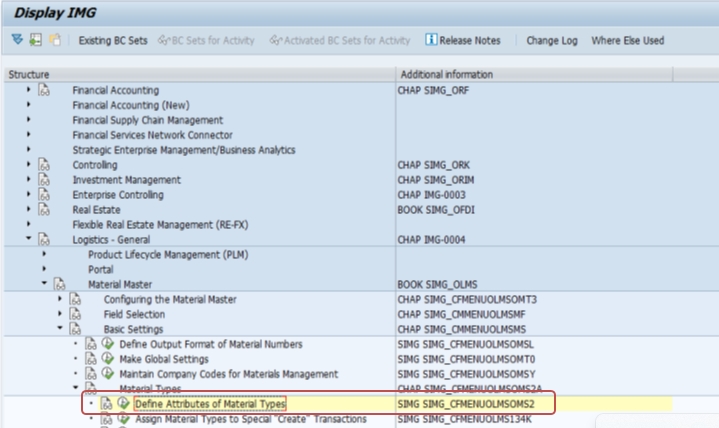
Log in with customizing access, then type OMS2 directly into the transaction box, or follow SPRO > Logistics General > Material Master > Basic Settings > Material Type > Define Attributes of Material Types.
Select New Entries
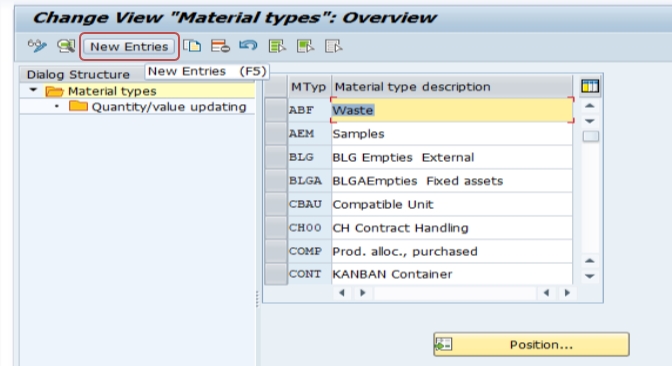
On the overview screen listing every existing material type, click New Entries to build a fresh type from scratch. Alternatively, select an existing type close to what you need and use Copy As to inherit its settings as a starting point.
Create the Material Type Codes and Descriptions
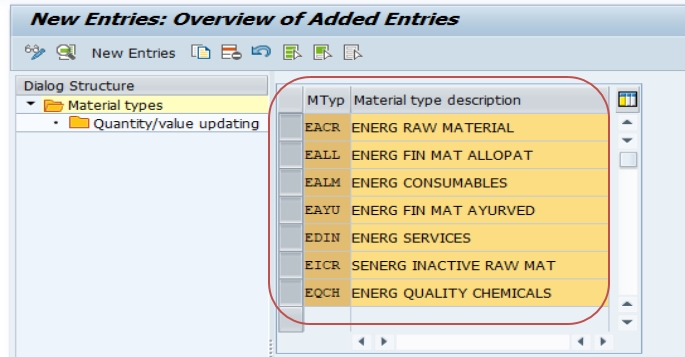
Enter a short, meaningful code and description for each new material type - for example EACR for an active raw material category tied to energy components, and EALL for an allocated finished-material category. Keep descriptions specific enough that someone outside the configuration team can understand the intended use at a glance.
Select the New Entry to Review Control Settings
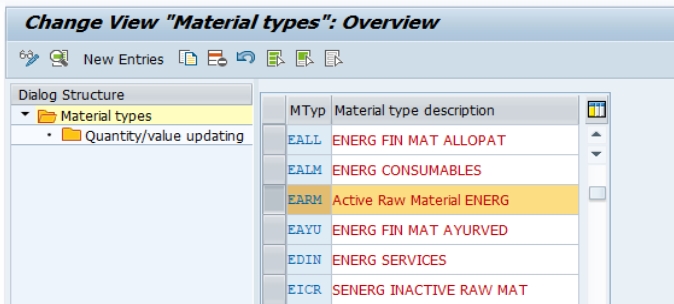
Select the newly created material type - for example EARM, an active raw material category - to open its detailed control settings screen, where quantity/value update flags, number assignment, price control, and field selection reference are maintained.
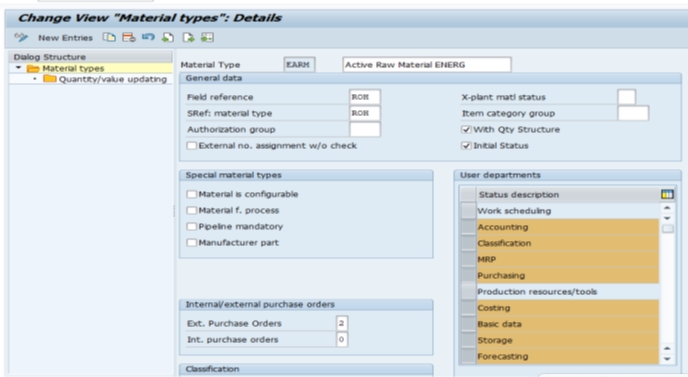
Save and Assign to a Transport Request
Click Save. SAP prompts you to capture the change under a customizing transport request. Assign it with a clear description, for example "Create material types EACR and EALL for energy division," and release it once testing is complete.
⚙️ Key Control Settings Inside a Material Type
The OMS2 detail screen looks compact, but each setting has a meaningful downstream effect once transactions start flowing.
Quantity and Value Update
This flag, set per valuation area, decides whether stock quantity and stock value are tracked for the material type. Most physical materials update both; some reference or non-stock material types intentionally leave value update switched off.
Internal or External Number Assignment
A material type can be configured for internal number assignment, where SAP automatically generates the next material number from a defined number range, or external assignment, where the user (or a data migration file) supplies the number manually. Getting this decision right early avoids painful renumbering exercises later.
Price Control Default
Material type typically proposes a default price control indicator - standard price (S) or moving average price (V) - though the material master allows overriding this per material during creation, subject to what the material type and valuation class combination permits.
Field Selection Reference
Each material type points to a field selection group that determines which fields are mandatory, optional, displayed, or hidden across the material master views, keeping data entry focused on what's actually relevant for that category of material.
Account Category Reference
This setting narrows down which valuation classes are permitted for materials of this type, which in turn influences account determination during goods movements - a detail finance teams care about closely during blueprint sign-off.
📦 Common Standard Material Types Used in SAP MM Projects
Most implementations rely heavily on a familiar set of SAP-delivered material types before adding any custom ones, since these already carry sensible default control settings.
| Code | Represents |
|---|---|
| ROH | Raw materials, typically procured externally and consumed in production |
| HALB | Semi-finished goods, produced internally as an intermediate stage |
| FERT | Finished products, ready for sale to customers |
| HAWA | Trading goods, purchased and resold without further processing |
| VERP | Packaging materials used to pack or ship other materials |
| DIEN | Services, non-physical items procured or sold |
| ERSA | Spare parts, used mainly in plant maintenance and repairs |
Custom material types, like the EACR and EALL examples shown in this guide, are usually created when a business needs finer-grained control than the standard set offers - separate number ranges for a specific product line, or distinct valuation behavior for a niche category of stock.
⚠️ Common Errors and How to Resolve Them
"No number range interval maintained for material type"
This appears when a material type is configured for internal number assignment but no number range interval has been created or assigned to it. Fix this via transaction MMNR before attempting to create materials of that type.
Material master fields missing or greyed out unexpectedly
This usually traces back to the field selection reference on the material type rather than a screen layout problem elsewhere - check the field selection group assigned in OMS2 before troubleshooting further in MM01/MM02 configuration.
"Valuation class not allowed for this material type"
The valuation class chosen on the accounting view isn't part of the account category reference linked to the material type. Either pick a permitted valuation class or extend the account category reference if the business genuinely needs it.
Entry saves without a transport request
In a sandbox or standalone client, changes may save locally. In a proper landscape, always confirm the change was captured in a transport request, otherwise it won't move forward to quality assurance or production.
🔗 Related SAP MM Transaction Codes
| T-code | Purpose |
|---|---|
| OMS2 | Define attributes of material types |
| OMS3 | Define industry sectors |
| MMNR | Maintain material number ranges |
| MM01 | Create material master record |
| MM02 | Change material master record |
| OMSF | Set field selection for material type screens |
| OBYC | Automatic account determination configuration |
Reviewing this table alongside your project blueprint confirms every dependent configuration node has been completed in the right sequence before material master loading begins.
🏢 Custom Material Types vs Standard SAP Material Types
Using Standard Material Types
Sticking with SAP-delivered types like ROH, HALB, and FERT reduces configuration effort, is well understood by consultants moving between projects, and inherits sensible default settings that have been battle-tested across thousands of implementations. This is the right choice whenever the business's material categories map cleanly onto the standard definitions.
Creating Custom Material Types
Some businesses have reporting or valuation needs that don't fit neatly into the standard set - a distinct number range for a regulated product line, separate account determination for a specific stock category, or a business-specific naming convention. In these cases, copying a close standard type as a starting point (as shown in the step-by-step section of this guide) is safer than building entirely from a blank entry, since it inherits proven default behavior that can then be adjusted deliberately.
Balancing the Two Approaches
Most mature SAP landscapes end up with a mix: standard types for the bulk of everyday materials, and a small number of custom types reserved for genuinely distinct business scenarios. Creating too many custom material types "just in case" tends to fragment reporting and confuse end users, so it's worth challenging every proposed custom type against a real, documented business requirement before configuring it.
🔒 Authorization Considerations for Maintaining OMS2
Because material type configuration affects valuation, number assignment, and account determination all at once, access to OMS2 should be restricted to functional consultants or configuration leads with a clear change-management process behind every edit. A single incorrect setting - such as accidentally disabling value update on a type that should be valuated - can silently distort inventory value reporting for weeks before finance notices a mismatch between physical stock and the general ledger.
📅 How OMS2 Fits Into a Broader Implementation Timeline
Material type configuration typically happens early in the Materials Management work stream, right after industry sector decisions and before number range setup, field selection configuration, and material master data loading. Because material type is referenced by virtually every material master record created afterward, most project plans treat it as a blocking dependency - functional teams cannot begin loading real or test material data until the material type list is finalized and configured.
This configuration also resurfaces during business expansion projects, such as adding a new product line or entering a new regulated category of goods, where a fresh material type may be required to keep the new category's valuation and reporting cleanly separated from existing materials.
✅ Testing Checklist After Configuring OMS2
- Create a test material master record using MM01 against the new material type and confirm the expected views and fields appear
- Confirm the material number is generated correctly if internal number assignment was configured, or accepted correctly if external
- Post a test goods receipt and confirm the value update behavior matches what was intended for the material type
- Check that the correct general ledger accounts are hit during the test posting, confirming the account category reference is correct
- Ask a business user with standard (non-configuration) access to create a live test material, confirming the setup works outside the developer's own profile
❓ Common Misconceptions About Material Type Configuration
- "Material type and material group are the same thing" - they are not; material type is configuration that controls system behavior, while material group is a reporting field with no control function
- "Material type can be freely changed once materials exist" - changing it is heavily restricted once stock or documents exist, so the initial design matters
- "Every business category needs its own material type" - unnecessary custom types fragment reporting; only create one when a genuine control difference is needed
- "OMS2 controls pricing conditions" - pricing conditions live in separate condition records, not in the material type control settings
📖 Glossary of Key Terms
| Term | Meaning |
|---|---|
| Material Type | A classification controlling number ranges, valuation, and screen views for a group of materials |
| Industry Sector | A broad classification filtering which fields are relevant on the material master |
| Price Control | The valuation method (standard or moving average price) applied to a material |
| Field Selection Reference | The rule set determining which fields are mandatory, optional, or hidden on material master screens |
| Account Category Reference | The setting narrowing which valuation classes are permitted for a material type |
| Number Range | The interval of numbers used to generate or validate material master numbers |
🔍 Case Study: Fixing a Valuation Mismatch Traced to Material Type
An electrical components company noticed that a batch of newly created finished materials was showing zero stock value in inventory reports despite goods receipts being posted successfully. The finance team initially suspected a posting error in the goods receipt process. Investigation traced the issue back to a recently created material type, EALL, where the quantity and value update flag had been left switched off for the relevant valuation area during initial configuration.
Because value update was disabled, SAP tracked the quantity correctly but never generated a corresponding value posting, leaving the materials effectively invisible to standard inventory valuation reports. The fix required updating the material type's control setting in OMS2, followed by a manual valuation correction for the materials already affected. This case illustrates why the quantity and value update flag deserves careful review during initial material type setup, since its effects are easy to miss until a valuation report exposes the gap.
💡 Key Takeaways
- Material type is configured once through OMS2 and referenced by every material master record created against it
- It controls number assignment, valuation behavior, field selection, and account determination all at once
- Standard material types like ROH, HALB, and FERT cover most business needs; create custom types only for genuine control differences
- Copying an existing material type as a starting reference is usually safer than building entirely from a blank entry
- Test with a real material master creation and a real goods movement before signing off on any new material type
- Every configuration change should move through a transport request and a proper change management process