SAP LSMW: Legacy System Migration Workbench Tutorial
LSMW (Legacy System Migration Workbench) is a free, built-in SAP tool that simplifies moving data from a legacy or non-SAP system into SAP. It works like a structured, guided translator: you define how your legacy data maps onto SAP's data structures, and LSMW handles reading, converting, and loading that data through SAP's standard transaction processing. This guide walks through all 14 steps of LSMW with real screenshots from a material master (MM01) recording example, then goes deeper into when to use LSMW versus other migration methods, common errors, and a full prevention checklist. If you encounter any errors in SAP, feel free to send a screenshot to pramod@learntosap.com for help.
✅ What Is LSMW, and Why It's Still Widely Used
LSMW simplifies data migration by giving functional consultants a graphical, step-by-step interface, rather than requiring custom ABAP development for every migration project. It supports several distinct import methods - Batch Input Recording, Direct Input, BAPI, and IDoc - letting you choose the technique that best fits the specific SAP object you're loading, from material masters and customers to G/L accounts and HR records.
🔧 Getting Started: Creating a Project, Subproject, and Object
Every LSMW migration is organized under a three-level hierarchy - Project, Subproject, and Object - which lets you group related migrations together (for example, all Finance data migration under one project) while keeping each individual migration task, like loading materials, as its own distinct object with its own 14-step configuration.
Create a Project
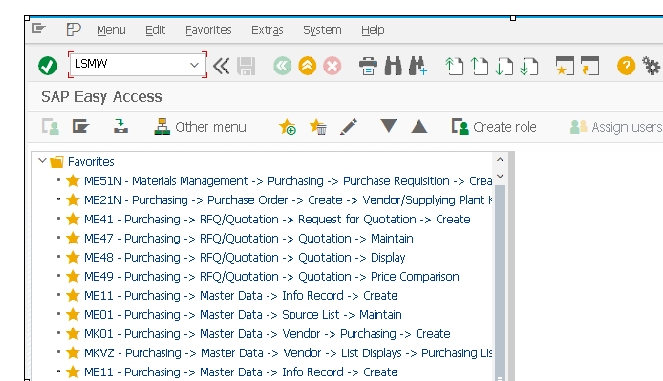
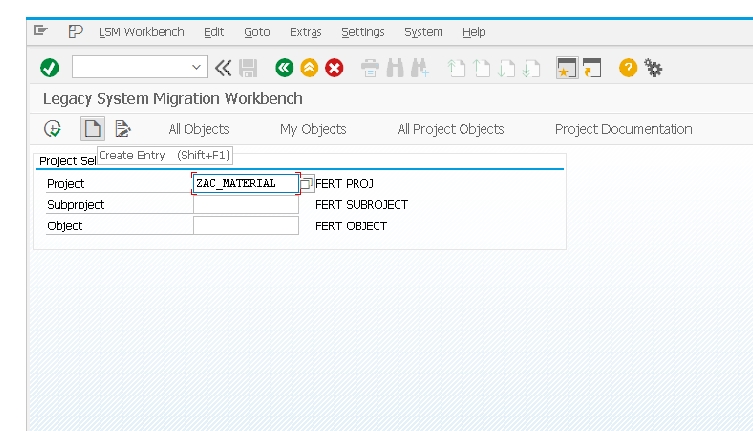
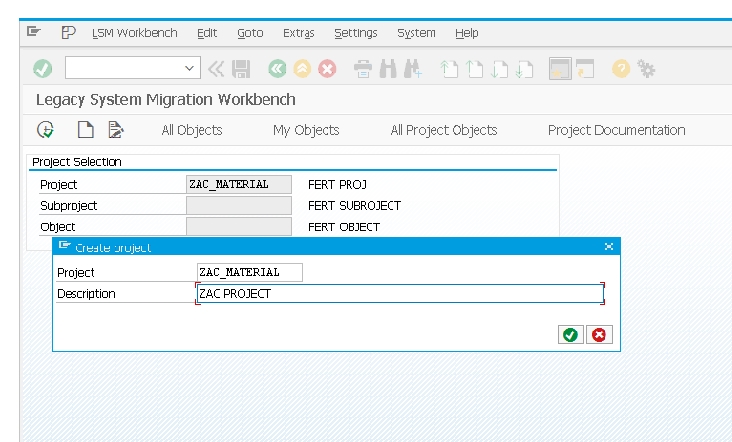
Enter transaction LSMW, type a project name, and select the New Entry button to create it.
Create a Subproject
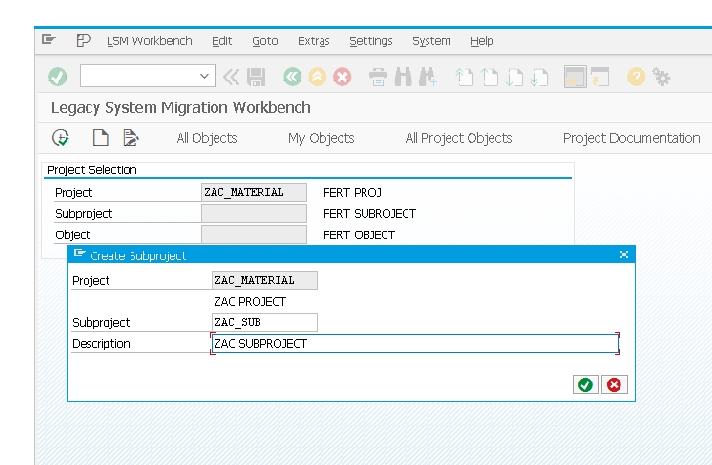
Within the project, create a subproject to group a related set of objects.
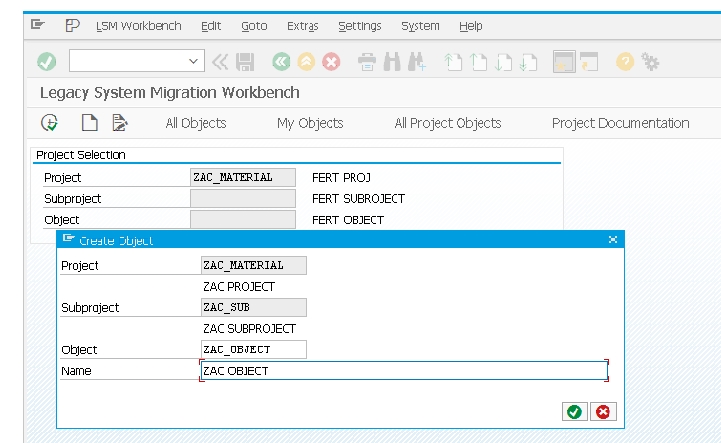
Create an Object
Create the specific migration object - this is where you'll choose your import method (Batch Input Recording, Direct Input, BAPI, or IDoc) based on the SAP data type you're loading.
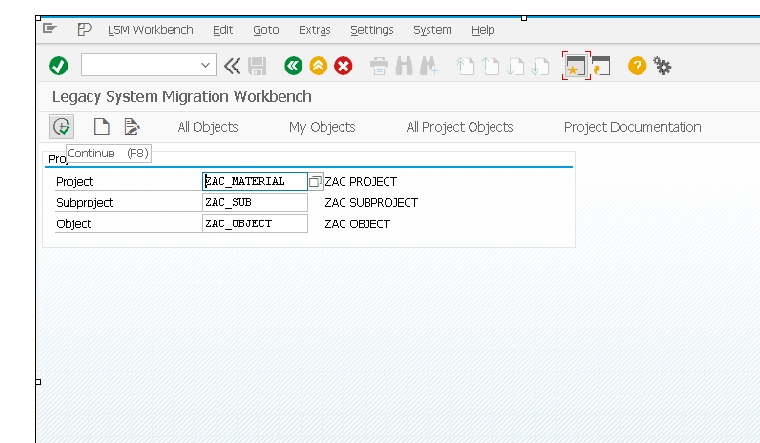
Select Continue to proceed into the 14-step process.
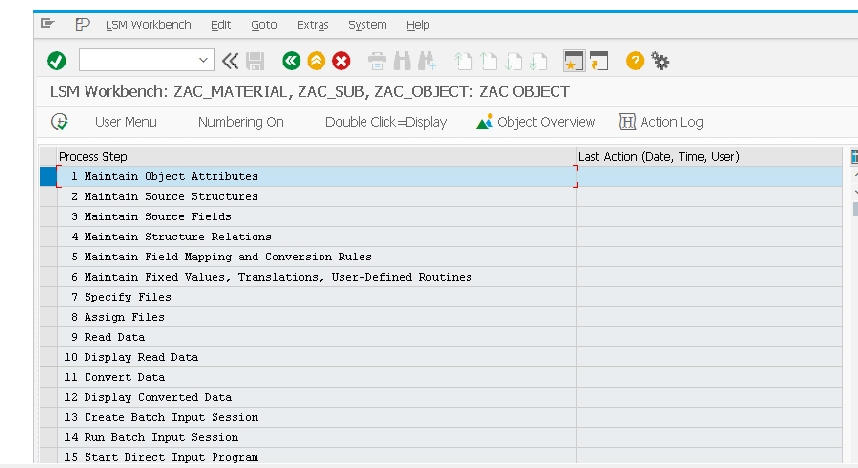
✅ The LSMW 14-Step Process, Overview
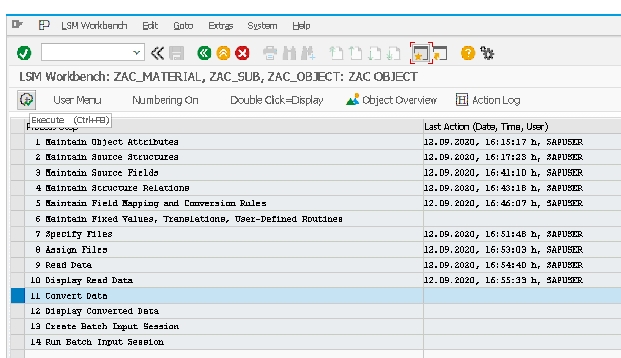
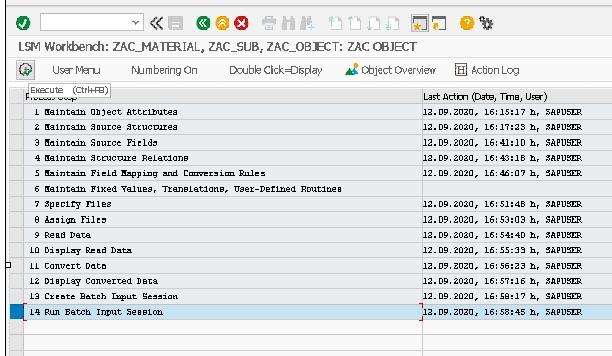
Once the object is created, LSMW presents its full 14-step process, walking you from defining the target transaction through to actually executing the load. Steps are typically completed top to bottom in order, though you can revisit earlier steps if something needs correcting.
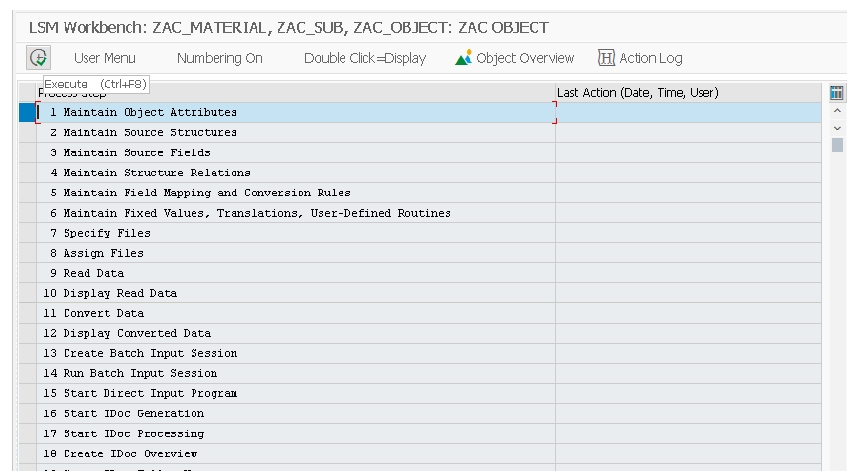
Maintain Object Attributes
Select Maintain Object Attributes and choose Execute. This is where you define the import method for this specific object - in this example, Batch Input Recording, which works by recording a real transaction (here, MM01 for material creation) and later replaying it automatically with data drawn from your legacy file.
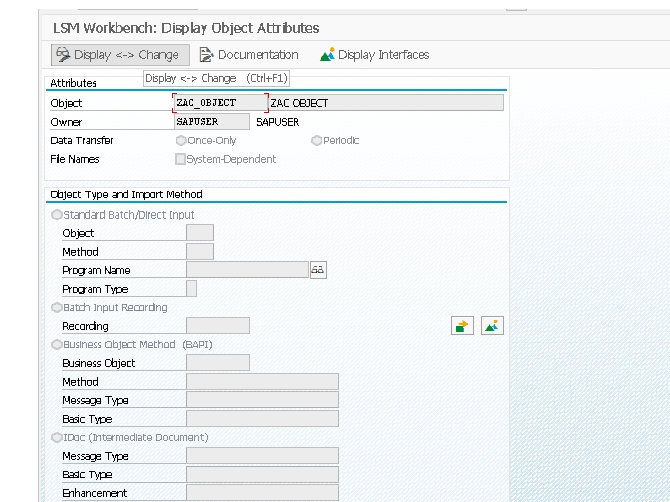
Select Display/Change, then choose the second option, Batch Input Recording, as the import method.
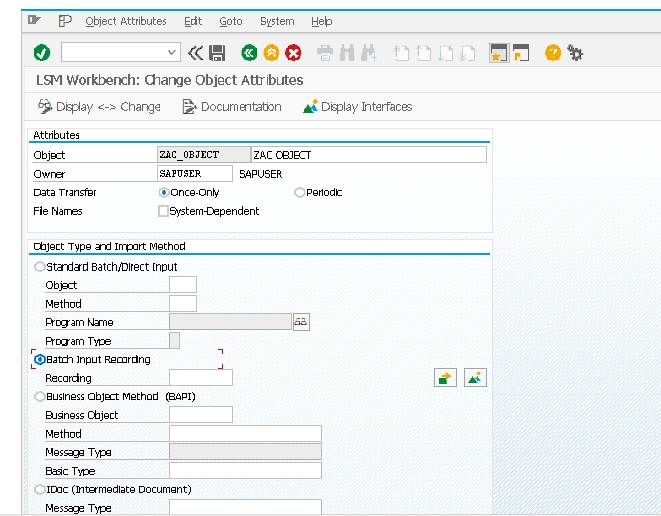
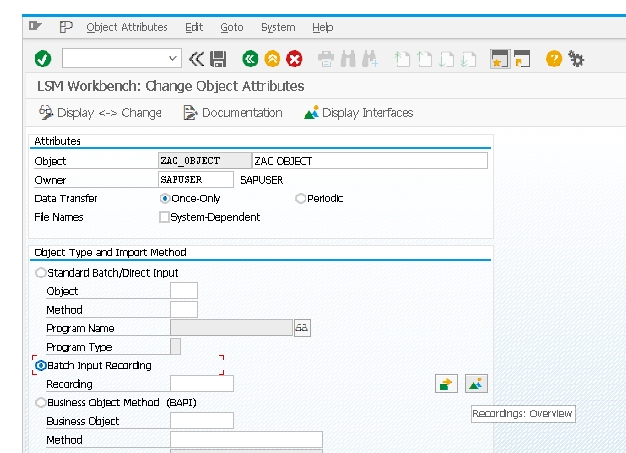
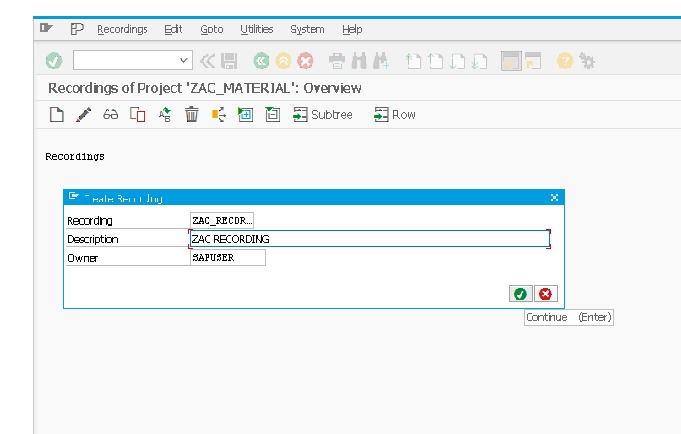
Select Recording Overview to see any existing recordings, or to create a new one.
Select Create Recording.
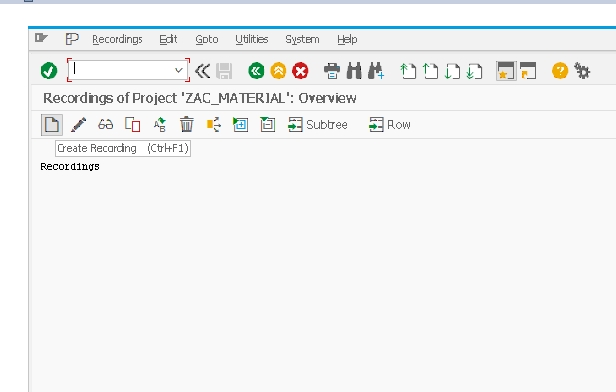
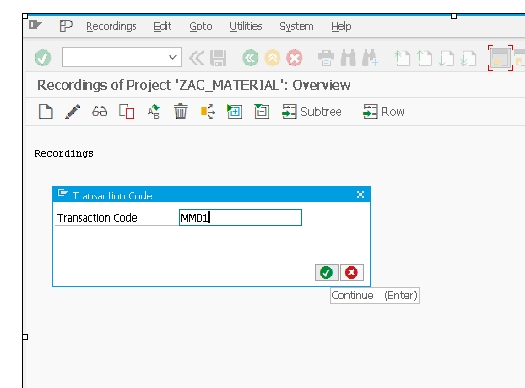
Enter the transaction code you want to record - in this example, MM01 for material master creation.
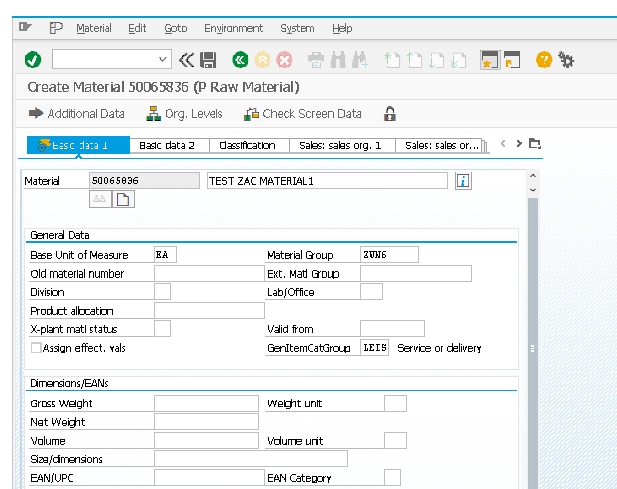
Select the Default All button to accept default field values for the recording, then save.
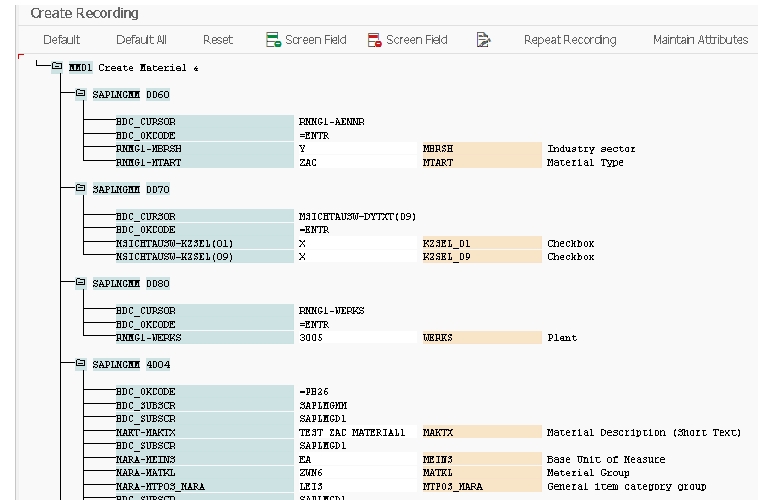
Once saved, select the back button to return to the object attributes screen with your new recording now attached.
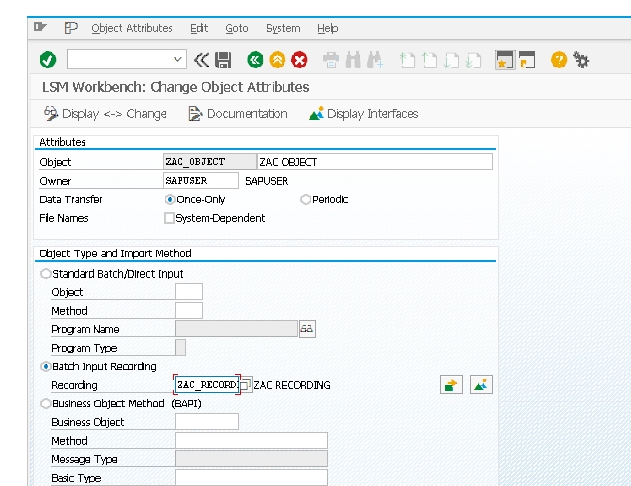
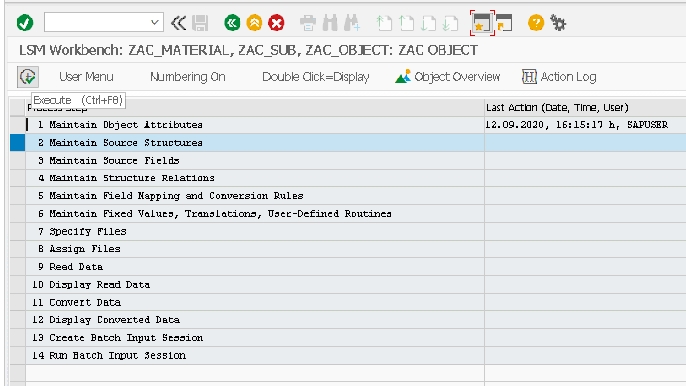
Maintain Source Structures
Select Execute to open the Maintain Source Structures step.
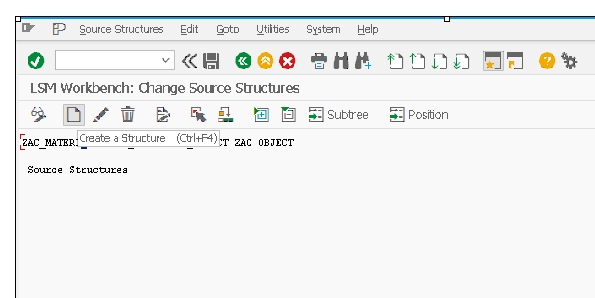
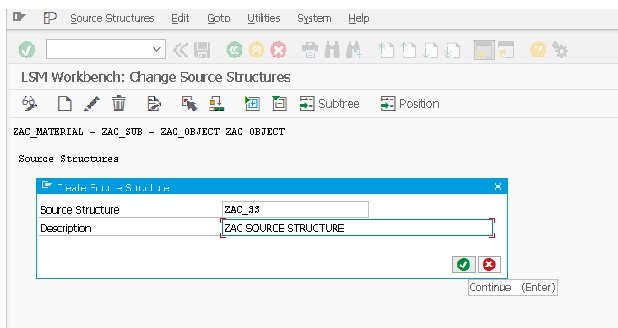
Select Create Structure and give it a name (for example, ZAC_SS) - this structure will represent the shape of your legacy data file.
Maintain Source Fields
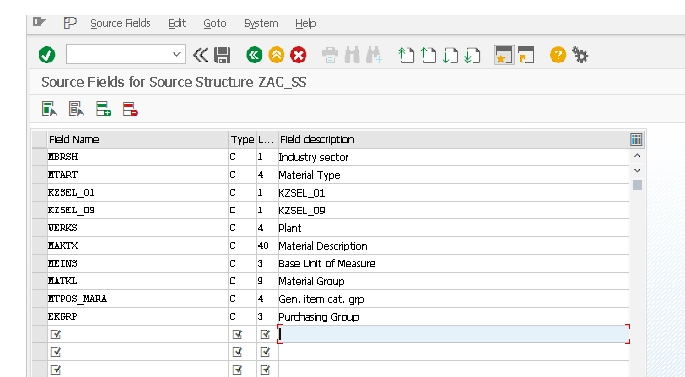
This step defines the individual fields within your source structure, matching the actual columns in your legacy data file.
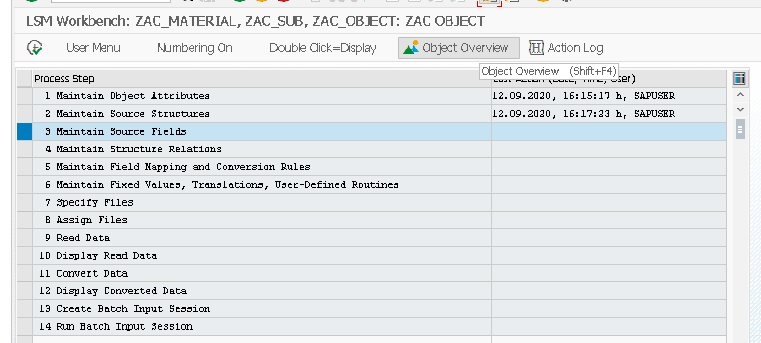
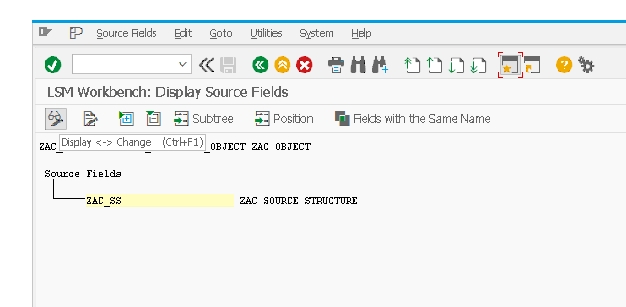
Select Object Overview, then choose the relevant table to reference which fields the target transaction expects.
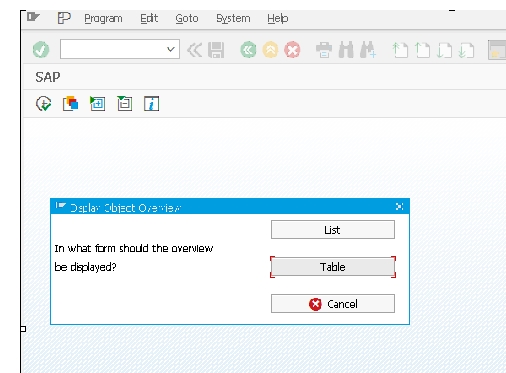
Select the table using Ctrl+Y, then copy it into Excel format for easier field-by-field review.
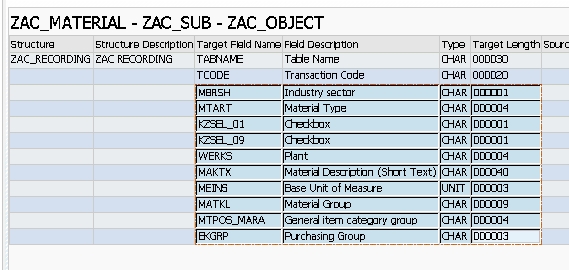
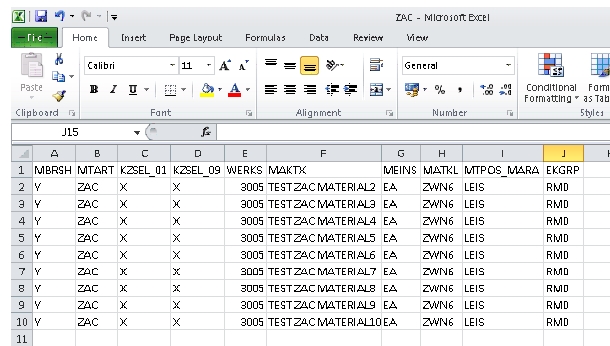
Select Change, then Table Maintenance, and go to Excel to select and copy the source data.
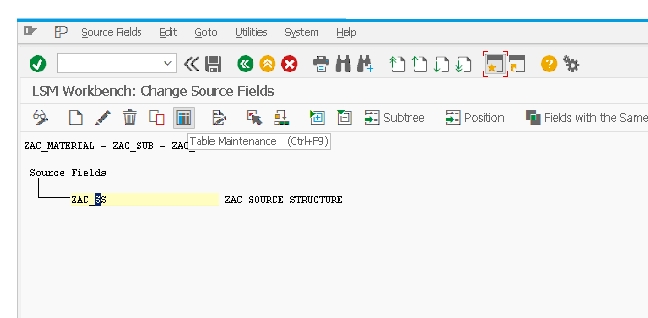
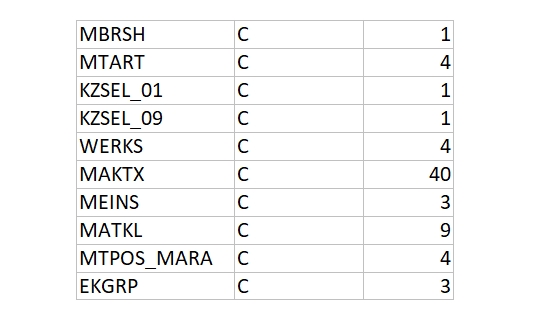
Paste the copied field list into LSMW's source field table, then save.
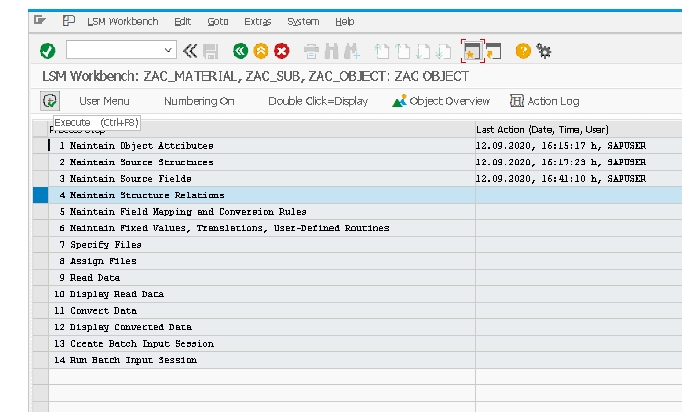
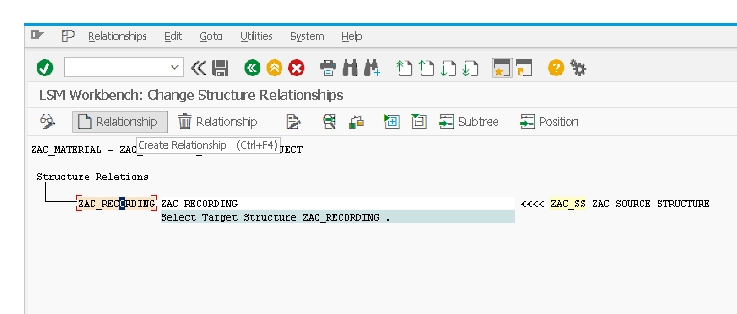
Maintain Structure Relations
This step links your newly created source structure to the SAP target structure that LSMW generated from your MM01 recording. Select the relationship and save.
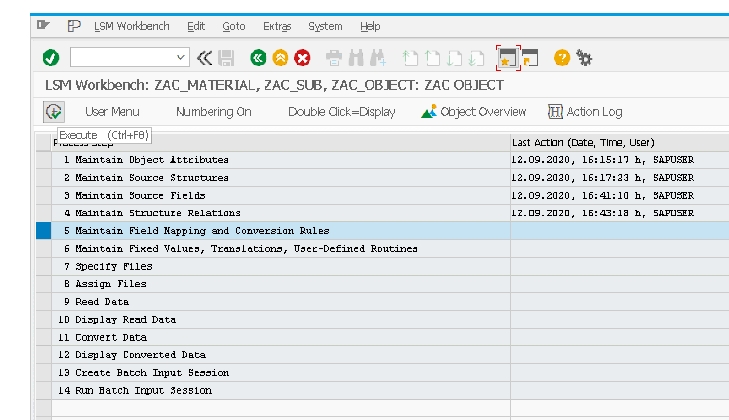
Maintain Field Mapping and Conversion Rules
Select Execute, then Change, to enter field mapping mode.
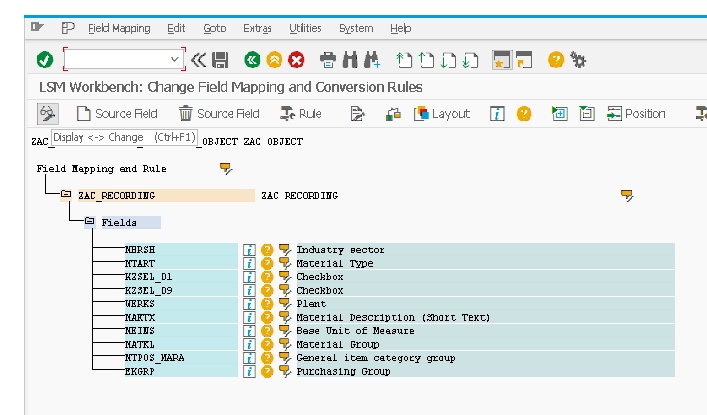
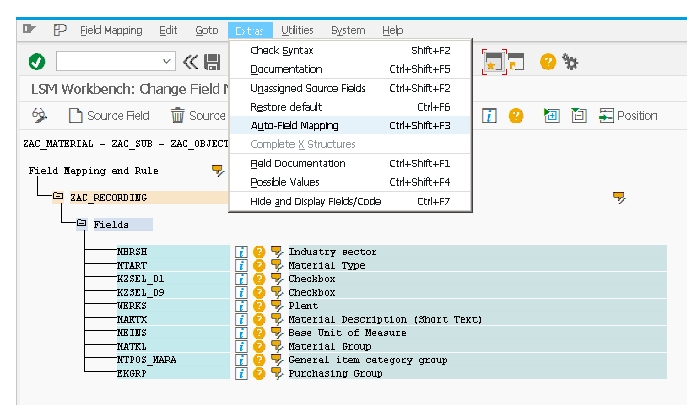
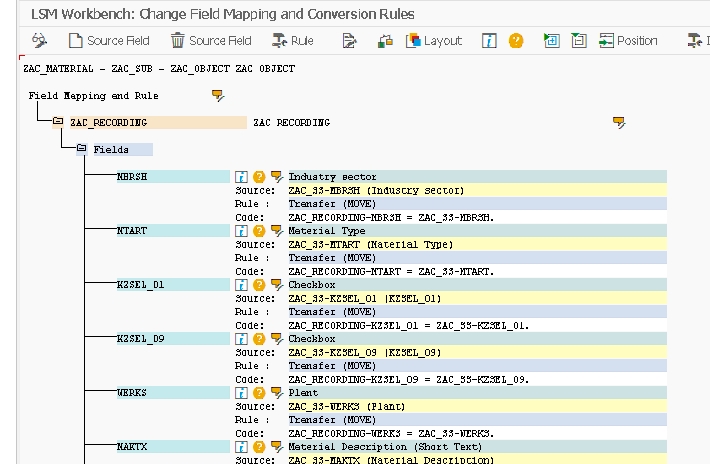
In change mode, go to the Extras tab and select Auto Field Mapping, which lets LSMW automatically match source fields to target fields wherever the names correspond, saving considerable manual mapping time.
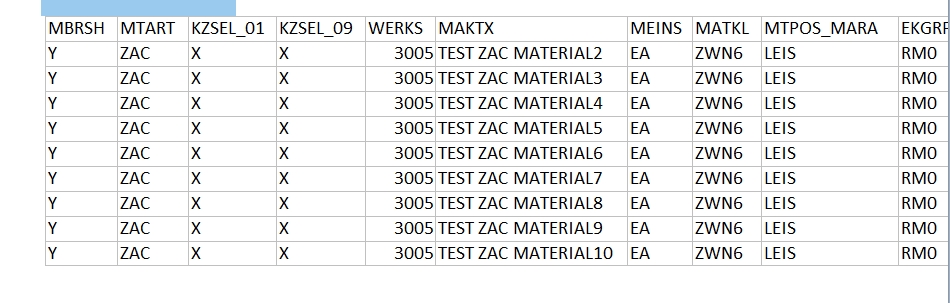
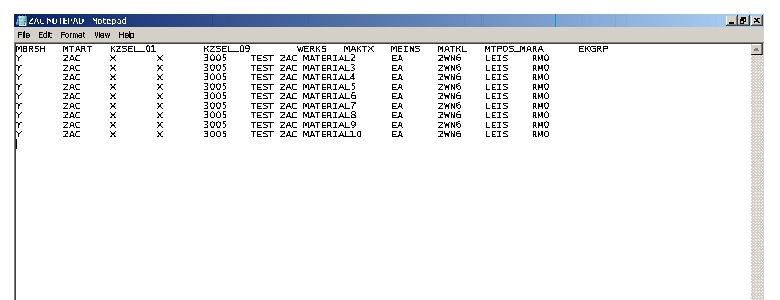
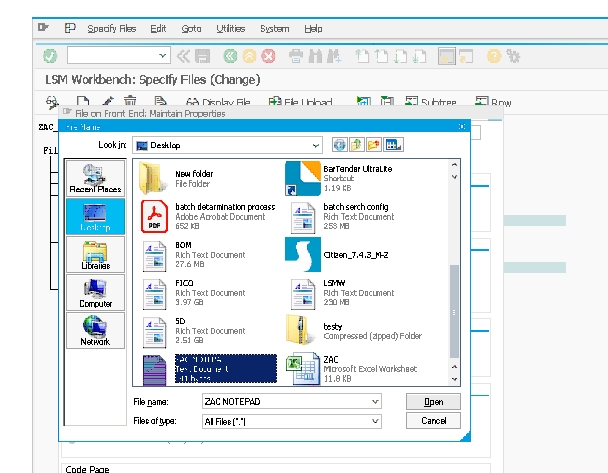
Next, prepare your actual legacy upload data - copy the source data and paste it into a plain text file (Notepad), which will be read by LSMW during the file specification step.
Maintain Fixed Values, Translations, User-Defined Routines
This step is part of LSMW's standard 14-step process, sitting between field mapping and file specification, though it's easy to overlook since it doesn't always require action for a simple migration. It lets you define three additional kinds of transformation logic beyond a direct field-to-field mapping:
- Fixed values - a constant value applied to every record, useful when a target field should always receive the same value regardless of what's in the legacy data (for example, always setting a specific plant or material status).
- Translations - a lookup table converting a legacy code into its corresponding SAP code, useful when your legacy system used different codes for the same concept (for example, translating legacy unit-of-measure codes into SAP's standard units).
- User-defined routines - custom ABAP logic for transformation needs too complex for a simple fixed value or translation table, such as conditional logic based on multiple source fields.
For straightforward migrations where source and target fields map directly with matching values, this step can be skipped entirely - it exists specifically for the more complex transformation scenarios that a simple field mapping alone can't handle.
Specify Files
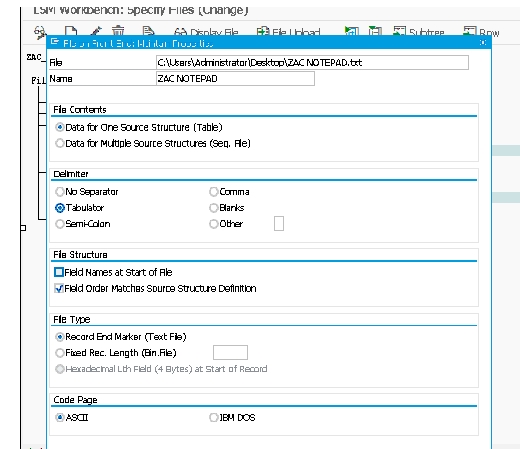
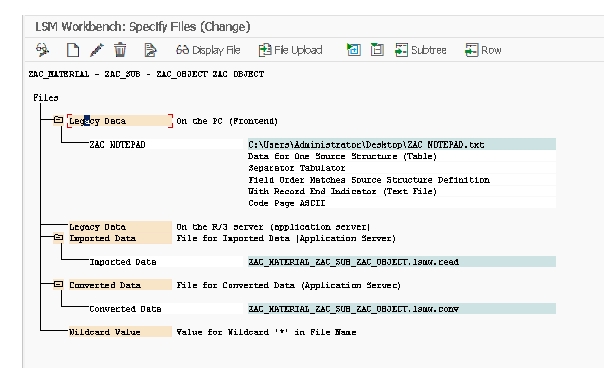
Select Execute, then Change mode, to specify the legacy data file LSMW will read from.
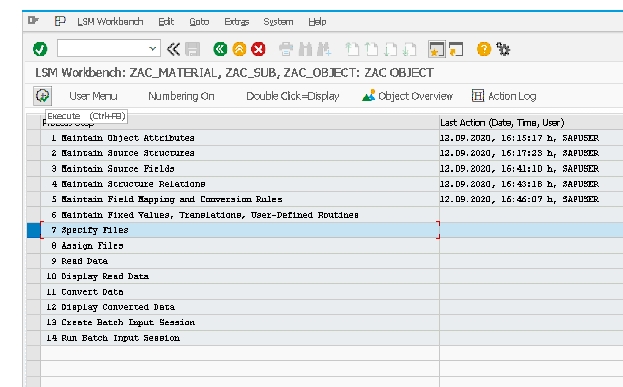
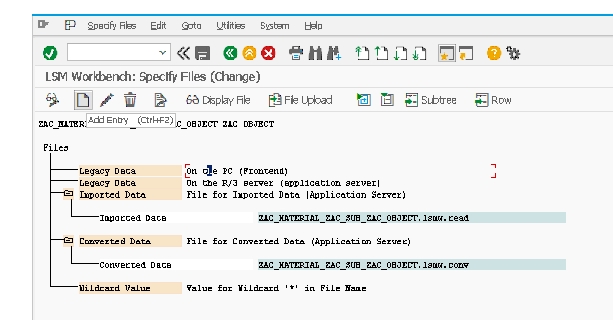
Select Legacy Data File, then browse and select the text file prepared in the previous step.
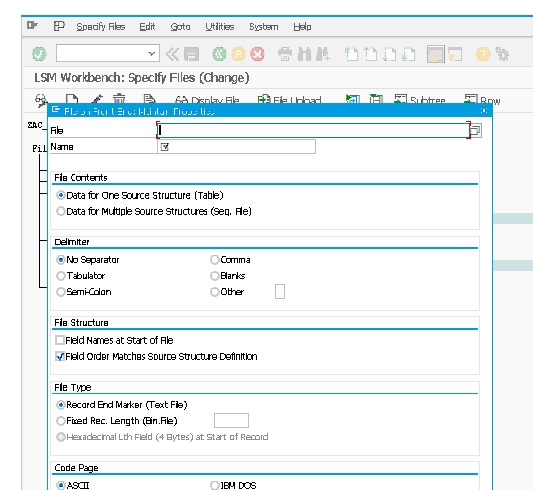
Save, then select the Tabulator option to specify the file's delimiter format.
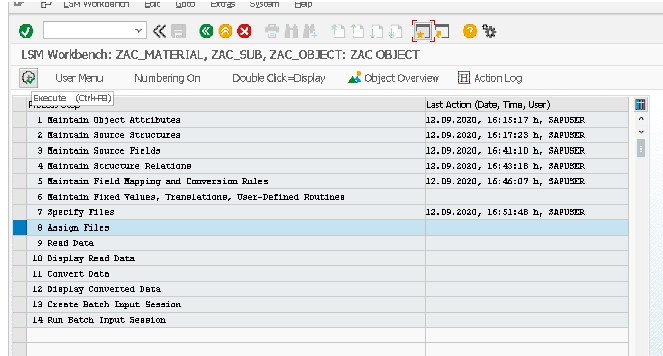
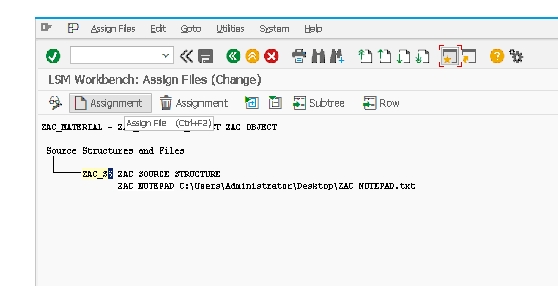
Assign Files
This step assigns the file specified in Step 7 to its corresponding source structure, confirming LSMW knows exactly which file feeds which structure.
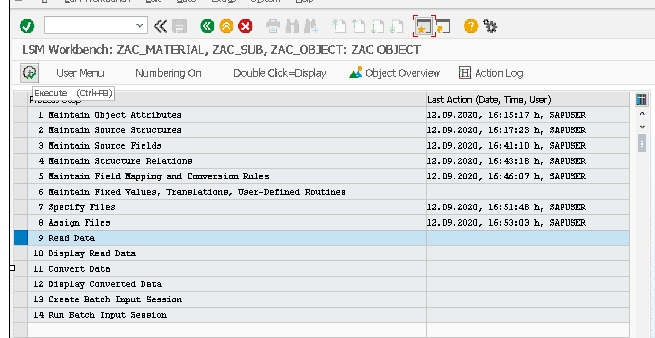
Read Data
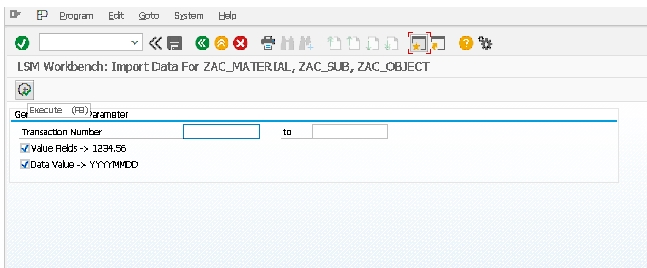
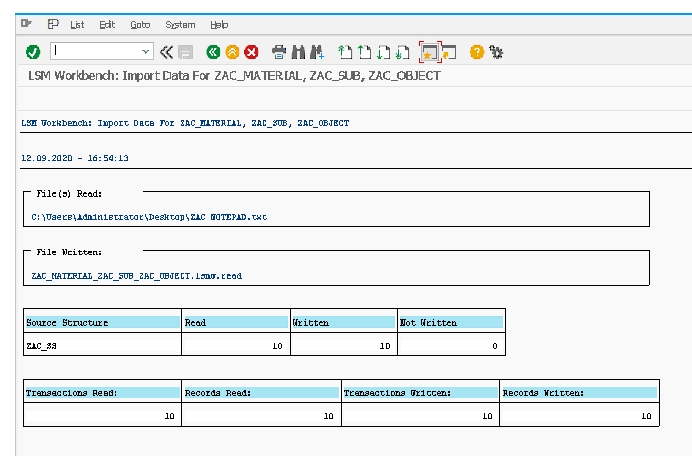
This step reads the legacy data file into LSMW's internal processing structures, based on all the configuration completed so far.
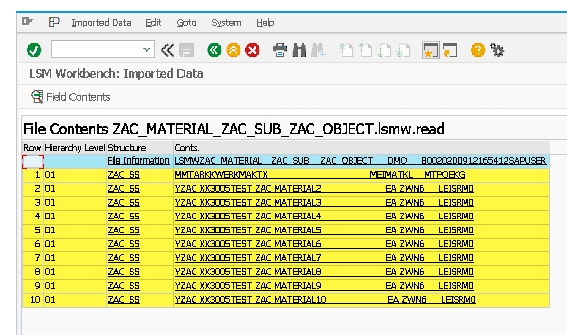
Display Read Data
Review the raw data exactly as read from your legacy file, before any conversion or mapping has been applied. This is a useful checkpoint to catch a file format or delimiter issue early.
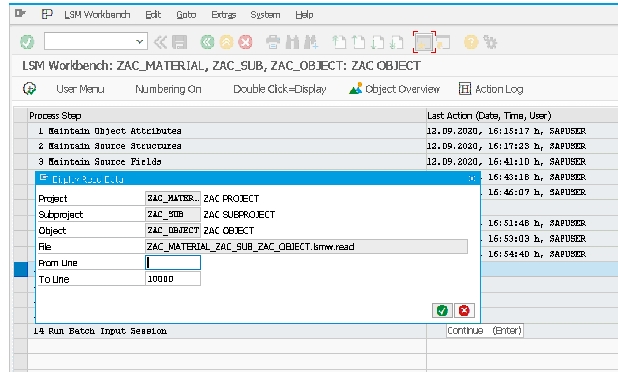
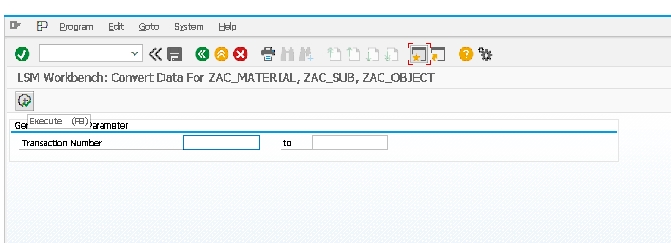
Convert Data
This step applies the field mapping and any conversion rules or routines defined in Steps 5 and 6, transforming the raw legacy data into SAP-ready format.
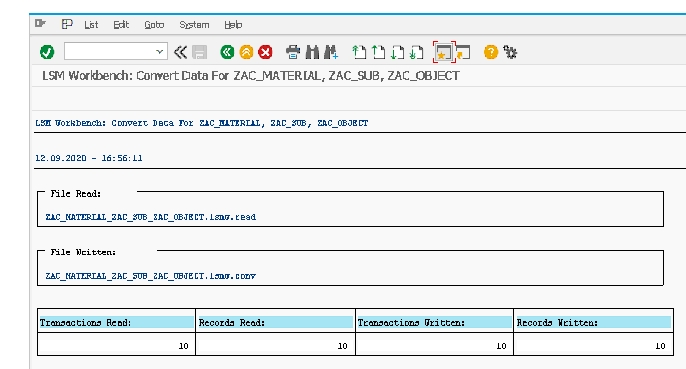
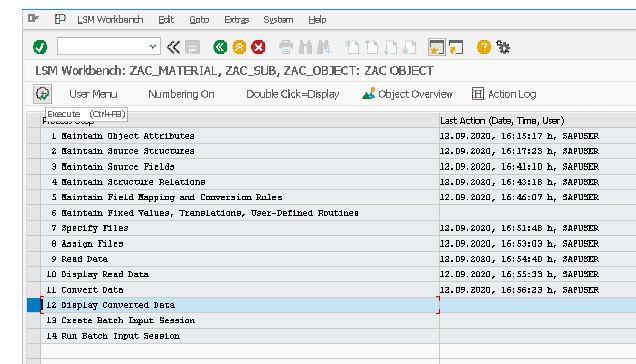
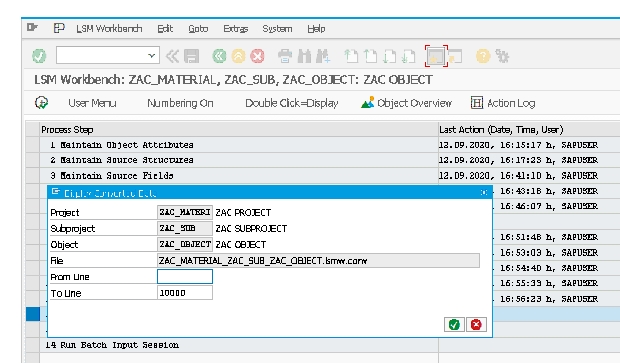
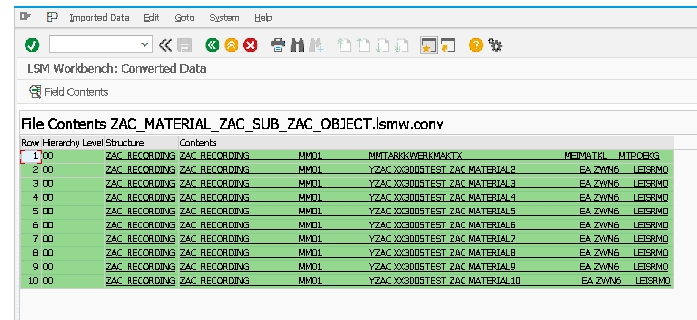
Display Converted Data
Review the fully converted data - this is your last checkpoint to confirm every field mapped and converted correctly before actually creating a batch input session that will post to SAP.
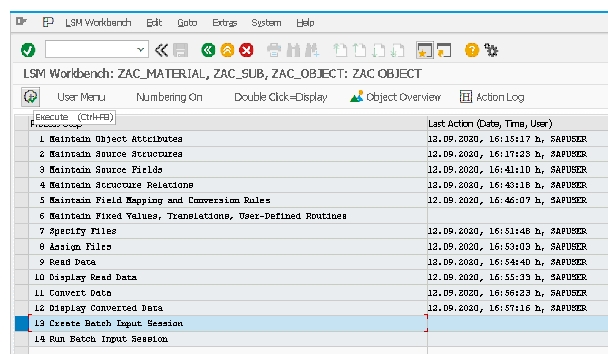
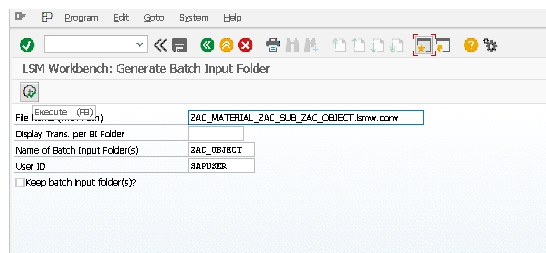
Create Batch Input Session
This step generates a batch input session - a queued set of transactions ready to be executed against SAP, built from the converted data reviewed in Step 12.
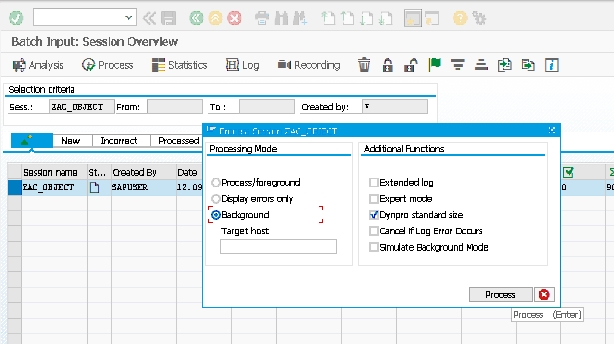
Run Batch Input Session
Select the session line, then select Process, choose Background, select Dynpro Standard Size, and select Process to execute the session - this is the step that actually creates your material master records (or whatever object you're migrating) in SAP.
🔄 LSMW's Four Import Methods: Which One to Choose
| Method | How It Works | Best Suited For |
|---|---|---|
| Batch Input Recording | Records a real SAP transaction (like MM01) and replays it automatically with legacy data | Simple to medium-complexity objects where a stable, unchanging transaction screen exists; the method used throughout this guide |
| Direct Input | Uses predefined SAP programs built specifically for certain objects, bypassing the screen-by-screen recording approach | Objects with a dedicated Direct Input program available (such as material master), generally faster and more robust than recording |
| BAPI | Calls a Business Application Programming Interface - a stable, supported API - to create or change data | Objects with a well-supported BAPI, offering better error handling and stability across SAP version upgrades than recording |
| IDoc | Generates and posts Intermediate Documents, SAP's standard interface format for data exchange | Scenarios integrating with existing IDoc-based interfaces, or objects where IDoc processing is the standard SAP-recommended approach |
Batch Input Recording, used in this guide's example, is often the most approachable starting point for consultants new to LSMW, since it doesn't require knowing which BAPI or Direct Input program applies to a given object - you simply record the transaction screens as a normal user would complete them. However, Direct Input and BAPI methods are generally considered more robust for production migrations, since they're less sensitive to screen layout changes (such as a custom transaction variant or an SAP support pack altering screen fields) that can break a recording unexpectedly.
📱 LSMW vs. the SAP S/4HANA Migration Cockpit
For organizations working in or migrating to SAP S/4HANA, it's worth understanding how LSMW relates to the newer Migration Cockpit (transaction LTMC, or the equivalent Fiori app). SAP's official recommendation for new S/4HANA data loads is generally the Migration Cockpit, which uses predefined migration objects specifically validated against S/4HANA's simplified data model, offering built-in data validation and a more modern, guided experience than LSMW's screen-recording approach.
That said, LSMW remains genuinely useful in several scenarios: for SAP ECC systems not yet on S/4HANA, for migration objects the Migration Cockpit doesn't yet cover with a predefined object, or for organizations with existing, well-tested LSMW recordings from previous projects that don't need to be rebuilt from scratch. Many SAP consultants maintain proficiency in both tools, choosing whichever best fits the specific object and system version involved in a given project - understanding LSMW's step-by-step logic, as covered throughout this guide, also makes the conceptually similar Migration Cockpit easier to learn, since both tools address the same fundamental data migration challenge with different levels of built-in tooling.
🔒 Governance: Who Should Run LSMW Loads in Production
Because a batch input session executes real transactions against SAP - creating actual material masters, customers, or other records exactly as if a user had typed them in manually - LSMW access to production systems is typically restricted to a small group of data migration specialists or senior functional consultants, separate from general transaction access. A poorly tested recording or an incorrect field mapping doesn't just fail cleanly; it can create genuinely incorrect master data at scale, which is considerably more time-consuming to clean up after the fact than to prevent through careful testing beforehand.
Most organizations require any production LSMW load to be tested first against a sandbox or quality system with a representative data sample, with a documented sign-off before the same object/mapping is used against production - exactly the discipline reflected in this guide's prevention checklist. Given how much of LSMW's process depends on manual review (Display Read Data, Display Converted Data), having a second, independent reviewer check these outputs before Step 13 (Create Batch Input Session) is also a common, worthwhile control for anything beyond a small, low-risk load.
🧪 Why Testing in a Sandbox First Matters More Than It Seems
It's tempting, especially under project deadline pressure, to build an LSMW object once and move straight to a full production load, particularly if the first few test records looked correct. This guide's real-world scenario is a useful caution against that instinct - a recording that worked perfectly for weeks can break unexpectedly due to a completely unrelated system change, and the only way to catch that kind of issue before it affects thousands of real records is genuine testing against a representative volume, not just a handful of hand-picked samples.
A reasonable testing approach scales the sample size to the load's risk: for a small, low-volume load, testing a dozen or so representative records covering the range of data variations expected (different material types, different plants, different edge cases like missing optional fields) is often sufficient. For a large, business-critical load - migrating an entire customer base, or thousands of materials as in this guide's real-world scenario - testing against a much larger, statistically meaningful sample, run close in time to the actual planned production load (to minimize the window for an unrelated system change to intervene), meaningfully reduces risk.
Beyond just confirming records load without technical error, sandbox testing should also verify the loaded data is functionally correct - not just "the batch input session completed," but "the resulting material master actually behaves correctly in a subsequent transaction," such as creating a test purchase order or sales order against a newly loaded material to confirm downstream processes work as expected, not just that the initial load technically succeeded.
❗ Common Errors and Issues When Working With LSMW
- Recording breaks after a screen layout change. If a transaction variant, user exit, or support pack changes the screen fields after a recording was created, the recording can fail to replay correctly - re-recording is often the fastest fix, which is one reason Direct Input or BAPI methods are preferred for longer-lived production migrations.
- Field mapping mismatches after Auto Field Mapping. Auto Field Mapping matches fields primarily by name, which can occasionally create an incorrect or incomplete mapping for fields with ambiguous or generic names - always review the mapping results manually rather than trusting the automatic match blindly.
- Delimiter mismatches during Specify Files. If the legacy file's actual delimiter (tab, comma, semicolon) doesn't match what's configured in the Specify Files step, Read Data will produce garbled or misaligned results, visible immediately in Display Read Data.
- Conversion errors surfacing only in Display Converted Data. A missing translation table entry or an incorrectly configured fixed value from Step 6 often isn't obvious until reviewing the actual converted output, reinforcing why this checkpoint step matters before creating a batch input session.
- Batch input session errors during Step 14 execution. Even with clean converted data, individual records can still fail during actual execution due to real SAP validation (a missing dependent master data record, an authorization issue, or a business rule violation) - reviewing the session log after execution is essential, not just assuming success because the session ran.
💼 Real-World Scenario: A Recording That Broke Mid-Project
Smita Pawar, an SAP MM consultant, built an LSMW recording for MM01 early in a data migration project and successfully tested it against a small sample of test materials. Several weeks later, partway through the actual production load of several thousand materials, the batch input session began failing on nearly every record with a screen-sequence error that hadn't appeared during initial testing.
Investigating, Smita discovered that a transport applied to the production system in the intervening weeks - part of an unrelated project - had added a new custom field to the MM01 screen sequence via a screen exit, inserting an extra field the original recording had no awareness of. Because Batch Input Recording works by replaying an exact sequence of screen interactions, this seemingly unrelated screen change broke the recording's ability to navigate through MM01 correctly, even though the underlying data being loaded hadn't changed at all.
Smita re-recorded the MM01 transaction to include the new field (defaulting it appropriately for the migration), updated the field mapping to account for the change, and re-tested before resuming the production load. This scenario illustrates exactly why Batch Input Recording, while approachable, carries real fragility risk for longer migration projects - any screen layout change during the project timeline, even one unrelated to the migration itself, can silently break a recording, which is worth factoring into project risk planning, especially for migrations spanning many weeks where other unrelated system changes are likely to occur.
✅ Prevention Checklist for LSMW Projects
- Test the full 14-step process end to end with a small sample of representative data before attempting a full production load, catching structural issues early rather than discovering them mid-load.
- Manually review Auto Field Mapping results rather than trusting them without verification, particularly for fields with generic or ambiguous names.
- Always review Display Read Data and Display Converted Data as genuine checkpoints, not just steps to click through quickly.
- For migrations spanning several weeks, monitor for any transport or configuration change affecting the target transaction's screen layout, and be prepared to re-test or re-record if changes occur.
- Review the batch input session log after every execution, even successful-looking ones, to catch individual record failures that don't stop the overall session from completing.
- Consider Direct Input or BAPI methods over Batch Input Recording for longer-running or higher-volume production migrations, given the fragility illustrated in the real-world scenario above.
🎓 Interview-Style Questions and Answers
Q: What are the four import methods available in LSMW, and how do you choose between them?
Batch Input Recording, Direct Input, BAPI, and IDoc. The choice depends on the specific SAP object being loaded, available tooling for that object, and how long-lived or high-volume the migration is - Direct Input and BAPI are generally more robust for production use than recording.
Q: Why is Batch Input Recording considered more fragile than Direct Input or BAPI?
Because it works by replaying an exact sequence of screen interactions, any change to the target transaction's screen layout - even one unrelated to the migration project - can break the recording, as illustrated in this guide's real-world scenario.
Q: What is the purpose of separating Convert Data and Create Batch Input Session into two distinct steps?
Separating them lets you review the fully converted data (via Display Converted Data) before anything is actually queued for execution against SAP, providing a final checkpoint to catch mapping or conversion errors before live data creation.
Q: What is the difference between LSMW and the S/4HANA Migration Cockpit?
LSMW is SAP's older, general-purpose migration tool usable in both ECC and S/4HANA, based on recording, Direct Input, BAPI, or IDoc methods. The Migration Cockpit is S/4HANA's newer, purpose-built tool with predefined, validated migration objects, generally SAP's recommended approach for new S/4HANA implementations.
📚 Quick Glossary of LSMW Terms
- Recording: A captured sequence of screen interactions for a specific SAP transaction, used as the basis for Batch Input Recording.
- Source structure: The defined layout representing your legacy data file's structure within LSMW.
- Field mapping: The association between a source (legacy) field and its corresponding SAP target field.
- Conversion rule: Logic (fixed value, translation, or custom routine) transforming a source field's value into the correct target format.
- Batch input session: A queued set of transactions generated from converted data, ready to be executed against SAP.
- Direct Input: A predefined SAP program for loading certain objects without screen-by-screen recording.
- BAPI: A stable, supported programming interface used by LSMW (and other tools) to create or change SAP data directly.
🎯 Conclusion
LSMW remains one of the most accessible ways to migrate legacy data into SAP without custom ABAP development, thanks to its structured 14-step process covering everything from object attributes through batch input execution. Whether you're loading a handful of test materials or thousands of production records, working carefully through each step - especially the Display Read Data and Display Converted Data checkpoints - is what separates a smooth migration from a frustrating one. Keep this guide bookmarked as a reference for your next LSMW project.