How to Define Account Group with Screen Layout for Customer in SAP (OBD2 Step-by-Step)
Account groups are essential for classifying and managing customer master data in SAP. They determine the fields that are displayed on the customer master data screen, which simplifies data entry and ensures consistency. In SAP Sales and Distribution (SD), managing customer data is a crucial aspect of business operations, and SAP allows you to define account groups and customize screen layouts for customers to fit exactly how each customer category needs to be maintained. This guide walks through transaction OBD2, explains what field status actually controls once it's live, and covers what to check afterward before the new account group is genuinely ready for use. If you run into any errors while following along, feel free to send a screenshot to pramod@learntosap.com for help.
✅ What Is an Account Group in SAP, and Why Does It Need a Screen Layout?
Account groups are essential for classifying and managing customer master data in SAP. They determine the fields that are displayed on the customer master data screen, which simplifies data entry and ensures consistency. Here's how to define account groups for customers. In SAP Sales and Distribution (SD), managing customer data is a crucial aspect of business operations. To ensure efficient customer data management, SAP SD allows you to define account groups and customize screen layouts for customers.
Not every customer a business deals with needs the same master data fields maintained. A one-time customer created for a single ad-hoc sale doesn't need the same depth of banking, tax, and payment term detail as a long-term wholesale account. Rather than showing every possible field to every user regardless of customer type, account group is what lets SAP tailor the customer master screen - hiding fields that don't apply, requiring the ones that genuinely matter, and leaving the rest optional.
Account group also controls more than just which fields appear. It determines the number range a customer's account number is drawn from, whether that numbering is internal (assigned automatically by the system) or external (entered manually by the user), and can influence certain downstream behaviors in sales and finance processing tied to that customer category.
📋 What Field Status Actually Controls
The screen layout tied to an account group is governed by field status, which classifies every field on the customer master record into one of four categories. Understanding these categories is what makes the difference between a screen layout that genuinely simplifies data entry and one that either blocks users unnecessarily or lets incomplete records slip through.
| Field Status | Behavior |
|---|---|
| Required Entry | The field must be filled in before the customer master record can be saved. |
| Optional Entry | The field is available on the screen but can be left blank. |
| Display | The field is shown but cannot be edited, typically used for values that are set elsewhere and shouldn't be changed here. |
| Suppressed (Hidden) | The field does not appear on the screen at all for this account group. |
These settings can be maintained at several levels within OBD2 - general data, company code data, and sales area data - which is what allows the same account group to behave slightly differently depending on which part of the customer master a user is maintaining.
🔧 Screen Layout at Account Group Level: Step-by-Step Configuration (OBD2)
Like most SAP configuration involving detailed field-level settings, this transaction is usually completed by copying an existing, well-configured account group rather than building the field status from a completely blank entry.
Run transaction OBD2 directly, or follow the IMG path: SPRO → Financial Accounting (New) → Accounts Receivable and Accounts Payable → Master Data → Preparations for Creating Customer Master Data → Define Account Group with Screen Layout (Customers).
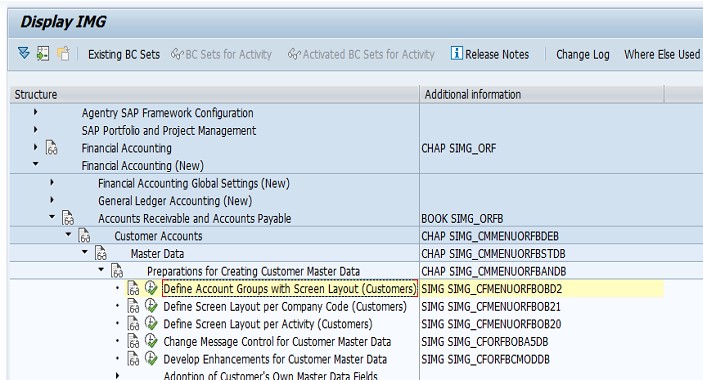
Select New Entries and copy an existing account group, such as the standard 0001, as the starting point for the new group.
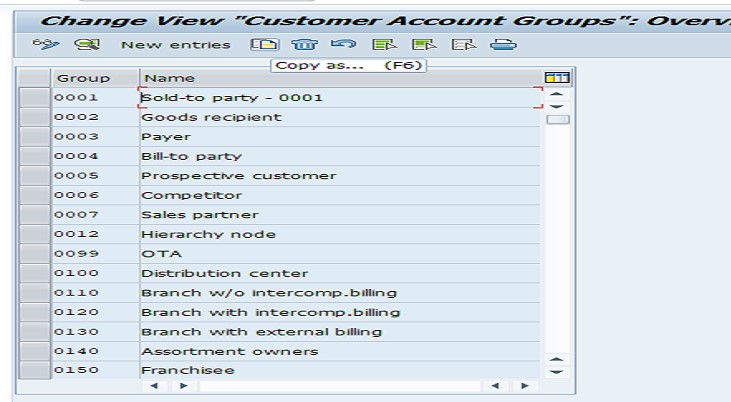
Assign a code and description to the new account group - for example, a group representing a specific customer category the business wants handled distinctly.

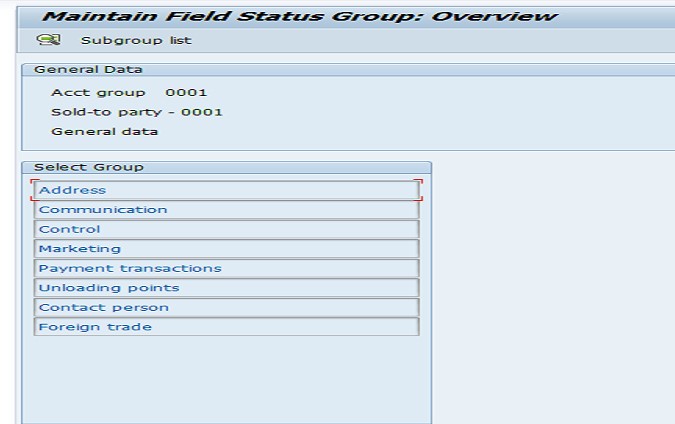
Select Maintain Field Status and review the required, optional, display, and suppressed settings for each field group, adjusting them to fit how this customer category should actually be maintained.
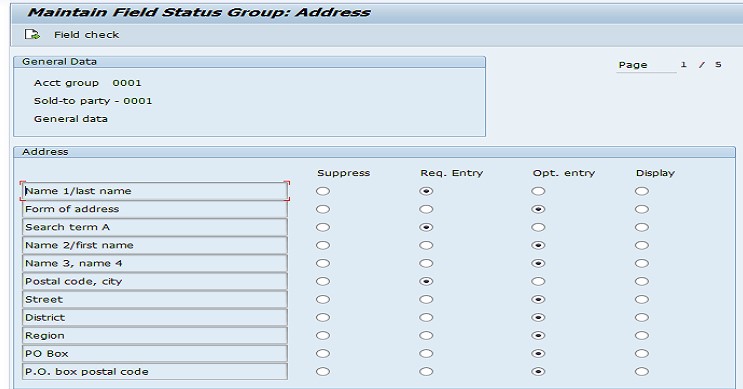
Select Save. The system will usually prompt for a transport request if the system is configured to require one, which is standard practice for configuration changes so they can be tracked and migrated through the landscape (Development → Quality → Production) in a controlled way.
📋 What to Configure Next After OBD2
Defining the account group and its screen layout is the foundation, but a few related settings are usually reviewed at the same time or shortly after, since they directly affect how usable the new account group is in practice:
- Number range assignment, confirming the account group is linked to the correct internal or external number range so customer numbers are issued as intended.
- Field status at company code and sales area level, since OBD2 covers the general data screen layout, but company code and sales-area-specific field status may need separate review for a fully consistent experience.
- Partner determination and output settings tied to the new customer category, if the business wants different automatic proposals for customers created under this account group.
- User authorization, confirming which teams are permitted to create customers under the new account group, particularly if it's meant for a restricted or specialized customer category.
None of these are part of the OBD2 transaction itself, but a new account group with a perfectly configured screen layout and nothing else reviewed around it can still create confusion once customers actually start being created under it, which is why experienced consultants treat this as a small cluster of related settings rather than a single standalone task.
💼 Real-World Scenario: A Simplified Group for One-Time Customers
Pooja Mishra, an SAP consultant at Learn Pharma, was asked to set up a dedicated account group for one-time, walk-in customers, separate from the standard account group used for the company's regular wholesale accounts. Sales manager Rajesh Wagh explained that requiring the full set of banking, tax, and payment term fields for a single ad-hoc sale was slowing down order processing and frustrating the sales team.
Working with FI consultant Priya Patil, Poojaused OBD2 to copy the standard account group 0001 into a new group representing one-time customers, then reviewed the field status for banking and payment term fields, changing several from required to optional or suppressed for this specific group. Business analyst Anita Shah flagged that the customer's name and basic address details still needed to remain required, since delivery and invoicing genuinely depended on that minimum information even for a single transaction.
After testing the new account group by creating a sample customer, Suresh's team confirmed that order-entry users could now create one-time customer records in a fraction of the time, with only the fields that genuinely mattered for that category appearing on screen - confirming that a well-reviewed field status, rather than simply copying the defaults from an existing account group, was what actually delivered the efficiency the business had asked for.
❗ Common Mistakes When Defining Account Groups
- Building a new account group's field status entirely from scratch instead of copying an existing, well-configured group as a starting point.
- Accepting the copied field status defaults without reviewing them, leaving fields required that don't apply to the new customer category, or optional fields that should genuinely be mandatory.
- Suppressing fields that are actually needed downstream in sales or billing processing, only discovering the gap once a related process fails for lack of the missing data.
- Forgetting to confirm the number range assignment, which can result in customer numbers being issued from an unintended range.
- Creating an account group for a customer category that doesn't have a genuine, distinct business need, adding configuration complexity without a clear benefit.
- Making this configuration directly in a production client instead of testing a sample customer creation in a sandbox or development client first.
✅ Best Practices for Account Group and Screen Layout Setup
- Always start from an existing, proven account group using Copy As, rather than configuring field status field by field from a blank entry.
- Review field status deliberately rather than accepting the copied defaults, keeping in mind what this specific customer category genuinely needs versus what was relevant to the group it was copied from.
- Keep core identifying fields - name, address, and any field required for delivery or invoicing - required, even when simplifying a screen layout for a lighter-touch customer category.
- Document the business reason for creating a new account group, so future consultants understand why it exists alongside the standard groups.
- Test the full customer creation and a sample sales order under the new account group in a sandbox or development client before considering the setup complete.
- Move configuration changes like this through a transport request and test them in the Quality system before they reach Production, the same as any other configuration change.
📈 How Account Groups Support Consistent, Reliable Customer Data
Beyond simplifying the data entry screen, account groups are one of the main tools SAP offers for keeping customer master data consistent across a large user base over time. Without them, every user creating a customer record would see the same, undifferentiated set of fields regardless of customer type, leaving data quality entirely dependent on individual judgment about what to fill in and what to skip. Account group removes that guesswork by making the system itself enforce what's required for each customer category.
This consistency also pays off in reporting and downstream processing. A customer master populated consistently within its account group is far easier to segment, analyze, and process reliably through automated workflows - partner determination, output determination, and credit management all depend to some degree on customer master data being complete and predictable for the fields they reference. A poorly configured screen layout, by contrast, tends to produce patchy master data that causes exactly these downstream processes to behave inconsistently.
✅ Validating the New Account Group Before Go-Live
Once the account group and field status are saved, it's worth running through a short validation checklist before considering it ready for end users. Create a test customer (XD01 or FD01, depending on the view) under the new account group and confirm the screen presents exactly the fields expected - required fields enforced, suppressed fields absent, and optional fields available but not mandatory. Attempt to save the record without filling in a required field to confirm the system correctly blocks the save. Confirm the customer number assigned falls within the expected number range. Finally, create a test sales order for the new customer to confirm downstream SD processes - pricing, partner determination, output - behave as expected with the reduced or adjusted field set.
Skipping this validation step is one of the more common reasons a newly configured account group causes confusion in its first weeks of use - usually a field that was suppressed but turned out to be needed downstream, or a required field that was left as optional and later causes an incomplete record to surface as a problem elsewhere in the process.
📱 This Configuration in SAP S/4HANA
Transaction OBD2 and the underlying concept of account group with screen layout work largely the same way in SAP S/4HANA as in classic ECC, since customer account groups remain a foundational master data element. One notable evolution in S/4HANA is the move toward BP (Business Partner) as the leading object for customer and vendor master data, where customer account groups are linked to corresponding BP roles and groupings rather than maintained as a fully separate object. Depending on the S/4HANA implementation, OBD2-style configuration may be complemented by, or migrated into, Business Partner configuration - but the underlying principle of tailoring which fields are required, optional, or suppressed for different customer categories remains the same.
📋 Related SAP Transactions
| Transaction | Purpose |
|---|---|
| OBD2 | Define account group with screen layout for customers. |
| XDN1 | Maintain number ranges for customer account groups. |
| XD01 / XD02 / XD03 | Create, change, or display a customer master record centrally. |
| FD01 / FD02 / FD03 | Create, change, or display a customer master record from the accounting view. |
| OBD3 | Define account group with screen layout for vendors, the parallel configuration on the vendor side. |
| BP | Maintain Business Partner records in S/4HANA, which can consolidate customer and vendor master data. |
🎓 Interview-Style Questions and Answers
Q: What is the practical purpose of a customer account group?
It classifies customers into categories that share the same screen layout, number range, and certain control settings, ensuring the data entry screen shown to users matches what's genuinely relevant for that type of customer.
Q: What are the four field status options available in OBD2?
Required entry, optional entry, display, and suppressed - together these determine whether a given field must be filled in, can be left blank, is shown but not editable, or doesn't appear on the screen at all.
Q: Why is it best practice to copy an existing account group rather than build a new one from scratch?
Copying an existing, proven account group brings across sensible defaults for field status and number range behavior, which is faster and less error-prone than configuring every field's status manually from an empty entry.
Q: What risk does suppressing a field in the account group carry?
A field suppressed at the account group level becomes entirely invisible to users creating customers under that group - if a downstream process later depends on that field being populated, its absence can cause failures that are confusing to trace back to the original screen layout decision.
📚 Quick Glossary of Terms Used in This Guide
- Account Group: A classification for customer (or vendor) master records that determines screen layout, number range, and certain control settings.
- Field Status: The setting - required, optional, display, or suppressed - that governs whether and how a given field appears on the customer master screen.
- Number Range: The interval of account numbers a given account group draws from, assigned either internally by the system or externally by the user.
- Screen Layout: The overall set of field status decisions that together shape what a user sees when creating or maintaining a customer master record under a given account group.
- Business Partner (BP): The S/4HANA object model that can consolidate customer and vendor master data, built on similar classification and field status principles.
- Transport Request: The mechanism used to move configuration changes like this through Development, Quality, and Production systems in a controlled way.
📝 Naming and Governance for Custom Account Groups
Because account group codes are short and often numeric, most FI teams maintain a simple reference document describing what each code represents and why it exists, particularly once a landscape accumulates several custom groups beyond the SAP-delivered standards. This is especially useful for a new consultant or support analyst trying to understand, months or years later, why a particular customer category was given its own dedicated account group rather than reusing an existing one.
Governance also matters because account groups, once in live use, have real customer master records created against them. Changing field status on a live account group - particularly making a previously optional field required, or suppressing a field that existing customers already have populated - can create inconsistencies between old and newly maintained records. Most organizations treat this kind of change as reviewed and documented, rather than a routine configuration update, for exactly that reason.
🎯 Conclusion
Defining an account group with screen layout in OBD2 is a short configuration step on the surface, but it is what genuinely shapes the customer master data entry experience for every user creating a customer under that group, for as long as the group remains in use. Copying an existing account group rather than starting from scratch, deliberately reviewing field status rather than accepting the copied defaults, and testing a sample customer and sales order before go-live are what separate a well-designed account group from one that quietly causes friction or data quality issues down the line. Keep this guide handy the next time your project needs a distinct customer category with its own tailored data entry experience.