HTML Comments Explained: How to Add Comments in HTML
HTML Tutorials · HTML Comments Tag · Introduction
HTML Comments Tag
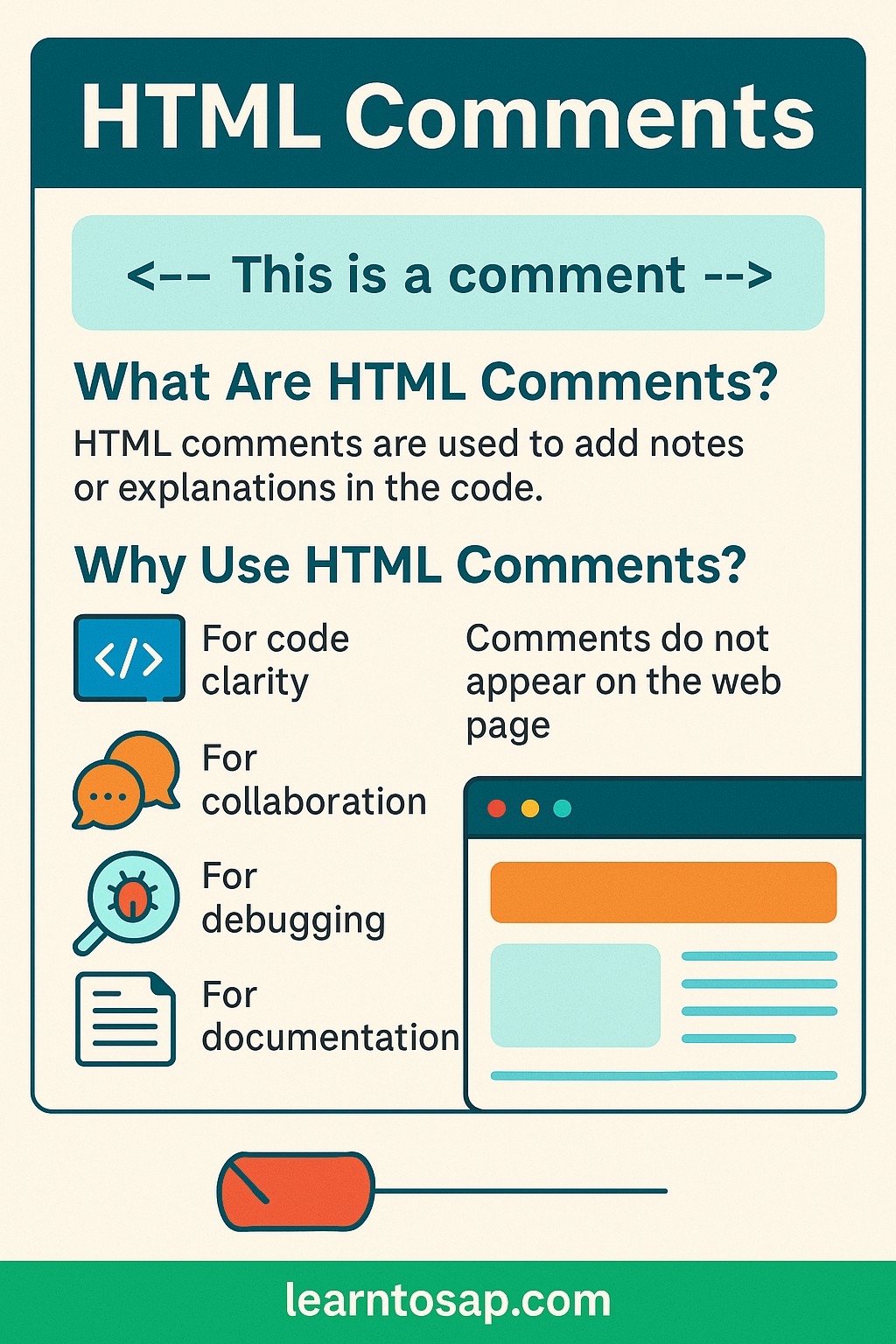
HTML (HyperText Markup Language) is the standard language used to create web pages. Writing HTML code, users and coders often need to leave notes, reminders, or explanations within the code itself. This is where HTML comments come into work. Comments are not displayed in the browser when a page is shown, but they are visible in the source code.
This tutorial covers the exact comment syntax, several real use cases beyond the basics, how HTML comments compare to comments in CSS and JavaScript, whether they affect performance or SEO, and a set of best practices, along with a live playground at the bottom of the page where you can test commenting out code yourself.
🌡️ Why Use HTML Comment Tags
✨✨✨ 1) Code Explanation: Comments help explain what certain parts of the code do. This is especially useful when multiple users are working on the same project.
✨✨✨ 2) Debugging: You can use comments to temporarily disable parts of your code to test different functionalities.
✨✨✨ 3) Collaboration: When sharing your code with others, comments provide context, making it easier for others to understand your logic.
Examples of HTML Comments Syntax
Basic Comment Syntax
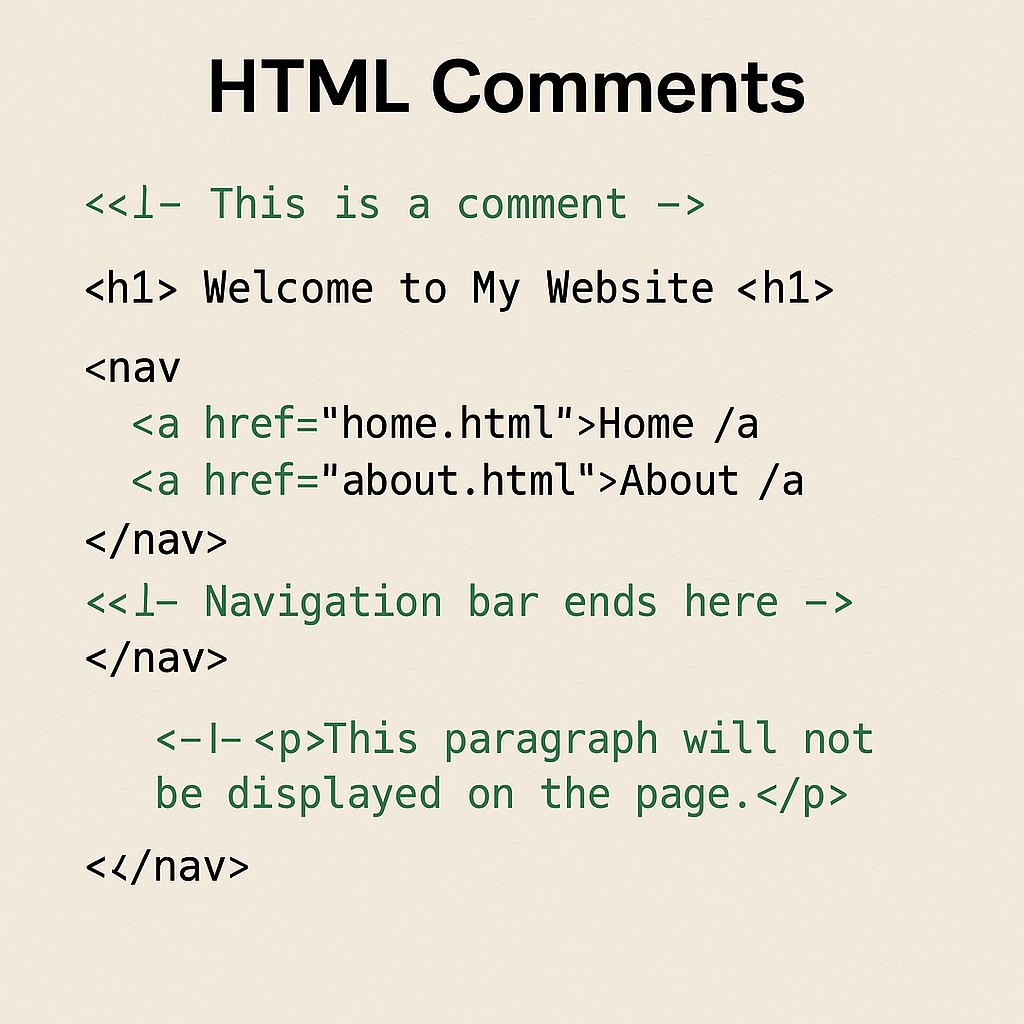
<!-- This is a comment -->Comments Inside a Full HTML Document
<!DOCTYPE html>
<html>
<head>
    <title>welcome My Page</title>
    <!-- The title above appears on the browser tab -->
</head>
<body>
    <h1>Welcome www.learntosap.com!</h1>
    <!-- <p>This paragraph is temporarily hidden</p> -->
</body>
</html>
Notice the very last line inside the body: an entire <p> element sits wrapped inside a comment. This is exactly the "Debugging" use case mentioned above in action, the paragraph still exists in the file, but it will not render on the page until the comment markers are removed.
🧩 ✨ Best Practices for HTML Comments
✨✨✨ Be clear and concise: Write comments that are easy to understand.
✨✨✨ Keep them updated: Outdated comments can be misleading. Make sure your comments reflect the current state of the code.
✨✨✨ Use consistent formatting: Use consistent comment styles to maintain readability.
Try It Yourself (Copy This Code and Paste. See how it works). Paste the full document example above into the live playground below, then remove the comment markers around the hidden paragraph to see it suddenly appear.
Live Code Preview
HTML Comment Syntax Rules
The basic syntax shown above, <!-- comment text -->, looks simple, but a few precise rules govern exactly where comments can and cannot go.
- Every comment must start with exactly <!-- and end with exactly -->, with no spaces inside those four-character markers.
- Comments can span multiple lines, as long as the opening and closing markers eventually appear, no matter how much text sits in between.
- Comments cannot be nested. Placing one comment marker inside another typically closes the outer comment at the very first --> it finds, which can accidentally expose code you meant to hide.
- Comments can appear almost anywhere in an HTML document, inside the head, inside the body, between elements, or even inside an element's content, as the earlier full-document example demonstrates.
- The text inside a comment is never parsed as HTML, so writing a tag like <p> inside a comment, as seen above, has no effect on the page at all.
<!-- Outer comment <!-- inner comment --> this text is now visible! -->In the example above, the browser reads the comment as ending right after "inner comment," leaving "this text is now visible!" and the trailing --> rendered as plain, unwanted text on the page, exactly the kind of accidental exposure the no-nesting rule warns about.
Common Use Cases for HTML Comments
Beyond the three reasons already covered, code explanation, debugging, and collaboration, comments show up in a few other recurring, practical situations across real websites, several of which are common enough that most professional developers use at least one of them daily.
| Use Case | Example |
|---|---|
| Marking section boundaries in a long page | <!-- START: Footer section --> |
| Leaving a to-do reminder for later | <!-- TODO: add alt text to hero image --> |
| Explaining an unusual or tricky fix | <!-- Fixes spacing bug in Safari --> |
| Temporarily disabling a block during testing | <!-- <div class="banner">...</div> --> |
| Attributing a section to its author or date | <!-- Added by Pramod, updated Sept 2026 --> |
On a very long page with many sections, header, hero banner, product grid, testimonials, footer, sprinkling a short comment before each major section makes it dramatically faster to locate the right part of the file later, without needing to scroll through and visually re-identify every section from scratch.
HTML Comments Compared to Comments in Other Languages
If you have any experience with another programming or styling language, the concept of a comment will already feel familiar, only the exact symbols differ.
| Language | Comment Syntax |
|---|---|
| HTML | <!-- comment --> |
| CSS | /* comment */ |
| JavaScript (single line) | // comment |
| JavaScript (multi-line) | /* comment */ |
It is worth remembering that HTML's <!-- --> syntax only works inside actual HTML markup, not inside a <style> block or a <script> block embedded in the same page, since those two areas switch to CSS and JavaScript rules respectively, including their own, different comment syntax.
Do HTML Comments Affect Performance or SEO?
A common beginner worry is whether leaving comments in a live page slows it down or hurts search rankings. In practice, neither concern holds up for typical, reasonably sized pages.
- Performance impact is negligible. Comments add a small amount of extra file size, but browsers skip over them almost instantly while parsing a page, and the effect on load time is not noticeable for normal amounts of commenting.
- Search engines do not read comments as content. Text inside a comment is not indexed the way visible page text is, so comments carry no SEO benefit for keywords and no penalty either.
- Very large amounts of leftover commented-out code can bloat a file unnecessarily over time, which is more of a housekeeping concern than a performance or SEO one.
The practical takeaway: use comments freely wherever they genuinely help you or your collaborators understand the code, and periodically clean out ones that no longer apply, rather than worrying about comments causing any real technical harm. A well-commented file that stays a little larger is almost always a better trade than a slightly smaller file that nobody, including its own author, can make sense of a year later.
A Word of Caution: Comments Are Not Private
Because comments never render visibly on the page, it is tempting to assume they are hidden entirely, but that is not true. Anyone can view a page's full source code through a browser's "View Page Source" option, which shows every comment exactly as written.
- Never place sensitive information inside a comment, such as passwords, API keys, internal server details, or private notes not meant for the public.
- Avoid revealing site structure details you would not want a visitor to see, such as comments describing unpublished features or internal naming conventions for admin tools.
- Treat comments as visible documentation, written for any curious visitor as much as for a fellow developer, rather than as a genuinely private notebook.
Common Mistakes With HTML Comments
- Forgetting to close a comment with -->, which silently hides everything after it until the browser finds a closing marker somewhere further down the file.
- Attempting to nest comments, which closes the outer comment early and can expose unwanted text, as shown in the invalid nesting example earlier on this page.
- Leaving outdated comments in place that no longer describe what the surrounding code actually does, which can mislead the very collaborators comments are meant to help.
- Commenting out large blocks "just in case" and never cleaning them up, leaving a file cluttered with dead code that is easy to confuse with active code.
- Placing sensitive information in a comment, forgetting that comments remain fully visible in the page's source code.
Practice Exercises: Try HTML Comments Yourself
The fastest way to make comment syntax feel automatic is to deliberately practice a few common scenarios. Try each of these directly in the live editor above:
- Add a comment above a heading explaining what that section of the page is for.
- Comment out an entire paragraph element and confirm it disappears from the preview.
- Deliberately write a nested comment, like the invalid nesting example above, and observe what unexpectedly becomes visible.
- Add a short "TODO" style comment noting one thing you would still like to add to the page.
- Write a comment marking the start and end of one section, such as <!-- START: header --> and <!-- END: header -->, around a heading and paragraph.
Working through these five exercises covers every practical use case discussed in this tutorial, from simple documentation to temporarily disabling code, which is exactly how comments get used on real projects.
Documenting a Page Template With Comments
One of the most practical everyday uses of comments is turning a plain HTML file into something closer to a labeled template, especially useful when the same file structure gets reused or handed off to someone else later.
<!DOCTYPE html>
<html>
<head>
<title>Page Title</title>
<!-- Replace with the actual page title before publishing -->
</head>
<body>
<!-- ========== HEADER ========== -->
<header>
<h1>Site Name</h1>
</header>
<!-- ========== MAIN CONTENT ========== -->
<main>
<p>Page content goes here.</p>
</main>
<!-- ========== FOOTER ========== -->
<footer>
<p>© Site Name</p>
</footer>
</body>
</html>Notice how the comments here do two different jobs at once: the first one is an instruction for whoever fills in the template ("replace before publishing"), while the three section-boundary comments simply make the file's overall structure obvious at a glance, without needing to read every line of markup to figure out where the header ends and the main content begins.
Comments and Team Collaboration in Practice
The "Collaboration" reason listed near the top of this page is worth unpacking a little further, since it is often where comments provide the most real-world value. On any project with more than one person touching the same HTML file, comments function as a lightweight form of communication that does not require a separate document or chat message.
- Explaining a non-obvious decision, such as why a particular element has an unusual class name or inline style, saves a teammate from having to guess or ask.
- Flagging work in progress, such as a section that is intentionally incomplete, prevents a collaborator from assuming something is broken when it is simply unfinished.
- Crediting authorship and dates, as shown in the use-case table earlier on this page, helps a team trace when and why a particular block of code was added.
- Leaving review notes for a future editor, including yourself months later, is often more reliable than trying to remember your own reasoning from memory.
None of this requires any special tooling, comments work identically whether a project is a solo hobby page or a large team codebase, which is part of why they remain one of the simplest and most universally useful habits covered in this entire tutorial series. Even on a single-author site like a personal blog, writing a comment for your future self is often just as valuable as writing one for a teammate, since your own reasoning six months later can be just as hard to reconstruct from memory as a stranger's.
A Historical Note: Conditional Comments
Older versions of Internet Explorer once supported a special variant of HTML comments called conditional comments, which could target specific browser versions and were widely used for browser-specific fixes in the 2000s and early 2010s.
<!--[if IE]>
    <p>This content only ever showed in old Internet Explorer.</p>
<![endif]-->
Modern browsers, including current versions of Edge, Chrome, Firefox, and Safari, no longer support this special conditional syntax at all, and it simply behaves as an ordinary comment today, quietly hiding whatever content sits inside it. It is included here purely as historical context, if you ever come across this pattern in an older codebase, you now know it was once meaningful, even though it has no special effect in any browser in use today.
Commenting Style: Single-Line vs Block Comments
HTML only has one comment syntax, unlike some languages that offer separate single-line and multi-line comment markers, but you can still choose how you format that single syntax to fit either a quick one-line note or a longer, more structured explanation.
<!-- Hero banner --><!--
Hero banner section.
Displays the main promotional image and call-to-action button.
Updated seasonally by the marketing team.
-->The single-line style works well for a quick label, exactly like the section-boundary comments used in the template example earlier on this page. The block style suits a longer explanation that genuinely needs more than a few words, such as describing why a section exists, who maintains it, or what business rule it reflects. Sticking to one consistent style across a project, as the Best Practices section above recommends, makes a codebase easier to scan even when different comments vary in length.
Frequently Asked Questions About HTML Comments
What is the syntax for an HTML comment?
An HTML comment starts with <!-- and ends with -->. Anything written between these two markers is ignored by the browser and never displayed on the page.
Are HTML comments visible to website visitors?
No. Comments are not displayed in the browser when a page is shown, but they remain visible in the page's source code, which anyone can view.
Can I nest one HTML comment inside another?
No. HTML does not support nested comments. Placing one comment marker inside another typically closes the comment early at the first --> it encounters, which can accidentally reveal code you intended to hide.
Do HTML comments affect page loading speed or SEO?
Comments have a negligible effect on load speed for typical pages and are not read as content by search engines, so they carry no direct SEO benefit or penalty, though excessive commenting can slightly increase file size.
Can HTML comments be used to hide sensitive information?
No. Comments are visible to anyone who views a page's source code, so sensitive information such as passwords, internal notes, or API keys should never be placed inside an HTML comment.
What is the most common mistake beginners make with HTML comments?
Forgetting to close a comment with --> is one of the most common mistakes, since everything after an unclosed comment marker is silently hidden from the rendered page until the browser finds a closing marker.
Do comments work the same way inside a style or script tag?
No. HTML's comment syntax only applies to regular HTML markup. Inside a style tag, CSS comments (/* ... */) are used instead, and inside a script tag, JavaScript comments (// or /* ... */) are used instead.
Are conditional comments still used today?
No. Conditional comments were a special syntax once supported only by older versions of Internet Explorer for browser-specific fixes. No current browser supports this special behavior anymore, so the syntax now simply acts as an ordinary comment.