HTML Elements Explained: Start Tag, End Tag & Full Structure
HTML Tutorials · HTML Elements - Start Tag And End Tag · Introduction
Introduction to HTML and Its Role in Web Development
HTML Elements - Start Tag And End Tag
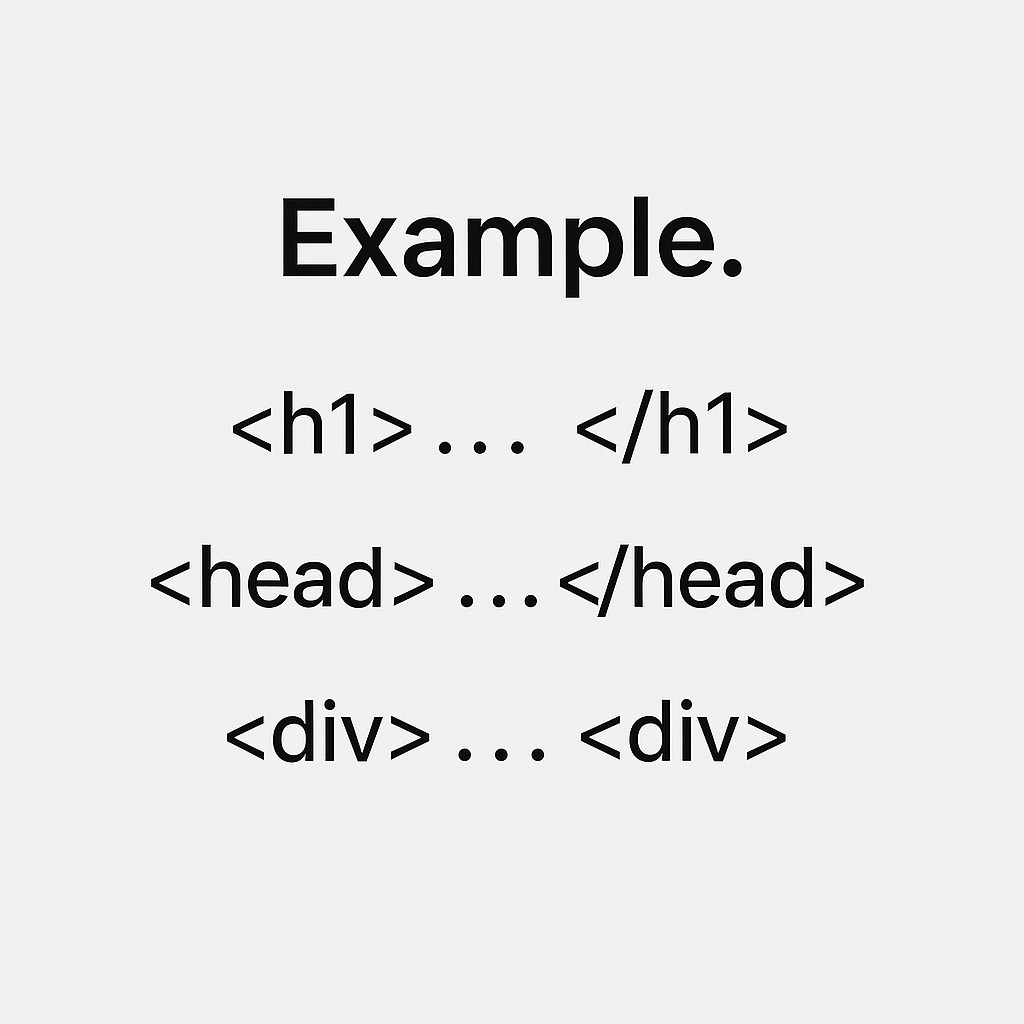
HTML element is a units of a webpage, like a heading, paragraph, image, or link. This is Start tag, content, and an End tag. Example. <h1>...</h1>, <head>...</head>, <div>...</div> ...
In other words, an element is the complete package: the opening instruction that tells the browser what is about to start, the actual content in between, and the closing instruction that tells the browser where that piece of content ends. This three-part pattern, start tag, content, end tag, repeats across almost the entire HTML language, which is exactly why understanding it clearly here makes every other HTML tutorial in this series easier to follow.
It also explains why HTML documents look nested, with elements sitting inside other elements. A paragraph element can sit inside a body element, which itself sits inside an html element, each one properly opened and properly closed, layer by layer, like a set of boxes stacked neatly inside one another.

Examples of Some HTML Elements
The clearest way to understand start tags and end tags is to see the same element pattern repeated across a few different, everyday examples.
Heading Element
Example: <h1>.... Type Your Content.... </h1>
<!DOCTYPE html>
<html>
<head>
    <title>My First HTML Page</title>
</head>
<body>
    <h1>Welcome to My Website</h1>
</body>
</html>
Paragraph Element
Example: <p>.... Type Your Content.... </p>
<html>
    <head>
        <title>Example Page</title>
    </head>
    <body>
        <p>This is a sample webpage.</p>
    </body>
</html>
Body Element
Example: <body>.... Type Your Content.... </body>
<body>
    <h1>Welcome!</h1>
    <p>This is a simple HTML page.</p>
</body>
Image Element
Example: <img>.... Type Your Content.... (the image element is a self-closing, empty element, so unlike the elements above it does not use a separate closing tag)
<img src="image.jpg" alt="Sample Image" width="700">Try It Yourself (Copy This Code and Paste. See how it works). Paste any of the four examples above into the live playground below and watch the start tag, content, and end tag come together as an actual rendered element.
Live Code Preview
HTML Tag Elements Reference
| No. | Tag | Description |
|---|---|---|
| 1. | <title></title> | Sets the title of the webpage (shows in the browser tab). |
| 2. | <img> | Displays an image. Self-closing tag. |
| 3. | <br> | Adds a line break. Self-closing tag. |
A few more everyday elements are worth adding to this reference, since they follow exactly the same start-tag-and-end-tag pattern already covered above:
| No. | Tag | Description |
|---|---|---|
| 4. | <h1></h1> | Defines the main heading of the page. |
| 5. | <p></p> | Defines a paragraph of text. |
| 6. | <body></body> | Contains all visible content of the page. |
| 7. | <hr> | Adds a horizontal divider line. Self-closing tag. |
| 8. | <a></a> | Creates a hyperlink to another page. |
What Exactly Is an HTML Element?
It helps to slow down on the three words that describe every piece of HTML you will ever write: tag, element, and attribute. They are related, but they are not the same thing, and mixing them up is one of the most common sources of confusion for beginners.
- A tag is just the keyword itself, wrapped in angle brackets, such as <p> or </p>. A start tag and an end tag are both, individually, tags.
- An element is the complete unit: the start tag, the content between the tags, and the end tag, all together, such as <p>Hello</p> as a whole.
- An attribute is extra information placed inside the start tag, such as alt on an image element, that adds detail without changing what the element fundamentally is.
So when someone says "the paragraph element," they mean the whole <p>...</p> unit, while "the paragraph tag" more precisely refers to just <p> or </p> on its own. In everyday conversation the two terms are often used loosely and interchangeably, but knowing the precise distinction will help the rest of this tutorial series make more sense.
Types of HTML Elements: Block-Level vs Inline
Beyond start tags and end tags, HTML elements also fall into two broad display categories, and understanding the difference explains a lot about how a page's layout behaves.
- Block-level elements, such as <h1>, <p>, and <div>, always start on a new line and stretch to fill the available width, stacking vertically one after another.
- Inline elements, such as <a>, <strong>, and <span>, sit within the flow of surrounding text and only take up as much width as their own content needs.
This is why a heading or paragraph always appears on its own line, while a link placed in the middle of a sentence stays right where it is typed, flowing naturally with the surrounding words instead of breaking onto a new line.
Empty (Self-Closing) Elements Explained
The image example earlier in this tutorial pointed out something important: not every element follows the standard start-tag, content, end-tag pattern. A small group of elements, called empty or self-closing elements, represent a single, standalone item and do not wrap any content at all, so they never need a separate closing tag.
| Empty Element | What It Does |
|---|---|
| <img> | Displays an image from a given source |
| <br> | Inserts a single line break |
| <hr> | Inserts a horizontal divider line |
| <input> | Creates a form input field |
| <meta> | Adds metadata inside the head section |
Writing </img> or </br> after one of these tags is a common early mistake, and while some browsers quietly ignore it, the correct, standard practice is to leave empty elements exactly as they are: a single opening tag and nothing more.
Nesting HTML Elements Correctly
Because elements are frequently placed inside other elements, HTML follows a strict nesting rule: elements must close in the reverse order they were opened. If you open <p> and then <strong> inside it, the correct closing order is </strong> first, then </p>, never the other way around.
<p>This is <strong>important</strong> text.</p><p>This is <strong>important</p></strong> text.The incorrect version above closes <p> before <strong>, which breaks the clean, box-inside-a-box structure browsers expect and can lead to unpredictable formatting further down the page.
Attributes Inside the Start Tag
Start tags are also where an element's attributes live. An attribute always appears inside the opening tag, never the closing one, and follows the pattern name="value".
<img src="image.jpg" alt="Sample Image" width="700">In this single start tag, src, alt, and width are three separate attributes, each adding a different piece of extra detail, the image source, its accessible description, and its display width, without changing what kind of element it fundamentally is.
Common Mistakes With Start and End Tags
- Forgetting the end tag entirely, such as leaving off </p>, which can pull later content out of its intended structure.
- Closing tags out of order when elements are nested, breaking the box-inside-a-box structure browsers rely on.
- Adding a closing tag to an empty element, such as writing </img>, which is unnecessary and non-standard.
- Misspelling a tag name between the start and end tag, for example opening with <div> and closing with </dvi>.
- Placing attributes in the closing tag instead of the opening one, where they have no effect at all.
Step-by-Step: Build Your First Full HTML Structure
Combining everything covered on this page, start tags, end tags, empty elements, and correct nesting, here is how to build one small, complete page from scratch:
- Open with the DOCTYPE and html elements to set up the document as a whole.
- Add the head element containing a title element for the browser tab text.
- Open the body element where every visible piece of content will live.
- Add a heading element using <h1>...</h1> for the page's main title.
- Add a paragraph element using <p>...</p> underneath the heading.
- Add an empty image element using a single <img> tag, remembering it needs no closing tag.
- Close the body and html elements in the correct reverse order to complete the structure.
Try building exactly this sequence inside the live editor above, checking the preview after each new element, to build a genuine, hands-on feel for how start tags, content, and end tags come together into a real webpage.
Frequently Asked Questions About HTML Elements
What is an HTML element?
An HTML element is a unit of a webpage, such as a heading, paragraph, image, or link. It consists of a start tag, content, and an end tag, for example <h1>...</h1>, <head>...</head>, or <div>...</div>.
What is the difference between a tag and an element?
A tag is just the keyword in angle brackets, such as <p>. An element is the complete unit: the start tag, the content inside it, and the end tag together, such as <p>Hello</p>.
What is an empty (self-closing) element?
An empty element has no closing tag and wraps no content, because it represents a single, standalone item on the page. Common examples include img, br, and hr.
Does every HTML element need a closing tag?
No. Most elements are paired and need a closing tag, but a small set of empty elements, such as img and br, do not use a closing tag at all.
What happens if I nest elements in the wrong order?
Closing tags in the wrong order confuses the browser's structure and can distort formatting. Elements must close in the reverse order they were opened, with inner elements closing before outer ones.
Can an element have more than one attribute in its start tag?
Yes. A start tag can carry multiple attributes at once, such as src, alt, and width together on an img tag, each separated by a space.