Internal Number Assignment Is Not Possible for the Material Type LEARN INACTIVE RAW MAT
This error typically occurs because the material type in question is configured to use external number assignment rather than internal number assignment in SAP. Follow the steps below to resolve it using MMNR. This guide also explains the difference between internal and external number assignment, walks through a real business scenario, lists related transactions, and gives you a prevention checklist so this error does not keep appearing for other material types.
🔍 Understanding This Error in Detail
The message "Internal number assignment is not possible for the material type LEARN INACTIVE RAW MAT" typically occurs because the material type in question is configured to use external number assignment rather than internal number assignment in SAP. In other words, the material type is set up for external number assignment in transaction MMNR (Maintain Number Ranges for Material), but a user is trying to create a material of this type without entering a number, expecting SAP to assign one internally.
This mismatch between what the user expects (SAP auto-generating a number) and what the number range configuration actually allows (the user must enter a number themselves) is the entire root cause. It is not a material master data problem in the way many other MM errors are - it is purely a number range configuration question, resolved in transaction MMNR rather than in the material itself.
📦 Internal vs External Number Assignment: Why the Distinction Matters
SAP material numbers can be assigned in one of two ways, and every material type is explicitly configured for one or the other through its linked number range.
| Assignment Type | How the Number Is Determined | Typical Use Case |
|---|---|---|
| Internal | SAP automatically generates the next available number from a defined number range interval when the material is created | High-volume material creation where a consistent, system-generated numbering scheme is preferred (e.g. finished goods, semi-finished products) |
| External | The user manually enters a material number, which SAP validates falls within the assigned number range interval but does not generate automatically | Materials that need to follow an existing numbering convention, such as legacy system migration, customer-specified part numbers, or industry-standard codes |
Both approaches are completely valid design choices - the issue in this error is simply a mismatch between which one a user expects and which one is actually configured for the material type they are working with. Understanding this distinction up front makes the MMNR fix intuitive rather than mysterious.
⚠ Common Error Message
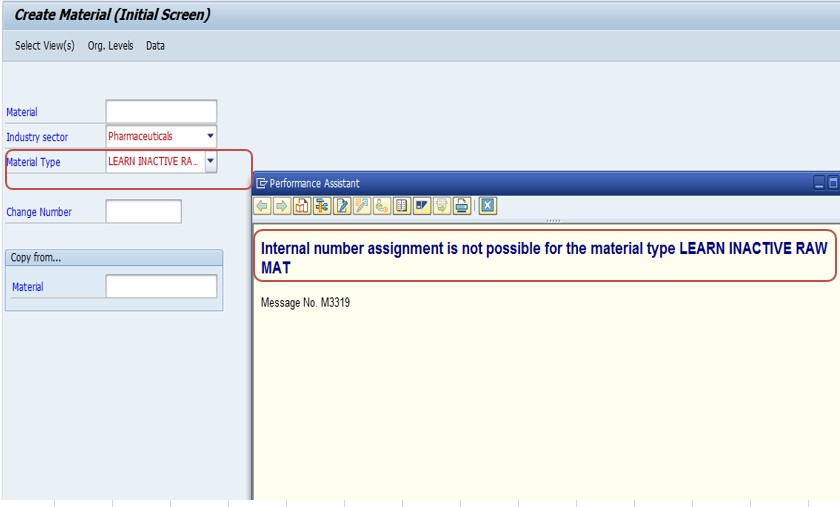
"Internal number assignment is not possible for the material type LEARN INACTIVE RAW MAT" typically occurs because the material type in question is configured to use external number assignment rather than internal number assignment in SAP.
✅ Follow Steps - Solution: MMNR
The material type is set up for external number assignment in transaction MMNR (Maintain Number Ranges for Material).
Internal number assignment is tried while creating a material of this type.
Follow Path: SPRO → Logistics → Materials Management → Material Master → Basic Settings → Maintain Number Ranges (MMNR)
Whether you reach it via the SPRO path or the direct transaction code MMNR, you land on the same number range maintenance screen. Since MMNR is a configuration transaction, changes here typically require developer/customizing access, which is worth confirming before you start if you are an end user rather than a configuration consultant.
Solution - TCode: Go to MMNR
Select Groups button. Select - LICR - LEARN INACTIVE RAW MAT.
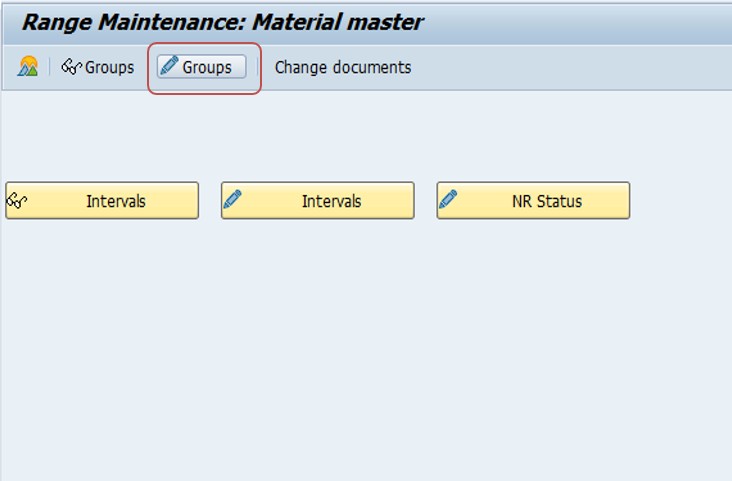
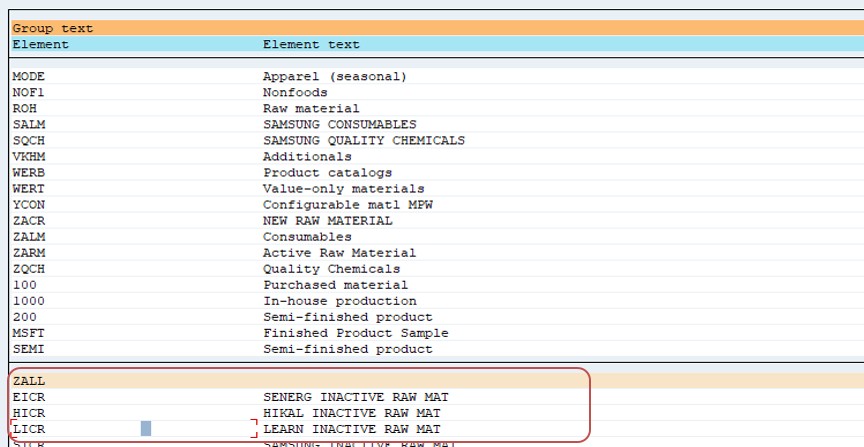
The Groups button shows every number range group defined in the system, each one potentially covering multiple material types that share the same numbering rules. Finding the LICR group here confirms which number range interval is actually driving the behavior for the LEARN INACTIVE RAW MAT material type - this is the object you need to inspect, not the material type definition itself.
Select - Assign Mat Element Group
You can also change group level - MK01 (Group 2).
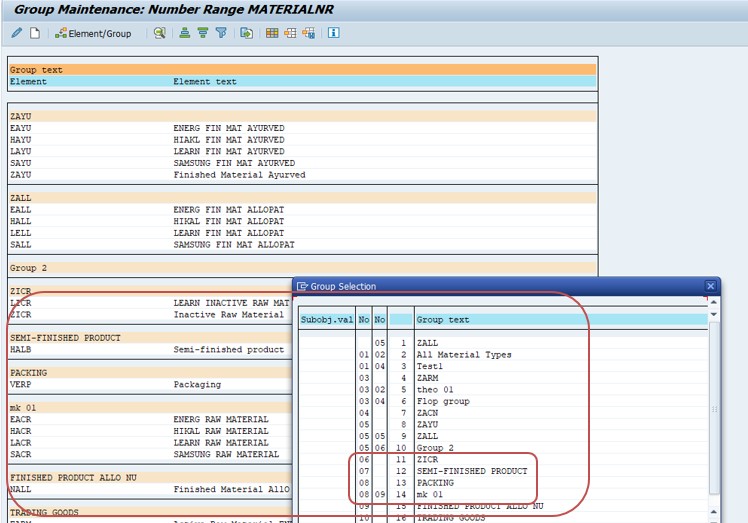
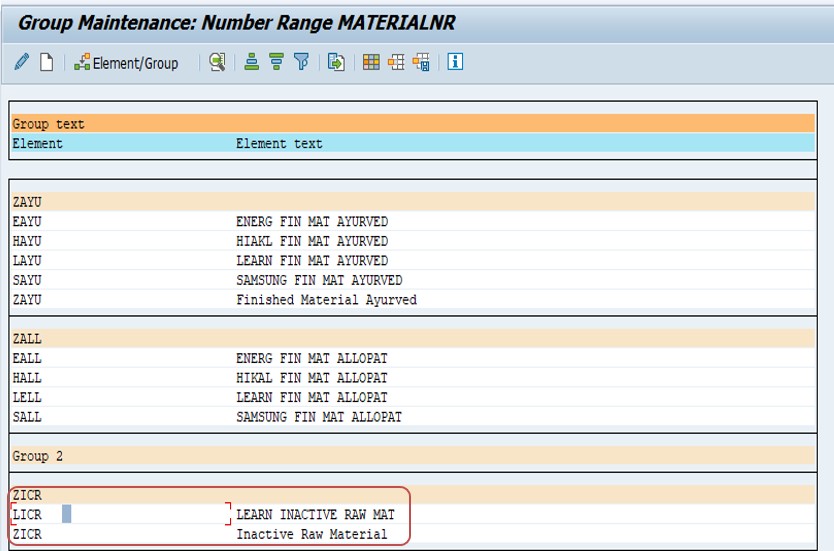
This is where you can actually move the material type to a different, correctly-configured group if the current group's numbering scheme does not match what your business needs. Reassigning to a group already configured for internal number assignment (such as Group 2 in this example) is often simpler and safer than editing the number range interval flags on the original group, especially if other material types share that same original group and still need external assignment.
Check
- Check the number range interval assigned to this material type.
- Also check - if internal number assignment is required, ensure that the number range for this material type is configured for internal assignment (Number range should not have the checkbox "Ext." ticked).
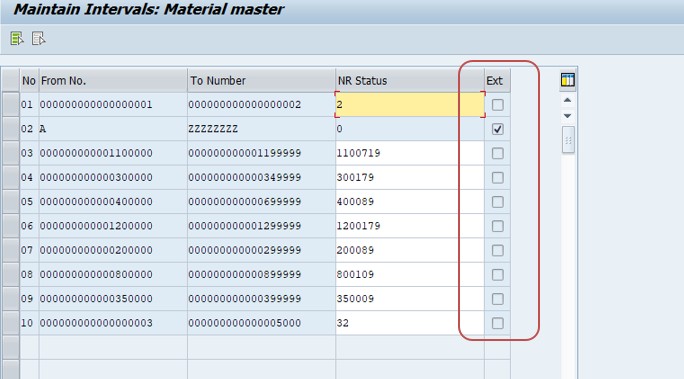
Save.
The "Ext." checkbox is the single most important field on this screen - ticked means external (manual entry), unticked means internal (SAP-generated). If you determine internal assignment is genuinely what your business needs for this material type, unticking this box on the correct interval, or reassigning to a group where it is already unticked, is the actual fix. Always double-check you are editing the interval actually linked to the material type in question, since a shared group can affect other material types if changed carelessly.
💼 Real-World Scenario: How Pooja Mishra Diagnosed This Error
Pooja Mishra, supporting the MM configuration team at Learn Pharma in Pune, was asked to help a materials planner who kept receiving "Internal number assignment is not possible for the material type LEARN INACTIVE RAW MAT" while trying to create a new raw material record without entering a number, expecting SAP to generate one automatically as it did for other material types.
Pooja opened MMNR, selected Groups, and found this material type assigned to group LICR, which was configured for external number assignment - likely set up originally for a legacy numbering convention carried over from an earlier system migration. After confirming with the business that this material type genuinely needed the SAP-generated internal numbering going forward, Pooja reassigned it to Group 2 (already used by MK01 with internal assignment), verified the Ext. checkbox was unticked on that group's interval, and saved. The materials planner was able to create the next material of this type without entering a number, resolving the issue for every future material of that type going forward.
📋 Related Transactions Every MM Consultant Should Know
| Transaction | Purpose |
|---|---|
| MMNR | Maintain number ranges and groups for material master records, controlling internal versus external number assignment. |
| OMS2 | Configure material type attributes, including which number range group a material type defaults to and general field selection. |
| MM01 | Create a new material master record - where this error actually surfaces if the number range mismatch exists. |
| MM03 | Display a material master record, useful for confirming an existing material's number falls within the expected range. |
| OMSL | Configure additional material type settings, sometimes reviewed alongside number range group assignment during troubleshooting. |
Keeping this list handy is useful because the fix for this error lives entirely in configuration (MMNR and OMS2), while the symptom itself only ever appears to end users during MM01 material creation - a disconnect that can confuse anyone not familiar with how number ranges and material types are linked.
❗ Common Mistakes When Fixing This Error
- Editing the "Ext." checkbox on a number range interval shared by multiple material types, unintentionally changing behavior for other materials that still need external assignment.
- Reassigning a material type to a different group without confirming that group's interval actually supports the volume of materials expected to be created under it.
- Assuming this is a material master data issue and trying to fix it in MM02 rather than recognizing it as a number range configuration problem in MMNR.
- Making the configuration change directly in production without testing in a sandbox system first, given that number range changes affect all future material creation for that type.
- Not documenting why a material type's numbering scheme was changed, leaving the next consultant unsure whether the current setup is intentional or a leftover mistake.
📋 Related SAP MM Error Messages You May Also Encounter
| Error / Message | Typical Cause |
|---|---|
| Internal number assignment is not possible for the material type | Material type's number range group is configured for external assignment |
| Number range does not exist for material type | Material type has been created or copied but never linked to a number range group at all |
| Material number already exists | External assignment attempted with a number already used by another material |
| Number is outside the valid number range interval | External assignment attempted with a number outside the configured interval boundaries |
If you land on this page after searching for one of these related messages, the diagnostic order is the same: confirm which number range group the material type belongs to in MMNR, then check whether the interval and Ext. flag configuration matches what your business process actually needs.
💡 Best Practices to Prevent This Error From Recurring
- Document your organization's number range group assignments for every active material type, including which are internal and which are external and why.
- When creating a new custom material type, decide on internal versus external numbering deliberately during design, rather than defaulting to whatever an existing group happens to offer.
- Restrict MMNR and OMS2 changes to Basis or MM configuration teams, and always test changes in a sandbox system before applying them in production.
- Train end users creating materials to recognize this error as a configuration mismatch rather than something they can self-resolve, so tickets route directly to the right team.
- Review number range group assignments periodically, especially after a system migration or material type consolidation project, since legacy numbering conventions can become outdated.
⚙ How Material Type Configuration (OMS2) Connects to Number Ranges (MMNR)
For consultants who want to understand the configuration layer rather than just the symptom, it helps to see how material type settings in OMS2 and number range settings in MMNR relate to each other, since they are configured in two separate transactions but work together to determine numbering behavior.
OMS2 defines a material type's general attributes - which views are relevant, whether it is quantity or value updated, and other business-process-level settings - but it does not directly define the number range itself. Instead, each material type is linked, through its number range group assignment (visible and editable in MMNR), to a specific interval that determines both the valid range of numbers and whether assignment is internal or external. This means two material types can share identical OMS2 settings in every other respect while behaving completely differently for number assignment, simply because they point to different MMNR groups.
This separation is deliberate - it lets SAP reuse the same number range interval across multiple material types that should share a numbering convention (for example, all raw material variants sharing one internal range), while still allowing individual material types to be redirected to a different group later without needing to touch their broader OMS2 configuration at all.
🌐 Number Range Considerations During System Migrations
This error comes up disproportionately often during and after system migrations - moving from a legacy ERP to SAP, consolidating multiple SAP systems into one, or migrating to S/4HANA - because number range configuration is exactly the kind of detail that gets carried forward automatically during a technical migration without anyone re-evaluating whether it still reflects current business needs.
A common pattern: during an initial SAP implementation, external number assignment is deliberately chosen for certain material types specifically to preserve legacy part numbers that customers, vendors, or internal systems already recognize. Years later, as those legacy numbering conventions become less relevant and new materials increasingly follow a clean, SAP-native convention, nobody goes back to update the number range configuration - until a new team member, unaware of the original external-numbering decision, tries to create a material expecting internal assignment and hits this exact error.
If your organization is planning a system migration or consolidation project, it is worth explicitly reviewing every material type's number range group assignment as part of the project scope, rather than assuming existing configuration reflects current intent. Documenting which material types are intentionally external (and why) versus which ones simply inherited external assignment from a legacy decision that no longer applies saves significant confusion for the teams supporting the system long after the migration project itself has closed out.
📈 Why Number Range Configuration Deserves Careful Planning
Number range configuration is one of those SAP settings that is easy to overlook during initial project design but expensive to change carelessly later. Once materials have been created under a given numbering scheme, switching a material type's group or Ext. flag does not renumber existing materials - it only affects new ones going forward. This means a poorly planned initial setup, discovered only when a user hits this error, can leave an organization with an inconsistent numbering pattern: older materials created one way, newer ones created another, unless the switch is deliberately planned and clearly communicated.
This is especially relevant for organizations that migrated from a legacy ERP system, where external numbering was often used deliberately to preserve familiar part numbers during transition. If that external numbering requirement quietly fades as the organization matures onto SAP fully, nobody may realize the number range configuration was never updated until a user creating a new material hits exactly this error, expecting internal assignment that was never actually configured.
🧠 A Quick Troubleshooting Decision Tree
- Step A - Which number range group is the material type assigned to? Check in MMNR under Groups; this is the starting point for every subsequent check.
- Step B - Is that group's interval flagged as external (Ext. ticked)? If yes, and internal assignment is genuinely needed, either reassign the material type to an internal group or untick Ext. on this interval.
- Step C - Does any other material type share this same group? If yes, changing the Ext. flag directly affects them too - reassigning the specific material type to a different group is usually the safer option.
- Step D - If no suitable internal group exists yet, does a new number range interval need to be created? This requires defining a new interval with a genuinely internal (non-external) flag, then assigning the material type to it.
Working through these four checkpoints in order prevents the most common mistake with this error: editing a shared number range interval's flag directly, which can quietly change behavior for other material types without anyone immediately noticing.
✅ How to Verify the Fix
After adjusting the number range group or Ext. flag in MMNR and saving, go to MM01 and attempt to create a new material of the affected type without entering a number. If SAP now proposes a number automatically upon save, the fix worked as intended. It is worth creating a genuine test material in a sandbox system rather than production for this verification, given that any material created during testing will need to be handled appropriately afterward.
If other material types share the same number range group, also spot-check that they still behave as expected - creating one existing-pattern material of each affected type confirms your change did not unintentionally alter numbering behavior for a type you were not trying to fix.
📚 Quick Glossary of Terms Used in This Guide
- Internal Number Assignment: SAP automatically generates the material number from a defined number range interval.
- External Number Assignment: The user manually enters the material number, validated against the assigned number range interval.
- Number Range Interval: A defined range of numbers (e.g. 100000-199999) that material numbers must fall within for a given group.
- Number Range Group: A named grouping (such as LICR) linking one or more material types to a specific number range interval.
- Ext. Checkbox: The field on a number range interval in MMNR that determines whether assignment is external (ticked) or internal (unticked).
🎯 Conclusion
"Internal number assignment is not possible for the material type" looks like a material data problem the first time you see it, but it is entirely a number range configuration question, resolved in MMNR rather than anywhere in the material master itself. Checking which group the material type belongs to, confirming the Ext. flag on its interval, and reassigning or adjusting as needed resolves the overwhelming majority of cases in a few minutes - the main discipline is understanding the blast radius of any change before making it, since number range groups are commonly shared across multiple material types.
This guide is written for the range of people who typically land on this page: MM configuration consultants like Pooja Mishra diagnosing a numbering mismatch, materials planners hitting this error unexpectedly during material creation, and students learning how SAP separates material type definition (OMS2) from number range assignment (MMNR). Whichever group you fall into, the same core principle applies - this error simply means the material type's numbering configuration does not match what the user expects, and MMNR is where that mismatch gets resolved.
If you support a landscape with many material types across multiple plants or legacy migration history, it is worth keeping a short internal reference sheet listing every material type's number range group, whether it is internal or external, and - where external - a brief note on why that choice was made. New consultants and support staff encountering this error for the first time can then check that reference, quickly confirm whether the current setup is intentional or a leftover configuration gap, and resolve the ticket with confidence rather than needing to reverse-engineer the number range history from scratch every time the message appears.