SAP MIRO: How to Perform Invoice Verification in SAP MM – Step-by-Step
"MIRO" stands for "Invoice Verification." It is a key process within the Procure-to-Pay (P2P) cycle that involves the verification and processing of vendor invoices. The MIRO transaction code in SAP is used to enter and process invoices received from vendors for goods and services provided. This process ensures that invoices are accurate and match the corresponding purchase orders and goods receipts. This guide walks you through the Step-by-Step Process to post an invoice using MIRO. If you encounter any errors while following along, feel free to send a screenshot to pramod@learntosap.com, and I will help you resolve the issue.
✅ Invoice Verification in SAP MM
"MIRO" stands for "Invoice Verification." It is a key process within the Procure-to-Pay (P2P) cycle that involves the verification and processing of vendor invoices. The MIRO transaction code in SAP is used to enter and process invoices received from vendors for goods and services provided. This process ensures that invoices are accurate and match the corresponding purchase orders and goods receipts before any payment is released.
It helps to see where MIRO sits in the bigger procurement picture. A Purchase Order (ME21N) states what was ordered and at what price, and a Goods Receipt (MIGO) confirms what was actually delivered. MIRO is the third and final piece of what is commonly called the three-way match - it takes the vendor's invoice and checks it against both of those earlier documents. When all three line up, the invoice can be posted with confidence; when they don't, SAP flags the difference so it can be investigated before money changes hands.
Understanding SAP MIGO and Its Relationship to MIRO
MIGO is the transaction used to post the Goods Receipt when materials physically arrive from the vendor, and it is what creates the GR/IR (Goods Receipt / Invoice Receipt) entry that MIRO later clears. In other words, MIGO records what came in, and MIRO records what the vendor is billing for it - the two documents are meant to describe the same event from two different angles, and Invoice Verification's job is to confirm they actually agree.
Related Transaction Codes
| Transaction | Purpose |
|---|---|
| MIRO | Enter and post a vendor invoice for Invoice Verification. |
| MIGO | Post the Goods Receipt for materials received against a Purchase Order. |
| MIR4 | Display an invoice document that has already been posted through MIRO. |
📋 The Invoice Verification Process, End to End
Purchase Order Created: A Purchase Order is created in ME21N, defining the material, quantity, price, and vendor for the procurement.
Goods Receipt Posted: When the materials arrive, a Goods Receipt is posted using MIGO, confirming quantity received and creating the GR/IR clearing entry.
Vendor Sends Invoice: The vendor issues an invoice for the goods or services delivered, referencing the Purchase Order number.
Invoice Entered in MIRO: The buyer or accounts payable team enters the invoice details in MIRO, referencing the same Purchase Order, so the system can automatically compare quantities and values.
Three-Way Match and Tolerance Check: SAP compares the Purchase Order, Goods Receipt, and invoice; if the values fall within configured tolerance limits, the invoice can be posted, otherwise it is blocked pending review.
Payment to Vendor: Once the invoice has been posted and any blocks cleared, the payment run releases funds to the vendor according to agreed payment terms.
🔧 How to Post Invoice Using MIRO
Go To: Logistics → Materials Management → Logistic Invoice Verification → MIRO → Enter Invoice, or run transaction MIRO directly.
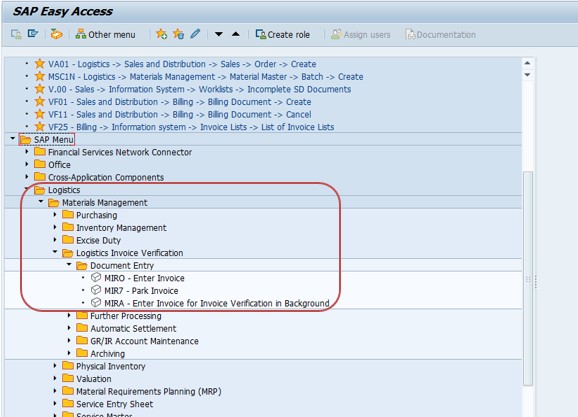
Go to Tcode MIRO. Run transaction MIRO to open the invoice entry screen. This is the single screen where invoice header data, purchase order reference, and amount all come together before posting.
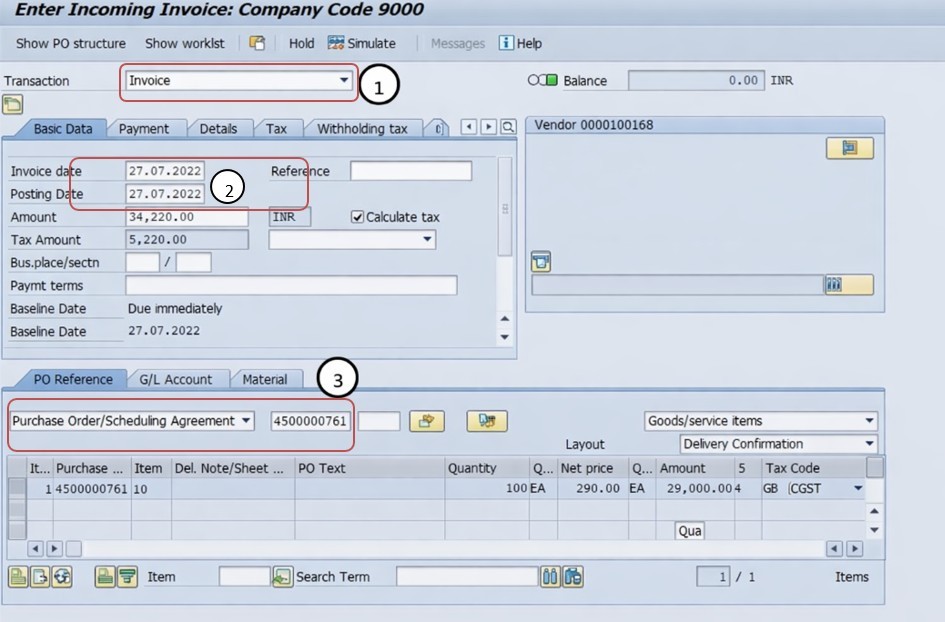
Select Invoice. Confirm the transaction type is set to Invoice, since MIRO also supports other document types such as credit memos.
Select Invoice Date - 27.07.2023. Enter the date shown on the vendor's invoice document itself.
Select Posting Date - 27.07.2023. Enter the date this transaction should be recorded in the company's books, which can differ from the invoice date depending on when it is actually being processed.
Select Purchase Order - 4500000761. Enter the Purchase Order number the invoice relates to, which lets SAP automatically pull in the expected quantities, prices, and any goods receipt already posted against it.
Select Amount - 34220. Enter the total invoice amount exactly as billed by the vendor.
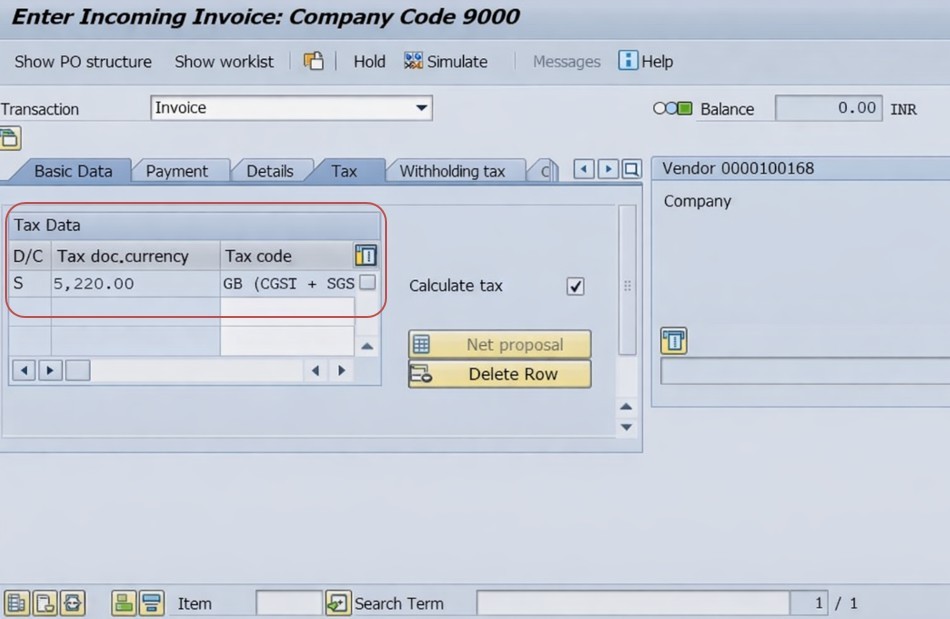
Select Simulate button. Click Simulate to preview the accounting entries the invoice will generate - including the GR/IR clearing entry - without actually posting anything yet, so any mismatch or error can be caught and corrected first.
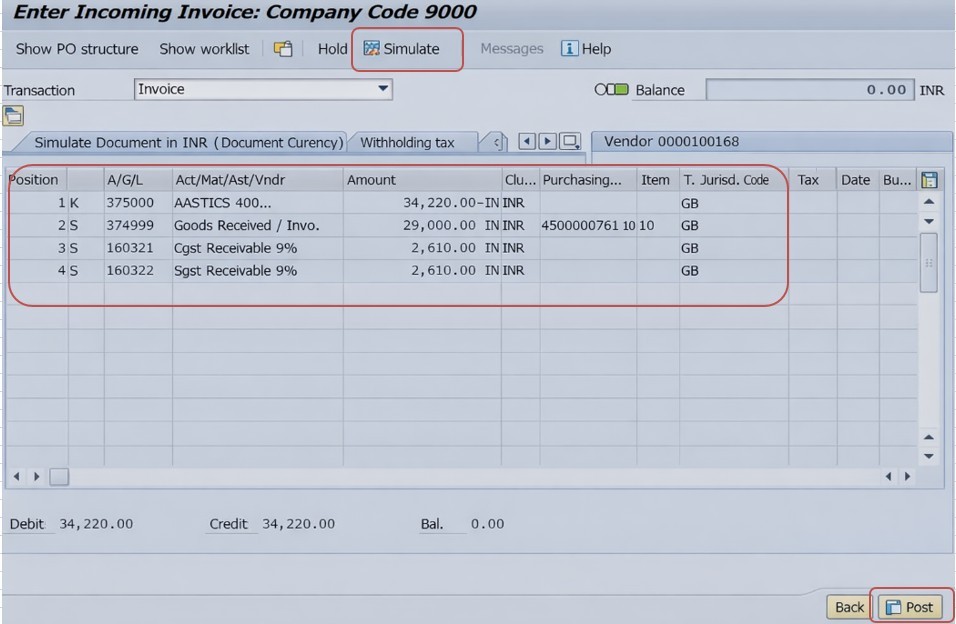
Then Post Invoice. Once the simulated entries look correct, click Post to save the invoice document. This generates the official Invoice Verification document, clears the relevant GR/IR balance, and makes the invoice available for the next payment run.
📋 Key Fields Involved in Invoice Verification
A quick reference for the fields that matter most when posting an invoice through MIRO.
| Field | What It Captures |
|---|---|
| Transaction Type | Confirms the document being entered is an Invoice rather than a credit memo or other document type. |
| Invoice Date | The date shown on the vendor's own invoice document. |
| Posting Date | The date the transaction is recorded in the company's accounting books. |
| Purchase Order Reference | Links the invoice to the original Purchase Order so quantities and prices can be automatically compared. |
| Amount | The total invoice value as billed by the vendor, which the system compares against expected values. |
| Tax Code | Determines how applicable taxes are calculated and posted alongside the invoice amount. |
| GR/IR Clearing | The temporary account holding the value of goods received but not yet invoiced, cleared once the matching invoice is posted. |
📋 Related SAP Transactions in the Procure-to-Pay Cycle
| Transaction | Purpose |
|---|---|
| ME21N | Create the Purchase Order that the invoice will eventually be matched against. |
| MIGO | Post the Goods Receipt for materials received against the Purchase Order. |
| MIRO | Enter and post the vendor invoice for Invoice Verification. |
| MIR4 | Display an invoice document that has already been posted. |
| MIR6 | Review invoice overview lists, including invoices blocked for payment. |
| MRBR | Release invoices that have been blocked due to price, quantity, or quality variances. |
| F110 | Run the automatic payment program to pay approved and unblocked invoices. |
❗ Common Mistakes During Invoice Verification
- Entering an invoice amount that doesn't match the vendor's actual invoice document, which can trigger a variance block even when the underlying order was correct.
- Referencing the wrong Purchase Order number, causing the system to compare the invoice against the wrong set of expected quantities and prices.
- Skipping the Simulate step and posting directly, missing the chance to catch a mismatch before it becomes a saved document.
- Confusing invoice date and posting date, which can cause the transaction to land in the wrong accounting period.
- Posting an invoice before the corresponding Goods Receipt has been entered, when the process requires goods receipt-based invoice verification.
- Ignoring a tolerance block instead of investigating the underlying quantity or price variance that triggered it.
- Not applying the correct tax code, leading to incorrect tax posting alongside an otherwise accurate invoice amount.
✅ Best Practices for Invoice Verification
- Always confirm the invoice amount and date against the vendor's physical or electronic invoice document before entering it into MIRO.
- Double-check the Purchase Order number before referencing it, especially when processing multiple invoices from the same vendor in one session.
- Run Simulate every time before posting, and review the proposed GR/IR clearing entry rather than assuming it will be correct.
- Confirm the Goods Receipt has been posted in MIGO before attempting to post an invoice against a Purchase Order that requires it.
- Investigate tolerance blocks promptly rather than letting blocked invoices accumulate, since unresolved blocks can delay vendor payments and strain the relationship.
- Keep tax codes and posting dates consistent with your organization's accounting close calendar to avoid period-end reconciliation issues.
- Reconcile GR/IR account balances periodically to catch goods receipts that were never invoiced, or invoices that were posted without a matching receipt.
📈 How Invoice Verification Shapes Downstream Financial Processes
The invoice document posted through MIRO becomes the trigger for the vendor to actually get paid, and it feeds directly into several downstream processes at once. It clears the GR/IR account, aligning inventory and procurement records with what accounting shows as owed. It creates the vendor open item that the automatic payment program (F110) will later pick up according to the agreed payment terms. And it becomes part of the audit trail that finance and internal audit rely on to demonstrate that payments were only made for goods and services that were actually ordered and received.
This is why an inconsistency introduced at the MIRO stage - an incorrect amount, a mismatched Purchase Order reference, a tolerance block left uninvestigated - tends to surface as a payment delay, a vendor dispute, or a reconciliation headache well after the invoice itself was entered, rather than as an obvious error at data entry time.
✅ Validating an Invoice Before Posting in MIRO
Before clicking Post, it's worth running through a short validation checklist. Confirm the invoice amount, invoice date, and Purchase Order number all match the vendor's actual invoice document. Review the Simulate screen carefully, checking that the GR/IR clearing entry and any tax postings look correct. Confirm the Goods Receipt has already been posted if your organization requires goods receipt-based invoice verification. Finally, check whether the invoice falls within configured price and quantity tolerances, and if not, be prepared to investigate the variance rather than force the posting through.
Skipping this validation is one of the more common reasons an invoice ends up blocked for payment after posting - usually a quantity or price variance that could have been caught at the Simulate stage.
🎓 Interview-Style Questions and Answers
Q: What does MIRO stand for, and where does it sit in the procurement cycle?
MIRO stands for Invoice Verification. It is the final step of the classic three-way match, coming after Purchase Order creation (ME21N) and Goods Receipt (MIGO), and is used to enter and verify vendor invoices before payment.
Q: What is the purpose of the Simulate button in MIRO?
Simulate previews the accounting entries an invoice will generate - including GR/IR clearing and tax postings - without actually saving the document, allowing errors to be caught before posting.
Q: What is GR/IR clearing?
GR/IR clearing refers to the Goods Receipt / Invoice Receipt account, a temporary holding account for the value of goods received but not yet invoiced. Posting a matching invoice through MIRO clears this balance.
Q: What happens if an invoice doesn't match the Purchase Order within tolerance?
If the invoice amount or quantity falls outside configured tolerance limits compared to the Purchase Order and Goods Receipt, SAP blocks the invoice for payment until the variance is investigated and either corrected or approved for release.
📚 Quick Glossary of Terms Used in This Guide
- Invoice Verification (MIRO): The SAP process of entering and matching a vendor invoice against a Purchase Order and Goods Receipt before payment.
- Three-Way Match: The comparison of Purchase Order, Goods Receipt, and invoice to confirm consistency before an invoice is approved for payment.
- GR/IR Clearing Account: A temporary account holding the value of goods received but not yet invoiced, cleared once a matching invoice is posted.
- Tolerance Limit: A configured threshold defining how much price or quantity variance between an invoice and its Purchase Order is acceptable before a block is triggered.
- Invoice Block: A hold placed on an invoice, preventing payment, typically triggered by a quantity, price, or quality variance.
- Payment Run: The automatic payment program (F110) that selects approved, unblocked invoices for payment according to their due dates and terms.
📝 Governance Around Invoice Verification
Because Invoice Verification is the last checkpoint before a vendor is actually paid, most organizations maintain governance around who is authorized to post invoices through MIRO, what tolerance limits apply to different categories of spend, and how quickly blocked invoices must be reviewed and resolved. This matters because accounts payable, procurement, and finance each have a stake in the outcome - accounts payable cares about processing invoices promptly to maintain good vendor relationships, procurement cares about invoices genuinely matching what was ordered, and finance cares about accurate, timely postings for accounting close.
Data quality governance at this stage follows the same underlying logic as everywhere else in the procurement cycle: an invoice entered carelessly - wrong amount, wrong Purchase Order reference, a tolerance block ignored rather than investigated - tends to surface as a payment delay, a vendor dispute, or a reconciliation problem later, which is considerably more disruptive to unwind than catching the issue at MIRO entry. A clear invoice verification checklist, aligned to your organization's tolerance and approval rules, keeps this process reliable even as invoice volume scales.
💼 Real-World Scenario: Matching a Vendor Invoice Against a Purchase Order
Accounts payable clerk Neha Kulkarni at Learn Pharmaceuticals received a vendor invoice referencing Purchase Order 4500000761, for raw materials that had already been received and confirmed through MIGO the previous week. Her task was to verify the invoice and get it ready for the next payment run.
Neha opened transaction MIRO, selected transaction type Invoice, and entered the invoice date of 27.07.2023 along with a matching posting date. She entered the Purchase Order number 4500000761, which automatically pulled in the expected line items and quantities from both the original order and the goods receipt already posted against it. She entered the invoice amount of 34,220 exactly as shown on the vendor's invoice.
Before posting, Neha clicked Simulate to preview the resulting accounting entries. The preview showed a clean match - the GR/IR clearing account balance was exactly offset by the invoice amount, with no tolerance warning raised. Confident the invoice matched what had actually been ordered and received, she posted the invoice, clearing the GR/IR balance and creating a vendor open item that would be picked up automatically in the next scheduled payment run, keeping the vendor relationship on solid footing.
📱 Invoice Verification in SAP S/4HANA
The underlying Invoice Verification logic in MIRO - matching an invoice against a Purchase Order and Goods Receipt through a three-way match - works largely the same way in SAP S/4HANA as in classic ECC, since it remains a core Materials Management and Financial Accounting integration point. What has evolved in S/4HANA is the availability of Fiori apps such as "Create Supplier Invoice" and "Manage Supplier Invoices," which give accounts payable teams a more modern, list-based way to enter, track, and monitor invoices alongside real-time analytics on blocked or overdue documents. Many S/4HANA implementations continue to rely on MIRO for detailed, complex invoice entry, while Fiori-based apps are increasingly favored for high-volume, straightforward invoice processing and status monitoring.
🎯 Conclusion
Invoice Verification through MIRO is the final gate before a vendor actually gets paid, and getting it right protects the organization from paying for more than was ordered or more than was received. Entering the correct invoice date, posting date, Purchase Order reference, and amount, carefully reviewing the Simulate preview before posting, and promptly investigating any tolerance blocks are what separate a smooth Procure-to-Pay cycle from one riddled with payment delays and vendor disputes. Keep this guide handy the next time your organization needs to verify and post a vendor invoice in SAP.