How to Use X-Plant Material Status in SAP: A Complete Guide
(In Materials Management), X Plant Material Status in SAP is a field that helps control the usage of materials across all plants in your system. It restricts (BLOCK) or permits certain processes such as procurement, production, or sales at a plant-independent level. You can also block this material at PLANT LEVEL or CLIENT LEVEL. This status is configured in the Material Master.
✅ What is X-Plant Material Status?
X-Plant Material Status acts as a rule-setting field for materials. It defines restrictions for the material - for example, whether it can be purchased, sold, or produced - and applies these restrictions across all plants, or at Client Level settings. It's the field to use when you want to block or limit the use of a material at the company level, or manage a material through specific stages, such as quality checks.
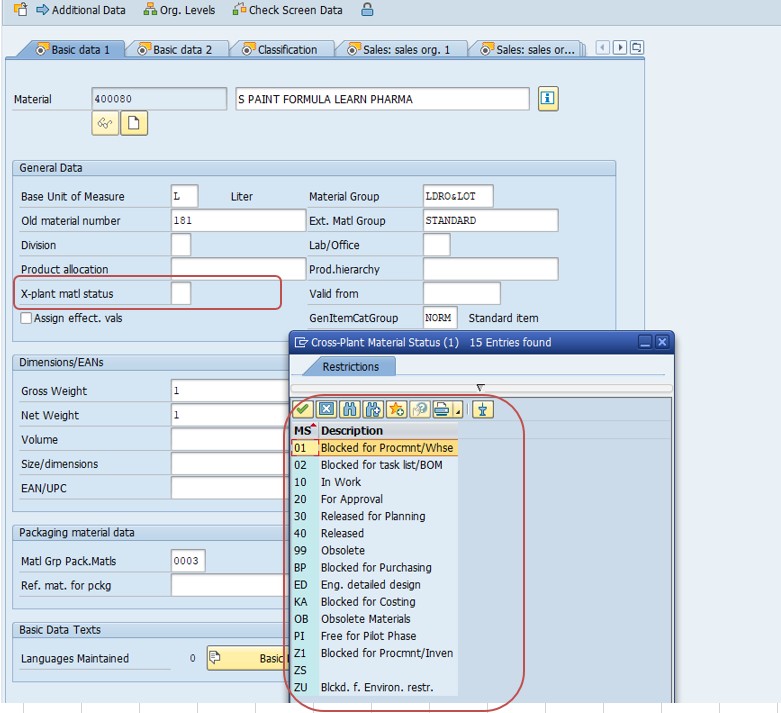
Where the Three Status Fields Live
| Level | Field Location | Scope of the Block |
|---|---|---|
| Plant Level (X-Plant Status) | Basic Data 1 view | Applies globally across every plant in the client once set |
| Plant-Specific Status | MRP or Purchasing view | Applies only to one specific plant |
| Distribution Chain Status | Sales Org 1 view | Applies to one sales organization and distribution channel |
✅ 1) Plant Level - X-Plant Material Status
User wants to block or limit the use of a material at company level, or manage materials through specific stages like quality checks - this is exactly what the Plant Level X-Plant status is for.
T-code: MM02 (Change Material)
Navigate to the Basic Data 1 tab.
Find the X-Plant Material Status field and choose a status code - for example: 01 Blocked for procurement, 02 Blocked for sales, 03 Blocked for production.
Save your changes, then check the result in a relevant transaction such as ME21N or VA01.
Effects of X-Plant Material Status
- If blocked for procurement, the material can't be purchased.
- If blocked for sales, it won't appear in sales orders.
- These restrictions apply globally across all plants in your system.
📊 Common X-Plant Material Status Codes
| Status Code | Description | Typical Effect |
|---|---|---|
| 01 | Blocked for procurement | Purchase orders and purchase requisitions for the material are rejected |
| 02 | Blocked for sales | The material cannot be entered on a sales order |
| 03 | Blocked for production | The material cannot be used in a production or process order |
These codes are configured in customizing, so the exact numbers and descriptions can be adjusted per client. The three shown above are the most common out-of-the-box examples used in training systems.
📐 Impact on MRP and Planning
X-Plant Material Status does not only stop a transaction from being entered manually - it also affects automated planning. When a status blocks procurement, MRP (transaction MD01/MD02) will not generate new purchase requisitions or planned orders for that material, even if a shortage exists. This is a common reason a material "disappears" from the MRP list unexpectedly: the status was changed, often without anyone updating the planners.
Impact on Procurement and Inventory
- A material blocked for procurement cannot be added to a new purchase order; existing open orders may still be allowed to complete, depending on customizing.
- Goods receipt against a blocked material can still be restricted or allowed depending on how the status is configured in OMS4.
- Inventory that already exists in the warehouse is not automatically removed or hidden; the status controls future transactions, not historical stock.
- Stock transfers between plants can also be affected if the status blocks the relevant movement type's underlying function.
✅ 2) Client Level - X-Plant Material Status
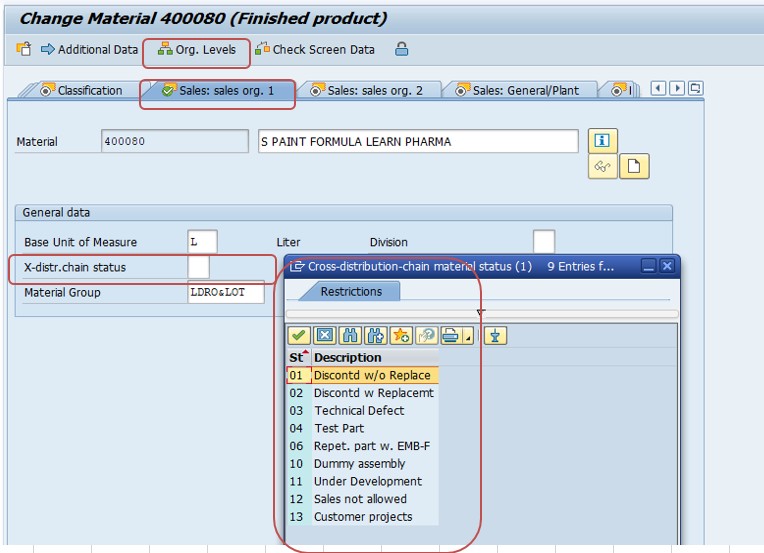
Go to: MM02
Navigate to the Sales Org 1 tab.
Select the Org Level, then select X-Plant Material Status.
Choose a status code - for example: 01 Discontinued w/o Replacement, 02 Discontinued w/ Replacement, 03 Technical Defect.
Sales Status Codes at a Glance
| Status Code | Description | Typical Effect |
|---|---|---|
| 01 | Discontinued w/o Replacement | Material can no longer be sold; no substitute is offered |
| 02 | Discontinued w/ Replacement | Material can no longer be sold, but a replacement is proposed |
| 03 | Technical Defect | Sales is blocked due to a known quality or technical issue |
Impact on Sales Orders
When a distribution chain status blocks sales, trying to enter the material on a sales order for that sales organization and distribution channel returns an error or warning, depending on customizing. If a replacement material is configured against status 02, SAP can propose the substitute automatically during order entry, which is useful during a planned phase-out of an old product.
🔍 Plant Status vs X-Plant Status: Key Differences
| Aspect | Plant-Specific Status | X-Plant (Cross-Plant) Status |
|---|---|---|
| Where maintained | MRP view or Purchasing view | Basic Data 1 view |
| Scope | One plant only | Every plant in the client |
| Use case | Phasing a material out of one factory while keeping it active elsewhere | Blocking a material company-wide, e.g. a recalled or discontinued item |
| Configuration transaction | OMS4 | OMS4 |
Both status types are configured through the same transaction, OMS4, which maintains material status codes and decides which functions (purchasing, MRP, sales, and so on) each code blocks, warns about, or allows. A frequent design decision project teams face is whether to reuse the same status code numbers for all three levels, or keep separate number ranges for plant, X-Plant, and distribution-chain codes. Keeping them separate, even though it adds a few extra configuration entries, makes it far easier to tell at a glance which status field a given code belongs to when it shows up in a material master or in an error message.
⚙️ How to Configure Material Status in OMS4
T-code: OMS4
Choose whether you are configuring the Cross-Plant status, Plant-Specific status, or Distribution Chain-Specific status.
Create or edit a status code (for example, 01, 02, 03) and give it a short description.
For each status code, mark whether purchasing, MRP, production, or sales should be blocked, give a warning, or be allowed as normal.
Save the configuration, then assign the status code to materials through MM01 or MM02.
💡 Scenario 1: Company-Wide Product Recall
A quality issue is discovered in a finished product, and the company needs to stop every plant from producing, purchasing, or selling it immediately while the investigation is underway. This is the textbook use case for the Basic Data 1 X-Plant status: one change on the material master, and every plant in the client is blocked from the relevant transactions at once, rather than someone having to update dozens of plant-level statuses individually.
💡 Scenario 2: Phasing Out a Material in One Factory Only
A plant is switching to a new supplier or a redesigned component, but other plants will keep using the current material for another year. Here the plant-specific status, not the X-Plant status, is the right tool: it blocks procurement or production in that one plant's MRP view while leaving every other plant completely unaffected.
💡 Scenario 3: Discontinuing a Product Line for Customers Only
A product is being retired from the market, but the company still needs to purchase remaining raw materials to finish existing work orders. The Distribution Chain status on the Sales Org 1 view fits this case: it blocks the material from new sales orders in that sales organization and distribution channel while procurement and production continue to run normally.
💡 Scenario 4: Temporary Quality Hold
Incoming inspection flags a batch of material as suspect, and nobody should be able to consume it until quality releases it. Many clients configure a dedicated status code in OMS4 specifically for this, blocking goods issue and production consumption but still permitting inventory postings so the stock remains visible and trackable while it sits on hold.
👤 Who Should Be Involved Before Changing a Status
Because a material status change represents a company-wide or sales-wide restriction, most organizations maintain a documented governance process around who can request and apply a status change, and who needs to be informed before it takes effect.
| Role | Why They Need to Know |
|---|---|
| MRP Controller / Planner | Planned orders and requisitions for the material will stop generating once procurement or production is blocked |
| Purchasing | Open purchase orders may need to be reviewed, and new orders will be rejected |
| Sales / Customer Service | Customers expecting to reorder the material will hit an error once sales is blocked |
| Quality Management | Often the team requesting the block in the first place, for a hold or recall |
| SAP Basis / Configuration Team | Owns the OMS4 settings that define exactly what each status code blocks |
📄 How Status Changes Interact with Open Documents
A question that comes up constantly during cutover and go-live planning is what happens to documents created before a status was applied. The general rule in SAP is that a material status check runs when a document is created or changed, not continuously in the background.
- A purchase order created before the block was applied usually remains valid and can still be received, unless OMS4 explicitly extends the block to goods receipt as well.
- A sales order line already saved before a sales block is applied will usually stay on the order, but adding a new line with the same material, or changing an existing line's quantity, can trigger the block depending on settings.
- Running MRP again after a block is applied will stop new planned orders or requisitions from being generated, even though previously generated ones may remain in the system until they are manually reviewed.
Because this behavior varies by configuration, the safest practice before any status change is to run a report of open purchasing and sales documents for the material first, so nothing is caught by surprise.
📦 Mass-Changing Material Status for Many Materials
Blocking a single material through ME21N is simple, but a recall or product line discontinuation often touches dozens or hundreds of materials at once. For that situation, transaction MM17 (Mass Maintenance of Material Master) lets you select a list of materials, change the X-Plant or Distribution Chain status field for all of them in one step, and execute the update in a single transaction instead of opening each material individually.
⚠️ X-Plant Material Status vs Deletion Flags
A question that trips up many newer SAP users is why a material status and a deletion flag exist as two separate concepts when they both seem to "stop" a material. They are not the same thing, and mixing them up leads to the wrong fix being applied.
| Aspect | Material Status | Deletion Flag |
|---|---|---|
| Purpose | Temporarily or selectively restricts specific business functions | Marks a material as a candidate for permanent archival/removal |
| Reversible | Yes, can be changed back at any time | Technically reversible before deletion, but treated as a one-way decision in practice |
| Where set | Basic Data 1, MRP, or Sales Org 1 views via MM02 | Each organizational view via MM06 or MM02 |
| Typical use | Quality holds, phase-outs, recalls, discontinued sales | Materials that will never be used again and are ready for archiving |
In short: use a material status when the material might come back into active use later, and use a deletion flag only once you are certain it never will.
🔎 Checking the Current Status of a Material
Before troubleshooting or changing anything, it helps to confirm exactly which status fields are set on a material today. Transaction MM03 (Display Material) is the read-only way to do this without risking an accidental change.
T-code: MM03, then enter the material number and press Enter.
Select Basic Data 1 to check the X-Plant Material Status.
Select the relevant MRP view, choosing the specific plant, to check for a plant-specific status.
Select Sales Org 1, choosing the relevant sales organization and distribution channel, to check the Distribution Chain status.
📦 Material Status and Available-to-Promise (ATP) Checks
Material status settings also feed into Available-to-Promise checking during sales order entry. If a material is blocked for sales at the Distribution Chain level, the ATP check will typically prevent confirmation of a delivery date for that line, independent of whether physical stock actually exists in the warehouse. This is a frequent source of confusion for customer service teams, who can see stock in MMBE but still get an error entering the sales order - the stock is real, but the status is blocking the sale, not the quantity.
🔧 Troubleshooting: Material Not Behaving as Expected
| Symptom | Likely Cause | Where to Check |
|---|---|---|
| Material missing from MRP run | X-Plant or plant status is blocking procurement/production | Basic Data 1 and MRP 1 views, MM03 |
| Cannot add material to sales order | Distribution Chain status blocks sales for that sales area | Sales Org 1 view, MM03 |
| Status blocks more than expected | Status code's allowed functions were changed in customizing | OMS4, with your config team |
| Material blocked in one plant only | Plant-specific status was set, not X-Plant | MRP view for that specific plant, MM03 |
❌ Common Mistakes with X-Plant Material Status
- Confusing the three status fields - changing the Basic Data 1 X-Plant status when the intention was to block only one plant, which ends up blocking the material everywhere.
- Forgetting to inform planners, so MRP quietly stops proposing orders for a blocked material, which can look like a system bug if nobody knew the status changed.
- Assuming existing stock disappears - the status blocks new transactions; it does not remove or hide inventory that already exists.
- Not checking open documents first, which can cause downstream errors when open purchase orders or sales orders are processed further.
- Editing a shared status code in OMS4, which changes behavior for every material using that code, not just one.
✅ Best Practices for Using X-Plant Material Status
- Use the Basic Data 1 X-Plant status only for company-wide blocks, such as a recalled or fully discontinued material.
- Use the plant-specific status when a material should remain active in some plants but not others.
- Use the Distribution Chain status when the restriction is specific to how a material is sold, not produced or purchased.
- Review open purchase orders, sales orders, and planned orders before applying a new block.
- Document status code meanings centrally, since the same code number can mean different things in different systems if customizing was copied loosely.
- Test a status change in a sandbox or quality system before applying it in production, especially for high-volume materials.
🎯 Conclusion
X-Plant Material Status is one of the simplest fields in the Material Master to overlook, yet it can quietly block procurement, production, or sales across every plant in the client the moment it is set. Knowing the difference between the global Basic Data 1 status, the plant-specific status, and the Sales Org 1 Distribution Chain status - and knowing that all three are configured through OMS4 - is what separates a quick, confident fix from hours of confused troubleshooting when a material "stops working" for no obvious reason.