SAP SD Pricing Error: "Mandatory Condition EPR0 Is Missing" – Causes and Step-by-Step Fix
A user creates a sales document and SAP stops because a mandatory pricing condition has no price. The fix is to create the missing condition record with VK11. This guide explains the message, pricing basics, the exact VK11 steps with the original screenshots, how to verify the result and how to avoid the error in future. If you run into any errors while following along, feel free to send a screenshot to pramod@learntosap.com for help.
❌ The Error Message at a Glance
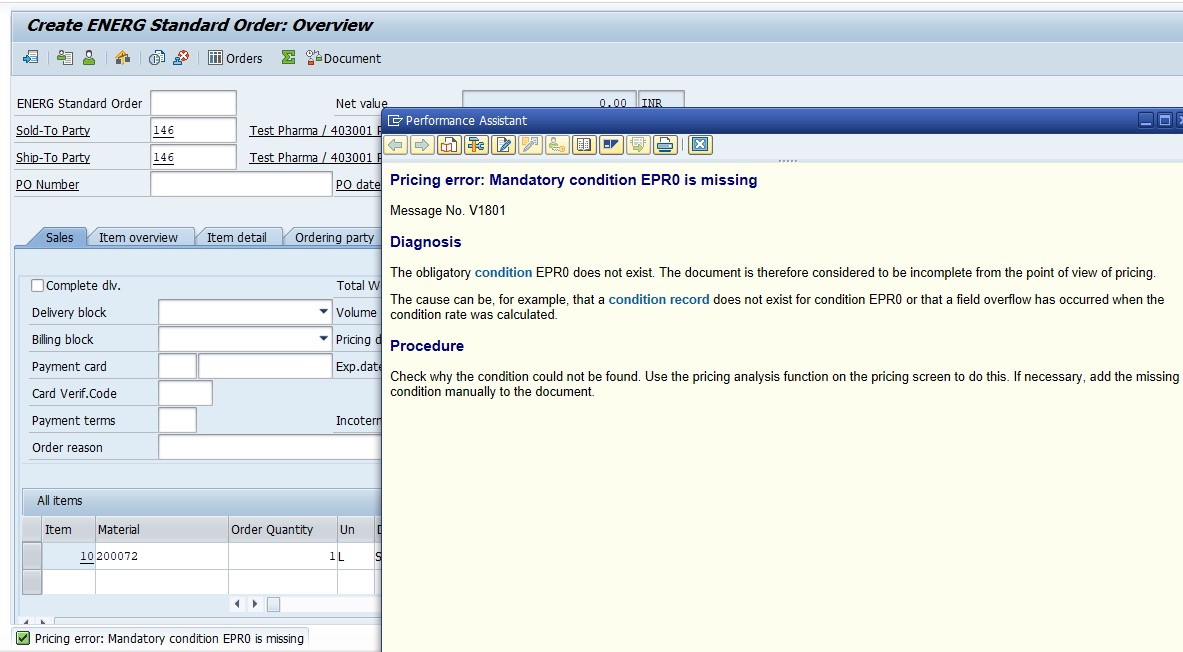
| Item | Value in This Example |
|---|---|
| Message text | Pricing error: Mandatory condition EPR0 is missing |
| Condition type | EPR0 (Energ Unit Price) |
| Module | SAP SD (Sales and Distribution) |
| Where to fix it | VK11, create condition record |
| Key combination | Material/Batch |
| Batch number and amount | SAL02, 101 |
The condition type and values in your own message may differ from this example. The same method applies with your own values.
📑 What You Will Learn in This Guide
- What the message means
- Why the error appears
- Pricing basics
- Where you meet the error
- Diagnose the problem
- Solution: create the condition record with VK11
- Values used in this guide
- Notes before you save
- Verify the fix
- Real-world scenario
- Common mistakes
- Troubleshooting
- Prevent the error
- Frequently asked questions
✅ SAP Pricing Error: Mandatory Condition EPR0 Is Missing – Easy Fix and Explanation
This message appears when SAP calculates the price of a sales document and cannot find a price for a condition that must be present. A pricing procedure is a list of condition types, such as the base price, discounts and taxes. Each line can be marked as mandatory. If a mandatory condition has no valid condition record, SAP stops the pricing and shows the error that the mandatory condition is missing, here EPR0.
In simple words, the recipe for the price says that the unit price must be there, but the number that goes into that line was never entered. The message is therefore not a data entry mistake in the sales order. It is a gap in pricing master data, and it is solved once, by creating the missing condition record.
💡 Why Does This Error Appear? Common Causes
| Cause | What Is Wrong |
|---|---|
| No condition record | No record exists for EPR0 for this material, batch or customer. |
| Record is not valid | A record exists but its validity period does not cover the document date. |
| Wrong key combination | The record was created with a key combination that does not match the document data. |
| Batch not covered | The price is batch-specific, and the batch in the document has no record. |
| Deleted or blocked record | A record was deleted or blocked by mistake. |
| Transport or copy gap | The data exists in another client but was not created in this one. |
In daily work the first and fourth causes are the most common. A new batch is created, an order is entered and the price for that batch has not been maintained yet.
📝 Pricing Basics: Procedure, Condition Type and Condition Record
Four ideas explain almost every pricing message. The table lists them in the order SAP uses them.
| Element | What It Is | Where It Is Maintained |
|---|---|---|
| Pricing procedure | The ordered list of condition types for a document. | Pricing procedure configuration |
| Condition type | One line of the procedure, such as a price or a discount, here EPR0. | Condition type configuration |
| Access sequence and key combination | The rules that tell SAP which fields to use to look for a record. | Access sequence configuration |
| Condition record | The actual number, such as the price 101, with its validity dates. | VK11 |
Configuration decides what SAP looks for, and master data decides what it finds. The EPR0 message means the configuration is fine but the master data is missing.
📋 Where You Meet This Error in Daily Work
The message can appear whenever SAP prices an item:
- Creating a sales order or a quotation.
- Creating a billing document for a delivery.
- Creating a credit memo or debit memo request that copies prices.
- Changing the quantity or the batch of an existing item.
- Testing a new material or a new batch.
Because pricing runs automatically, the user may never have chosen the condition. That is why the message sometimes surprises people: the price comes from master data, not from the screen.
🔧 Step-by-Step: Diagnose the Problem
Read the message. Note the condition type, here EPR0.
Open the pricing screen of the item. Look at the pricing analysis to see which key combination SAP searched.
Check existing records with VK13. See whether a record exists for the material and batch.
Check the validity dates. Make sure the document date falls inside the period of the record.
Plan the new record. Agree the price, the key combination and the dates with the pricing team before you create anything.
✅ Solution: Create the Condition Record with VK11
SOLUTION – TCODE – VK11 (CREATE CONDITION RECORD)
Follow Steps
Go to Tcode VK11.
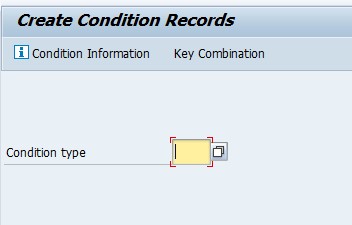
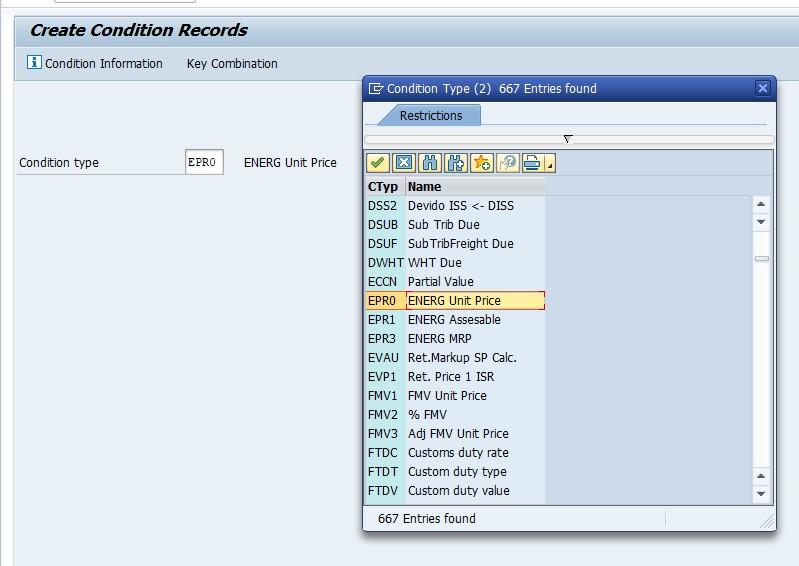
Select EPR0 – Energ Unit Price.
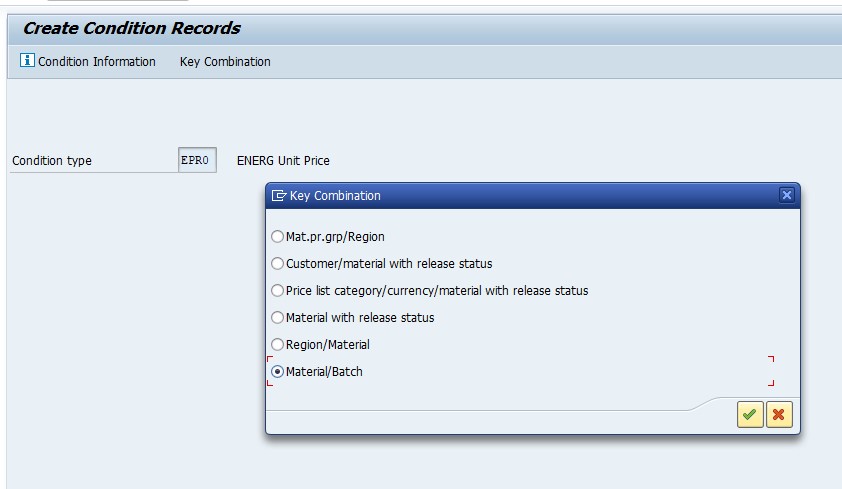
Select the key combination. Key combination: Material/Batch.
Enter the values. Batch No: SAL02, Amount: 101, Valid From: 06.07.2023 To: 31.12.1999.
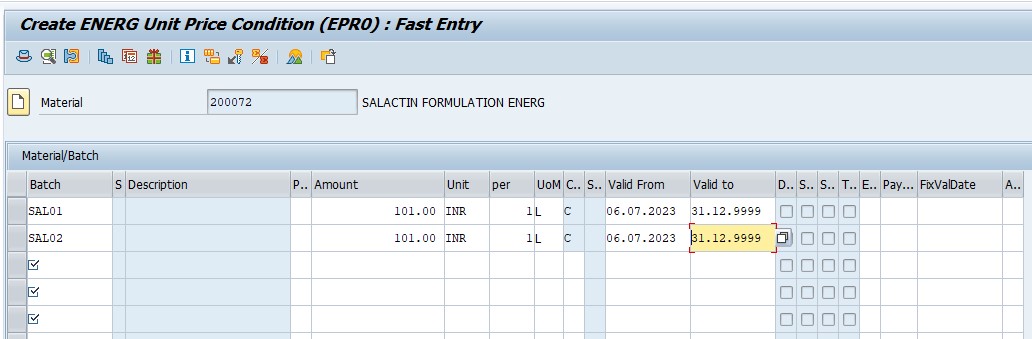
Save. SAP shows a message that the condition record was saved.
📋 Values Used in This Guide at a Glance
The table below summarizes every value from the steps above, so you can compare it with your own screen before saving.
| Item | Value Used | Note |
|---|---|---|
| Transaction | VK11 | Create condition record |
| Condition type | EPR0 | Energ Unit Price |
| Key combination | Material/Batch | Price depends on the batch |
| Batch number | SAL02 | Use your own batch |
| Amount | 101 | Agree with the pricing team |
| Valid from | 06.07.2023 | Start of validity |
| Valid to | 31.12.1999 as in the original | Must be later than valid from |
📝 Notes Before You Save
- Agree the price and the batch with the pricing or sales team before creating the record.
- Check the unit and the currency shown on the record.
- Make sure the validity dates cover the date of the document.
- Use the same key combination that the access sequence searches.
- Avoid overlapping records for the same key, because they confuse pricing.
- Take a screenshot of the final record for your documentation.
✅ Verify the Fix
After saving, display the record with VK13 and confirm the batch, the amount and the dates. Then repeat the action that caused the message, for example creating the sales order again. The error about condition EPR0 should be gone, and the pricing screen should show EPR0 with the amount 101. If another message appears, for example about a different mandatory condition, the first problem is solved and the next one needs attention.
💼 Real-World Scenario: Fixing Missing EPR0 at Learn Pharma, Pune
At Learn Pharma in Pune, sales coordinator Pooja Patil tried to create a sales order for batch SAL02. SAP stopped her with the message that the mandatory condition EPR0 was missing. She asked pricing analyst Neha Deshmukh for help.
Neha displayed the pricing procedure and saw that EPR0 was mandatory. She opened VK11, selected EPR0, chose the key combination Material/Batch, entered batch SAL02, amount 101 and the validity dates, and saved. Sales manager Rohan Kulkarni confirmed the price.
Pooja created the order again, the price appeared and the order was saved. Neha recorded the new record in the pricing workbook, and the team added a check for new batches to their onboarding routine.
🔧 Using Pricing Analysis to Find the Cause
The pricing screen of a sales document has an analysis function that shows how SAP searched for each condition. For EPR0 it lists the key combinations in the order they were tried and tells you for each one whether a record was found. This is the fastest way to see why the message appears, because it shows exactly which fields SAP used, such as the material and the batch.
Read the analysis from top to bottom. If every key combination says that no record was found, the record is missing, and VK11 is the fix. If a record exists but is not used, look at its dates and at the fields it was created for. A few minutes with the analysis saves a long guess about configuration, and it is a skill that every SD consultant and key user should have.
💡 Access Sequences and Key Combinations Explained
An access sequence is a prioritized list of key combinations. SAP tries the first one, and if it finds no record, it tries the next, until it finds a price or runs out of options. In this guide the key combination is material and batch, which means the price is tied to one material in one batch. A more general key combination, such as material alone, would apply to every batch of that material.
The choice matters. A batch-specific price is useful when batches have different costs or quality grades, but it creates more records to maintain. A material-level price is easier to maintain, but it cannot reflect batch differences. Agree the design with the pricing team, and keep the key combinations as few as the business allows, because every extra key is one more place where a record can be missing.
⛔ Mandatory or Optional: Should You Change the Condition?
| Option | What It Does | Risk |
|---|---|---|
| Keep the condition mandatory and create the record | Forces a price for every document and protects against free or wrong prices. | Needs good master data maintenance. |
| Make the condition optional in the pricing procedure | Allows documents without this price. | Orders can be saved without a price, and revenue can be lost. |
| Add a more general key combination | Gives a fallback price when no batch price exists. | Fallback prices can hide missing batch data. |
The safest fix is almost always to create the missing record. Changing the pricing procedure is a configuration change that affects every document, so it should go through the normal change and transport process and be approved by the pricing owner.
📅 Validity Dates and Overlaps
Every condition record has a valid-from date and a valid-to date, and SAP uses the record only for documents whose pricing date falls inside that period. In the original example the dates are shown as 06.07.2023 to 31.12.1999, which would leave no valid period, so always check the order of the dates on your own screen. An open-ended record usually ends on 31.12.9999.
When prices change, create a new record that starts on the day of the change instead of editing the old one blindly. SAP can shorten or split the old record when the periods overlap, depending on your settings, but it is cleaner to review the old and new records together with VK13. Keeping a clear history of prices also makes it easy to answer a customer who asks what the price was on a given day.
📅 A Routine for New Materials and Batches
| Step | Action | Owner |
|---|---|---|
| 1 | Create the material or batch and confirm the sales data. | Master data team |
| 2 | Tell the pricing team the material and batch number. | Sales operations |
| 3 | Create the price record with VK11. | Pricing analyst |
| 4 | Display the record with VK13 and check the dates. | Pricing analyst |
| 5 | Create a test order and check the pricing screen. | Key user |
| 6 | Release the material or batch for sales. | Sales manager |
Following the same six steps for every new batch removes most mandatory-condition messages before they reach a customer order.
❗ Common Mistakes When Fixing This Error
- Creating a record with the wrong key combination, so SAP still finds nothing.
- Entering a valid-to date earlier than the valid-from date.
- Forgetting that the price depends on the batch.
- Making the condition optional in configuration instead of creating the missing record.
- Creating overlapping records with different amounts.
- Testing only one batch and not the others.
🔧 Troubleshooting: When the Message Still Appears
| Symptom | Likely Cause | What to Check |
|---|---|---|
| Same message after saving. | The record does not match the key in the document. | Compare the key combination and the batch. |
| Record exists but is not used. | Validity dates do not cover the document date. | Check dates with VK13. |
| Works for one batch only. | Other batches have no record. | Create records for every batch in use. |
| Price is zero. | The record has an amount of zero or a wrong unit. | Check the amount, unit and currency. |
| Cannot save the record. | Missing authorization or a missing required field. | Read the message and check the required fields. |
✅ Best Practices for Condition Records
- Create price records before the material or batch is released for sales.
- Use one clear key combination for each price and keep it consistent.
- Use open-ended validity where the price has no planned end.
- Review expiring records every month.
- Keep a pricing workbook with the condition type, key, price and owner.
- Limit who may change prices in production.
🛡 How to Prevent This Error in Future
- Add pricing maintenance to the checklist for every new material and batch.
- Run a test order after every price load.
- Use reports to find materials without a valid price.
- Review mandatory conditions in the pricing procedure once a year.
- Train sales staff to report the message with the material, batch and date.
📱 This Message in SAP S/4HANA
Pricing remains a core function in SAP S/4HANA, and condition records are still created with the familiar transactions, although the pricing engine and some screens differ between releases. Confirm the exact behaviour in your own system before you plan the work. The principle does not change: a mandatory condition needs a valid condition record.
🔄 What to Do After the Fix
Once the message is gone, finish the job. Test an order for each batch and each customer group that uses the price, and confirm that the pricing screen shows the correct amount. Update the pricing documentation with the new record and its validity.
If your company introduces new batches often, agree a routine in which the pricing team receives the batch number before the first order is entered. A short routine like this removes most mandatory-condition messages and keeps the sales team working without interruption.
Share the finished price list with sales and finance after each load. When both teams see the same numbers, price disputes are settled quickly, and new colleagues learn the pricing logic from one clear overview instead of from scattered emails.
🎓 Interview-Style Questions and Answers
Q: What does 'mandatory condition is missing' mean?
A condition marked mandatory in the pricing procedure has no valid condition record.
Q: Which transaction fixes it?
VK11, to create the condition record.
Q: Which key combination was used here?
Material/Batch.
Q: How do you check existing records?
With VK13, or with the pricing analysis in the document.
Q: Is a transport needed?
No. Condition records are master data.
📚 Quick Glossary of Terms Used in This Guide
- Condition Type: A line of the pricing procedure, such as a price or a discount.
- EPR0: The condition type named in the error, called Energ Unit Price in this example.
- Condition Record: The stored value, such as a price, with its validity.
- Key Combination: The set of fields, such as material and batch, that identifies a record.
- Mandatory Condition: A condition that must have a value for pricing to succeed.
- Batch: A quantity of a material produced or received together.
🎯 Conclusion
The error "Mandatory condition EPR0 is missing" has a simple cause: the price for that condition was never maintained. Open VK11, select EPR0 – Energ Unit Price, choose the key combination Material/Batch, enter batch SAL02, amount 101 and the validity dates, and save. Then test the order and record the price. If you run into any errors while following along, feel free to send a screenshot to pramod@learntosap.com for help.