HTML Class Attribute Tag Explained: How to Use Class in HTML with Examples & Best Practices
HTML Tutorials · HTML class Attribute Tag · Introduction
Mastering the HTML Class Attribute Tag: Best Practices and Examples
The class attribute in HTML is used to assign one or more class names to an HTML element. These class names can be used to apply CSS styles or interact with JavaScript.
This tutorial covers four working examples, basic styling, multiple classes, JavaScript access, and grouping, along with the difference between class and id, naming conventions, how classes fit into CSS specificity, toggling classes dynamically with classList, and a combined tabbed-interface example, plus a live playground further down the page where you can test any class combination instantly.
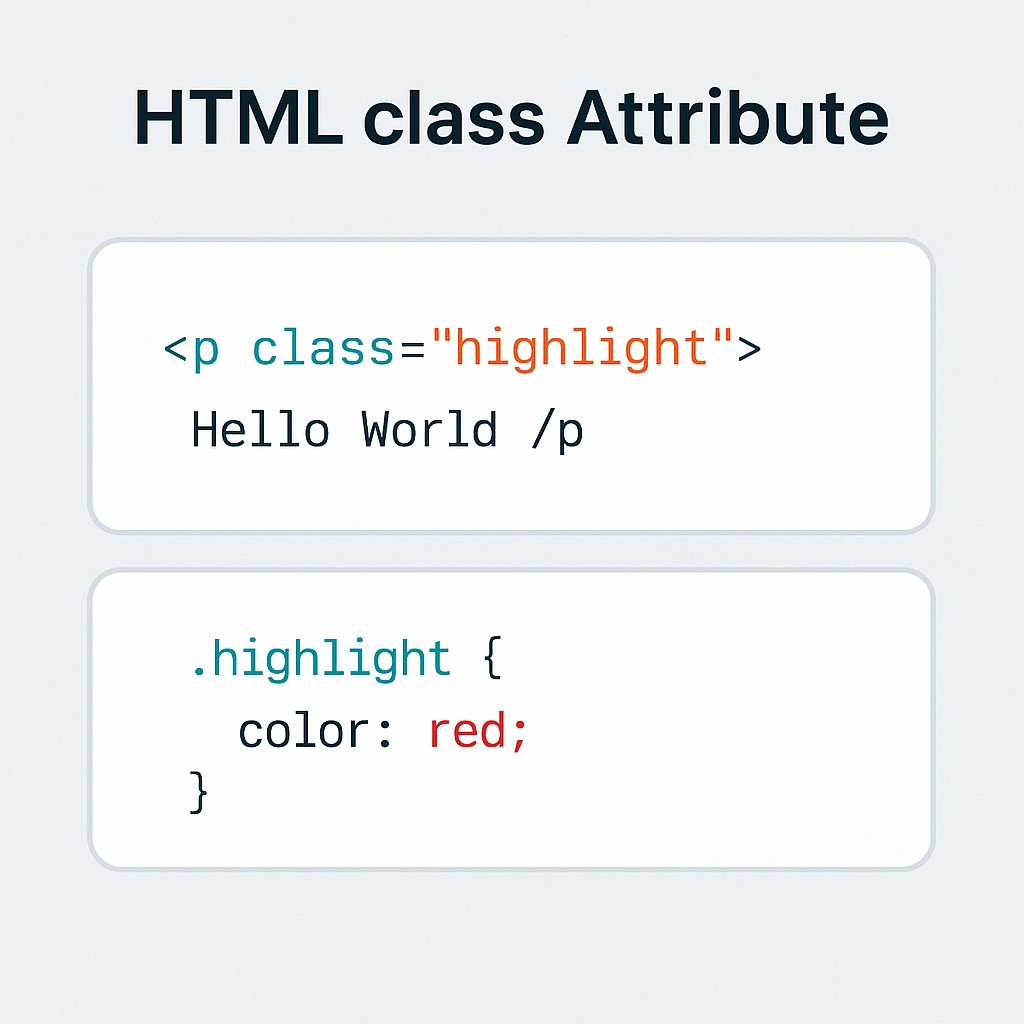
Class Attribute Examples
Four practical uses of the class attribute, from basic CSS styling to multiple classes, JavaScript access, and grouping elements, each with the exact code and its rendered result.
✅ Example 1: Styling with CSS
<!DOCTYPE html>
<html>
<head>
  <style>
    .highlight {
      background-color: yellow;
      font-weight: bold;
    }
  </style>
</head>
<body>
  <p class="highlight">This paragraph is highlighted using a CSS class.</p>
</body>
</html>
Rendered Result
This paragraph is highlighted using a CSS class.
✅ Example 2: Multiple Classes
<!DOCTYPE html>
<html>
<head>
  <style>
    .box { border: 1px solid black; padding: 10px; }
    .rounded { border-radius: 10px; }
  </style>
</head>
<body>
  <div class="box rounded">This box has multiple classes applied.</div>
</body>
</html>
Rendered Result
✅ Example 3: JavaScript Access
<!DOCTYPE html>
<html>
<body>
  <p class="clickable">Click me!</p>
  <script>
    document.querySelector('.clickable').addEventListener('click', function() {
      alert('Paragraph clicked!');
    });
  </script>
</body>
</html>
Rendered Result (click it!)
Click me!
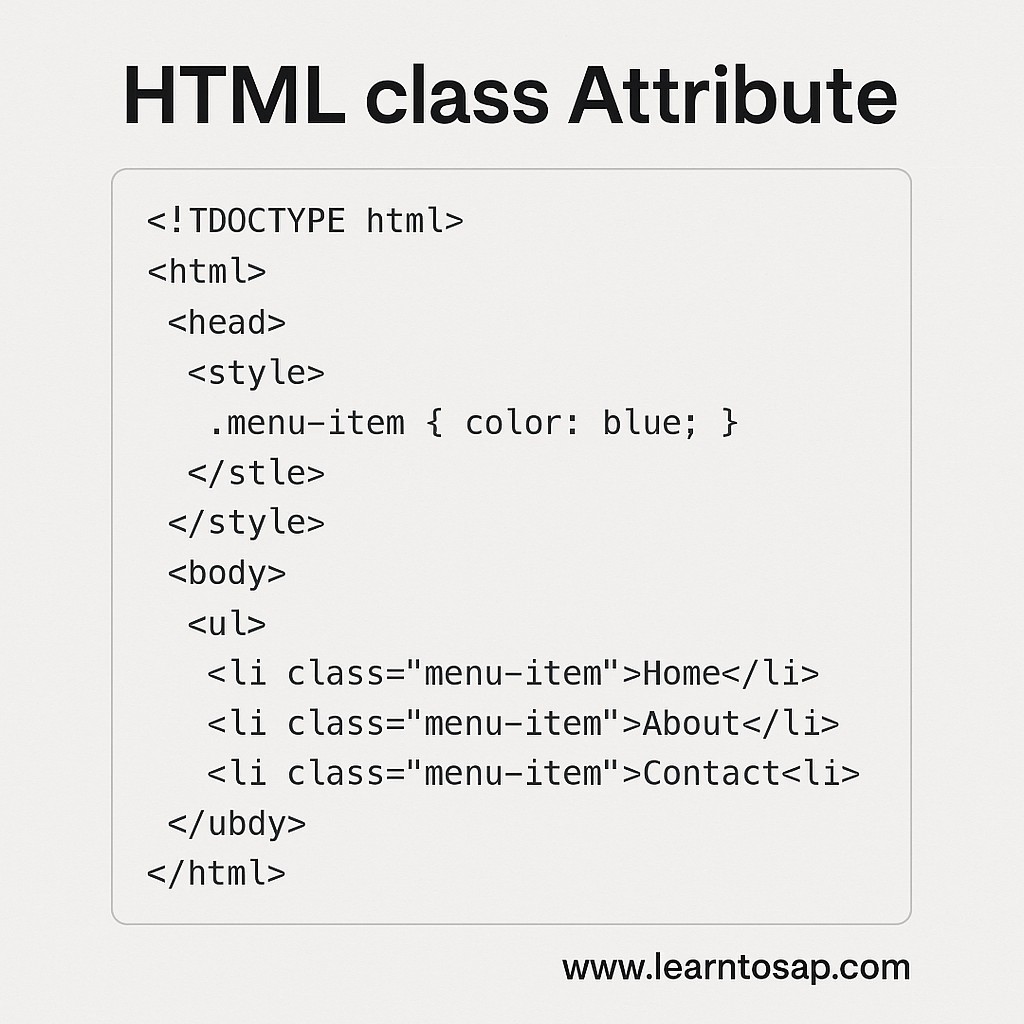
✅ Example 4: Grouping Elements
<!DOCTYPE html>
<html>
<head>
  <style>
    .menu-item { color: blue; }
  </style>
</head>
<body>
  <ul>
    <li class="menu-item">Home</li>
    <li class="menu-item">About</li>
    <li class="menu-item">Contact</li>
  </ul>
</body>
</html>
Rendered Result
- Home
- About
- Contact
Try It Yourself (Copy This Code and Paste. See how it works). Paste any of the four examples above into the live playground below and add your own class names or CSS rules to see the change instantly.
Live Code Preview
class vs id: When to Use Which
Both class and id attach a name to an element for CSS or JavaScript to target, and beginners frequently mix up when to reach for which one.
| class | id |
|---|---|
| Can be applied to many elements | Should be unique, used on only one element per page |
| An element can have several classes at once | An element can have only one id |
| CSS selector: .classname | CSS selector: #idname |
| Best for reusable, repeated styling | Best for a single, uniquely identified element |
<style>
    .menu-item { color: blue; }
    #main-logo { font-size: 24px; }
</style>

<h1 id="main-logo">My Site</h1>
<li class="menu-item">Home</li>
<li class="menu-item">About</li>
The Grouping Elements example earlier on this page is a perfect illustration of when class is the right choice: three separate list items all need identical styling, which is exactly what a shared class is for. A single, uniquely identified logo heading, by contrast, is a better fit for id.
Class Naming Conventions and Best Practices
As a project grows beyond a handful of practice examples, consistent, meaningful class names make a real difference in how easy the CSS and HTML remain to read and maintain.
| Convention | Example |
|---|---|
| Lowercase, hyphen-separated | card-title, menu-item |
| BEM (Block, Element, Modifier) | card__title--large |
| Utility-style (framework pattern) | text-center, p-4 |
- Name classes by role, not appearance, preferring .warning over .red-text, so the class name still makes sense if the color later changes.
- Stay consistent with one naming convention throughout a project, rather than mixing several styles.
- Keep class names descriptive but concise, such as .menu-item from the Grouping Elements example, rather than something overly long or overly vague.
CSS Specificity and How Classes Fit In
When more than one CSS rule could apply to the same element, the browser uses a set of specificity rules to decide which one wins. Classes sit in the middle of that hierarchy.
| Selector Type | Specificity (Low to High) |
|---|---|
| Element selector (p, div) | Lowest |
| Class selector (.highlight) | Medium |
| ID selector (#main-logo) | Higher |
| Inline style attribute | Highest |
This is exactly why the Multiple Classes example combines .box and .rounded instead of writing one long combined rule, each class contributes its own piece of styling at the same specificity level, and the browser simply applies both.
Common Mistakes With the class Attribute
- Using id where a reusable class would fit better, forcing repeated, near-identical CSS rules across a page.
- Forgetting the space between multiple class names, writing class="boxrounded" instead of class="box rounded", which the browser reads as one single, unmatched class name.
- Choosing presentational class names, such as .blue-text, that no longer make sense once the actual styling changes.
- Relying on very generic class names, like .item or .box, across a large project without a naming convention, risking accidental style conflicts.
- Mixing too many unrelated styles into one class, instead of combining several small, single-purpose classes the way the Multiple Classes example does.
Practice Exercises: Try Every Class Technique
The fastest way to make the class attribute feel natural is to build a few variations yourself. Try each of these directly in the live editor above:
- Recreate Example 1, then add a second class that changes the text color, and apply both classes together.
- Build three list items with a shared class, then give just one of them an additional, unique class for special styling.
- Recreate the JavaScript Access example, then add a second clickable element using the same class and event listener.
- Create one element styled with both a class and an id, and observe which style wins when both target the same property.
- Rename a purely presentational class, like .yellow-box, to a role-based one, like .alert-box.
Working through these five exercises covers every class technique discussed in this tutorial, from basic styling to JavaScript interaction and specificity.
Toggling Classes Dynamically with JavaScript
Example 3 on this page attaches a click event to an element selected by class, but a very common next step is using JavaScript to add, remove, or toggle a class itself, changing an element's appearance or state without writing new CSS rules on the fly.
<style>
    .active { background-color: lightgreen; }
</style>

<button onclick="document.querySelector('.toggle-target').classList.toggle('active')">
    Toggle Highlight
</button>
<p class="toggle-target">Click the button to toggle my background.</p>| classList Method | Effect |
|---|---|
| classList.add('name') | Adds a class if it is not already present |
| classList.remove('name') | Removes a class if it is present |
| classList.toggle('name') | Adds the class if missing, removes it if present |
| classList.contains('name') | Returns true or false without changing anything |
This pattern, toggling a class rather than directly changing individual style properties in JavaScript, is the standard, recommended approach in modern front-end development, since it keeps all the actual styling rules in CSS where they belong, with JavaScript simply switching a class on or off.
Real-World Example: A Tabbed Interface Using Classes
To see several class techniques from this page working together, here is a simplified tab interface that combines a shared class for styling, a unique "active" state class, and JavaScript class toggling:
<style>
    .tab { padding: 8px 16px; cursor: pointer; border: 1px solid #ccc; display: inline-block; }
    .tab.active { background: #2563eb; color: white; }
</style>

<div class="tab active" onclick="selectTab(this)">Tab 1</div>
<div class="tab" onclick="selectTab(this)">Tab 2</div>
<div class="tab" onclick="selectTab(this)">Tab 3</div>

<script>
    function selectTab(el) {
        document.querySelectorAll('.tab').forEach(t => t.classList.remove('active'));
        el.classList.add('active');
    }
</script>
Reading through this example: every tab shares the base .tab class for consistent styling, exactly like the Grouping Elements example earlier on this page, while the extra .active class, combined using the same multiple-class technique from Example 2, marks whichever single tab is currently selected. The JavaScript simply removes .active from every tab and adds it back to the one that was clicked, tying together styling, multiple classes, and JavaScript class manipulation into one small, practical interface.
Classes and Accessibility/SEO
The class attribute itself carries no semantic meaning to search engines or screen readers, unlike a tag such as <strong> or <nav>. Even so, thoughtful class usage supports both indirectly.
- Consistent, well-organized CSS classes make it easier to maintain clean, semantic HTML underneath, since developers are not forced into "divitis" or inline styling shortcuts just to achieve a particular look.
- Class names are never read aloud by screen readers, so accessibility must still come from the right underlying tags and ARIA attributes, not from the class attribute itself.
- A faster, better-organized stylesheet, built from clean, reusable classes rather than scattered inline styles, indirectly supports page performance, which is a factor in modern SEO.
Multiple Classes vs a Single Combined Class
The Multiple Classes example earlier on this page raises a natural design question: why write class="box rounded" as two separate classes instead of one combined class like .box-rounded with both styles baked in?
| Approach | Trade-off |
|---|---|
| Several small classes (.box .rounded) | Each class is independently reusable elsewhere; more flexible |
| One combined class (.box-rounded) | Simpler to read in the HTML; less reusable if only part of the styling is needed elsewhere |
The small-classes approach, exactly as the Multiple Classes example demonstrates, tends to scale better across a larger project, since .rounded can be reused on a completely different element that needs rounded corners but not a border, without duplicating any CSS.
Frequently Asked Questions About the HTML class Attribute
What is the class attribute used for in HTML?
The class attribute is used to assign one or more class names to an HTML element. These class names can be used to apply CSS styles or interact with JavaScript.
Can an element have more than one class?
Yes. Multiple class names can be listed inside the same class attribute, separated by spaces, such as class="box rounded", and every CSS rule matching any of those class names will apply.
What is the difference between class and id?
A class can be applied to many elements and reused throughout a page, while an id is meant to uniquely identify exactly one element on a page. CSS class selectors use a dot, and id selectors use a hash symbol.
Can JavaScript use the class attribute too?
Yes. JavaScript can select elements by class using methods like querySelector or getElementsByClassName, and can add, remove, or toggle classes dynamically using the classList property.
Does the order of classes in the class attribute matter?
No. The order classes are listed in the HTML class attribute does not affect which styles apply. What matters for conflicting styles is the order the matching CSS rules appear in the stylesheet, along with their specificity.
What naming convention should I use for class names?
Common conventions include lowercase, hyphen-separated names like card-title, or BEM-style names like card__title--large. Any consistent, descriptive naming style is better than inconsistent or purely presentational names.
What is the difference between classList.add and classList.toggle?
classList.add always adds a class, and does nothing if it is already present. classList.toggle adds the class if it is missing and removes it if it is already present, making it ideal for on/off states like a highlighted or active element.
Does the class attribute affect SEO directly?
No, class names themselves carry no semantic meaning to search engines. Their benefit is indirect, well-organized classes support cleaner, more maintainable HTML and faster-loading stylesheets.