HTML Favicon Tag Explained: How to Add, Customize, and Optimize Website Icons for All Browsers
By Pramod Behera · Updated: September 14, 2026 · 20 min read
- HTML Favicon Tag
- Why the Favicon Tag Still Matters
- Step-by-Step to Add a Favicon Syntax
- Favicon Syntax Examples
- A Short History of the Favicon
- Favicon File Formats: ICO vs PNG vs SVG
- Recommended Favicon Sizes for Every Device
- Complete Favicon Setup Example (All Devices)
- How to Create a Favicon From Your Logo
- Adding a Favicon on Popular CMS Platforms
- How Favicons Impact SEO
- Dark Mode and Adaptive Favicons
- Favicon Performance and Loading Considerations
- Accessibility Considerations for Favicons
- Common Favicon Mistakes Beginners Make
- How to Test Your Favicon
- Troubleshooting: Favicon Not Showing Up
- Favicon vs App Icon vs Touch Icon
- Favicon Best Practices Checklist
- Try It Yourself – Live Code Preview
- Practice Exercises
- Frequently Asked Questions
HTML Favicon Tag - How to Add, Customize, and Optimize Website Icons for All Browsers
-HTML (HyperText Markup Language) is the standard language used to create web pages. Favicon (short for favorite icon) is the small icon that appears in a browser tab next to your website title. Here's how you can add a favicon to your HTML page Follow this Syntax:.
Why the Favicon Tag Still Matters
Even though a favicon is only a handful of pixels, it plays a bigger role in your website's identity than most beginners realize. Every time someone opens ten tabs in their browser, the favicon is the only visual clue that tells them which tab belongs to your site. Without it, the browser simply shows a blank page icon, and your website blends into the crowd. Search engines and browsers have both become far more visual over the years too — Google now displays favicons directly inside search results next to your page title, especially on mobile search. That means a missing or broken favicon doesn't just hurt your browser tab, it can make your listing look unfinished right inside the Google results page. A clean, properly sized favicon signals that a site is professionally maintained, which subtly improves click-through rate even though favicons are not themselves a direct ranking factor.
Visitors form an opinion about a website within seconds. A sharp, branded favicon in the browser tab, in bookmarks, and in the mobile "Add to Home Screen" icon reinforces brand recall every single time the user glances at their open tabs. Sites without a favicon, or with a broken image icon instead, often appear less credible, especially to first-time visitors comparing multiple tabs while shopping or researching.
🔗 📌 Step-by-Step to Add a Favicon Syntax:-
Create or get a favicon image...
✅ Common formats: .ico, .png, .svg...
✅ Recommended size: 16x16 or 32x32 pixels...
<!-- For ICO format -->
<link rel="icon" href="/favicon.ico" type="image/x-icon">

<!-- Or for PNG format -->
<link rel="icon" href="/favicon.png" type="image/png">

<!-- Or for SVG format -->
<link rel="icon" href="/favicon.svg" type="image/svg+xml">
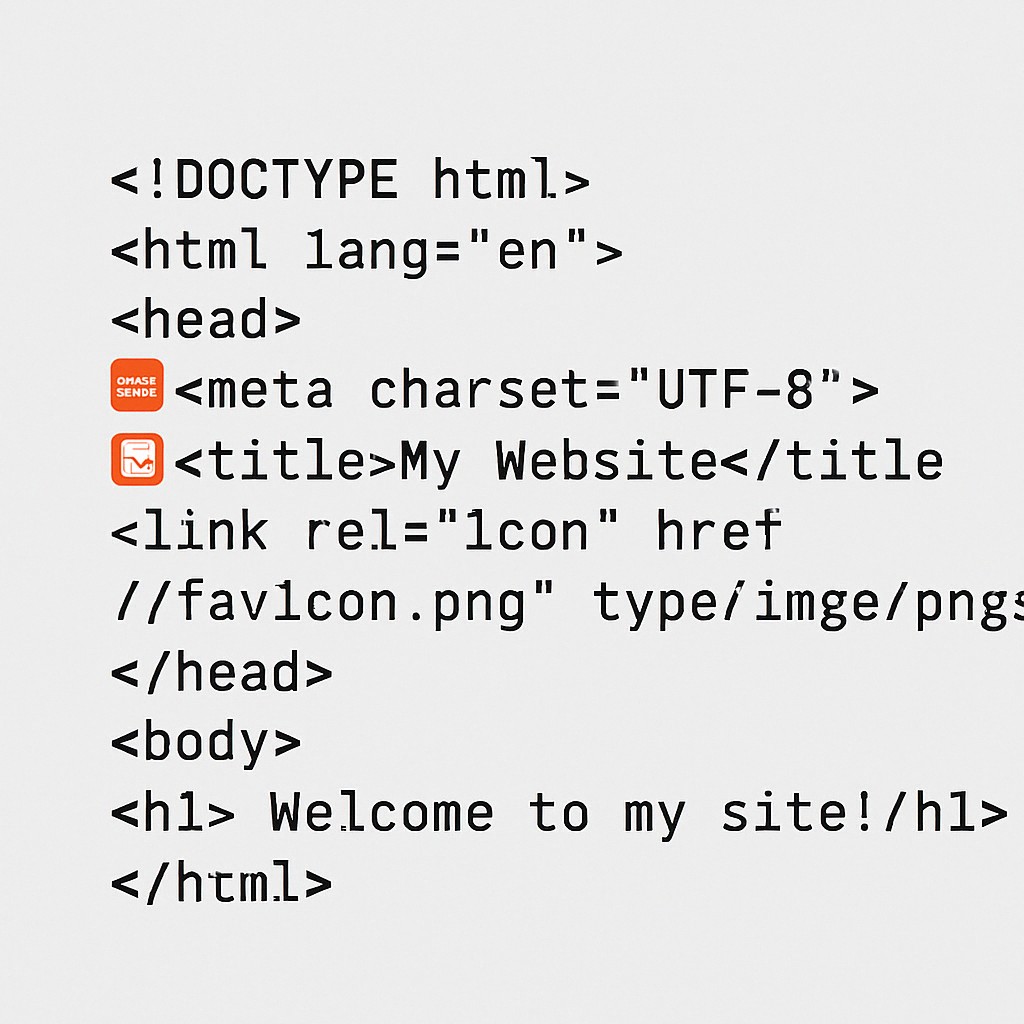
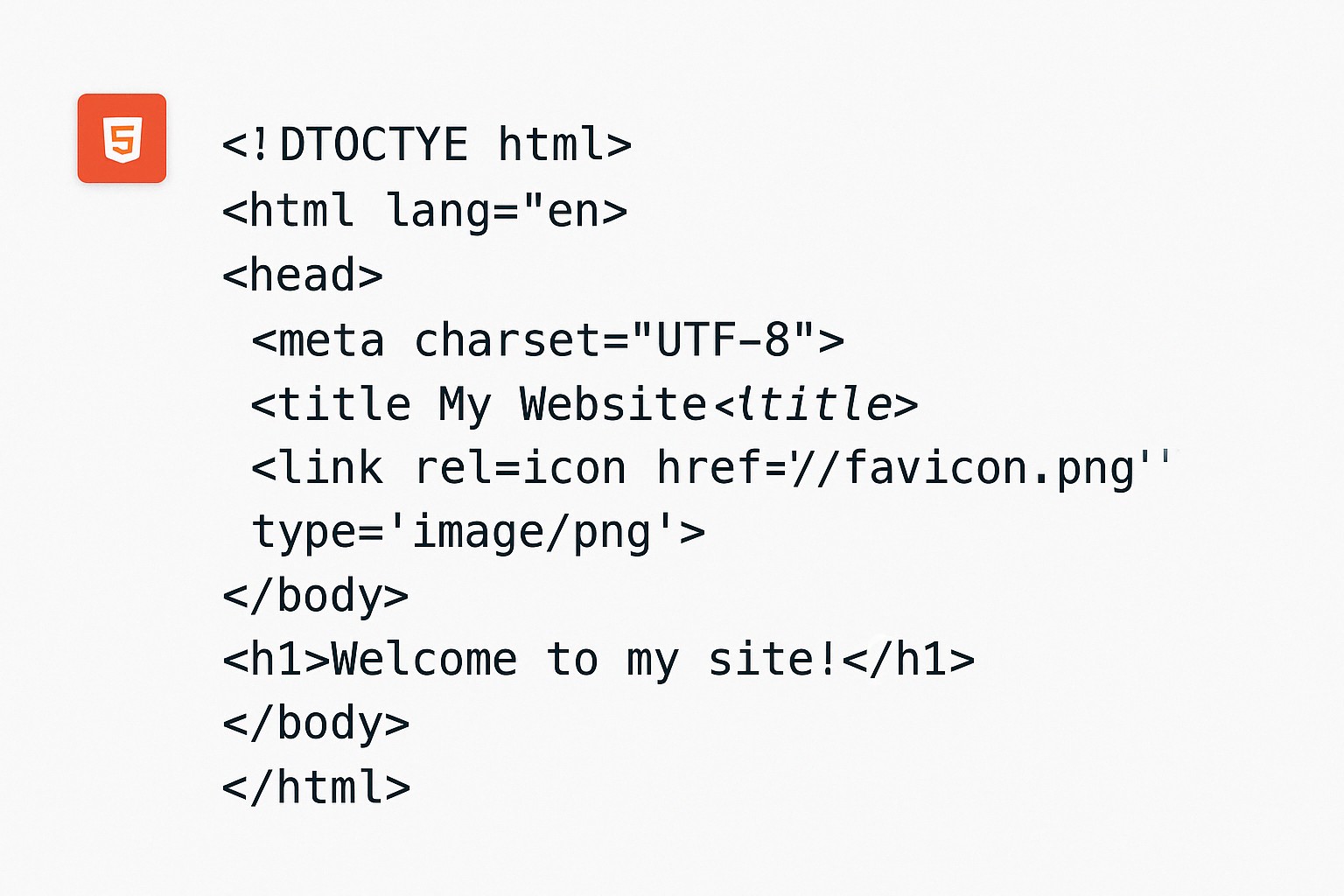
✅ Favicon Syntax Examples-👇
<!DOCTYPE html>
<html lang="en">
<head>
    <meta charset="UTF-8">
    <title>My Website</title>
    <link rel="icon" href="/favicon.png" type="image/png">
</head>
<body>
    <h1>Welcome to my site!</h1>
</body>
</html>
Notice that <link rel="icon"> is a self-closing, void element just like <img>, <br>, and <hr> — it never has a matching closing tag, since it has no inner content, only attributes describing where the icon file lives and what type it is.
A Short History of the Favicon
The favicon dates back to 1999, when Internet Explorer 5 first introduced support for a small icon next to bookmarked pages. At the time, developers simply dropped a file named favicon.ico into the root folder of their website, and the browser would automatically detect and display it without any HTML tag at all. As the web matured, browsers began requiring an explicit <link rel="icon"> declaration for more control, which is the standard method every modern website uses today, including the syntax shown above. Understanding this history explains why some very old tutorials skip the HTML tag entirely and simply reference the root favicon.ico file, a technique that still works today as a fallback, but is no longer considered reliable on its own.
Favicon File Formats: ICO vs PNG vs SVG
The syntax above gives you three valid ways to declare a favicon — .ico, .png, and .svg. Each format has its own strengths, and choosing the right one depends on your browser support needs and design goals.
| Format | Best For | Browser Support |
|---|---|---|
| .ico | Maximum compatibility; can bundle 16x16, 32x32, 48x48 in one file | All browsers, including legacy IE |
| .png | Modern sites, transparency, easy export from logos | All modern browsers |
| .svg | Crisp scaling at any size, dark-mode aware icons | Chrome, Firefox, Edge (partial Safari) |
PNG favicons are especially popular today because they support transparency, are easy to generate from any logo, and render crisply on modern browsers — the line <link rel="icon" href="/favicon.png" type="image/png"> from the syntax above is the most common favicon declaration used on new websites in 2026. SVG favicons are vector-based, meaning they stay perfectly sharp at any size and can even support automatic color switching between light and dark browser themes, though it's wise to always pair an SVG favicon with a PNG or ICO fallback for older Safari versions.
Recommended Favicon Sizes for Every Device
The syntax above recommends 16x16 or 32x32 pixels, and that remains correct for the standard browser-tab favicon. However, modern websites are viewed on far more than just a desktop browser tab, so it helps to prepare a small family of sizes.
Standard Browser Tab
16x16 px and 32x32 px cover the browser tab, the address bar, and the bookmarks bar across Chrome, Firefox, Edge, and Safari.
Apple Touch Icon (iOS Home Screen)
iPhone and iPad users who "Add to Home Screen" need a separate, larger icon so it doesn't look blurry on the device's home screen:
<link rel="apple-touch-icon" sizes="180x180" href="/apple-touch-icon.png">Android and PWA Icons
Android devices and Progressive Web Apps typically pull their icons from a manifest.json file rather than the favicon tag directly, using sizes like 192x192 and 512x512 pixels:
<link rel="manifest" href="/site.webmanifest">Windows Tile Icon
If your site can be pinned to the Windows Start menu, a dedicated tile icon (usually 270x270) improves how it appears there:
<meta name="msapplication-TileImage" content="/mstile-270x270.png">Complete Favicon Setup Example (All Devices)
For a production website in 2026, most developers combine several favicon-related tags inside the <head> so the icon looks correct everywhere — browser tab, mobile home screen, and search results.
<link rel="icon" href="/favicon.ico" sizes="any">
<link rel="icon" href="/favicon.png" type="image/png">
<link rel="icon" href="/favicon.svg" type="image/svg+xml">
<link rel="apple-touch-icon" sizes="180x180" href="/apple-touch-icon.png">
<link rel="manifest" href="/site.webmanifest">
How to Create a Favicon From Your Logo
Most beginners do not start with a ready-made favicon file — they start with a logo, a wordmark, or just an idea of a brand color. Turning that into a proper favicon involves a few practical steps.
Step 1: Start With a Square Image
Favicons are always square. If your logo is wide or rectangular, crop it down to just the icon mark, or use your initials inside a colored square, before resizing.
Step 2: Export at Multiple Resolutions
Export your square artwork at 16x16, 32x32, 48x48, and 180x180 pixels. Many free online favicon generators will do this automatically from a single uploaded image and even bundle the different sizes into one .ico file for you.
Step 3: Simplify the Design
At 16x16 pixels, fine detail simply disappears. Remove thin outlines, drop shadows, or small text, and keep only the boldest, most recognizable shape from your logo.
Step 4: Save and Upload
Upload the finished files to your website's root directory (or an /assets or /icons folder), then reference them using the exact same link tags covered earlier in this tutorial.
Adding a Favicon on Popular CMS Platforms
Not every website is hand-coded in raw HTML. If you're running a content management system, the underlying favicon tag still applies, but the way you set it differs slightly.
| Platform | Where to Set It |
|---|---|
| WordPress | Appearance → Customize → Site Identity → "Site Icon" (auto-generates the link tags) |
| Shopify | Online Store → Themes → Customize → Theme Settings → Favicon |
| Wix / Squarespace | Site Settings → SEO / General → Favicon upload field |
| Hand-coded HTML site | Manually add <link rel="icon"> tags inside <head> of every page |
How Favicons Impact SEO
While a favicon is not a direct Google ranking signal in the way that page speed or backlinks are, it influences SEO indirectly in several important ways.
1. Improved Click-Through Rate
Since Google shows favicons beside search results on mobile, a clear and recognizable icon can nudge users to click your result over a competitor's, especially when your brand is already familiar to them.
2. Lower Bounce Rate Through Trust Signals
A polished favicon subtly reduces the "is this site legitimate?" hesitation that visitors feel, particularly on e-commerce or login pages, which can translate into fewer immediate exits.
3. Fewer Crawl Errors
Google actively requests /favicon.ico when crawling your homepage. If this request returns a 404 error repeatedly, it adds unnecessary noise to your crawl reports in Google Search Console. Declaring the favicon correctly, as shown in the syntax above, avoids this.
4. Better Bookmark and Tab Organization
Returning visitors who bookmark your site, or keep it open across many tabs, rely on the favicon to relocate it quickly, supporting repeat visits, which is itself a positive engagement signal.
Dark Mode and Adaptive Favicons
Many operating systems and browsers now support system-wide dark mode, and an icon designed for a light background can become nearly invisible against a dark browser tab. SVG favicons solve this elegantly because they can contain embedded CSS media queries that swap colors automatically:
<svg xmlns="http://www.w3.org/2000/svg" viewBox="0 0 16 16">
  <style>
    path { fill: #000; }
    @media (prefers-color-scheme: dark) {
      path { fill: #fff; }
    }
  </style>
  <path d="M2 2h12v12H2z"/>
</svg>
This single SVG file automatically renders in black on a light browser theme and switches to white when the visitor's browser or operating system is set to dark mode, without needing two separate uploaded files.
Favicon Performance and Loading Considerations
Because the favicon loads on every single page of your website, keeping it lightweight matters more than it might first appear. A favicon that is several hundred kilobytes in size adds unnecessary weight to every page load across your entire site. Best practice is to keep each favicon file under roughly 15KB, use compressed PNG or optimized SVG markup, and avoid embedding unnecessary metadata inside the image file itself. Since browsers cache favicons for long periods, this one-time cost is paid rarely, but it is still worth optimizing, especially for sites that care about Core Web Vitals and overall page weight.
Accessibility Considerations for Favicons
Favicons are primarily a visual, decorative element and are not read aloud by screen readers, so there is no alt-text requirement for the <link rel="icon"> tag itself. That said, accessibility-conscious designers still choose favicon designs with strong color contrast, since low-vision users relying on browser zoom or partial vision benefit from a bold, high-contrast icon just as much as fully sighted users switching quickly between many open tabs.
Common Favicon Mistakes Beginners Make
❌ Mistake 1 – Wrong file path
A broken href like favicon.png instead of /favicon.png can silently fail depending on the page's folder depth.
❌ Mistake 2 – Using an oversized image
Uploading a large file without resizing forces the browser to scale it down and can add unnecessary weight to every page load.
❌ Mistake 3 – Declaring only one format
Assuming a single ICO file works everywhere, instead of pairing ICO, PNG, and SVG together for full coverage.
❌ Mistake 4 – Skipping the apple-touch-icon
This leaves iOS home-screen shortcuts looking generic or blank.
❌ Mistake 5 – Not clearing the browser cache
Browsers aggressively cache favicons, so changes may not appear immediately after an update.
❌ Mistake 6 – Placing the link outside <head>
Most browsers will simply ignore a favicon tag placed in the body.
How to Test Your Favicon
Step 1: Hard-Refresh the Page
Use Ctrl+F5 (Windows) or Cmd+Shift+R (Mac) to bypass the browser's favicon cache and confirm the new icon loads.
Step 2: Check in an Incognito/Private Window
A private browsing window has no cached favicon data, so it's the fastest way to verify your live favicon without clearing your whole browser cache.
Step 3: Validate the File Directly
Open yourdomain.com/favicon.ico or yourdomain.com/favicon.png directly in the browser address bar to confirm the file exists and loads without a 404 error.
Step 4: Check Google Search Console
Search Console's URL Inspection tool can confirm whether Googlebot successfully fetched your favicon, which matters for how your site appears in mobile search results.
Troubleshooting: Favicon Not Showing Up
| Problem | Likely Cause | Fix |
|---|---|---|
| Old icon still appears | Browser favicon cache | Hard refresh or clear cache |
| Icon shows as broken image | Wrong file path or missing file | Verify the href path and upload location |
| Icon missing on iPhone home screen | No apple-touch-icon declared | Add the apple-touch-icon link tag |
| Icon blurry on high-res screens | Only a small 16x16 file provided | Add a 32x32 or SVG version |
| Google shows no favicon in search | Favicon blocked by robots.txt or too small | Allow crawling and use at least 48x48px |
Favicon vs App Icon vs Touch Icon: What's the Difference?
| Term | Where It Appears | Typical Size |
|---|---|---|
| Favicon | Browser tab, bookmarks, address bar, search results | 16x16 / 32x32 |
| Apple Touch Icon | iOS "Add to Home Screen" shortcut | 180x180 |
| App Icon (PWA) | Installed Progressive Web App, Android home screen | 192x192 / 512x512 |
| Windows Tile | Pinned Start menu tile | 270x270 |
Understanding this distinction prevents a common beginner mistake: assuming that a single 16x16 favicon file is enough for every possible surface. In reality, a complete, professional icon setup uses several purpose-built sizes working together, each declared with its own dedicated HTML tag.
Favicon Best Practices Checklist
✔️ 1) Use a simple, high-contrast design
Favicons are viewed at tiny sizes, so fine detail and thin text disappear.
✔️ 2) Keep your brand's primary color dominant
This supports instant recognition across dozens of open browser tabs.
✔️ 3) Export at least three sizes
16x16, 32x32, and 180x180 for Apple devices, at minimum.
✔️ 4) Always place favicon tags inside <head>
Never in the body — browsers will simply ignore it there.
✔️ 5) Prefer PNG or SVG over plain ICO alone
Both give sharper rendering and support transparency.
✔️ 6) Re-test after every favicon update
Use a private/incognito window to bypass the favicon cache.
✔️ 7) Keep the file size small
A few kilobytes is enough, since it loads on every single page view.
Try It Yourself (Copy This Code and Paste. See how it works)
Live Code Preview
Practice Exercises: Test the Favicon Tag
- Add a favicon using the ICO format, then swap it for a PNG format and compare how each is declared.
- Create a small square SVG icon and set it as the favicon using type="image/svg+xml".
- Add an apple-touch-icon link tag at 180x180 alongside your standard favicon.
- Deliberately point the href to a file that doesn't exist, then check your browser's developer console for the resulting 404 error.
- Update your favicon file, then test in a normal window versus an incognito window to see the caching difference.
Frequently Asked Questions About the HTML Favicon Tag
What is the correct HTML tag to add a favicon?
The correct tag is <link rel="icon" href="/favicon.ico" type="image/x-icon">, placed inside the <head> section of your HTML document, as shown in the syntax examples above.
What is the best favicon size in HTML?
16x16 or 32x32 pixels is the recommended standard size for browser tabs, while 180x180 pixels is recommended for Apple touch icons on iOS home screens.
Can I use a PNG file instead of ICO for my favicon?
Yes. Modern browsers fully support PNG favicons using <link rel="icon" href="/favicon.png" type="image/png">, and PNG is often easier to create directly from a logo file.
Why is my favicon not updating after I changed it?
This is almost always a browser caching issue. Favicons are cached aggressively, so a hard refresh, cache clear, or testing in a private window usually resolves it.
Does a favicon affect SEO rankings?
A favicon is not a direct Google ranking factor, but it does affect click-through rate in search results, crawl efficiency, and user trust, all of which indirectly support SEO performance.
Do I need a separate icon for mobile devices?
Yes, it's best practice to add an apple-touch-icon for iOS and a manifest.json with multiple sizes for Android, in addition to the standard favicon, so your site looks correct when saved to a home screen.