SAP Error KI140: "Order Management Is Not Active" in Controlling Area 1213 for 2024 – Causes and Step-by-Step Fix
You open an internal order, post a cost to it or try to save a document, and SAP stops you with message KI140. The controlling area exists, the order type looks fine and the master data is complete, yet the system says order management is not active for the fiscal year. The reason is a single setting in the controlling area, and it takes about ten minutes to fix once you know where to look. This guide explains what KI140 means, why it appears at the start of a new fiscal year, how to activate order management with transaction OKKP, and how to check that everything works afterwards. If you run into any errors while following along, feel free to send a screenshot to pramod@learntosap.com for help.
❌ The Error Message at a Glance
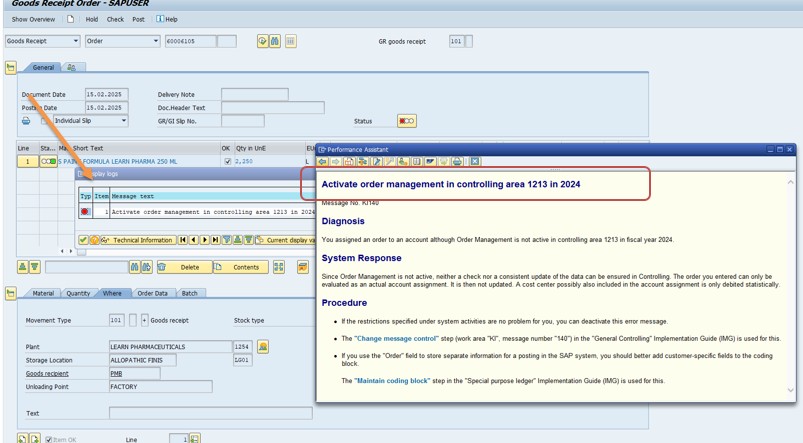
| Item | Value in This Example |
|---|---|
| Message number | KI140 |
| Meaning | Order management is not active in the controlling area for the fiscal year |
| Controlling area | 1213 |
| Fiscal year | 2024 |
| Module | SAP CO (Controlling), internal orders |
| Where to fix it | OKKP (Maintain Controlling Area) |
| Message type | Error: the transaction cannot continue until order management is active |
The exact wording of the message can differ slightly between SAP releases and language settings, but the number KI140 and the idea behind it stay the same. If your screen shows a different controlling area or year, the steps below still apply: simply replace 1213 and 2024 with your own values.
📑 What You Will Learn in This Guide
- What KI140 means
- Controlling area, fiscal year and components
- Why the error appears
- Where you meet the error
- Diagnose the problem
- Solution: activate order management in OKKP
- Verify the fix
- Real-world scenario
- Client settings and transports
- New fiscal year checklist
- Common mistakes
- Troubleshooting
- How to prevent KI140
- KI140 in SAP S/4HANA
- Frequently asked questions
✅ What Does SAP Error KI140 Mean?
KI140 is a Controlling message that tells you the component "order management" has not been switched on for the controlling area in the fiscal year you are working in. In plain words, SAP is saying: "I know this controlling area, but my settings do not allow internal orders in 2024, so I will not let you create or post to one."
It is important to understand that the error is not about the single order you are touching. You can have a perfectly valid order type, a correct number range and a complete order master record, and the message will still appear. The check happens at the level of the controlling area and the fiscal year, before SAP looks at the details of your order. That is why the fix is also made at that level, in the controlling area settings, and not in the order itself.
The message is a good example of SAP protecting data integrity. If order management were inactive and the system still allowed postings, costs could be collected on objects that the controlling area is not set up to handle. Stopping early is safer than cleaning up wrong postings later.
📝 Controlling Area, Fiscal Year and Components: The Basics
Before changing anything, it helps to be clear about three terms, because KI140 touches all of them.
Controlling area
The controlling area is the top-level organizational unit in SAP Controlling. It groups one or more company codes so that costs and revenues can be tracked and reported together. Cost centers, internal orders, profit centers and activity types all belong to a controlling area. In this example the controlling area is 1213.
Fiscal year
Controlling works in fiscal years, and many of its settings are valid for a given year or a range of years. This is what allows a company to switch on a new component from a certain year onwards without changing the past.
Activate components
Inside the controlling area settings there is a section where you decide which Controlling components are used. Typical entries are cost centers, activity types, business processes, order management, commitment management and projects. Each component can be marked as active for a fiscal year. Order management is the component that covers internal orders such as overhead orders, investment orders and accrual orders.
| Term | What It Is | Relevance to KI140 |
|---|---|---|
| Controlling area | Organizational unit for internal cost accounting | The setting belongs to this unit (1213) |
| Fiscal year | Period of time for which settings are valid | The component must be active for 2024 |
| Order management | Component that allows internal orders | This is the component KI140 says is inactive |
| OKKP | Transaction to maintain controlling area settings | Where you switch the component on |
💡 Why Does KI140 Appear? Common Causes
The visible cause is always the same: order management is not marked as active. What differs is the reason behind it. Knowing the reason helps you decide whether a simple activation is enough or whether something else needs attention.
- Order management was never activated: the controlling area was created recently, and nobody switched on the component because internal orders were not needed until now.
- A new fiscal year has started: the component was active for earlier years but the entry does not cover 2024. This is the single most common cause in the first weeks of a year.
- The validity range is too short: the activation was set for a limited range of years, and the range has ended.
- The wrong controlling area is in use: the user is working in 1213 by mistake, or the company code is assigned to a controlling area where the component is off.
- A copy or migration left the setting out: a controlling area copied from another system or client does not always carry the same activation entries.
- A change was never transported: the setting was corrected in development but the transport did not reach quality or production.
📋 Where You Meet KI140 in Daily Work
Because the check is made whenever SAP needs an internal order, the message can surface in several places. The table lists the typical ones.
| Activity | Typical Transaction | What Happens |
|---|---|---|
| Creating an internal order | KO01 | SAP refuses to save the new order |
| Changing an internal order | KO02 | Changes cannot be saved |
| Posting costs to an order | Invoice, goods movement or journal entry | The posting is blocked when an order is the account assignment |
| Purchase requisition or order with order assignment | ME21N | Account assignment to the order fails |
| Planning and budgeting for orders | Order planning transactions | Planning data cannot be saved |
| Settlement of orders | KO88 | Settlement cannot run for the year |
The exact transactions depend on how your company uses internal orders. If you see KI140 anywhere in this list, the fix is the same one: activate order management for the correct controlling area and fiscal year.
🔧 Step-by-Step: Diagnose the Problem
A short diagnosis takes a couple of minutes and prevents the most common mistake: activating the component in the wrong place.
Read the message carefully. Note the controlling area, here 1213, the fiscal year, here 2024, and the transaction in which it appeared.
Confirm the controlling area you are working in. Transaction OKKS sets the active controlling area for your user session, so check that it matches the one in the message.
Check the year. Compare the fiscal year in the message with the posting date you used. A document dated early January belongs to the new year, even if the previous year is still being closed.
Check the client settings in SCC4. Customizing changes are only possible if the client allows them, and this decides whether you can fix the issue in this system or need a transport.
Open OKKP in display mode and look at the activation entries for the controlling area. If the entry for 2024 is missing or the order management box is empty, you have found the cause.
🔧 Solution: Activate Order Management in the Controlling Area (OKKP)
The fix is to switch on order management for the fiscal year in the controlling area settings. Follow the steps below.
Run transaction OKKP (Controlling Area Settings). The same screen can be reached from the IMG under Controlling, General Controlling, Organization, Maintain Controlling Area.
Select the controlling area 1213 in the list and press Enter. Make sure you pick the right row if several controlling areas are shown.
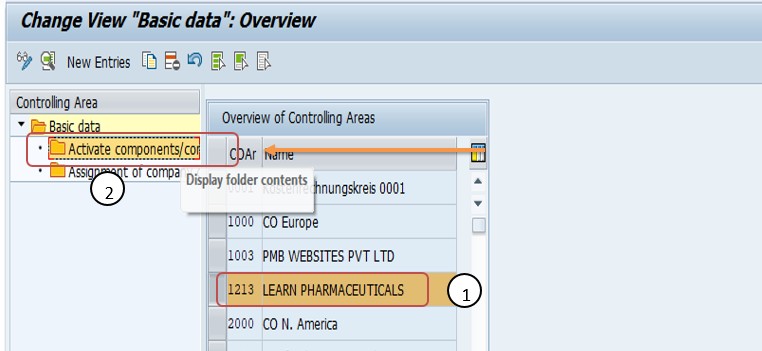
In the dialog structure on the left, check and select the "Activate Components / Control Indicators" section. This is the part of the controlling area where individual components are switched on or off.
Search for the Order Management option. Find the line for the fiscal year in question and look at the order management column. If the entry for 2024 does not exist, create a new entry for that year, or extend the existing range so that it covers 2024.
Select Order Management and mark it as Component Active. Ensure that the activation applies to fiscal year 2024.
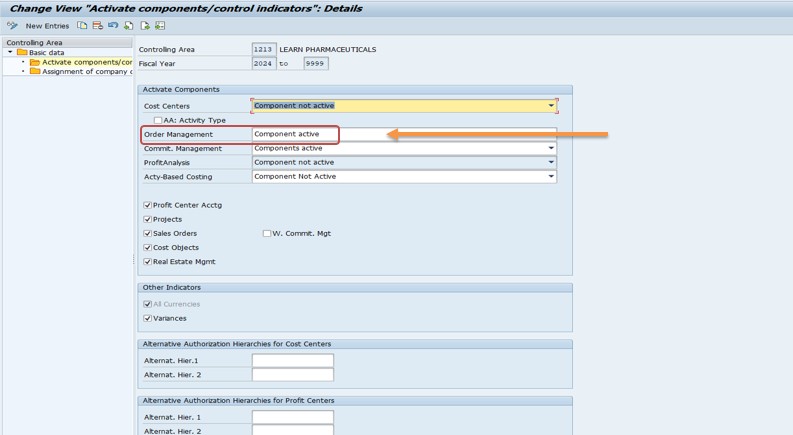
Save your entries. If SAP asks for a Customizing request, enter an existing request or create a new one with a clear description such as "Activate order management CO area 1213 FY2024".
✅ How to Verify That the Fix Worked
Do not assume the fix works just because OKKP saved without an error. Run a short test that proves it.
- Open a new session, so that nothing from the earlier attempt is held in memory.
- Run KO01 and create a test internal order with the right order type in controlling area 1213.
- Save the order. KI140 should no longer appear.
- Display the order in KO03 and confirm that the status and company code are as expected.
- Repeat the transaction in which the original error occurred, for example a posting with the order as the account assignment.
- Check the posting afterwards in KOB1 to see that the cost reached the order.
If the test works in the development or quality system, you can move the transport to production with confidence. Always include in the transport description what was changed and why.
💼 Real-World Scenario: Orders Blocked on the First Working Day of the Year
This is an illustrative example based on a typical support case. A cost accountant at a manufacturing company in Pune tried to create an overhead order for a maintenance project on the first working day of January. SAP returned KI140 for controlling area 1213 and fiscal year 2024. The previous year had been working without any problems, so the accountant assumed the system was broken.
The SAP CO consultant opened OKKP and found that the activation entry for order management ended in 2023. Nobody had extended it when the new year was prepared. The consultant added an entry for 2024, marked order management as active, saved the change in a transport request and tested it in the quality system by creating a sample order. After the test passed, the transport went to production, and the accountant created the order within the hour.
To avoid a repeat, the team added "check component activation in OKKP" to their annual year-end checklist, together with number ranges and period settings. The lesson is simple: a message that looks like a master data problem is often a configuration gap that only shows itself when the calendar changes.
🔄 Client Settings and Transports: Where Should You Make the Change?
OKKP is a Customizing transaction, so the usual landscape rules apply. In most companies, changes are made in a development client, tested in quality and then transported to production. Making the change directly in production is possible only if the client allows it, and most organizations deliberately forbid it.
| Situation | Recommended Action |
|---|---|
| You work in a sandbox or training system | Make the change directly and test it. |
| You work in a project landscape (DEV, QA, PROD) | Change in DEV, record the transport, test in QA, then import to PROD. |
| OKKP is display-only in production | Do not look for workarounds. Raise a change request with a transport. |
| Production is blocked right now | Follow your emergency change process and document the reason. |
If the change was made in development but production still shows KI140, check whether the transport has been released and imported into the correct client. It is also worth confirming that the system in which you tested uses the same controlling area number as production, since sandbox and production areas are not always the same.
📅 New Fiscal Year Checklist for SAP Controlling
Because KI140 so often appears when a year changes, it is worth building a short preparation routine. The list below covers the items that most often cause trouble at year start.
- Activate or extend the components in OKKP for the new fiscal year, including order management.
- Check that the fiscal year variant and posting periods are open for the new year.
- Confirm that number ranges for internal orders and controlling documents exist for the new year where needed.
- Review the order types in use and make sure they are still valid.
- Plan the carry-forward of open items, commitments and budgets if your process requires it.
- Check the cost center and order hierarchies for changes that must be in place from the first day.
- Run a small test posting in the quality system before the year turns, so the team has time to react.
- Communicate the schedule to accountants, planners and buyers so they know what to expect.
A one-page checklist like this turns a surprise error into a routine task. The cost is small compared with a team waiting for support on the first morning of the year.
🔄 Which Fix Applies to Your Situation?
| Situation | Recommended Action |
|---|---|
| Order management was never activated. | Activate it in OKKP for the current year and later years. |
| It was active, but the new year is not covered. | Extend the entry or add a new entry for the year. |
| The error appears only for one controlling area. | Check the settings of that area, not the others. |
| The change works in QA but not in production. | Check that the transport has been imported into production. |
| You cannot open OKKP in change mode. | Request authorization or raise a change request. |
| You are unsure whether internal orders should be used at all. | Ask the controller before activating anything. |
❗ Common Mistakes When Fixing KI140
- Activating the component in the wrong controlling area because the session was set to a different one.
- Fixing 2024 only, and being surprised when the same error appears in January of the next year.
- Changing master data on the order, which cannot solve a controlling area setting.
- Making the change in production directly without a transport, and losing it at the next import.
- Forgetting to retest in a fresh session and concluding that the fix did not work.
- Changing unrelated settings on the same OKKP screen while looking for the right one.
- Not telling the controlling team that a component has been switched on.
- Skipping documentation, so nobody remembers why the change was made.
🔧 Troubleshooting: When the Fix Does Not Work
KI140 still appears after saving in OKKP
Start a new session and try again. Check that the fiscal year in the message is the one you activated. If the message now shows a different year, extend the activation to cover it.
OKKP opens in display mode only
You either lack the authorization or the client does not allow Customizing changes. Use the change request process, or ask the basis team to confirm the client settings.
The change works in quality but not in production
Check that the transport was released and imported to production. Compare the OKKP entries in both systems side by side.
Another message appears after KI140 disappears
This is normal. Once order management is active, SAP checks the next requirement, such as a missing order type, a closed posting period or a missing number range. Handle each message in turn.
The error appears only for some users
Those users may be working in a different controlling area or posting to a different fiscal year. Compare the OKKS setting and the posting date.
The component is active, but orders still cannot be created
Check the order type settings, the number range for the order type, and the user's authorization for internal orders. KI140 is only one of several checks.
✅ How to Prevent KI140 in the Future
- Activate components for a range of years, not only for the current one, if your business plans allow it.
- Include OKKP in the annual preparation checklist for Controlling.
- Test internal order creation in the quality system before each year change.
- Keep a short document describing which components are active in which controlling area.
- Give transports a clear description so that changes can be traced.
- Train key users to recognise KI140 and escalate with the controlling area and year, not just a screenshot.
- Review authorizations so that the right people can maintain OKKP and others cannot.
- Compare settings across systems after each major release or client copy.
🔒 Authorization Considerations
Maintaining the controlling area is a sensitive task. It changes how an entire module behaves, so access is normally limited to consultants and a small number of key users. If you do not have the authorization, do not look for a shortcut through another user's login or an unofficial tool.
Instead, collect the facts: the message KI140, the controlling area, the fiscal year, the transaction and a screenshot. Send them to the support team with your proposed fix: "activate order management in OKKP for controlling area 1213 in fiscal year 2024." A clear request, including the exact change, helps the support team approve and execute it quickly.
📱 KI140 in SAP S/4HANA
The concept behind KI140 also exists in SAP S/4HANA. Controlling areas, fiscal years and internal orders are still part of the system, and activation settings for components still belong to the controlling area. In on-premise S/4HANA you will normally find the same Customizing path and a similar OKKP screen, although some options may have changed or disappeared as the product evolved.
In S/4HANA Cloud editions, configuration is usually done through guided configuration activities rather than the classic IMG, and you may see Fiori apps for internal orders. Because the product changes with each release, always confirm the exact app or activity name in your own system. The idea stays the same: if SAP says a component is not active, find where the controlling area activates it for the year and fix it there.
📋 Quick Fix Checklist
- Note the controlling area and the fiscal year from message KI140.
- Confirm the active controlling area in your session with OKKS.
- Check the client settings in SCC4 to see whether Customizing is allowed.
- Open OKKP and select the controlling area.
- Open the Activate Components / Control Indicators section.
- Find the Order Management option for the fiscal year in question.
- Mark the component as active for the correct year or range of years.
- Save with a transport request and a clear description.
- Test in a new session with KO01 and the original transaction.
- Transport the change and record what was done and why.
📋 Related SAP Transactions
| Transaction | Purpose |
|---|---|
| OKKP | Maintain the controlling area and activate components. |
| OKKS | Set the controlling area for your user session. |
| SCC4 | Display and maintain client settings. |
| KO01 / KO02 / KO03 | Create, change or display an internal order. |
| KOB1 | Display actual line items for orders. |
| KO88 | Settle internal orders collectively. |
| OX19 | Assign a company code to a controlling area. |
🎓 Interview-Style Questions and Answers
Q: What does message KI140 mean?
Order management is not active in the controlling area for the fiscal year.
Q: Which transaction do you use to fix it?
OKKP, Maintain Controlling Area.
Q: Why does KI140 often appear in January?
Because components are activated per fiscal year, and the entry for the new year may not exist yet.
Q: Is KI140 a master data or a configuration problem?
A configuration problem at controlling area level, not an error in the order master data.
Q: How do you deliver the fix to production?
Through a Customizing transport request, tested in quality first.
Q: What is the difference between KI140 and a closed posting period?
KI140 concerns a component that is switched off. A closed period concerns a posting date outside the open periods.
📚 Quick Glossary
- Controlling area: The organizational unit used for internal cost accounting.
- Internal order: A cost object used to collect and monitor costs for a task or event.
- Order management: The Controlling component that allows internal orders to be used.
- Fiscal year: The accounting year for which settings and postings are valid.
- OKKP: The transaction used to maintain controlling area settings.
- Customizing: The configuration of SAP, usually transported between systems.
- Transport request: A container that moves configuration changes between systems.
🎯 Conclusion
SAP error KI140 looks serious, but its meaning is simple: order management is not switched on for this controlling area in this fiscal year. Confirm the controlling area and the year in the message, open OKKP, go to the Activate Components section, mark Order Management as active for fiscal year 2024 and save with a transport. Then test with a new internal order and the transaction that failed. Remember that the component is activated per year, so add a check to your annual routine and the error will not return. If something still blocks you, send the details to pramod@learntosap.com and we will help you find the next step.