SAP Error: "Plant 1251 Is Not Assigned to a Controlling Area" – Causes and Step-by-Step Fix
A user creates a document for plant 1251 and SAP stops because the plant's company code has no controlling area. The fix is to assign the company code to a controlling area with OX19. This guide explains the message, how plant, company code and controlling area connect, the exact OX19 and OKKP steps with the original screenshots, how to verify the result and how to avoid the error in future. If you run into any errors while following along, feel free to send a screenshot to pramod@learntosap.com for help.
❌ The Error Message at a Glance
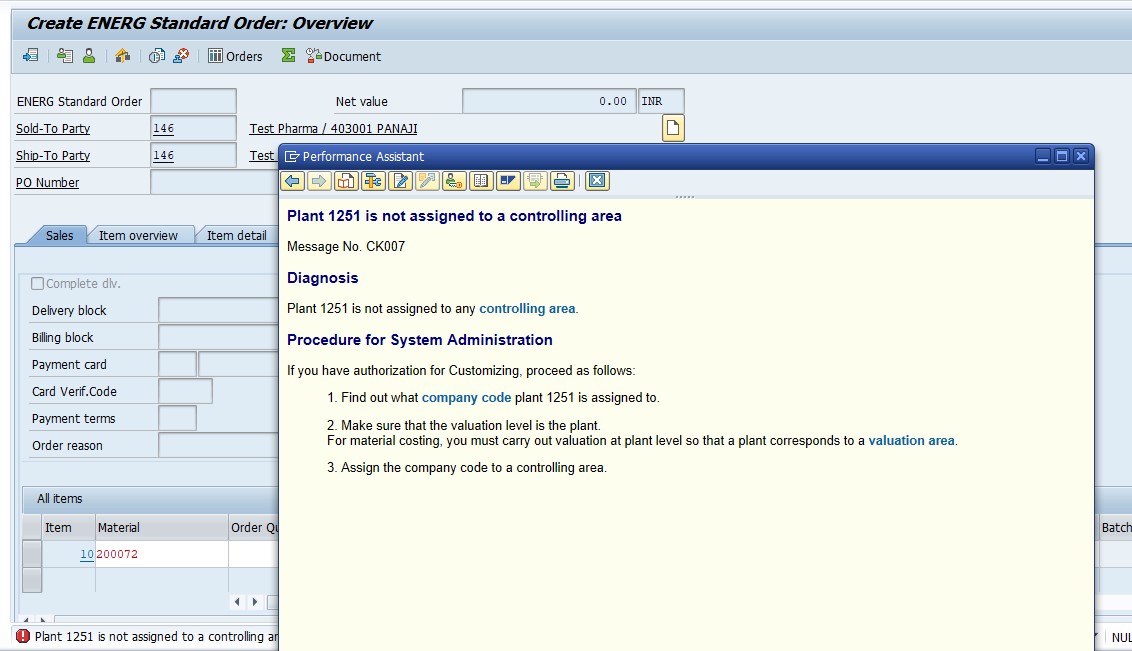
| Item | Value in This Example |
|---|---|
| Message text | Plant 1251 is not assigned to a controlling area |
| Plant | 1251 |
| Company | Energ Pharmaceuticals |
| Module | SAP SD / MM with FI and CO |
| Where to fix it | OX19 and OKKP |
| Fix | Assign the company code to a controlling area and activate components |
The plant and company code in your own message may differ from this example. The same steps apply with your own values.
📑 What You Will Learn in This Guide
- What the message means
- How plant, company code and controlling area connect
- Why the error appears
- Where you meet the error
- Diagnose the problem
- Solution: assign in OX19
- Values used in this guide
- Notes before you save
- Verify the fix
- Real-world scenario
- Common mistakes
- Troubleshooting
- Prevent the error
- Frequently asked questions
✅ How to Fix SAP Error: Plant 1251 Is Not Assigned to a Controlling Area
This message appears when a document uses plant 1251, but SAP cannot find a controlling area for that plant. A controlling area is the highest organizational unit in SAP Controlling, and every company code that posts costs must belong to one. If the company code of the plant has no controlling area assigned, SAP cannot decide where the costs of the document should be collected, so it stops with this error.
In simple words, the plant is connected to a company code, and the company code has not yet been introduced to a controlling area. The message is therefore not a data entry mistake in the document. It is a gap in the organizational structure, and it is solved once, in configuration, by assigning the company code to a controlling area.
📝 How Plant, Company Code and Controlling Area Connect
SAP links its organizational units in a chain. The error appears when one link in the chain is missing.
| Link | What It Connects | Transaction |
|---|---|---|
| Plant to company code | Tells SAP which legal entity owns the plant. | OX18 |
| Company code to controlling area | Tells SAP where the costs of the company code are collected. | OX19 |
| Controlling area settings | Defines components, currency and fiscal year variant. | OKKP |
When a document names plant 1251, SAP reads the first link to find the company code, then reads the second link to find the controlling area. If the second link is empty, the message in this guide appears. Exact transaction names can differ between releases, so compare with your own system.
💡 Why Does This Error Appear? Common Causes
| Cause | What Is Wrong |
|---|---|
| Company code not assigned | The company code of plant 1251 has no controlling area in OX19. |
| New company code | A new company code was created but never connected to a controlling area. |
| Wrong plant assignment | The plant belongs to a company code other than the one you expected. |
| Controlling area incomplete | The area exists but its components or control indicators are not activated. |
| Transport missing | The setting exists in development but has not reached this client. |
In daily work the first and second causes are the most common. A new company is set up for a project, plants are created, and the first order is entered before the controlling assignment is finished.
📋 Where You Meet This Error in Daily Work
The message can appear wherever a plant is used together with cost postings:
- Creating or changing a material master with plant data.
- Creating a sales order, delivery or billing document for the plant.
- Posting a goods movement or a purchase order for the plant.
- Running production or planning for the plant.
- Testing a new organizational structure during a project.
Because the plant is the visible object, users often think the plant is wrong. In most cases the plant is fine, and the missing piece is higher up in the structure.
🔧 Step-by-Step: Diagnose the Problem
Read the message. Note the plant, here 1251.
Find the company code of the plant. Check the assignment of the plant to its company code with OX18.
Open OX19. See whether that company code already has a controlling area.
Check the controlling area in OKKP. Confirm that it exists and its components are active.
Plan the assignment. Agree with the finance and controlling teams which controlling area the company code should use.
✅ Solution: OX19 (Assign Company Code to Controlling Area)
SOLUTION – TCODE – OX19
Follow Steps
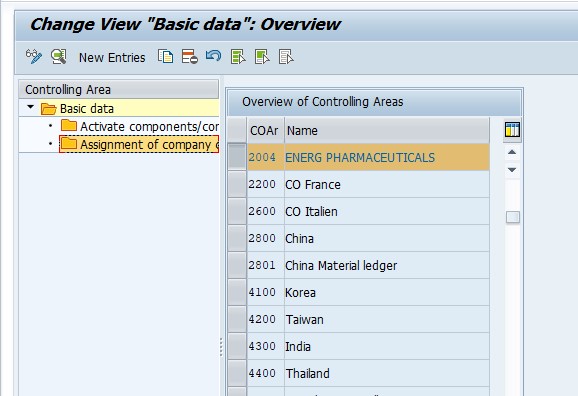
Go to Tcode OX19.
Select – Assign Company Code to Controlling Area.
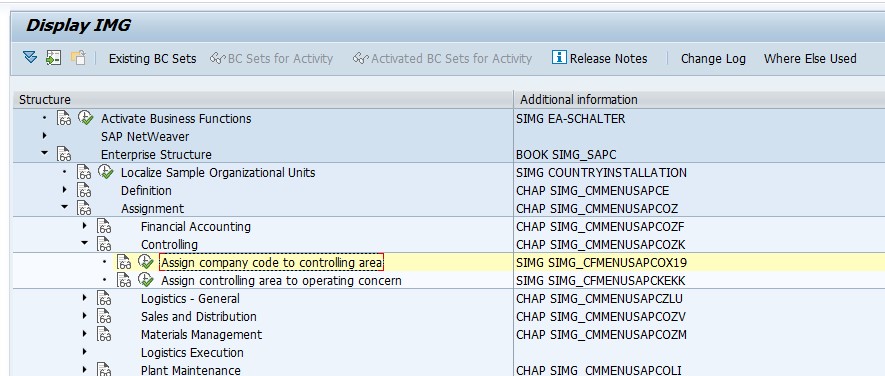
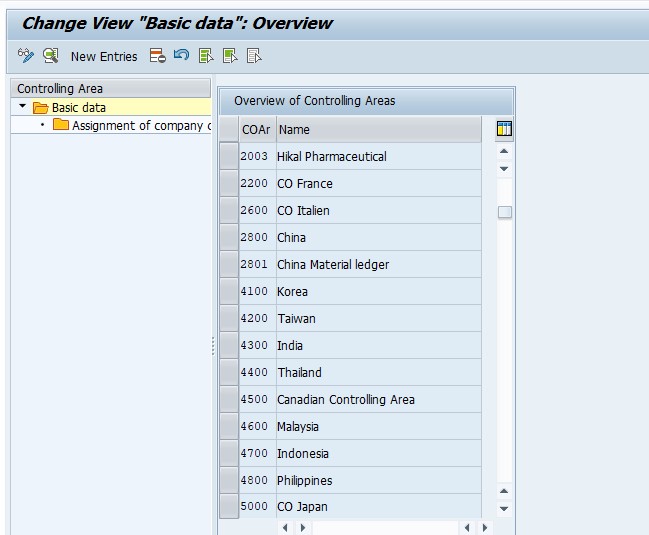
Select – Create New Entry.
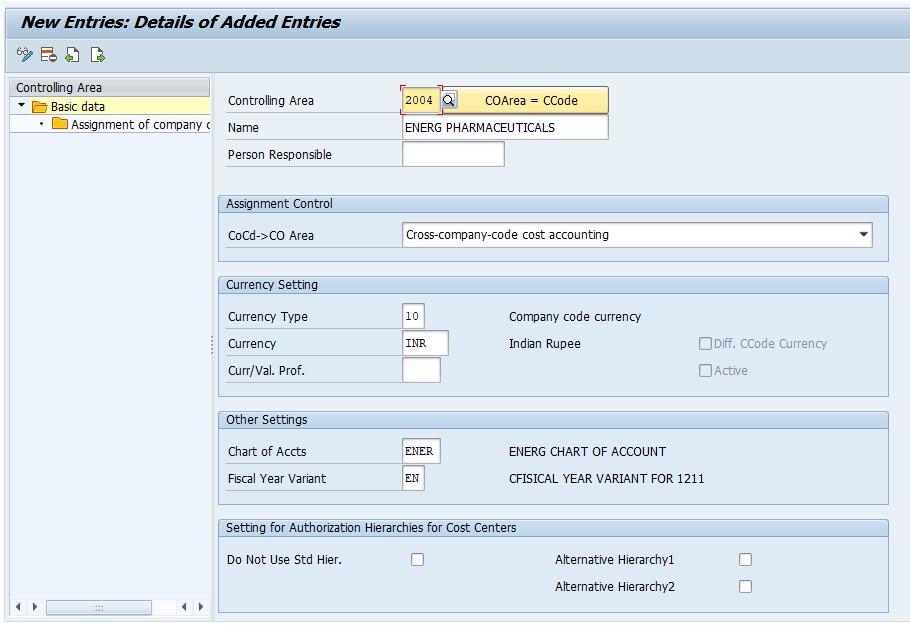
Assign – OKKP. Assign the company code – Energ Pharmaceuticals.
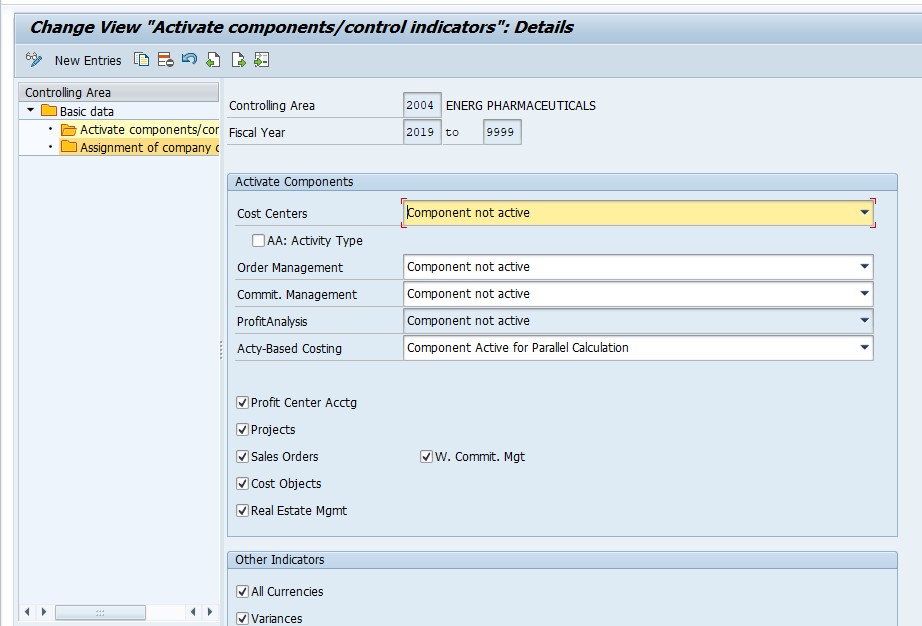
Select – Activate Components/Control Indicators.
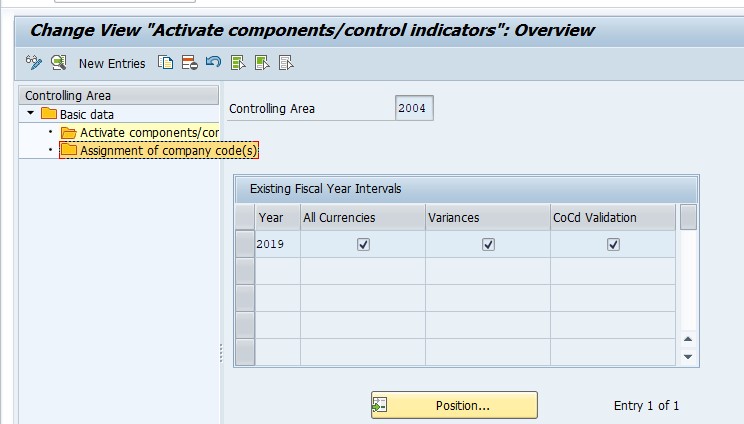
Save. Assign a customizing request if the system asks for one.
📋 Values Used in This Guide at a Glance
The table below summarizes every value from the steps above, so you can compare it with your own screen before saving.
| Item | Value Used | Note |
|---|---|---|
| Transaction | OX19 | Assign company code to controlling area |
| Action | Create New Entry | Adds the assignment |
| Controlling area transaction | OKKP | Maintain the controlling area |
| Company code | Energ Pharmaceuticals | Use your own company code |
| Components | Activate Components/Control Indicators | Needed so Controlling can run |
| Final action | Save | Assign a customizing request |
📝 Notes Before You Save
- Agree the controlling area with the finance and controlling teams before assigning anything.
- Check that the controlling area and the company code use compatible chart of accounts and fiscal year variant.
- Do not reassign a company code that already has postings without a clear plan.
- Activate the components that the business really uses, not every available option.
- Save on a customizing request and move it through Development, Quality and Production.
- Take a screenshot of the final assignment for your documentation.
✅ Verify the Fix
After saving, repeat the action that caused the message, for example creating the material master or the sales order for plant 1251. The error should be gone. Reopen OX19 and confirm that the company code now shows the controlling area. If a new message appears, for example about a missing cost center or a missing fiscal year variant, the first problem is solved and the next setting needs attention.
💼 Real-World Scenario: Connecting Plant 1251 at Energ Pharmaceuticals
At Energ Pharmaceuticals, a new plant 1251 was created for a product line. Sales coordinator Pooja Patil tried to create the first sales order for the plant, and SAP stopped her with the message that plant 1251 is not assigned to a controlling area. She asked functional consultant Neha Deshmukh for help.
Neha checked the plant assignment and found that the company code was correct. In OX19 she saw that the company code had no controlling area, so she chose Assign Company Code to Controlling Area, created a new entry, assigned the controlling area through OKKP for Energ Pharmaceuticals, activated the components and saved the change on a customizing request.
After testing in the quality system, the transport moved to production. Pooja created the order without the error, and finance lead Sameer Joshi confirmed that costs now flowed to the right controlling area. Neha recorded the assignment in the configuration workbook so the next plant would not cause the same problem.
🏢 The Organizational Structure Behind the Error
SAP models a company as a tree of organizational units. At the top of finance sits the client, below it the company codes, and below those the plants and storage locations used by logistics. Controlling adds its own unit, the controlling area, which can cover one or several company codes. The error in this guide appears at the seam between logistics and controlling: the plant is a logistics object, but its costs must be collected in a controlling object.
Seeing the tree helps in planning. Before creating a new plant, decide which company code owns it and which controlling area that company code belongs to. If the answers already exist, the new plant works as soon as it is created. If not, the assignment must be created first, which is the fix in this guide.
| Unit | Belongs To | Used By |
|---|---|---|
| Plant | One company code | Materials, production, sales and purchasing. |
| Company code | One controlling area | Financial accounting and legal reporting. |
| Controlling area | Several company codes possible | Cost centers, orders and profit analysis. |
| Cost center | One controlling area | Collecting costs by department. |
📝 Settings That Must Match Between Company Code and Controlling Area
Assigning a company code to a controlling area is not only a matter of selecting two names. SAP checks that the two units can work together. The chart of accounts of the company code must be the one used by the controlling area, and the fiscal year variants must be compatible, otherwise periods in finance and controlling would not line up. If these settings differ, the assignment is rejected or a different message follows.
Before you save, ask the finance team to confirm the chart of accounts and the fiscal year variant of both units, and write the answers in your configuration workbook. A few minutes of checking now prevents a long clean-up later, because changing these settings after postings exist is a major task. This is also the reason why the guide ends with activating the components: the controlling area must be ready to run, not merely assigned.
📦 What You Need in Controlling After the Assignment
| Object | Why It Is Needed | Transaction |
|---|---|---|
| Cost centers | Collect the costs of departments and plants. | KS01 |
| Cost elements or G/L accounts | Classify the costs posted to controlling. | FS00 |
| Standard hierarchy | Organizes cost centers for reporting. | OKEON |
| Internal orders (optional) | Collect costs for a specific task. | KO01 |
The assignment removes the error, but it does not create these objects. Plan them together with the controlling team, so the first postings for plant 1251 land in a structure that is ready to receive them.
📊 Impact on Postings and Reporting
Once the company code is assigned, every posting for the plant that touches a cost object can be recorded in controlling. Goods movements, production orders and expense postings reach cost centers or orders, and reports can show costs by plant, department or product line. Without the assignment, those costs would either fail to post or be left without a cost object, which makes reporting incomplete.
For managers, the benefit is visibility. They can see what each plant costs, compare plants with each other and spot unusual spending early. For finance, the benefit is consistency: financial accounting and controlling stay in step because they share the same structure. Treating the assignment as a one-time foundation step, done carefully and documented, pays back every month at closing.
📅 A Routine for Adding a New Plant
| Step | Action | Owner |
|---|---|---|
| 1 | Decide which company code owns the plant. | Finance lead |
| 2 | Check that the company code has a controlling area in OX19. | Functional consultant |
| 3 | Create the plant and assign it to the company code. | Functional consultant |
| 4 | Create cost centers for the plant. | Controlling team |
| 5 | Test a material, a sales order and a goods movement. | Key user |
| 6 | Record the structure and the transport. | Project team |
Following the same six steps for every new plant removes most organizational errors before they reach a user.
❗ Common Mistakes When Fixing This Error
- Looking for the problem in the plant, when the missing link is the company code assignment.
- Assigning the company code to the wrong controlling area.
- Forgetting to activate the components, so Controlling still cannot run.
- Creating the assignment in development and never moving it to quality or production.
- Reassigning a company code that already has postings without a plan.
- Testing only one plant and not the other plants of the same company code.
🔧 Troubleshooting: When the Message Still Appears
| Symptom | Likely Cause | What to Check |
|---|---|---|
| Same message after saving. | The transport has not reached this client. | Check the request status and import it. |
| Message names another plant. | That plant belongs to a different company code. | Check the plant assignment with OX18. |
| Cannot create the entry. | The controlling area does not exist yet. | Create or check the area in OKKP. |
| A new message about fiscal year variant. | The area and company code use different variants. | Compare the settings in OKKP and the company code. |
| Cannot save. | Missing authorization or locked request. | Ask for the right role or an open request. |
✅ Best Practices for Organizational Assignments
- Finish the plant, company code and controlling area assignments before creating master data.
- Keep a diagram of the organizational structure and update it with every change.
- Use the same naming and numbering standards for company codes and plants.
- Test one plant per company code after every structural change.
- Record every assignment and transport number in the configuration workbook.
- Limit who may change organizational assignments in production.
🛡 How to Prevent This Error in Future
- Add the controlling area assignment to the checklist for every new company code.
- Run a test order for each new plant before go-live.
- Review organizational assignments after every restructuring.
- Train key users to report the plant and company code with the message.
- Keep controlling and logistics teams in the same kickoff for new plants.
📱 This Message in SAP S/4HANA
The assignment of company codes to controlling areas remains an important setup step in SAP S/4HANA, although some screens and settings can differ from the classic examples used here. Confirm the exact path and fields in your own release before you plan the work. The principle does not change: a company code needs a controlling area before costs can be posted.
🔄 What to Do After the Fix
Once the message is gone, finish the job. Check that cost centers and other controlling objects exist for the new plant, that the chart of accounts and fiscal year variant match, and that a test posting reaches the right objects. Update your configuration documentation with the final assignment and the transport number.
If your company later adds another plant to the same company code, the assignment is already in place, and the new plant will work as soon as it is assigned to the company code. If it adds a new company code, repeat the same pattern and test early.
🎓 Interview-Style Questions and Answers
Q: Why does SAP say a plant is not assigned to a controlling area?
Because the company code of the plant has no controlling area assigned.
Q: Which transaction fixes it?
OX19, Assign company code to controlling area.
Q: What is OKKP used for?
It maintains the controlling area, including components and control indicators.
Q: How are plant and company code linked?
By the plant assignment to the company code, often maintained with OX18.
Q: Is a transport needed?
Yes. The assignment is customizing and moves through the landscape.
📚 Quick Glossary of Terms Used in This Guide
- Plant: An organizational unit for production, procurement and storage.
- Company Code: The smallest unit for which a complete set of accounts can be drawn up.
- Controlling Area: The highest organizational unit in SAP Controlling.
- Control Indicators: The core settings of a controlling area.
- OX19: The transaction that assigns company codes to a controlling area.
- Customizing Request: The transport that carries configuration changes between systems.
🎯 Conclusion
The error "Plant 1251 is not assigned to a controlling area" has a simple cause: the company code of the plant has no controlling area. Open OX19, select Assign Company Code to Controlling Area, create a new entry, assign the controlling area and the company code of Energ Pharmaceuticals through OKKP, activate the components and save. Then test a document for the plant and record the setting. If you run into any errors while following along, feel free to send a screenshot to pramod@learntosap.com for help.