SAP Error C2039: "Release Rejected (Check Log)" on a Production Order – Causes and Step-by-Step Fix
A planner opens a production order, presses the release button and SAP answers with a short message: release rejected, check log. The order stays in status created, the shop floor cannot start, and the message itself tells you nothing about the cause. The answer is in the order log, which lists every check that failed. In many cases the list points to a missing entry in the checking control, which is a small piece of configuration in OPJK. This guide explains what the message means, how to read the log, how to create the missing entries step by step and how to prevent the problem for every new plant and order type. If you run into any errors while following along, feel free to send a screenshot to pramod@learntosap.com for help.
❌ The Error Message at a Glance
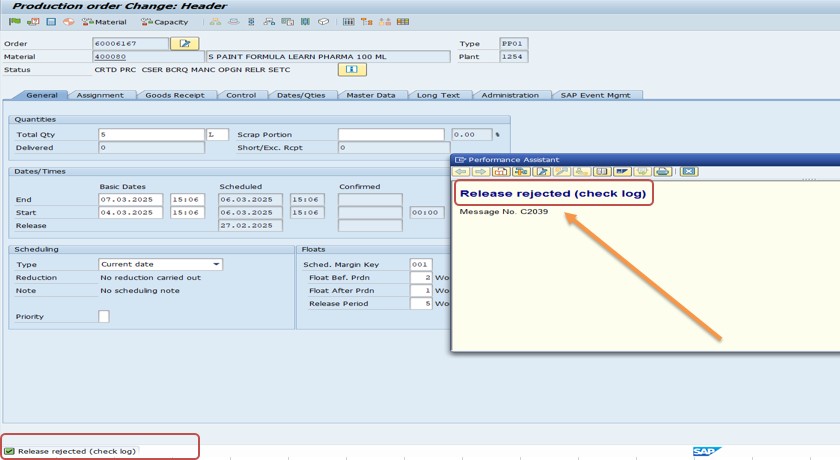
| Item | Value in This Example |
|---|---|
| Message number | C2039 |
| Message text | Release rejected (check log) |
| Object | Production order (the same idea applies to process orders) |
| Reason found in the log | No checking rule maintained for operation |
| Plant | 1254 |
| Order type | PP01 |
| Where to fix it | OPJK, checking control |
The message appears in production order and process order scenarios whenever a release attempt is unsuccessful. It is a summary message. The real reason is written to the log, and it can differ from case to case, so always read the log before you change any configuration.
📑 What You Will Learn in This Guide
- What the message means
- Order release versus release strategy
- What happens when you release an order
- Why the release is rejected
- Where you meet the error
- Read the order log
- Solution: maintain the checking control in OPJK
- What checking control does
- Verify the fix
- Other reasons found in the log
- Real-world scenario
- Where to make the change
- Common mistakes
- Troubleshooting
- Frequently asked questions
✅ What Does "Release Rejected (Check Log)" Mean?
When a production order is created, it usually has the system status created. In this status the order can be planned and changed, but it cannot be used on the shop floor. Components cannot be issued to it, confirmations cannot be posted and shop papers cannot be printed. To start production, someone must release the order, which changes its status to released.
The release is not a simple button. When you press it, SAP runs a set of checks. It looks at whether the order is scheduled, whether the components are available, whether the operations carry the right data and whether the configuration for the plant and order type is complete. If any required check fails, SAP rejects the release and writes the reasons into the order log. The short message you see on the screen is only the signal that a log exists.
That is why the first rule of this error is simple: do not guess. Open the log, read it from top to bottom and treat every error entry as a separate task. Warnings may be accepted, but errors must be solved before the order can be released.
📝 Order Release Versus Release Strategy: Do Not Confuse Them
The word "release" is used in several SAP areas, and the confusion causes wasted time. Some pages on the internet send users to purchasing release strategies when they meet this message. That advice is wrong for production orders.
| Point | Production Order Release | Purchasing Release Strategy |
|---|---|---|
| Object | Production or process order | Purchase requisition, purchase order and similar documents |
| What changes | Order status moves from created to released | A document is approved by one or more people |
| Controlled by | PP configuration such as checking control and order type settings | Classification and release codes |
| Typical transactions | CO02, CO05N, COHV | ME54N, ME29N |
If you see C2039 on a production order, work in the PP area. The checking control, the availability check, the scheduling and the order type settings are the places to look.
💡 What Happens When You Release an Order
The checks at release depend on how your company has set up the plant and the order type. The table shows the most common ones.
| Check | What SAP Looks At |
|---|---|
| Scheduling | Whether the order has valid dates and has been scheduled. |
| Material availability | Whether the components are available in the quantity and on the date required. |
| Capacity availability | Whether the work centers have capacity for the operations, if the check is active. |
| Production resources and tools | Whether the needed tools and resources are assigned and available. |
| Checking rule | Whether a checking rule is maintained for the check that runs at release. |
| Status and locks | Whether the order has a status or a lock that forbids release. |
Each check can be set up as an error, a warning or inactive, and the settings are made per plant and order type. This is the reason why the same order can be released in one plant and rejected in another.
💡 Why Is the Release Rejected? Common Causes
- Missing checking control entry: no entry exists for the plant and order type, so SAP cannot decide how to run the availability check. This is the case in this example.
- No checking rule maintained: the log says that no checking rule is maintained for the operation or the order.
- Material shortage: one or more components are not available and the settings treat that as an error.
- Capacity or resource problem: a work center or production resource is not available as required.
- The order is not scheduled: dates are missing, for example because scheduling parameters are undefined.
- Status or lock: a user status, a deletion flag or a lock blocks the release.
The error message in this tutorial lists the first cause. When you see "no checking rule maintained for operation" in the log, you can be fairly sure that the checking control configuration is missing or incomplete.
📋 Where You Meet This Error in Daily Work
| Activity | Typical Transaction |
|---|---|
| Releasing a single order | CO02 |
| Releasing an order directly when it is created | CO01 (if release on creation is switched on) |
| Releasing several orders at once | CO05N |
| Mass processing of orders | COHV |
| Converting planned orders with automatic release | CO40, CO41 |
In mass release, one configuration gap can reject many orders at the same time. The processing log then lists the same reason again and again, which is a clear sign that the problem is configuration and not individual data.
🔧 Step-by-Step: Read the Order Log
Open the production order that cannot be released, in CO02 or in display mode CO03.
From the order header, choose Go to → Logs → Check log. The log lists the errors and warnings found during the release attempt.
Read the error list. In this example the entry reads: no checking rule maintained for operation. Note every error line, because there may be more than one.
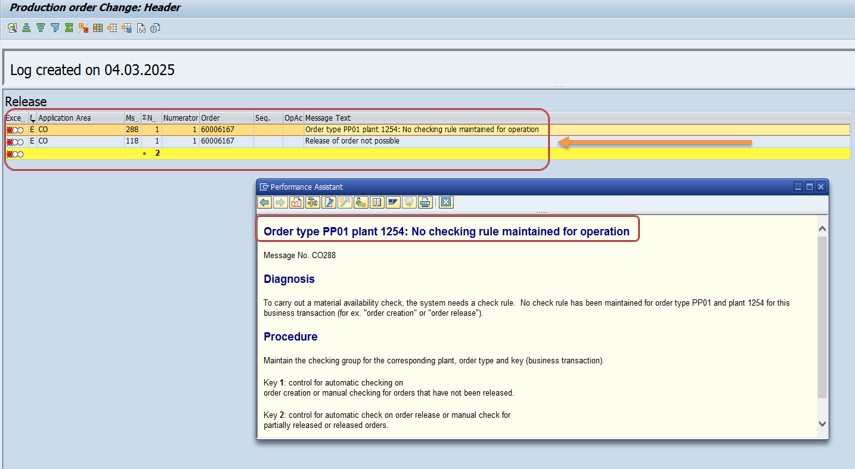
Decide who owns each error. A configuration gap goes to the PP consultant, a material shortage to the planner or buyer, and a status block to the person who set it.
🔧 Solution: Maintain the Checking Control in OPJK
When the log says that no checking rule is maintained, the fix is to create the missing entries in transaction OPJK.
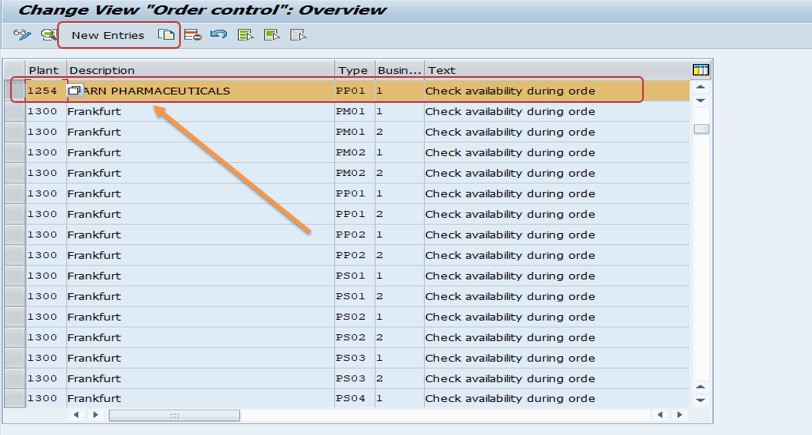
Run transaction OPJK (checking control for the availability check in production orders). It is also available in the IMG under Production, Shop Floor Control, Operations, Availability Check.
Choose New Entries to create a line.
Enter Plant 1254 and Order type PP01, and maintain the setting Check availability during order for the first entry, shown on the original screenshots as entry 1.
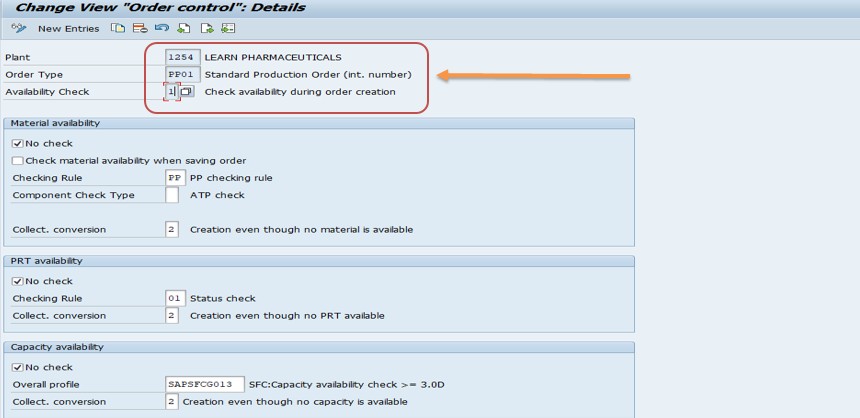
Create the second entry in the same way: Plant 1254, Order type PP01, and the availability check setting for entry 2.
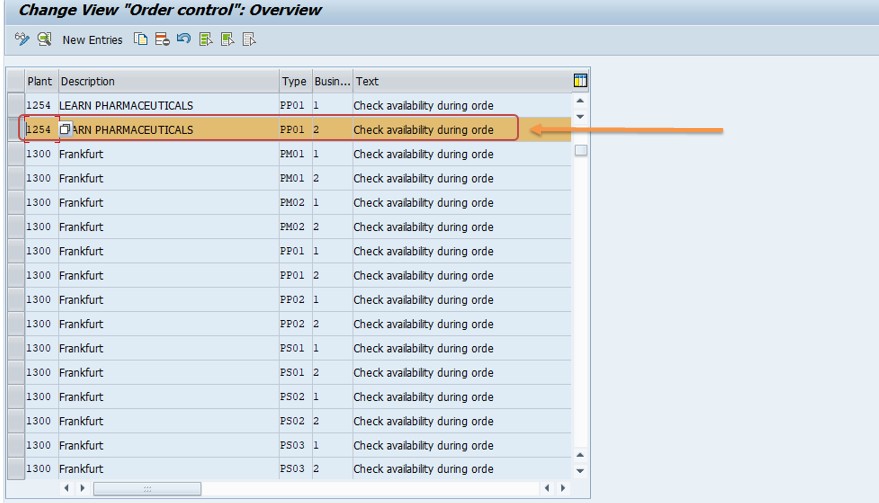
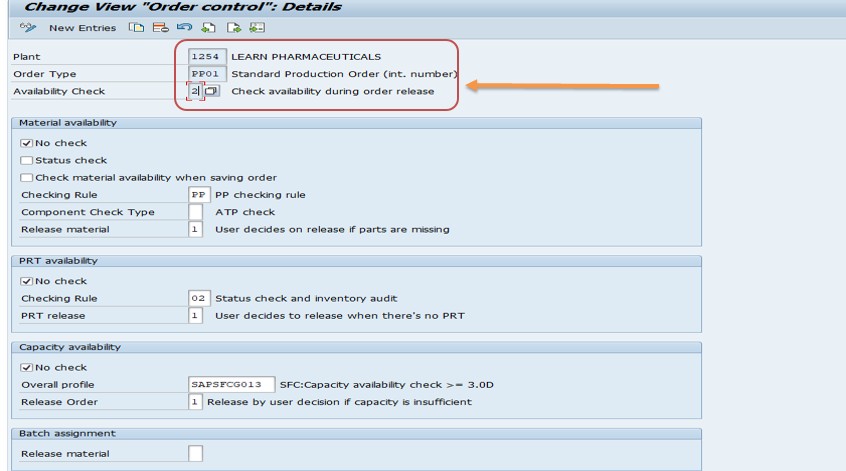
Save the entries. If SAP asks for a Customizing request, enter an existing one or create a new one with a clear description, for example "OPJK checking control plant 1254 order type PP01".
Go back to the production order and release it again.
💡 What Is the Checking Control and Why Does It Matter?
The checking control is a configuration object that tells SAP how to run availability checks for a plant and an order type. It answers questions such as: Should the material availability be checked when the order is created, when it is changed or when it is released? Should a shortage stop the process or only warn the user? Should capacity be checked as well?
| Element | Role |
|---|---|
| Plant | The plant for which the rule is valid. |
| Order type | The kind of order, here PP01. |
| Availability check setting | Whether and how the check is carried out. |
| Checking rule | The rule that defines which stocks and receipts are included in the check. |
Without an entry, SAP cannot know what to do and reports that no checking rule is maintained. With an entry, the system knows exactly which checks to run and which result is acceptable. That is why a short configuration step can unlock the release of every order of that type in that plant.
The checking control belongs to the shop floor control configuration, and it interacts with the checking group in the material master, usually maintained on the MRP 3 view. The checking group decides whether a material is checked at all, and the checking control decides what happens when it is.
✅ How to Verify That the Fix Worked
- Open a new session so that no old buffer remains.
- Open the order in CO02 and choose the release function.
- Check that the order status changes from created to released.
- Open the log again. No error entries about the checking rule should remain.
- Create a fresh test order of type PP01 in plant 1254 and release it, to confirm that new orders work too.
- Try a collective release with CO05N for a small group of orders.
If the order still cannot be released, the log has changed, or other errors were hidden behind the first one. Read it again and handle the next entry.
📋 Other Reasons You May Find in the Log
The checking rule is only one of several possible entries. The table lists others that regularly appear, with the first thing to check.
| Log Entry (Typical Meaning) | First Thing to Check |
|---|---|
| Component not available | Stock and receipts in MD04, open purchase orders and production orders for the component. |
| Capacity overload or no capacity | Work center capacity and shifts, and the load from other orders. |
| Order not scheduled | Scheduling parameters and the dates on the order. |
| Production resource or tool missing | The assignment of tools in the routing and their availability. |
| Status does not allow release | User status, deletion flag and locks on the order. |
| Operation data incomplete | Control key, work center and times on each operation. |
Treat the log as a to-do list. Solve each line, release again, and read the log once more. When it is empty of errors, the release succeeds.
💼 Real-World Scenario: A New Order Type Cannot Be Released
This is an illustrative example based on a typical project. A manufacturer in Pune created a standard production order type for its new plant 1254. Orders were created without trouble, planned and scheduled. On the first day of production, the shop floor supervisor tried to release the first order and received the message "Release rejected (check log)".
The SAP PP consultant opened the order, chose Go to, Logs, Check log, and read a single error: no checking rule maintained for operation. She recognised the pattern. Master data was complete, but the checking control had never been set up for the new plant and order type. In OPJK she created the two entries for plant 1254 and order type PP01, agreed with the planning head that a shortage should produce a clear message, tested in the quality system and moved the transport to production.
The supervisor released the order within ten minutes of the call. Afterwards the team added "checking control in OPJK" to their go-live checklist for every new plant and order type, next to scheduling parameters and number ranges. The same message never delayed a start again.
🔄 Where Should You Make the Change?
| Situation | Recommended Action |
|---|---|
| Sandbox or training system | Make the change directly and test it. |
| Project landscape with DEV, QA and PROD | Change in DEV, test in QA, then import the transport to PROD. |
| OPJK is display-only in production | Raise a change request. Do not look for a workaround. |
| Production is blocked right now | Follow your emergency change process and document the reason. |
If the fix works in quality but the error continues in production, check that the transport has been released and imported into the right client. Compare the OPJK entries in both systems side by side.
❗ Common Mistakes When Fixing This Error
- Changing configuration without reading the order log first.
- Sending users to purchasing release strategies, which have nothing to do with order release.
- Creating the entry for the wrong plant or order type.
- Creating only one of the two entries when the log needs both.
- Setting every check to inactive just to make the error disappear, which removes useful protection.
- Fixing only development and forgetting quality and production.
- Ignoring the second error in the log after fixing the first.
- Not testing a real order and a mass release after the change.
🔧 Troubleshooting: When the Fix Does Not Work
The same log entry appears after saving in OPJK
Check that the plant and order type in the entries match those of the order exactly. Then start a new session and try again.
A different error appears in the log
This is normal. The first error was hiding the next one. Solve each entry in turn, such as a material shortage or missing scheduling.
It works for one order type but not another
Entries are made per order type. Create the entries for the other type too, after agreeing the behavior with planners.
It works in quality but not in production
The transport may not be imported. Compare the OPJK entries in both systems.
The order releases, but components show as not available
The check now runs and gives a real result. Look at stock and receipts, and decide with the planner whether to wait, to expedite purchasing or to change the check from an error to a warning.
Mass release rejects only some orders
Open the processing log. Different orders may fail for different reasons, such as shortages for one and a lock for another.
✅ How to Prevent This Error in the Future
- Add the checking control to the checklist for every new plant and order type.
- Test the release of a sample order before go-live, and not only its creation.
- Compare Customizing between plants after a copy, and fill the gaps.
- Keep a short document that lists the availability check rules for each plant.
- Give transports clear descriptions so that changes can be traced.
- Train supervisors to open the log and report its content, and not only the short message.
- Review the availability check settings with the planners once a year.
- Keep the checking group in the material master consistent with the rules.
💡 Best Practices for Order Release Configuration
Decide what a failed check should do
For each check, agree whether a failure should stop the release or only warn. A hard error protects the shop floor from starting work without material, but it can also delay urgent orders. Many companies use errors for material checks in critical plants and warnings elsewhere. The right answer depends on how the business works, so involve planners and production managers in the decision.
Keep the setup consistent
If several plants produce similar goods, use similar settings. Consistency reduces support effort and makes training easier. Differences should have a reason that you can explain in one sentence.
Document the reason for each setting
A short note next to the transport request, stating why the check is an error or a warning, is very valuable. When a planner asks a year later why a shortage stops the release, the answer is available at once.
Test with real scenarios
Do not test only with an order that has all components in stock. Test one with a shortage, one with a capacity overload and one with a missing date, and see what the log says. A good test shows both the success path and the failure path.
🔒 Authorization Considerations
OPJK is Customizing, so access is normally limited to consultants and a few key users, with transport rights controlled by the basis team. Releasing an order is a separate right, and some companies allow only supervisors to do it. If you cannot change the configuration, do not look for a way around the restriction. Send the support team the message, the order number, the plant, the order type, a screenshot of the log and your proposed fix: "maintain the checking control in OPJK for plant 1254 and order type PP01". A precise request is solved faster than a screenshot alone.
📱 This Error in SAP S/4HANA
Production orders, the release step and the order log still exist in SAP S/4HANA, and the idea of checking control per plant and order type remains. In on-premise releases you will find the same Customizing path and a similar OPJK screen. In cloud editions, configuration is usually done through guided activities, and orders may be handled through Fiori apps. Names and options differ between releases, so confirm the activity in your own system. The method does not change: read the log, find the cause and fix it where it is configured.
📋 Quick Fix Checklist
- Note the order number, plant and order type.
- Open the order and choose Go to, Logs, Check log.
- Read every error line and copy it into your notes.
- If the log says no checking rule is maintained, open OPJK.
- Choose New Entries and enter plant and order type.
- Maintain the availability check settings for both entries.
- Save with a transport request and a clear description.
- Release the order again and check the status.
- Test a new order and a mass release.
- Transport the change and record what was done and why.
📋 Related SAP Transactions
| Transaction | Purpose |
|---|---|
| OPJK | Define the checking control for availability checks in orders. |
| CO01 / CO02 / CO03 | Create, change or display a production order. |
| CO05N | Release orders collectively. |
| COHV | Mass processing of production orders. |
| MD04 | Stock and requirements list for components. |
| MM02 | Maintain the material master, including the checking group. |
🎓 Interview-Style Questions and Answers
Q: What does C2039 mean?
The release of the order was rejected, and the order log explains why.
Q: Where do you look first?
In the order log, through Go to, Logs, Check log.
Q: What does "no checking rule maintained for operation" point to?
A missing checking control entry for the plant and order type.
Q: Which transaction fixes it?
OPJK.
Q: Is this a purchasing release strategy issue?
No. It concerns the release of a production order, which is controlled by PP configuration.
Q: Can a material shortage also reject the release?
Yes, if the availability check is set to treat a shortage as an error.
📚 Quick Glossary
- Release: Changing the status of an order from created to released so that production can start.
- Order log: The list of messages created when the order is checked, saved or released.
- Checking control: Configuration that defines how availability checks run for a plant and order type.
- Checking rule: The rule that decides which stocks and receipts count in an availability check.
- Checking group: A material master field that decides whether and how a material is checked.
- Order type: A classification of production orders, such as PP01.
- Mass release: Releasing many orders in one step.
🎯 Conclusion
"Release rejected (check log)" is a signal, not a diagnosis. Open the production order, read the log through Go to, Logs, Check log, and treat every error as a task. When the log says that no checking rule is maintained for the operation, create the missing entries in OPJK for the plant and order type, save with a transport request, and release the order again. Then test a new order and a collective release. Add the checking control to your go-live checklist, and the message will not stop production again. If something still blocks you, send the details to pramod@learntosap.com and we will help you find the next step.