SAP MRP Run Explained: MD01 Online vs Background Job (MDBT and SM36), Parameter by Parameter
Material Requirements Planning (MRP) turns demand into proposals: planned orders for what you make and purchase requisitions for what you buy. But the result depends heavily on how you start the run. This guide covers the two ways to execute MRP in SAP, online in the foreground with MD01 and as a scheduled background job with MDBT and SM36, and explains every parameter on the selection screen, from the processing key to scheduling. It also gives a short overview of MRP types such as PD, VB, VM and VV. If you run into any errors while following along, feel free to send a screenshot to pramod@learntosap.com for help.
✅ What Is an MRP Run in SAP?
An MRP run is the process in which SAP compares requirements, such as sales orders and planned independent requirements, with stock and expected receipts, and creates procurement proposals for any shortage. For in-house produced materials the proposals are planned orders. For externally procured materials they are purchase requisitions or delivery schedule lines. In multi-level planning the run also explodes the bill of material, so shortages of finished goods create dependent requirements for components, and so on down the structure.
The run is controlled by a few parameters on the selection screen: which materials to include, what to create for externally procured items, whether to store an MRP list, how much existing planning data to keep, and how precisely to schedule. Understanding these parameters is the difference between a run that finishes in minutes and one that blocks the system, or between proposals planners trust and proposals they ignore.
MRP can be executed in two ways. Online (foreground) execution runs in your session and is suited to quick analysis and small selections. Background execution runs as a job, usually outside working hours, and is the standard approach for large volumes and regular, company-wide planning.
📋 MRP Transactions at a Glance
| Transaction | Purpose | Typical Use |
|---|---|---|
| MD01 | Total planning, online. | Planning a whole plant interactively or testing a selection. |
| MDBT | Total planning as a background job. | Large, scheduled plant-level runs. |
| MD02 | Single item, multi-level planning. | Planning one material and its components after a change. |
| MD03 | Single item, single-level planning. | Planning one material without exploding its components. |
| MD04 | Stock and requirements list. | Reviewing the result for one material. |
| MD05 / MD06 | MRP list for one material or a collective display. | Reviewing the stored result of the last run. |
| MD01N | MRP Live. | The recommended way to run MRP in SAP S/4HANA. |
The sections below follow the two methods in order, starting with online execution.
🔧 Method 1: Online (Foreground) MRP Execution with MD01
Online execution is used for immediate planning and quick analysis, and it suits small data sets or testing the effect of a change. Because you wait for the run to finish, it is not appropriate for a full production plant with many thousands of materials.
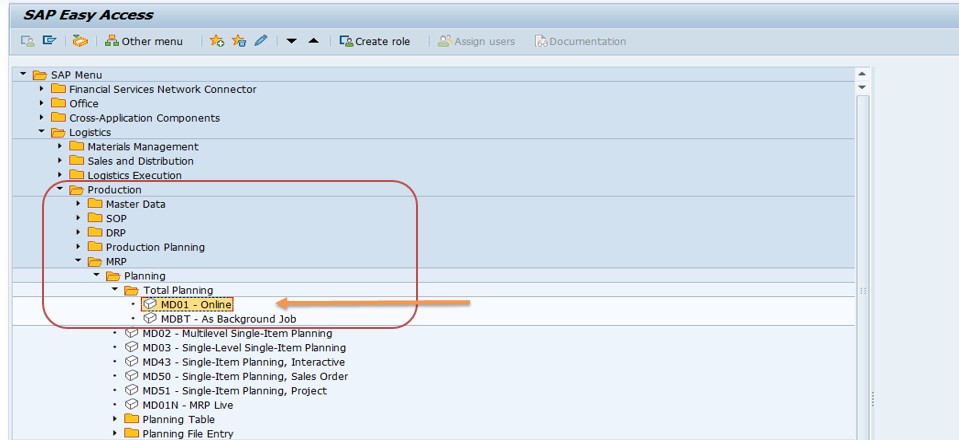
Run transaction MD01, or follow the menu path Logistics → Production → MRP → Planning → Total Planning → Online.
Enter the Plant to be planned and then work through the parameters in the processing section: processing key, purchase requisition indicator, delivery schedule indicator, MRP list indicator, planning mode and scheduling, which are explained in the next section.
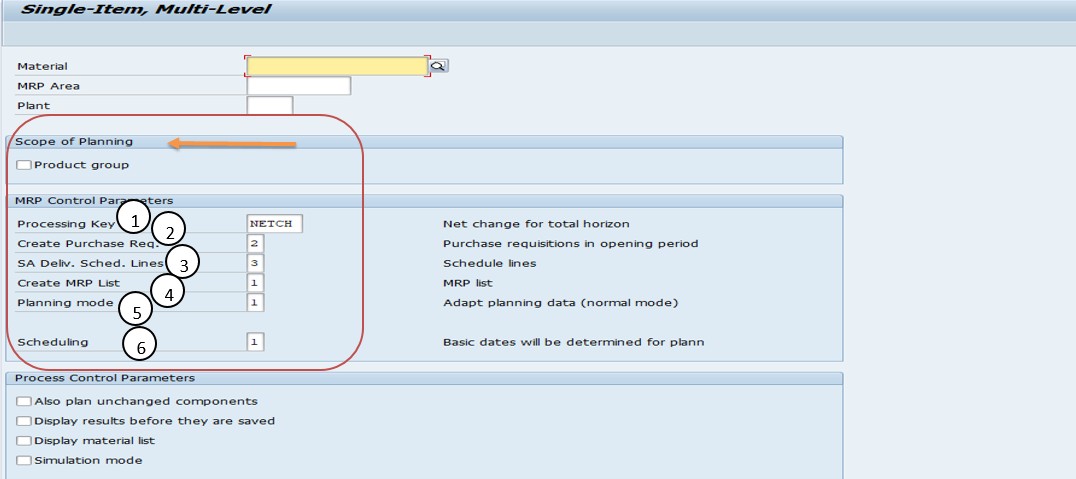
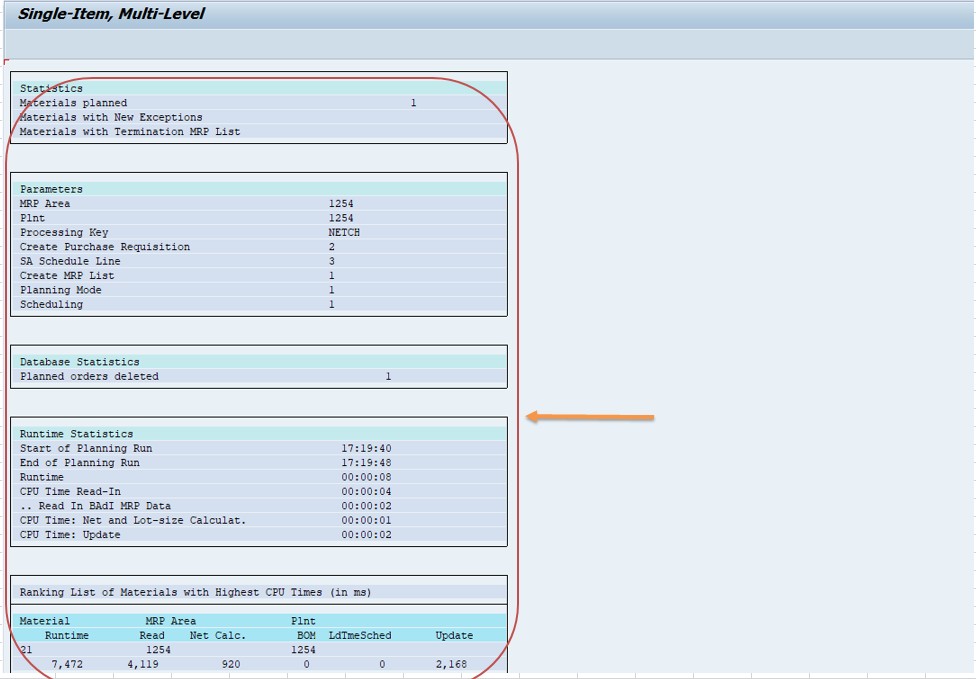
Press Enter and confirm the system messages that ask you to check the input parameters, then execute. SAP shows statistics for the materials planned. Afterwards, check the outcome for a material in MD04.
⚙ MRP Parameters Explained
These parameters appear on the selection screen of MD01, MD02, MD03 and the background variant. Getting them right is the heart of a good MRP run.
1) Processing key: what is planned
| Key | Name | What Happens |
|---|---|---|
| NETCH | Net change in total horizon | Plans only materials that have changed since the last run, across the whole planning horizon. |
| NETPL | Net change in planning horizon | Plans changed materials but considers only requirements inside a defined planning horizon. |
| NEUPL | Regenerative planning | Plans all materials relevant for MRP, regardless of changes, which takes longest. |
NETCH is the everyday choice because it keeps run times short. NEUPL is used occasionally, for example weekly or after major master data changes, to make sure nothing was missed. For NETPL, the planning horizon is defined through the MRP group in Customizing and the opening period in the scheduling margin key.
2) Create purchase requisitions: what is created for bought-in materials
This indicator controls whether MRP creates purchase requisitions or planned orders for externally procured materials. SAP documentation describes three choices: purchase requisitions only, purchase requisitions within the opening period with planned orders outside it, or planned orders only. With the opening-period option, MRP first plans internally, and when the opening date of a planned order is today or earlier it is converted into a purchase requisition. Planned orders created outside the opening period are left for the planner to convert later.
3) Delivery schedules: scheduling agreements
If a material is procured under a scheduling agreement with a relevant source list entry, MRP can create delivery schedule lines instead of purchase requisitions. The options let you create schedule lines, create them only within the opening period, or create none at all, which leaves purchase requisitions as the only output. SAP examples often use the value for no schedule lines when only requisitions are wanted.
4) Create MRP list: whether the result is stored
An MRP list is a stored snapshot of the planning result, shown in MD05 and MD06. Choosing to create it keeps a record of what MRP saw at the time of the run, which is useful for auditing. Not creating it saves time and database space, and you can still see the live picture in the stock and requirements list MD04. The difference matters: MD04 shows the current situation, while the MRP list shows the situation at the run.
5) Planning mode: how much existing planning data is kept
| Value | Name | What Happens |
|---|---|---|
| 1 | Adapt planning data | Normal mode. Keeps existing planned orders and only updates what changed. |
| 2 | Re-explode BOM and routing | Reprocesses the bill of material and routing, which picks up structure changes. |
| 3 | Delete and recreate planning data | Deletes the existing MRP data and creates it again. Slowest. |
Mode 1 and mode 2 are normally sufficient. Mode 3 is not recommended for routine use because of the performance cost. Note that SAP sets the planning mode automatically in the planning file in some situations, and a higher mode takes priority over a lower one.
6) Scheduling: how dates are calculated
| Value | Name | What Happens |
|---|---|---|
| 1 | Basic dates | Calculates planned order dates from lead times, without capacity considerations. |
| 2 | Lead time scheduling and capacity planning | Uses routing and work center data for more precise dates and capacity requirements. |
Basic dates are faster and adequate for most runs. Lead time scheduling is used when accurate dates and capacity loads are needed, but it adds processing time.
📦 Method 2: Running MRP in the Background (MDBT and SM36)
Background execution is the standard for production environments. It is used for large data sets, company-wide planning and night batch jobs, because it does not tie up a user session and can run when the system is quiet. The idea is simple: save the parameters as a variant, then schedule a job that runs the MRP program with that variant.
Step A: Create the variant
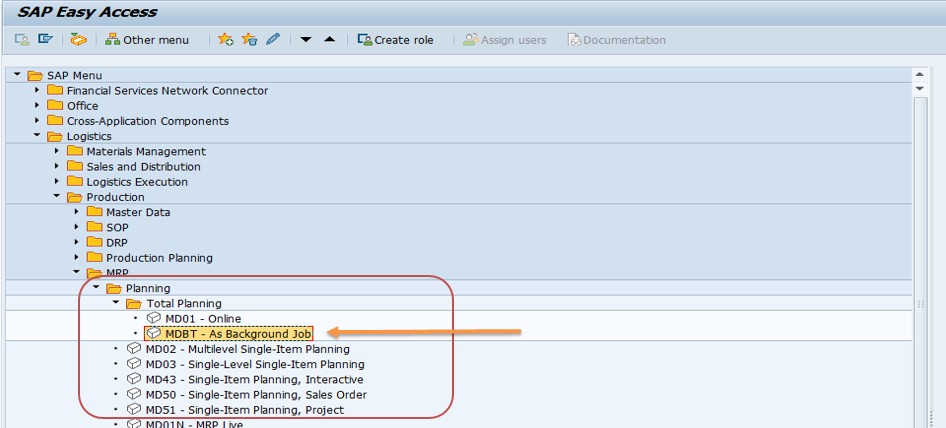
Run MDBT, or follow Logistics → Production → MRP → Planning → Total Planning → As Background Job. Enter the plant and the same parameters you would use online.
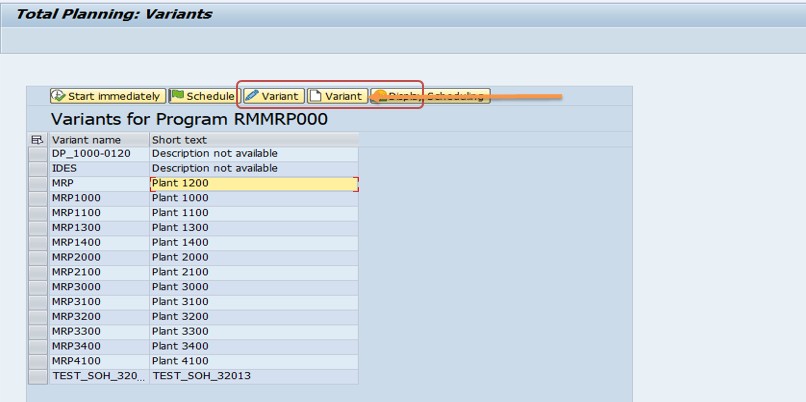
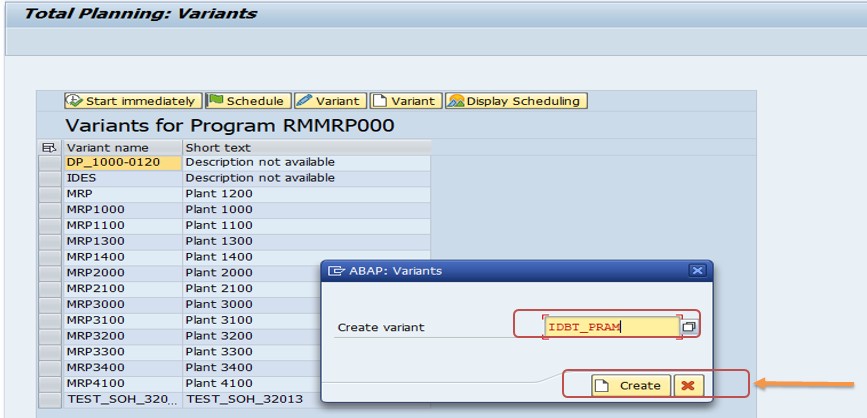
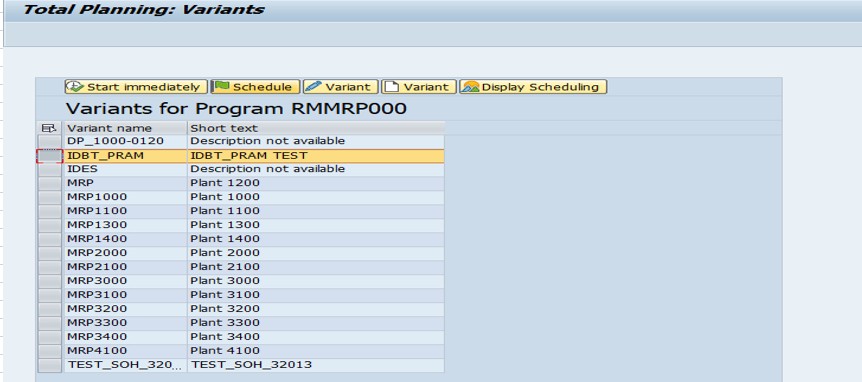
Choose the Create variant option, give the variant a name, and continue.
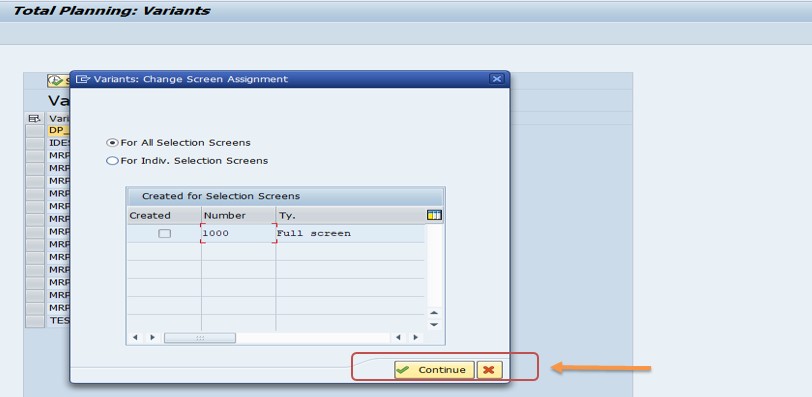
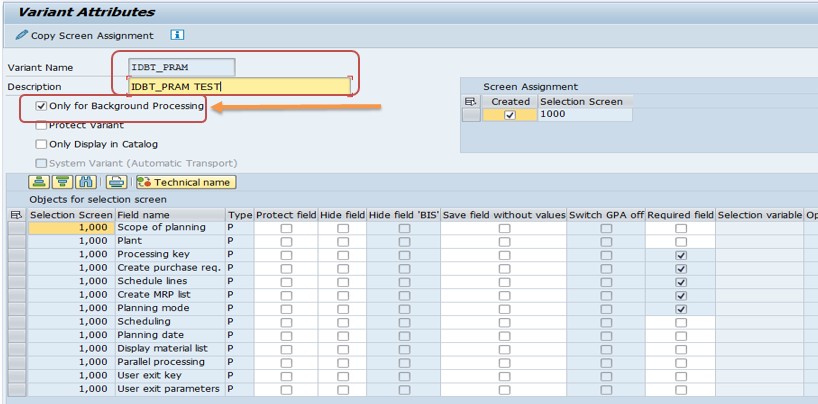
Choose Continue, then open Attributes to enter a description for the variant.
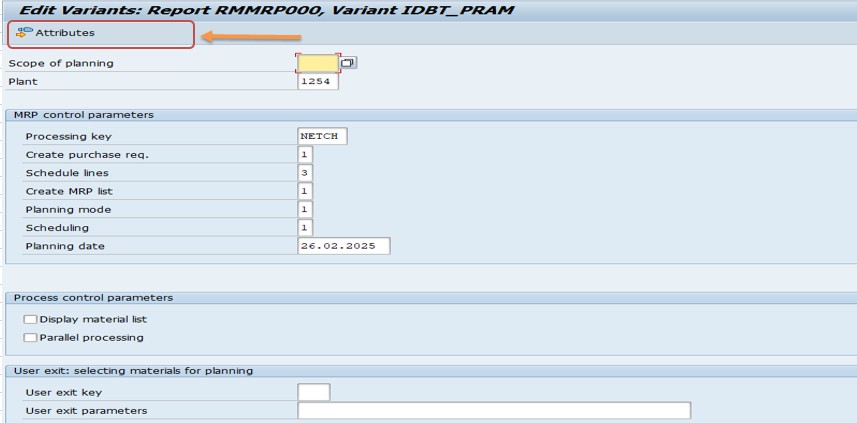
Select Only for background processing and save the variant. Marking it for background use prevents it from being used by mistake in an online run.
Step B: Define the job in SM36
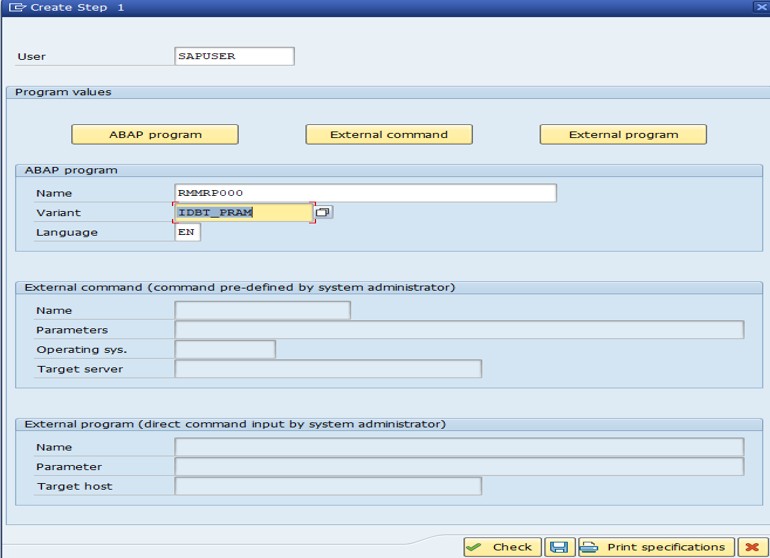
Run SM36 to define a background job. Enter a job name, add an ABAP program step, and use the check function to fill in the program name RMMRP000 and the variant you saved, for example IDBT_PRAM. Then go back and save the step.
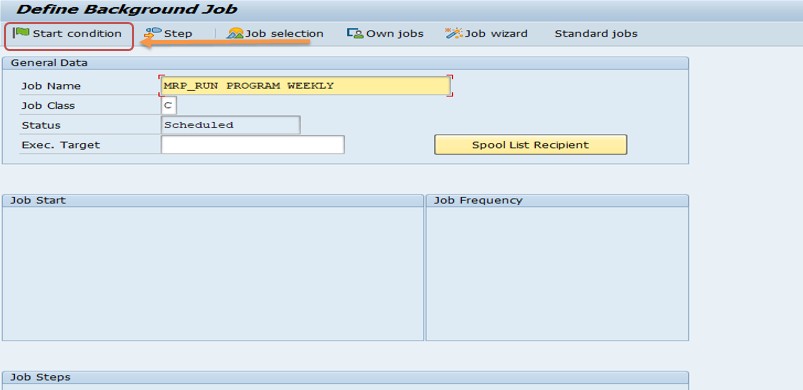
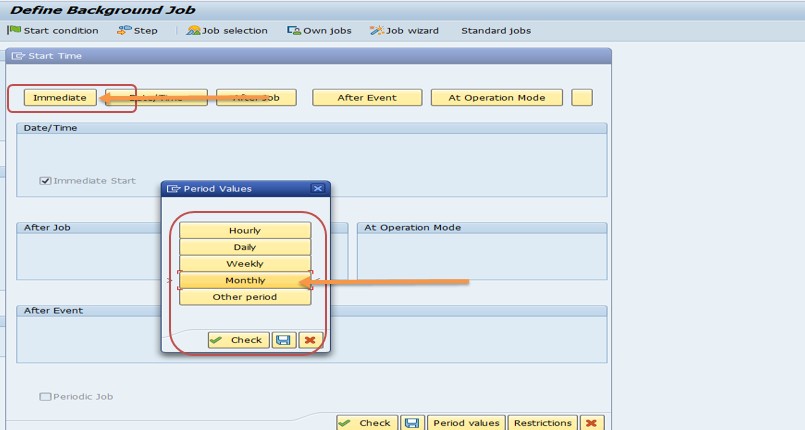
Choose Start Condition. Select Immediate to run right away, or choose a date and time for the run. If the job should repeat, choose Period values, select the interval such as monthly, and save.
Step C: Check the job
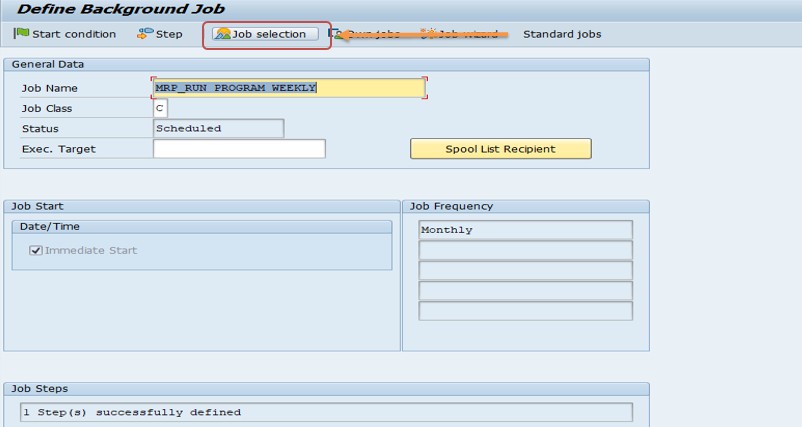
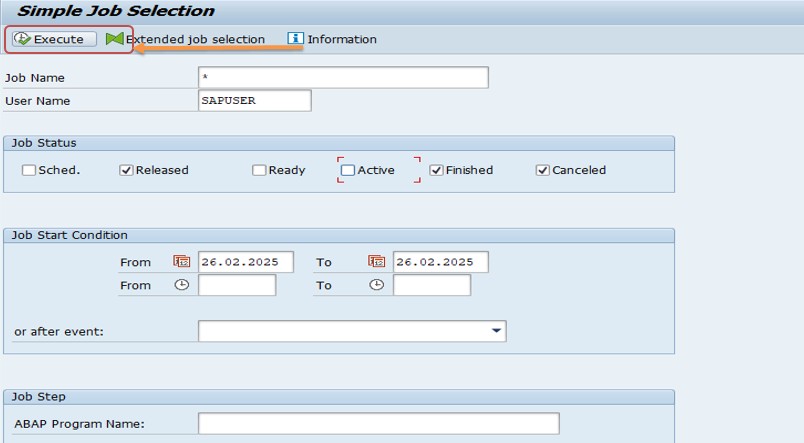
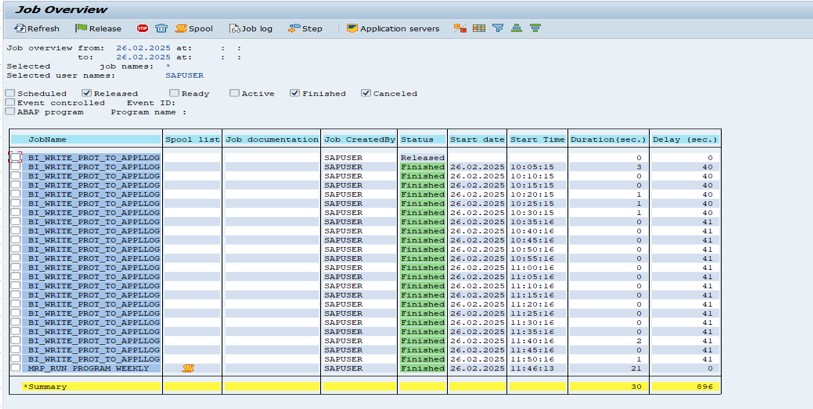
Open the job selection function, execute it, and look at the job overview to confirm the status, start time and any messages.
🔄 Online vs Background MRP: Which to Use?
| Question | Online (MD01) | Background (MDBT / SM36) |
|---|---|---|
| Who waits? | The user, until the run finishes. | No one; the job runs on its own. |
| Best data volume | Small selections and tests. | Large plants and company-wide planning. |
| Scheduling | Manual, when you start it. | Can be scheduled and repeated automatically. |
| Log and results | Statistics shown on screen. | Job log and spool, plus MD04 and MRP lists. |
| Typical timing | During the day. | At night or in quiet periods. |
Many plants use both. The nightly background job produces the standard plan, while planners run MD02 or MD03 online for single materials after a late change, rather than waiting for the next night.
🔍 What Happens Behind the Scenes
The core of MRP is the program RMMRP000. In a background run it acts as a coordinator: it divides the materials and distributes them across several dialog work processes, which do the actual calculation. If you want to analyze performance, community guidance suggests tracing those dialog processes rather than the main program, and watching the work processes in the process overview while the job runs.
MRP works from the planning file. Whenever something relevant changes for a material, for example a sales order, a goods movement or a change to the bill of material, SAP flags the material in the planning file. A net change run reads these flags and plans only the flagged materials, which is why it is so much faster than regenerative planning.
During planning, SAP reads the material's MRP type, lot-sizing procedure, planning strategy and lead times, builds the requirement picture, and creates or adjusts planned orders and purchase requisitions. Results are stored in the planning file entries and, if requested, in an MRP list.
💡 MRP Types: How Each Material Is Planned
Alongside the run parameters, each material has an MRP type in the MRP 1 view of the material master. The MRP type decides whether the material is included in the run at all and which planning logic applies.
| MRP Type | Name | Logic |
|---|---|---|
| PD | MRP (deterministic) | Plans from sales orders and planned independent requirements, netting against stock and receipts. |
| VB | Manual reorder point planning | Triggers proposals when stock falls below a reorder point set by the planner. |
| VM | Automatic reorder point planning | Calculates the reorder point automatically from consumption forecasts. |
| VV | Forecast-based planning | Uses forecasts based on historical consumption to calculate future requirements. |
| ND | No planning | The material is excluded from MRP runs. |
Further MRP types exist in many systems, for example variants that add external requirements, and the list can be extended in Customizing. Check what is defined in your own system. For the run itself, two points matter: materials with type ND are not planned even in a regenerative run, and consumption-based types such as VB, VM and VV are planned using stock levels and forecasts rather than the requirement-driven logic of PD.
💼 Real-World Scenario: Moving MRP from a Daily Manual Run to a Night Job
Pradnya Pawar, an SAP PP consultant working with a beverage manufacturer in Pune, found that a planner was starting MRP by hand every morning with MD01. The run took more than an hour, blocked her session, and by the time it finished the first production meeting had already started with outdated numbers.
Anand Rathi, the head of planning, asked for the plan to be ready before the team arrived. Pradnya opened MDBT, entered the plant and chose net change as the processing key, purchase requisitions for bought-in materials, an MRP list, planning mode 1 and basic date scheduling. She saved these as a variant, marked it for background processing only, and then defined a job in SM36 with program RMMRP000 and that variant. The job was set to start at a fixed time every night, with a repeating period.
The next morning Pradnya and Anand opened the job overview, saw that the run had finished well before dawn, and checked a few materials in MD04. The planner no longer had to wait, and the meeting began with fresh numbers. To keep results clean, Pradnya also scheduled a regenerative run for the weekend, so any missed changes were picked up regularly, and she asked the team to review the job status every morning for the first two weeks.
❗ Common Mistakes When Running MRP
- Running regenerative planning (NEUPL) every night, when net change (NETCH) would be much faster.
- Using planning mode 3 for routine runs, which needlessly deletes and rebuilds planning data.
- Forgetting that materials with MRP type ND are never planned.
- Running a full plant MRP online during working hours and slowing down other users.
- Saving a background variant without marking it for background use, then using it online by mistake.
- Scheduling the job without checking it afterwards, so failures go unnoticed.
- Confusing the MRP list with the stock and requirements list, and expecting both to show the same moment.
- Leaving lead time scheduling on for every run when basic dates would be enough.
✅ Best Practices for MRP Runs
- Run net change nightly and regenerative planning on a slower rhythm, such as weekly.
- Schedule the job so it finishes well before the planning team starts work.
- Use one named variant per type of run and document what each one does.
- Use planning mode 1 for routine runs, and mode 3 only when a rebuild is truly needed.
- Check the job log every morning, and set up an alert for failed jobs.
- Keep MRP types, lot sizes and lead times accurate, because MRP can only be as good as its master data.
- Use single-item runs, MD02 or MD03, for urgent changes during the day.
- Test new parameters on a small selection before using them for a whole plant.
🔒 Authorization Considerations
Running MRP changes planning data for many materials at once, so authorizations for the planning transactions are normally restricted to planners and MRP controllers responsible for the plant. Defining and scheduling background jobs in SM36 is a separate authorization, usually held by a smaller group such as basis administrators or key users.
If a planner can run MRP but cannot see the job log, problems stay hidden. Make sure the right people have display access to the job overview, and test the full flow with a real user before relying on the schedule.
🔧 Troubleshooting Common MRP Issues
A material was not planned
Check its MRP type and MRP controller. Type ND is excluded. With net change, the material is planned only if it was flagged as changed since the last run, so confirm there was a relevant change.
The job did not run or was cancelled
Open the job overview and read the job log. Typical causes are a missing variant, a locked planning file, an authorization problem for the job user, or a clash with another run of the same plant.
Purchase requisitions were created instead of planned orders
Check the purchase requisition indicator and the opening period. With the opening-period option, planned orders whose opening date is today or earlier become requisitions.
The MRP list is empty or missing
The MRP list indicator may have been set to not create a list. Use MD04 for the live picture, or rerun with the indicator that creates an MRP list.
The run takes far too long
Check whether regenerative planning or planning mode 3 is being used unnecessarily, and whether lead time scheduling is switched on. Also consider whether many materials are flagged as changed by frequent small updates.
Old planned orders remain after a BOM change
Run planning with mode 2 so the bill of material and routing are re-exploded, then check the planned orders again.
🏢 How Different Industries Schedule MRP
- Consumer goods: nightly net change runs, with a weekly regenerative run, and extra single-item runs before promotions.
- Discrete manufacturing: nightly runs plus an additional midday run after the daily order intake closes.
- Distribution: frequent consumption-based planning with VB or VV for fast-moving items.
- Process industries: runs timed around production campaigns and long lead-time raw materials.
Whatever the schedule, the principle is to plan often enough that proposals stay fresh, but not so often that the system is constantly busy planning minor changes.
📋 MRP Run Checklist
- Confirm the plant and the scope of materials to be planned.
- Choose the processing key: NETCH for routine runs, NEUPL for occasional full runs.
- Set purchase requisition, delivery schedule and MRP list indicators.
- Choose planning mode 1 unless a rebuild is needed.
- Choose scheduling: basic dates unless capacity precision is required.
- For background runs, save a named variant marked for background use.
- Define the job in SM36 with RMMRP000 and the variant.
- Set the start condition and period.
- Check the job overview and review sample materials in MD04.
📊 KPIs That Show Whether Your MRP Setup Works
- MRP run time: the duration of the nightly job, tracked over time.
- Exception messages per planner: how many alerts each MRP controller must handle.
- Proposal conversion rate: how many planned orders and requisitions are converted without change.
- Late order rate: how often planned dates are missed.
- Job success rate: how often the scheduled run finishes without errors.
A low conversion rate usually means the master data behind MRP, such as lead times or lot sizes, is wrong, not that the run itself is misconfigured.
📱 MRP in SAP S/4HANA: MRP Live and MD01N
In SAP S/4HANA the recommended way to run MRP is MRP Live with transaction MD01N, which runs the calculation on the SAP HANA database and is much faster for large volumes. Classic planning transactions such as MD01, MD02 and MD03 remain available in many releases, but there are important differences.
- Processing key replaced: NETPL is removed in S/4HANA, and a regenerative planning indicator in MRP Live takes the place of the processing key, behaving like NEUPL when selected.
- Procurement proposals: MRP Live creates delivery schedule lines for externally procured materials that have valid delivery schedules, and purchase requisitions for other externally procured materials.
- MRP list: MRP Live is designed around the stock and requirements list, so check how MRP lists behave in your release before relying on them.
If you are migrating, rebuild your background jobs around MD01N and compare results for a sample of materials with those from classic MRP before switching over.
📋 Related SAP Transactions
| Transaction | Purpose |
|---|---|
| MD01 / MDBT | Total planning online and in the background. |
| MD02 / MD03 | Single-item planning, multi-level and single-level. |
| MD04 | Stock and requirements list. |
| MD05 / MD06 | MRP list, individual and collective. |
| SM36 | Define a background job. |
| SM37 | Display the job overview and log. |
| MD01N | MRP Live in SAP S/4HANA. |
🎓 Interview-Style Questions and Answers
Q: What are the two ways to run MRP?
Online in the foreground, for example MD01, and in the background as a scheduled job, for example MDBT or SM36 with program RMMRP000.
Q: What is the difference between NETCH and NEUPL?
NETCH plans only changed materials. NEUPL plans all materials relevant for MRP.
Q: What does NETPL add?
It plans changed materials but only within a planning horizon. It is removed in MRP Live on S/4HANA.
Q: What does planning mode 3 do?
It deletes existing planning data and recreates it, which is slow and used only when needed.
Q: What is the difference between the MRP list and the stock and requirements list?
The MRP list is a stored snapshot from the last run. The stock and requirements list shows the current situation.
Q: What is MRP type ND?
No planning. The material is excluded from MRP runs.
📚 Quick Glossary
- MRP: Material Requirements Planning.
- Processing key: The setting that decides which materials a run plans: NETCH, NETPL or NEUPL.
- Planning file: The list of materials flagged for planning because of a relevant change.
- Opening period: The number of workdays before the start date during which a planned order becomes a requisition.
- MRP list: A stored snapshot of the planning result.
- Variant: A saved set of program parameters.
- RMMRP000: The main MRP program.
📝 Governance for MRP Jobs
MRP jobs run unattended, so they deserve the same discipline as any critical process. Keep a list of every scheduled MRP job with its plant, variant, schedule and owner. When a plant is added or a variant changes, update the list the same day.
Agree a standard for who checks the job each morning and what happens when it fails. A simple rule, such as rerunning the job or switching to an online run for critical materials, keeps the business moving while the cause is investigated.
🎯 Conclusion
Running MRP well is about choosing the right method and the right parameters. Use MD01 online for tests and small selections, and use MDBT, a saved variant and SM36 for scheduled, large-volume runs. Prefer net change for routine runs, planning mode 1 and basic date scheduling unless you need more, and keep an eye on the job every morning. Combine this with accurate MRP types, lot sizes and lead times, and MRP will give planners proposals they can trust. Keep this guide handy the next time you set up or review your MRP schedule.