HTML Tables Tag Explained: How to Create Responsive HTML Tables with table, tr, td, and th
By Pramod Behera · Updated: September 14, 2026 · 22 min read
- HTML Table Explained
- Why HTML Tables Still Matter
- What is an HTML Table?
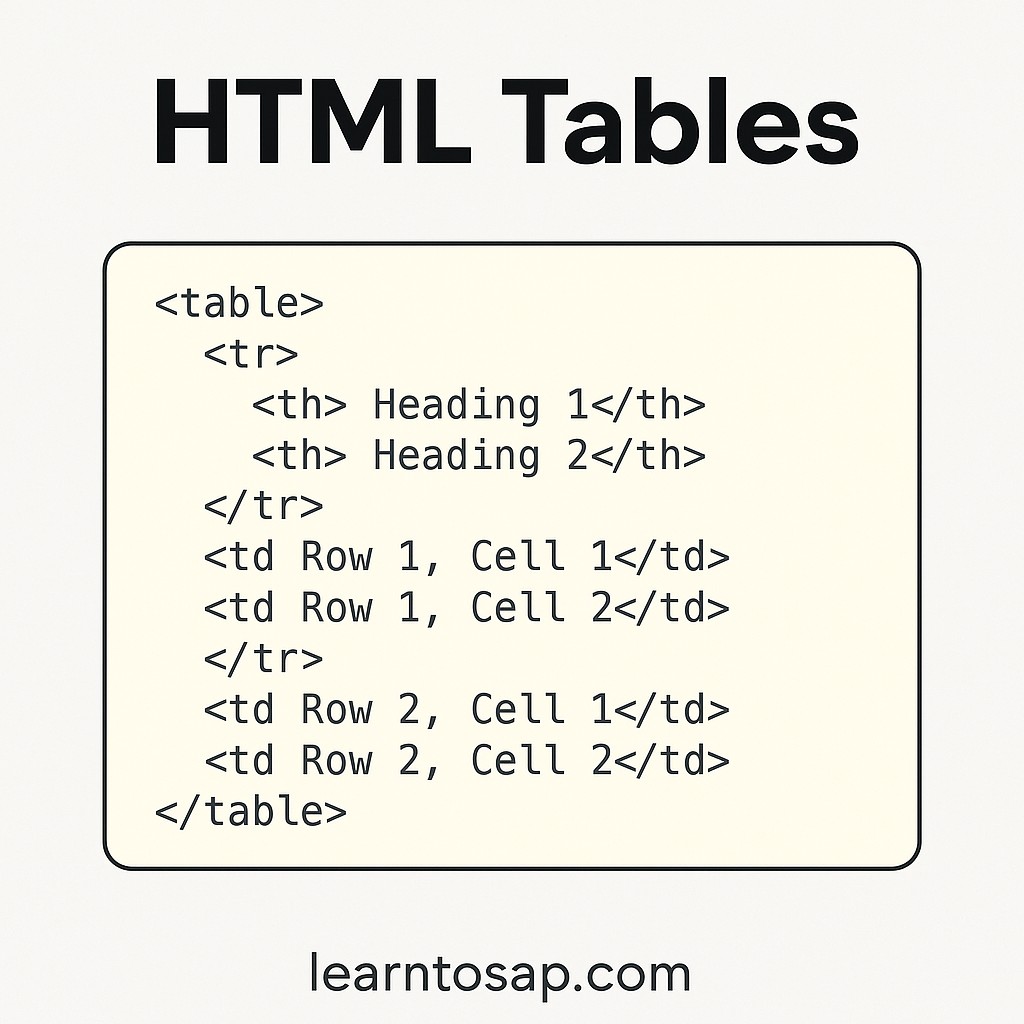
- Basic Structure Example
- Table Styling Example
- Rendered Table Example
- Tag Breakdown
- Semantic Table Tags: thead, tbody, tfoot
- Merging Cells With colspan and rowspan
- Adding a Table Caption
- Table Borders and Spacing
- Zebra Striping and Hover Effects
- Making HTML Tables Responsive
- Accessibility Best Practices for Tables
- Tables for Data vs Tables for Layout
- Common Mistakes to Avoid
- HTML Table Best Practices Checklist
- Try It Yourself – Live Code Preview
- Practice Exercises
- Frequently Asked Questions
HTML Table Explained: Structure, Syntax, Rows, Columns, and Formatting HTML Tables Tag -
- HTML table is used to display data in rows and columns similar to a spreadsheet.tables are useful for organizing data into rows and columns, making it easier for users to read and understand information. This is specially helpful when working with large amounts of data such as financial reports, schedules, product listings, or any information that benefits from a grid layout.
Why HTML Tables Still Matter
Even in an era dominated by CSS Flexbox and Grid for page layout, the humble HTML table remains the correct, semantic tool the moment your content is genuinely tabular rows and columns of related data that a reader needs to scan, compare, and cross-reference. A price comparison, a class timetable, a sports fixture list, or a financial report all share the same underlying shape: multiple records, each described by the same set of attributes. Trying to fake that structure with divs and CSS alone throws away the built-in browser behavior, keyboard navigation, and screen-reader support that a real <table> gives you for free. Search engines also parse table markup specifically, which is part of why well-structured tables sometimes appear directly inside Google's rich results for comparison-style queries.
📋 What is an HTML Table?:-
🧰 Basic Structure Example-👇
<table>
  <tr>
    <th>Heading 1</th>
    <th>Heading 2</th>
  </tr>
  <tr>
    <td>Row 1, Cell 1</td>
    <td>Row 1, Cell 2</td>
  </tr>
  <tr>
    <td>Row 2, Cell 1</td>
    <td>Row 2, Cell 2</td>
  </tr>
</table>
Every HTML table follows the same nesting pattern: a <table> element contains one or more <tr> (table row) elements, and each row contains either <th> (header cell) or <td> (data cell) elements. Unlike the void, self-closing tags covered earlier in this series, every one of these elements requires both an opening and a closing tag, since each wraps actual content.
🎨 Table Styling Tables Example-👇
<!DOCTYPE html>
<html lang="hi">
<head>
  <meta charset="UTF-8">
  <title>IPL 2025 टाइम टेबल और मैच</title>
  <style>
    table {
      font-family: arial, sans-serif;
      border-collapse: collapse;
      width: 100%;
    }

    td, th {
      border: 1px solid #dddddd;
      text-align: left;
      padding: 8px;
    }

    tr:nth-child(even) {
      background-color: #f2f2f2;
    }

    h1 {
      color: darkblue;
    }

    p {
      font-weight: bold;
    }
  </style>
</head>
<body>

  <h1>-) टाइम टेबल और मैच -</h1>
  <p><b>-) नीचे आईपीएल 2025 के मैचों की पूरी सूची और उनके स्थान दिए गए हैं:-</b></p>

  <table>
    <tr>
      <th>दिनांक</th>
      <th>मैच</th>
      <th>समय</th>
      <th>स्थान</th>
    </tr>
    <tr>
      <td>22 मार्च</td>
      <td>KKR vs RCB</td>
      <td>7:30 PM</td>
      <td>कोलकाता</td>
    </tr>
    <tr>
      <td>23 मार्च</td>
      <td>SRH vs RR</td>
      <td>3:30 PM</td>
      <td>हैदराबाद</td>
    </tr>
    <tr>
      <td>23 मार्च</td>
      <td>SRH vs RR</td>
      <td>7:30 PM</td>
      <td>चेन्नई</td>
    </tr>
    <tr>
      <td>24 मार्च</td>
      <td>DC vs LSG</td>
      <td>7:30 PM</td>
      <td>विजाग</td>
    </tr>
    <tr>
      <td>25 मार्च</td>
      <td>GT vs PBKS</td>
      <td>7:30 PM</td>
      <td>अहमदाबाद</td>
    </tr>
    <tr>
      <td>26 मार्च</td>
      <td>RR vs KKR</td>
      <td>7:30 PM</td>
      <td>गुवाहाटी</td>
    </tr>
  </table>

</body>
</html>
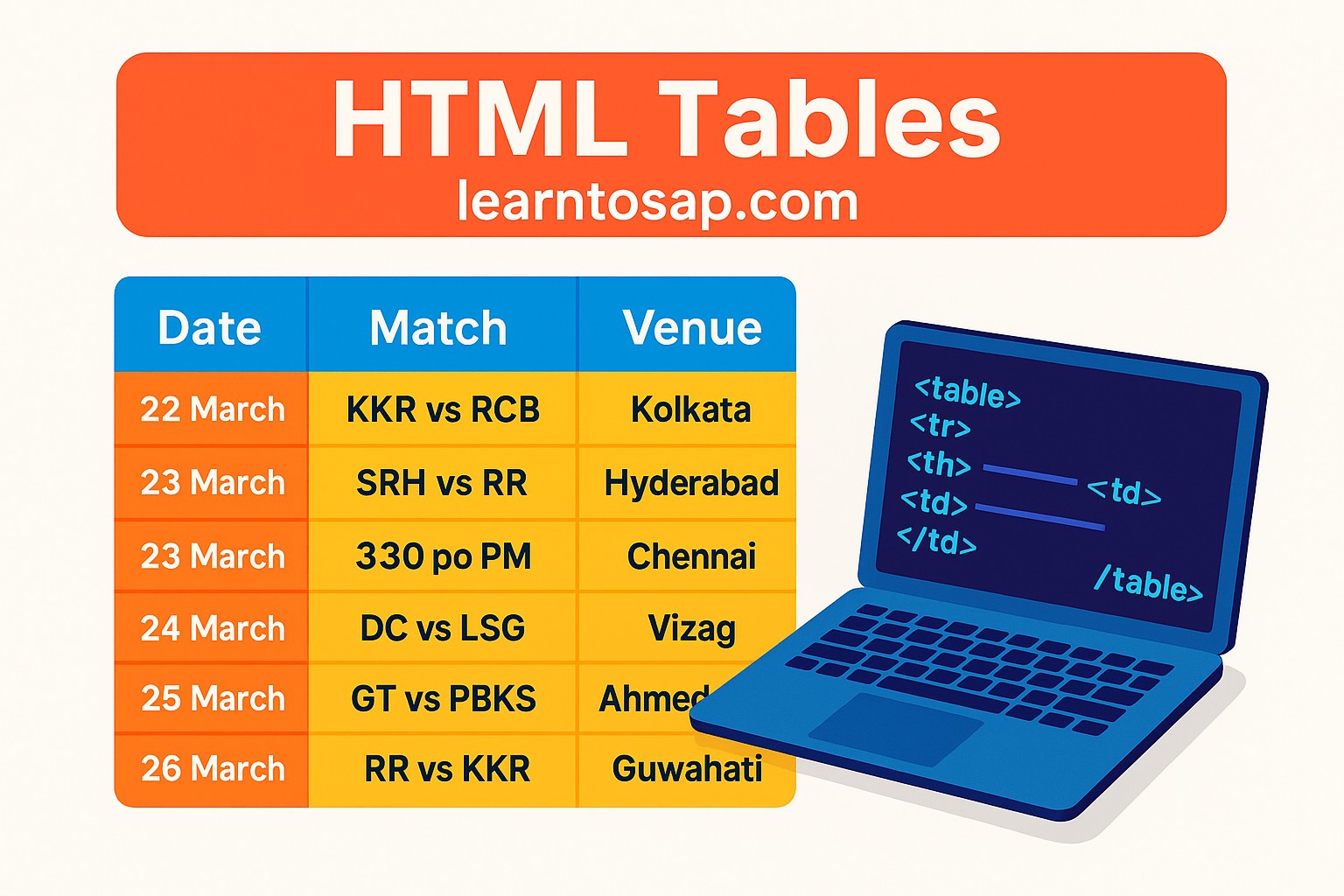
This example combines everything covered so far a document-level lang="hi" attribute for Hindi content, embedded CSS styling the table borders and zebra-striping, and a real four-column schedule of IPL 2025 matches. It's a realistic demonstration of how a table looks once actual styling, not just bare markup, is applied to it.
IPL 2025 टाइम टेबल और मैच
-) टाइम टेबल और मैच -
-) नीचे (IPL)आईपीएल 2025 के मैचों की पूरी सूची और उनके स्थान दिए गए हैं:-
| दिनांक | मैच | समय | स्थान |
|---|---|---|---|
| 22 मार्च | KKR vs RCB | 7:30 PM | कोलकाता |
| 23 मार्च | SRH vs RR | 3:30 PM | हैदराबाद |
| 23 मार्च | SRH vs RR | 7:30 PM | चेन्नई |
| 24 मार्च | DC vs LSG | 7:30 PM | विजाग |
| 25 मार्च | GT vs PBKS | 7:30 PM | अहमदाबाद |
| 26 मार्च | RR vs KKR | 7:30 PM | गुवाहाटी |
🔍 Tag Breakdown-
-) Table Tag Breakdown -
| Tag | Purpose |
|---|---|
| <table> | Defines the table |
| <tr> | Table row |
| <th> | Table header (bold + centered by default) |
| <td> | Table data (cell content) |
| <caption> | Defines a table caption |
| <colgroup> | Specifies a group of one or more columns in a table for formatting |
| <col> | Specifies column properties for each column within a colgroup element |
| <thead> | Groups the header content in a table |
| <tbody> | Groups the body content in a table |
Semantic Table Tags: thead, tbody, tfoot
The tag breakdown above introduces <thead> and <tbody>, but a third sibling, <tfoot>, rounds out the trio for summarizing a table's data:
<table>
  <thead>
    <tr><th>Item</th><th>Price</th></tr>
  </thead>
  <tbody>
    <tr><td>Notebook</td><td>$3</td></tr>
    <tr><td>Pen</td><td>$1</td></tr>
  </tbody>
  <tfoot>
    <tr><td>Total</td><td>$4</td></tr>
  </tfoot>
</table>
Splitting a table into these three logical regions does more than organize your markup, it lets a printed multi-page table automatically repeat its header row on every page, gives assistive technology a clearer structural map of the table, and provides three separate hooks for CSS styling instead of one flat list of rows.
Merging Cells With colspan and rowspan
Real-world tables often need a cell to span across more than one column or row, such as a heading that covers two sub-columns beneath it.
<table>
  <tr>
    <th colspan="2">Contact Info</th>
  </tr>
  <tr>
    <td>Phone</td>
    <td>Email</td>
  </tr>
  <tr>
    <td rowspan="2">Support</td>
    <td>Mon-Fri</td>
  </tr>
  <tr>
    <td>9 AM - 6 PM</td>
  </tr>
</table>| Attribute | Effect |
|---|---|
| colspan="2" | Merges the cell horizontally across 2 columns |
| rowspan="2" | Merges the cell vertically across 2 rows |
Adding a Table Caption
The <caption> element, mentioned in the tag breakdown above, gives a table an accessible, visible title that's programmatically tied to it, unlike a plain paragraph placed above the table:
<table>
  <caption>Monthly Sales Report - Q1 2026</caption>
  <tr><th>Month</th><th>Revenue</th></tr>
  <tr><td>January</td><td>$12,400</td></tr>
</table>
Screen readers announce the caption before reading the table's contents, giving visually impaired users context about what the data represents before they navigate into individual cells.
Table Borders and Spacing
The styling example above uses border-collapse: collapse together with a border on td, th, which is the standard modern approach. Two related CSS properties control how borders and whitespace behave.
| Property | Effect |
|---|---|
| border-collapse: collapse | Merges adjacent cell borders into a single clean line |
| border-collapse: separate | Keeps a visible gap between each cell's border (the default) |
| border-spacing | Controls the gap size when borders are separate |
| padding on td/th | Adds breathing room inside each cell, as seen in the example's 8px padding |
Zebra Striping and Hover Effects
The styling example's tr:nth-child(even) { background-color: #f2f2f2; } rule creates the classic "zebra stripe" pattern, alternating a light gray background on every second row so readers can track a row across many columns without losing their place. A hover effect is a common companion technique:
tr:hover {
  background-color: #eaf3ff;
}
Highlighting the row currently under the cursor makes wide, data-dense tables noticeably easier to scan on a desktop browser.
Making HTML Tables Responsive
A wide table with many columns, like the IPL schedule above, can overflow a narrow mobile screen. Two common techniques fix this without changing the underlying markup.
Technique 1: Horizontal Scroll Wrapper
<div style="overflow-x: auto;">
  <table>
    ...
  </table>
</div>
Wrapping the table in a scrollable container lets visitors swipe sideways to see extra columns on a small screen, while the desktop layout stays completely unaffected.
Technique 2: Stacked Rows at Narrow Widths
@media (max-width: 600px) {
  table, thead, tbody, tr, th, td { display: block; }
  tr { margin-bottom: 1rem; }
  td::before { content: attr(data-label) ": "; font-weight: bold; }
}
This technique converts each table row into a stacked card of labeled key-value pairs below a certain breakpoint, which reads more naturally on very small phone screens than a horizontally scrolling grid.
Accessibility Best Practices for Tables
- Always use real <th> elements for header cells, never bold <td> cells styled to look like headers.
- Add a scope="col" or scope="row" attribute on header cells so screen readers know which direction the header applies to.
- Include a <caption> describing the table's purpose whenever the table isn't immediately obvious from surrounding text.
- Avoid relying on color alone (like zebra striping) to convey meaning; keep sufficient text contrast throughout.
Tables for Data vs Tables for Layout
In the early 2000s, many websites used <table> purely to position content into columns, a technique now considered outdated and harmful to accessibility.
| Situation | Correct Tool |
|---|---|
| Schedules, price lists, comparison charts, reports | <table> genuinely tabular data |
| Page layout, navigation bars, card grids | CSS Flexbox or Grid not a table |
| Screen-reader users navigating the page | Layout tables force them through confusing, meaningless "rows" and "columns" |
Common Mistakes to Avoid
❌ Mistake 1 – Using tables for page layout
This confuses screen readers and makes responsive redesigns far harder than necessary.
❌ Mistake 2 – Forgetting closing tags
Every <tr>, <td>, and <th> needs its matching closing tag, unlike void elements covered earlier in this series.
❌ Mistake 3 – Skipping <th> for headers
Using a styled <td> instead of a real <th> loses both semantic meaning and default accessibility behavior.
❌ Mistake 4 – No responsive handling
A wide, unwrapped table can break a mobile layout by forcing the whole page to scroll horizontally.
❌ Mistake 5 – Inconsistent column counts across rows
Every row should add up to the same number of columns once colspan values are accounted for, or the table renders unpredictably.
HTML Table Best Practices Checklist
✔️ 1) Reserve tables strictly for tabular data
Use CSS Flexbox or Grid for everything layout-related.
✔️ 2) Use thead, tbody, and tfoot
This improves both accessibility and long-table printing behavior.
✔️ 3) Add a caption when the table's purpose isn't obvious
Screen readers announce it automatically before the data.
✔️ 4) Use scope attributes on header cells
This clarifies row versus column headers for assistive technology.
✔️ 5) Wrap wide tables for mobile
An overflow-x: auto container prevents layout breakage on small screens.
✔️ 6) Keep border-collapse consistent
Pick either collapse or separate and apply it deliberately, not by accident.
Try It Yourself (Copy This Code and Paste. See how it works)
Live Code Preview
Practice Exercises: Test the Table Tag
- Build a 3-column, 4-row table listing your favorite movies, their year, and a rating, using proper th elements for the header row.
- Add a colspan="3" header row above your table that reads "Movie Collection," spanning all three columns.
- Wrap your table in a thead, tbody, and tfoot, with the tfoot showing an average rating.
- Wrap a wide table in a div with overflow-x: auto and shrink your browser window to see the scroll behavior.
- Add a caption to your table and check how it reads out using your browser's accessibility inspector.
Frequently Asked Questions About HTML Tables
What is the HTML table tag used for?
The HTML table tag is used to display data in rows and columns, similar to a spreadsheet, making structured data like schedules, prices, or reports easier to read and compare.
What is the difference between td and th in HTML tables?
The th tag defines a header cell, which browsers render bold and centered by default, while the td tag defines a regular data cell with normal, left-aligned text.
How do I merge cells in an HTML table?
Use the colspan attribute on a td or th to merge cells horizontally across multiple columns, or the rowspan attribute to merge cells vertically across multiple rows.
How do I make an HTML table responsive on mobile?
Wrap the table in a container with overflow-x: auto so it scrolls horizontally on small screens, or use CSS to stack rows vertically at narrow breakpoints using display: block with data-label attributes.
What is the purpose of thead, tbody, and tfoot?
These elements group a table into a header section, a body section, and a footer section, which improves accessibility, allows independent styling, and lets long tables repeat their header when printed.
Should I use HTML tables for page layout?
No. Modern best practice reserves the table tag strictly for tabular data. Page layout should be handled with CSS Flexbox or Grid, since layout tables create accessibility problems and are harder to maintain.