HTML Colgroup Tag Explained: How to Control Table Column Width and Style with col
By Pramod Behera · Updated: September 14, 2026 · 20 min read
- HTML Table Colgroup Tag
- Why Style Columns Instead of Cells?
- Example 1: Set Column Widths
- Example 2: Style Column Backgrounds
- Example 3: Span Multiple Columns
- Example 4: With Empty Tags for Control
- Colgroup and col Syntax Rules
- Colgroup vs col: What's the Difference?
- What CSS Properties Actually Work on Columns
- Understanding the span Attribute
- Tag Breakdown
- Real-World Use Cases for Colgroup
- Browser Support and Limitations
- Alternatives: nth-child vs colgroup
- Common Mistakes to Avoid
- Colgroup Best Practices Checklist
- Try It Yourself – Live Code Preview
- Practice Exercises
- Frequently Asked Questions
HTML Table Colgroup Tag -
✅ What is <colgroup>Syntax?- This is used to group one or more columns in a table for styling or structural purposes. It's especially useful when you want to apply styles (like width or background color etc) to entire columns:-
Why Style Columns Instead of Cells?
Every table styling technique covered in the earlier tutorial in this series borders, padding, zebra stripes, hover states targets rows and individual cells. But sometimes the thing you actually want to style is an entire vertical column: maybe the "Price" column across every row should always be a fixed 100px wide, or the "Status" column should always carry a light background tint regardless of how many rows the table ends up having. Doing that with per-cell CSS means repeating the same class or inline style on every single <td> in that column, which is tedious and easy to forget when a new row gets added later. <colgroup> and <col> solve this by letting you define a column's width or background once, in one place near the top of the table, and have it apply automatically down every row.
✅ Example 1: Set Column Widths-👇
<table border="1">
  <colgroup>
    <col style="width: 100px;">
    <col style="width: 200px;">
  </colgroup>
  <tr>
    <th>Name</th>
    <th>City</th>
  </tr>
  <tr>
    <td>Alice</td>
    <td>New York</td>
  </tr>
</table>| Name | City |
|---|---|
| Pramod | Pune |
The two <col> elements above set fixed pixel widths for the "Name" and "City" columns before a single row is even declared. Every cell that later falls into the first column position inherits the 100px width, and every cell in the second column position inherits 200px, no matter how many rows the table eventually contains.
✅ Example 2: Style Column Backgrounds-👇
<table border="1">
  <colgroup>
    <col style="background-color: lightblue;">
    <col style="background-color: lightyellow;">
  </colgroup>
  <tr>
    <th>Product</th>
    <th>Price</th>
  </tr>
  <tr>
    <td>Ball</td>
    <td>$3.50</td>
  </tr>
</table>| Product | Price |
|---|---|
| Ball | $3.50 |
Here, the entire "Product" column is tinted light blue and the entire "Price" column is tinted light yellow, giving readers an instant visual split between the two kinds of information without adding a single class to any <td> or <th> in the table body.
✅ Example 3: Span Multiple Columns-👇
<table border="1">
  <colgroup>
    <col span="2" style="background-color: #eee;">
    <col style="background-color: #cfc;">
  </colgroup>
  <tr>
    <th>First</th>
    <th>Last</th>
    <th>Country</th>
  </tr>
  <tr>
    <td>Pramod</td>
    <td>Behera</td>
    <td>IND</td>
  </tr>
</table>| First | Last | Country |
|---|---|---|
| Pramod | Behera | IND |
The first <col> here uses span="2" to apply its light gray background to both the "First" and "Last" columns at once with a single element, while a separate <col> gives the "Country" column its own distinct green tint.
✅ Example 4: — With Empty Tags for Control-👇
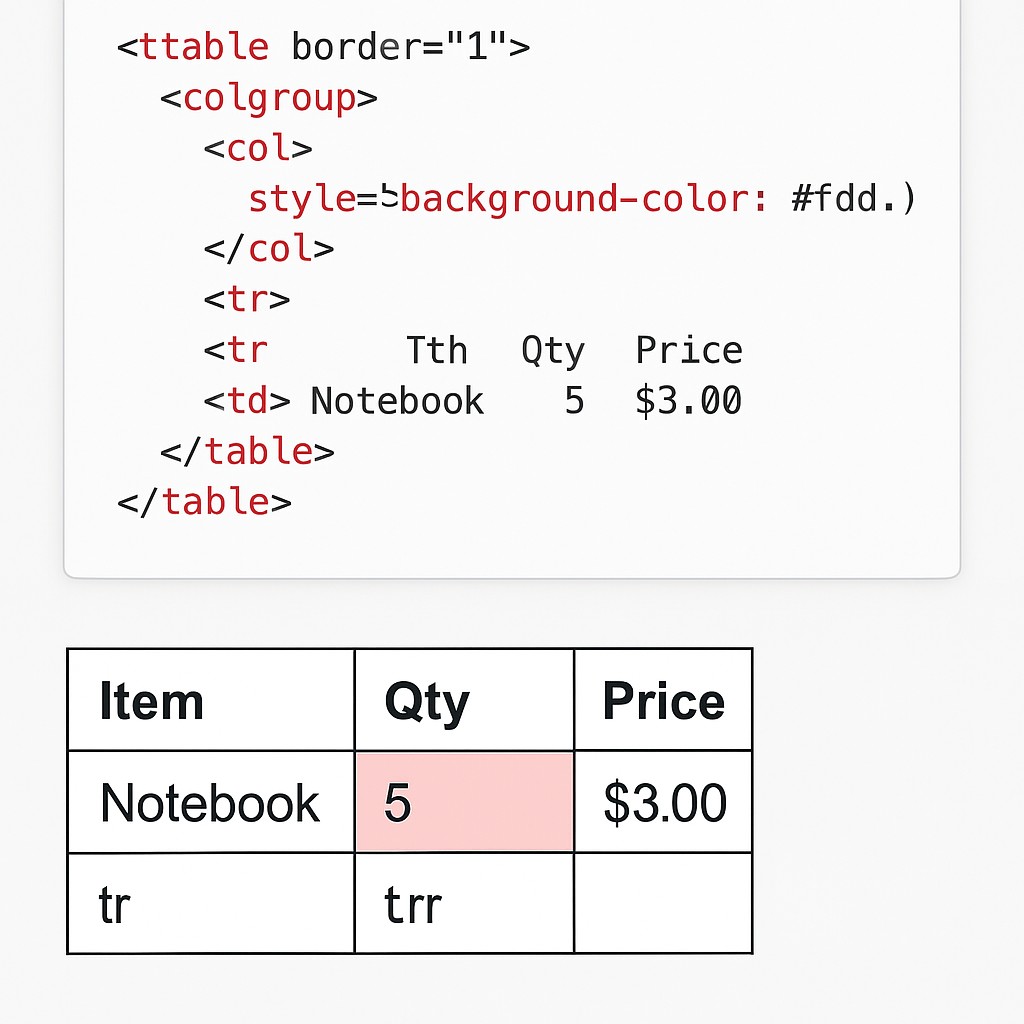
<table border="1">
  <colgroup>
    <col>
    <col style="background-color: #fdd;">
    <col>
  </colgroup>
  <tr>
    <th>Item</th>
    <th>Qty</th>
    <th>Price</th>
  </tr>
  <tr>
    <td>Laptop</td>
    <td>5</td>
    <td>$300</td>
  </tr>
</table>| Item | Qty | Price |
|---|---|---|
| Laptop | 5 | $300 |
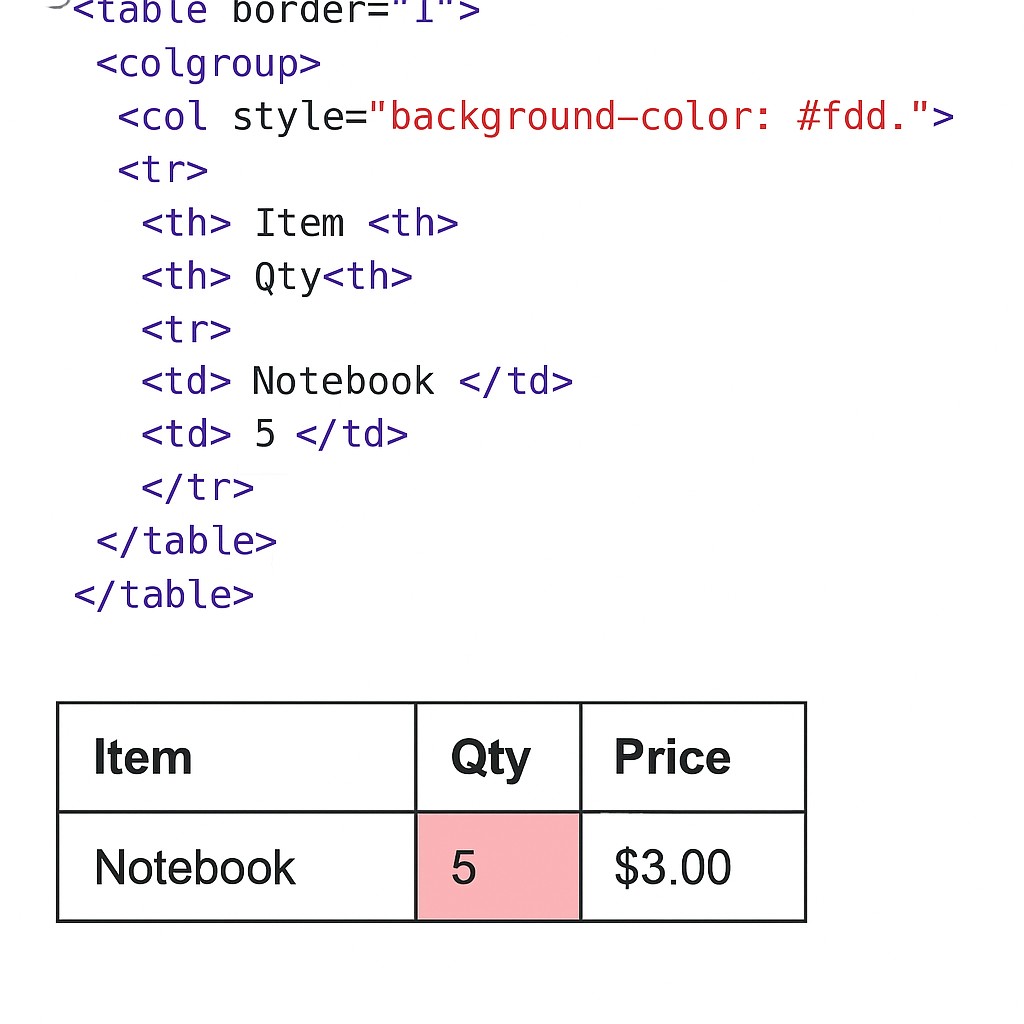
This example demonstrates a subtle but important rule: even columns you don't want to style still need a placeholder <col> element in the sequence, so the browser correctly counts positions and applies the pink background only to the middle "Qty" column rather than shifting the styling onto the wrong column.
Colgroup and col Syntax Rules
| Rule | Details |
|---|---|
| Placement | Must appear immediately after the opening <table> tag, before caption, thead, tbody, or any tr |
| Closing tag | <colgroup> requires a closing tag; <col> is a void, self-closing element like <img> |
| Order matters | Each col corresponds to a column position left to right, matching the order columns appear in the table rows |
| Empty placeholders | An unstyled column still needs a bare <col> to preserve correct positional counting, as shown in Example 4 |
| One colgroup per table | A table typically uses a single colgroup, though multiple are technically permitted for grouped sections |
Colgroup vs col: What's the Difference?
| Aspect | <colgroup> | <col> |
|---|---|---|
| Role | Container that groups columns together | Defines properties for one or more specific columns |
| Tag type | Requires opening and closing tags | Void, self-closing element |
| Where it lives | Directly inside <table> | Directly inside <colgroup> |
| Can it style directly? | Rarely used to style directly; mainly a wrapper | Carries the actual style, width, or span attribute |
What CSS Properties Actually Work on Columns
Not every CSS property behaves as expected on a <col> element, since columns aren't real boxes in the same sense that cells are — a column is more like a shared styling hint applied across a vertical slice of the table.
| Property | Works Reliably? |
|---|---|
| width | Yes — the primary, most reliable use of col |
| background-color | Yes, in all modern browsers |
| visibility: collapse | Yes — hides an entire column cleanly |
| border | Inconsistent across browsers; apply borders to td/th instead |
| padding | Not supported on columns; apply to td/th instead |
| font/text properties | Not supported on columns; apply to td/th instead |
Understanding the span Attribute
Example 3 above demonstrates span="2", which is the key to avoiding repetitive markup when several consecutive columns should share identical styling. Without span, achieving the same result would require writing out two nearly identical <col> elements back to back:
<!-- Without span -->
<col style="background-color: #eee;">
<col style="background-color: #eee;">

<!-- With span (equivalent, shorter) -->
<col span="2" style="background-color: #eee;">
Both approaches produce an identical visual result, but the span version is shorter and easier to update if the shared style ever needs to change in one place.
🔍 Tag Breakdown-
-) Table Tag Breakdown -
| Tag | Purpose |
|---|---|
| <table> | Defines the table |
| <tr> | Table row |
| <th> | Table header (bold + centered by default) |
| <td> | Table data (cell content) |
| <caption> | Defines a table caption |
| <colgroup> | Specifies a group of one or more columns in a table for formatting |
| <col> | Specifies column properties for each column within a colgroup element |
| <thead> | Groups the header content in a table |
| <tbody> | Groups the body content in a table |
Real-World Use Cases for Colgroup
| Scenario | How Colgroup Helps |
|---|---|
| Financial report with a wide "Description" column and narrow "Amount" columns | Set fixed widths once instead of on every row's cells |
| Comparison chart highlighting one "Recommended" plan column | Give that single column a distinct background tint across all rows |
| Spreadsheet-style data export rendered as HTML | Quickly hide an entire column with visibility: collapse without deleting data |
| Timetable where the first "Time" column should always stay narrow | Lock its width regardless of how long other column content grows |
Browser Support and Limitations
Both <colgroup> and <col> have been part of HTML since its earliest table-related specifications and are supported in every modern browser, including Chrome, Firefox, Safari, and Edge. The main limitation isn't compatibility, but scope: a column, unlike a row or a cell, isn't a real rendered box, so only a small handful of CSS properties, chiefly width, background-color, and visibility, reliably apply. Anything involving text formatting, padding, or most border styling should still be handled directly on the <td> or <th> elements instead.
Alternatives: nth-child vs colgroup
A common question is whether td:nth-child() selectors in CSS could achieve the same column-styling result without <colgroup> at all.
| Approach | Best For |
|---|---|
| <colgroup> / <col> | Column width and simple background styling, defined once near the table markup |
| td:nth-child(n) in CSS | Full styling flexibility (borders, padding, fonts) defined in an external stylesheet |
In practice, many developers combine both: <colgroup> for setting widths directly in the markup where they're easy to see, and CSS selectors for anything more elaborate that colgroup can't reliably apply.
Common Mistakes to Avoid
❌ Mistake 1 – Placing colgroup in the wrong position
It must come immediately after the opening table tag, before thead, tbody, or any tr, or the browser ignores it.
❌ Mistake 2 – Forgetting a placeholder col for unstyled columns
Skipping a bare col element shifts every subsequent col's styling onto the wrong column.
❌ Mistake 3 – Expecting padding or fonts to work on col
These properties are not reliably supported on columns; apply them to td/th instead.
❌ Mistake 4 – Miscounting span values
A span that doesn't match the actual number of columns it should cover misaligns the rest of the colgroup.
❌ Mistake 5 – Using colgroup for row-based styling
Colgroup only affects columns; zebra striping and row hover effects still belong in tr-based CSS selectors.
Colgroup Best Practices Checklist
✔️ 1) Place colgroup right after the opening table tag
This is the only position browsers reliably honor.
✔️ 2) Include a col for every column, even unstyled ones
This keeps column position counting accurate.
✔️ 3) Use span to avoid repeating identical col elements
Cleaner markup for columns sharing the same width or color.
✔️ 4) Reserve colgroup for width, background, and visibility
Handle borders, padding, and fonts on td/th directly.
✔️ 5) Keep column widths proportional
Percentages generally adapt better across screen sizes than fixed pixel values.
Try It Yourself (Copy This Code and Paste. See how it works)
Live Code Preview
Practice Exercises: Test Colgroup and col
- Build a 3-column table and use colgroup to set a different fixed width for each column.
- Recreate Example 3 using span="3" instead of span="2" and observe how the styling shifts.
- Add a bare, unstyled col as a placeholder in a 4-column table and confirm the remaining styled columns still line up correctly.
- Try adding padding or a border directly to a col element and compare the (lack of) effect versus applying it to td instead.
- Use visibility: collapse on one col to hide an entire column without removing any table data.
Frequently Asked Questions About HTML Colgroup
What is the colgroup tag used for in HTML?
The colgroup tag groups one or more columns in a table so you can apply shared styling, such as width or background color, to entire columns at once instead of repeating styles on every individual cell.
What is the difference between colgroup and col?
Colgroup is the container element that groups columns together, while col is a self-closing element placed inside colgroup that defines the properties, such as width or background color, for one or more specific columns.
How do I set a column width using colgroup?
Place a col element inside colgroup for each column and set its width using an inline style or the width attribute, such as <col style="width: 100px;">, matching the order of columns in the table.
What does the span attribute do on a col element?
The span attribute lets a single col element apply its styling to multiple consecutive columns at once, such as span="2" to style the first two columns identically without writing two separate col elements.
Where must the colgroup element be placed in a table?
The colgroup element must appear immediately after the opening table tag and before any caption, thead, tbody, or tr elements, or browsers will not apply its column styling correctly.
Can colgroup style backgrounds and borders on columns?
Colgroup and col can set background-color reliably, but many border-related CSS properties are not fully supported on columns across all browsers, so borders are usually better applied to td and th cells directly.