HTML Form Elements Tag: The Complete Beginner-to-Expert Guide
HTML Tutorials · HTML Form Elements Tag · Introduction
Master HTML Form Elements: From Beginner to Expert with Examples
HTML form elements are used to collect user input. A form typically includes various controls like text fields, checkboxes, radio buttons, submit buttons, etc. These elements are wrapped inside a <form> tag.
This tutorial covers 11 core form elements with rendered examples, validation attributes like required and pattern, modern input types like date and range, grouping fields with fieldset, GET versus POST, the datalist autocomplete tag, button versus input type submit, and a combined contact-form example, plus a live playground further down the page where you can test any form combination instantly.
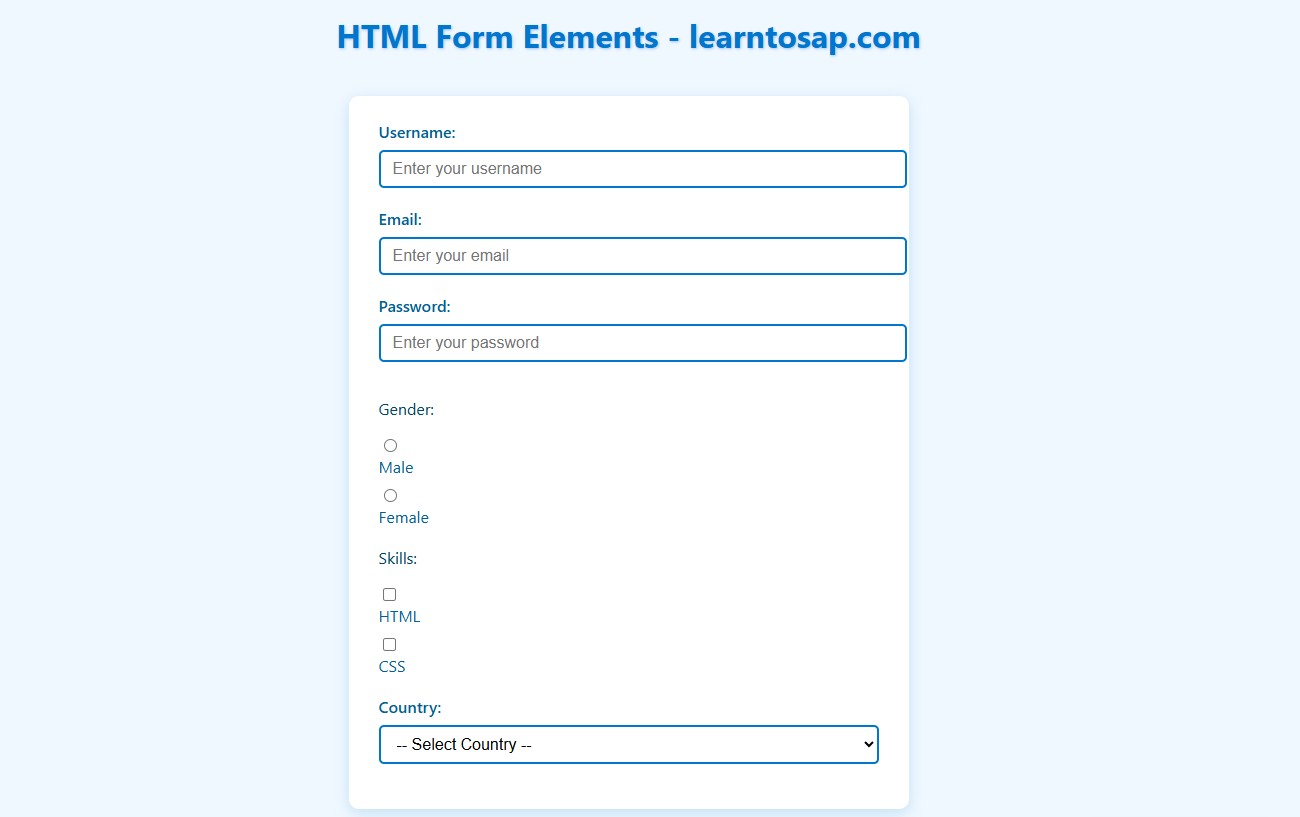
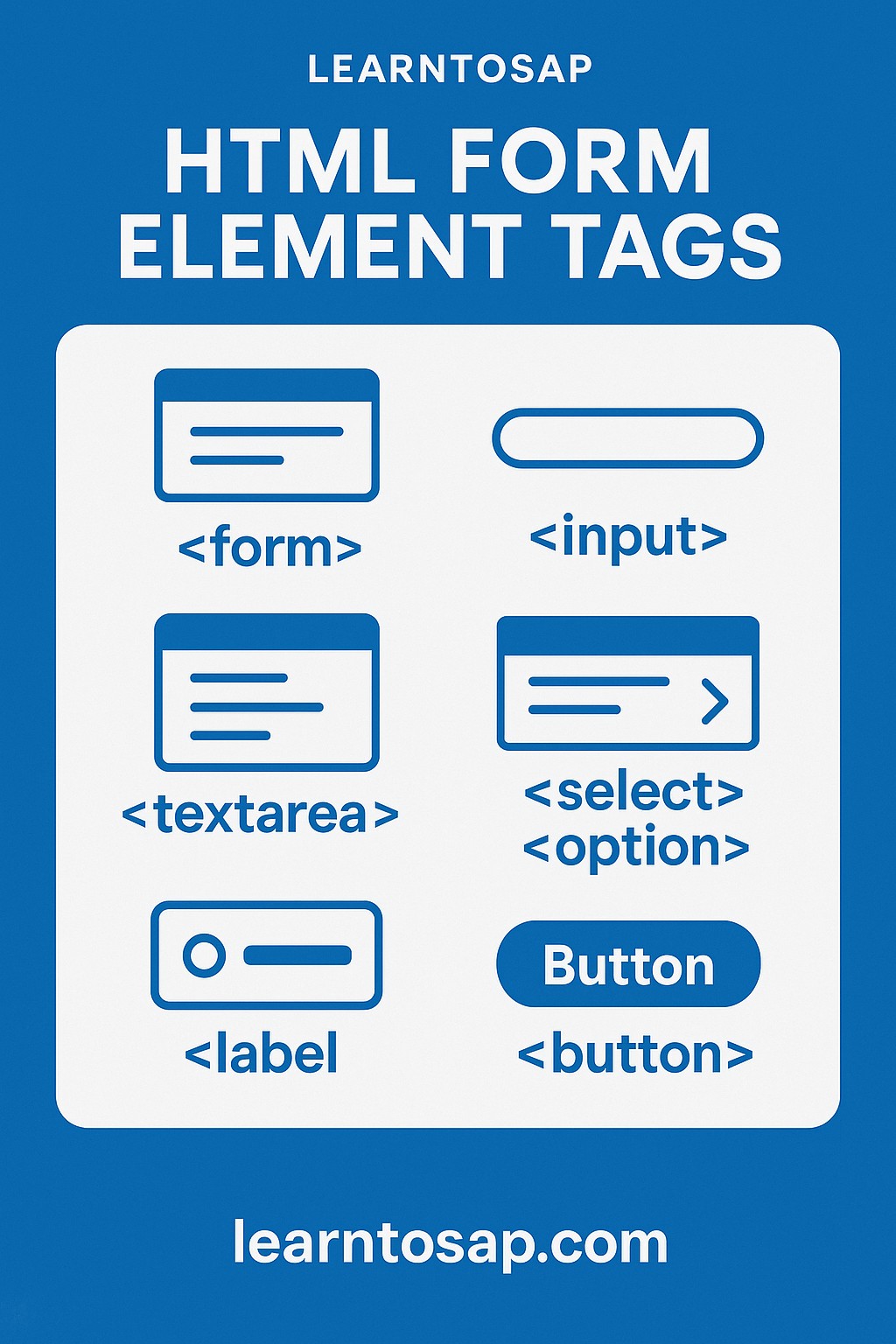
HTML Form Elements Reference: 11 Practical Examples
Why HTML form elements are essential in web development: they are the primary way any website collects information from a visitor, from a simple search box to a full account registration. Below are 11 of the most common form elements, each with its exact code and rendered result.
📄 1. Basic Structure
<form action="/submit-url" method="post">
  <!-- Form elements go here -->
</form>
✅ 2. Text Input
<label for="name">Name:</label>
<input type="text" id="name" name="name">
Rendered Result
✅ 3. Password Input
<label for="password">Password:</label>
<input type="password" id="password" name="password">
Rendered Result
✅ 4. Radio Buttons
<p>Gender:</p>
<input type="radio" id="male" name="gender" value="male">
<label for="male">Male</label>
<input type="radio" id="female" name="gender" value="female">
<label for="female">Female</label>
Rendered Result
Gender:
✅ 5. Checkboxes
<p>Skills:</p>
<input type="checkbox" id="html" name="skills" value="HTML">
<label for="html">HTML</label>
<input type="checkbox" id="css" name="skills" value="CSS">
<label for="css">CSS</label>
Rendered Result
Skills:
✅ 6. Textarea
<label for="message">Message:</label>
<textarea id="message" name="message" rows="4" cols="50"></textarea>
Rendered Result
✅ 7. Dropdown List
<label for="country">Country:</label>
<select id="country" name="country">
  <option value="usa">USA</option>
  <option value="uk">UK</option>
  <option value="india">India</option>
</select>
Rendered Result
✅ 8. Submit Button
<input type="submit" value="Submit">Rendered Result
✅ 9. Email Input
<label for="email">Email:</label>
<input type="email" id="email" name="email">
Rendered Result
✅ 10. Number Input
<label for="age">Age:</label>
<input type="number" id="age" name="age" min="1" max="100">
Rendered Result
✅ 11. Example Complete Form
<form action="/submit" method="post">
  <label for="username">Username:</label>
  <input type="text" id="username" name="username"><br><br>

  <label for="email">Email:</label>
  <input type="email" id="email" name="email"><br><br>

  <label for="password">Password:</label>
  <input type="password" id="password" name="password"><br><br>

  <input type="submit" value="Register">
</form>
Rendered Result
Try It Yourself (Copy This Code and Paste. See how it works). Paste any of the 11 examples above into the live playground below and combine several fields into your own custom form.
Live Code Preview
HTML Form Validation Attributes
None of the 11 examples above stop a visitor from submitting an empty or badly formatted field. Built-in HTML validation attributes handle exactly that, with no JavaScript required.
| Attribute | Effect |
|---|---|
| required | Blocks submission until the field has a value |
| minlength / maxlength | Limits how many characters text input can contain |
| min / max | Limits the allowed range on a number or date input, as already used in Example 10 |
| pattern | Requires the value to match a specific regular expression |
<label for="zip">ZIP Code:</label>
<input type="text" id="zip" name="zip" required pattern="[0-9]{5,6}" title="Enter a 5 or 6 digit ZIP code">
Combined with the Email Input example earlier on this page, adding required to <input type="email"> also gets free format checking, since browsers already validate that an email input roughly resembles a real email address before allowing submission.
More Modern Input Types
Beyond text, password, email, and number, HTML5 introduced several more specialized input types, each giving mobile devices a chance to show a matching keyboard or picker.
| Type | Purpose |
|---|---|
| date | Shows a native date picker |
| tel | Shows a numeric phone keypad on mobile |
| url | Validates that the value looks like a web address |
| range | Shows a draggable slider between a min and max value |
| color | Shows a native color picker |
| file | Lets the visitor choose a file to upload |
<label for="dob">Date of Birth:</label>
<input type="date" id="dob" name="dob">

<label for="volume">Volume:</label>
<input type="range" id="volume" name="volume" min="0" max="100">

<label for="avatar">Upload Photo:</label>
<input type="file" id="avatar" name="avatar">
Rendered Result
Grouping Fields with fieldset and legend
A longer form, like the Complete Form example earlier on this page, becomes easier to scan once related fields are visually and semantically grouped together using <fieldset> and <legend>.
<fieldset>
  <legend>Account Details</legend>
  <label for="uname">Username:</label>
  <input type="text" id="uname" name="uname"><br><br>
  <label for="pwd">Password:</label>
  <input type="password" id="pwd" name="pwd">
</fieldset>
Rendered Result
A screen reader announces the legend text when a user enters any field inside that fieldset, giving helpful context, such as "Account Details, Username," that a plain, ungrouped label alone would not provide.
GET vs POST: Choosing a Form Method
Every example on this page uses method="post", but get is the other option, and choosing correctly matters for both function and security.
| Method | Behavior | Best For |
|---|---|---|
| GET | Appends form data to the URL as a query string | Searches, filters, anything safe to bookmark or share |
| POST | Sends form data in the hidden request body | Logins, passwords, file uploads, anything sensitive or large |
This is exactly why the Complete Form example, which includes a password field, correctly uses method="post", sending a password with GET would expose it directly in the URL, in browser history, and potentially in server logs.
Best Practices for Accessible, User-Friendly Forms
- Always pair a <label> with its input using matching for and id attributes, exactly as every example on this page already does.
- Use the most specific input type available, such as email, tel, or date, rather than defaulting to plain text for everything.
- Mark genuinely required fields with required, rather than only explaining requirements in surrounding text.
- Group related fields with fieldset and legend once a form grows beyond a handful of fields.
- Choose GET or POST deliberately, based on whether the data is sensitive, rather than defaulting to one method out of habit.
Common Mistakes With HTML Forms
- Forgetting the name attribute on an input, which means its value is never actually included when the form is submitted.
- Mismatching for and id between a label and its input, which breaks the click-to-focus behavior and screen reader association.
- Using plain text inputs for everything, missing out on the built-in validation and mobile keyboard benefits of email, tel, number, and date types.
- Sending sensitive data with method="get", exposing it directly in the URL.
- Skipping required and other validation attributes, forcing every validation check to be handled manually with JavaScript instead of for free by the browser.
Practice Exercises: Build Your Own Form
The fastest way to make every form element feel familiar is to combine several into one form of your own. Try each of these directly in the live editor above:
- Recreate the Complete Form example, then add a required attribute to every field.
- Add a dropdown list for a favorite programming language, using the Dropdown List example as a starting point.
- Add a range input for a satisfaction rating from 1 to 10.
- Wrap two related fields in a fieldset with a descriptive legend.
- Decide whether your finished form should use GET or POST, and explain why in a comment above the form tag.
Working through these five exercises touches every technique discussed in this tutorial, from the eleven basic elements to validation, grouping, and method selection.
Real-World Example: A Complete Contact Form
To see several techniques from this page working together the way a real contact form would, here is a combined example using validation, a modern input type, and fieldset grouping:
<form action="/contact" method="post">
  <fieldset>
    <legend>Contact Us</legend>

    <label for="c-name">Full Name:</label>
    <input type="text" id="c-name" name="name" required><br><br>

    <label for="c-email">Email:</label>
    <input type="email" id="c-email" name="email" required><br><br>

    <label for="c-phone">Phone:</label>
    <input type="tel" id="c-phone" name="phone"><br><br>

    <label for="c-message">Message:</label><br>
    <textarea id="c-message" name="message" rows="4" required></textarea><br><br>

    <input type="submit" value="Send Message">
  </fieldset>
</form>
Rendered Result
Reading through this example: fieldset and legend group the whole form under one labeled "Contact Us" section, required on the name, email, and message fields prevents an incomplete submission, and the tel input type gives mobile visitors a numeric keypad automatically. Every technique here was introduced individually earlier on this page, combined into one practical, production-style form.
Accessible Labeling Beyond for/id
Every example on this page pairs a <label> with its input using matching for and id attributes, the most common and most reliable labeling technique. Occasionally, especially with a compact search box, a visible label is not wanted but an accessible one still is.
<input type="search" name="q" aria-label="Search the site">The aria-label attribute gives a screen reader a spoken label without displaying any visible text, useful for an icon-only search field, but it should stay the exception rather than the rule: a real, visible <label>, as every other example on this page uses, remains the clearer, more universally supported choice whenever there is room for one.
The datalist Tag: Autocomplete Suggestions
A tag worth knowing that none of the 11 core examples cover is <datalist>, which attaches a list of autocomplete suggestions to a regular text input without forcing the visitor to pick only from that list, unlike <select>.
<label for="browser">Favorite browser:</label>
<input list="browsers" id="browser" name="browser">
<datalist id="browsers">
  <option value="Chrome">
  <option value="Firefox">
  <option value="Safari">
  <option value="Edge">
</datalist>
Rendered Result
Compared to the Dropdown List example earlier on this page, <datalist> is the better fit whenever a visitor should be able to type a custom answer but would still benefit from quick, clickable suggestions, such as a city name or a favorite browser, whereas <select> suits a genuinely fixed, closed set of choices like the Country example.
button vs input type="submit"
The Submit Button example earlier on this page uses <input type="submit">, but HTML also offers a separate <button> tag that can do the same job, with one key difference.
| <input type="submit"> | <button> |
|---|---|
| Button text set only via the value attribute | Button content can include HTML, such as an icon plus text |
| Self-closing, no inner content | Has an opening and closing tag, like most other elements |
| Defaults to type="submit" in a form | Also defaults to type="submit", but should be given an explicit type to avoid accidental form submission |
<button type="submit">✅ Register Now</button>Because a <button> placed inside a <form> defaults to submitting that form, it is good practice to always give it an explicit type="button", type="submit", or type="reset", rather than relying on the default and risking an accidental submission from a button that was only meant to do something else, like toggle a menu.
Frequently Asked Questions About HTML Form Elements
What are HTML form elements?
HTML form elements are tags used to collect user input such as text, selections, and buttons.
What is the most commonly used form element?
The input tag is the most commonly used form element in HTML.
What is the difference between input and textarea?
Input is used for single-line text, while textarea is used for multi-line input.
What is the use of select tag?
The select tag is used to create a dropdown list.
How do forms work in HTML?
Forms collect user data and send it to a server using the action and method attributes.
What is the difference between GET and POST form methods?
GET appends form data to the URL as a query string, making it visible and bookmarkable, suited to searches. POST sends data in the request body, hidden from the URL, suited to sensitive or large data like passwords and file uploads.
How do I make a form field required?
Add the required attribute to an input, textarea, or select element. The browser will block form submission and show a validation message until that field is filled in.
What does the fieldset tag do?
The fieldset tag visually and semantically groups related form controls together, with an optional legend tag providing a caption for the group.
What is the difference between select and datalist?
select forces the visitor to choose only from a fixed, closed list of options. datalist attaches suggestions to a regular text input, but the visitor can still type a custom value that is not on the list.
Should I use button or input type="submit"?
Both submit a form by default. button is more flexible since it can contain HTML like an icon alongside text, while input type="submit" only displays plain text set by its value attribute. Either is valid; give button an explicit type attribute to avoid accidental submissions.