HTML Lists Explained: Complete Guide to ul, ol, li, and Description Lists
By Pramod Behera · Updated: September 14, 2026 · 21 min read
- HTML Lists in HTML5
- Why Lists Matter for Structure and Readability
- 1. Ordered List (ol)
- 2. Unordered List (ul)
- 3. Description List (dl)
- 4. Nested List
- List Tag Breakdown
- Ordered List Attributes: type, start, reversed
- Styling Lists With CSS
- Using Lists to Build Navigation Menus
- Why Lists Help SEO and Readability
- Accessibility Considerations for Lists
- Lists vs Divs: Why Semantics Matter
- Common Mistakes to Avoid
- List Best Practices Checklist
- Try It Yourself – Live Code Preview
- Practice Exercises
- Frequently Asked Questions
HTML Lists in HTML5: Unordered,Ordered And Description Lists Explained Step-by-Step
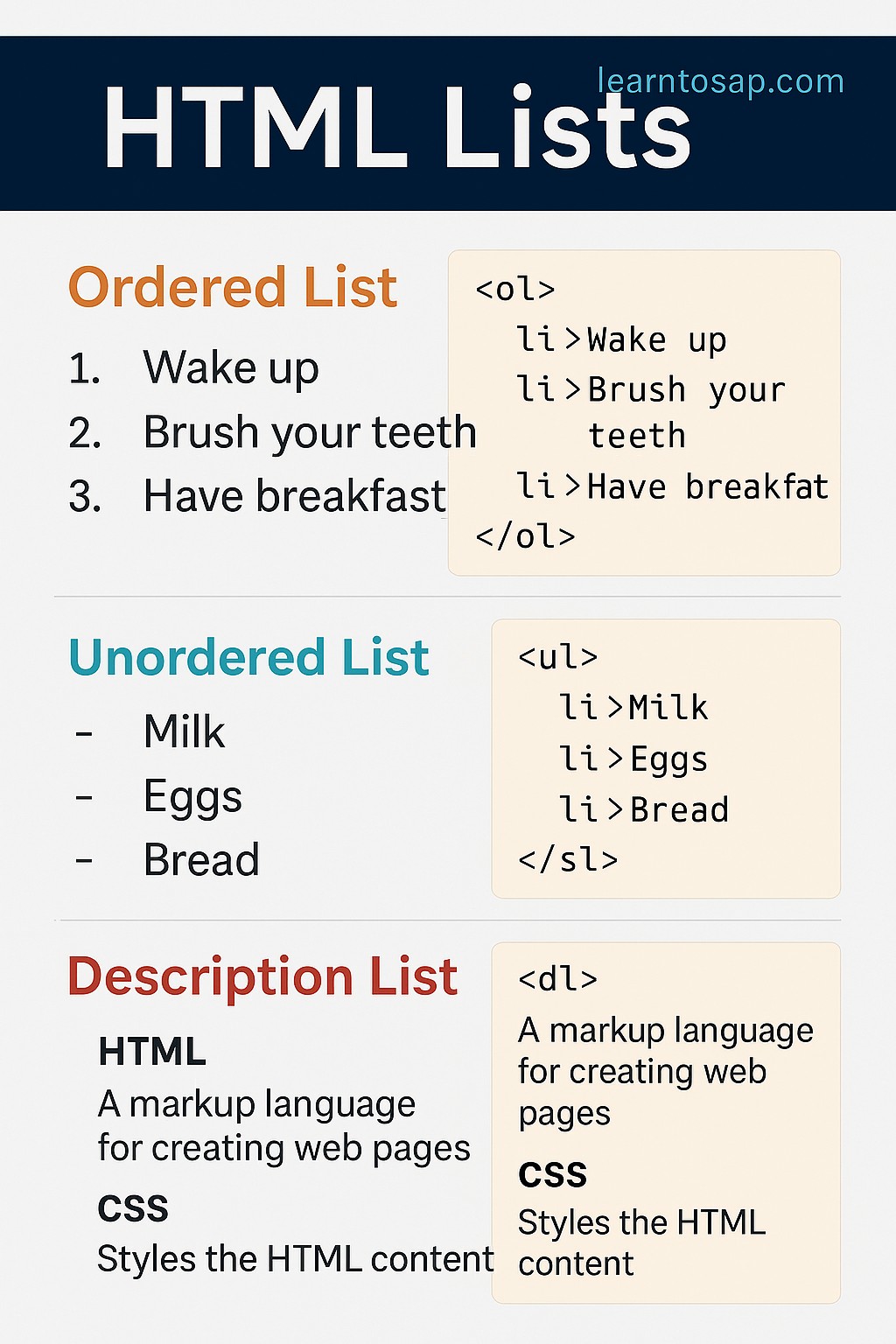
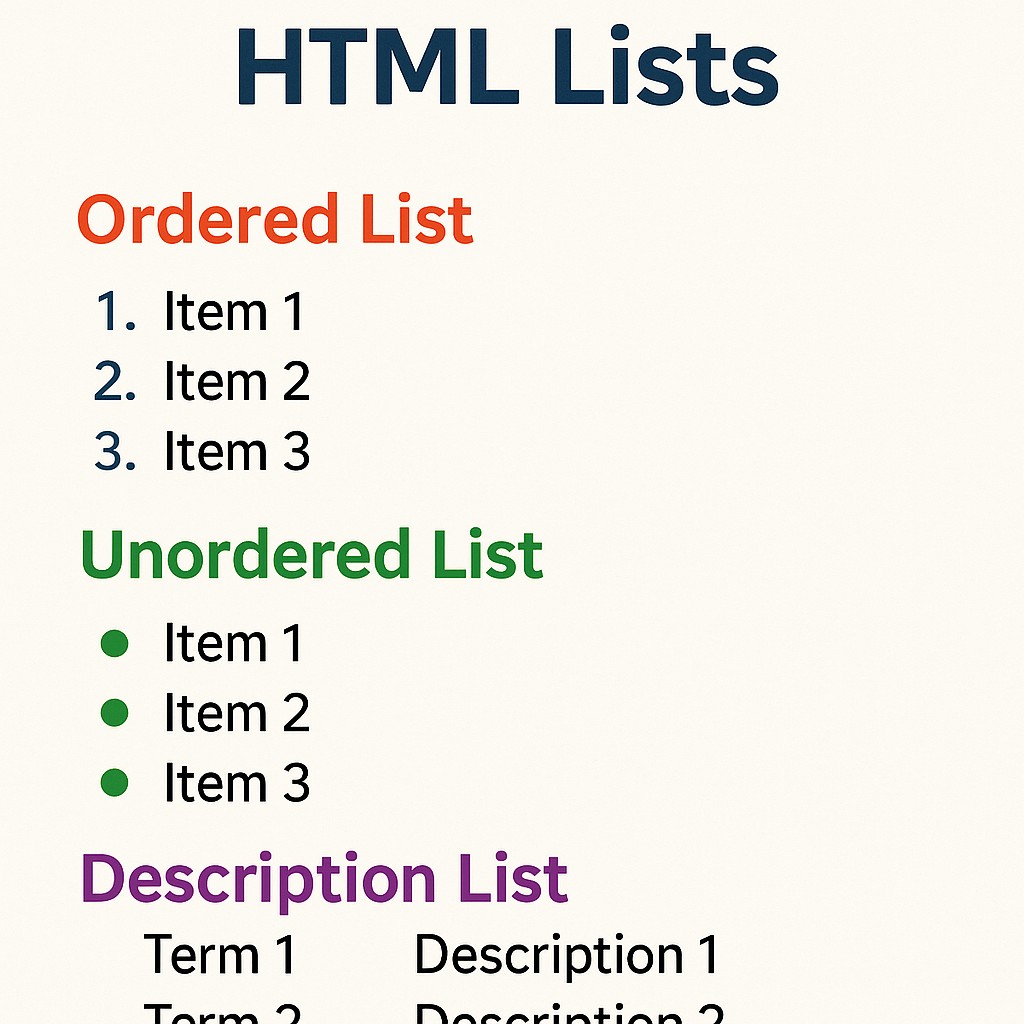
✅ HTML, lists are used to group related pieces of information.There are three main types of lists
Why Lists Matter for Structure and Readability
Long stretches of plain paragraph text force a reader to hunt for individual points buried inside sentences.Lists solve this by visually and semantically breaking related information into distinct, scannable items a recipe's ingredients, a to-do list, a glossary of terms, or a set of navigation links all share the same underlying shape: a group of discrete items that belong together. HTML gives you three dedicated tools for this shape, each suited to a slightly different kind of grouping, plus the ability to nest one list inside another when the data itself has a hierarchy, such as categories and sub-categories.
✅1. Ordered List ( <ol>)-👇
<ol>
  <li>Wake up</li>
  <li>Brush your teeth</li>
  <li>Have breakfast</li>
</ol>- Wake up
- Brush your teeth
- Have breakfast
An ordered list uses <ol> whenever sequence or ranking genuinely matters — a morning routine, step-by-step instructions, or a top-10 countdown all rely on the reader following items in a specific order, which is exactly what the automatic numbering in <ol> communicates.
✅2. Unordered List ( <ul>)-👇
<ul>
  <li>Milk</li>
  <li>Eggs</li>
  <li>Bread</li>
</ul>- Milk
- Eggs
- Bread
An unordered list uses <ul> when the items belong together but their order carries no special meaning — a shopping list, a set of features, or a list of ingredients would read identically no matter which order the items appeared in, so a plain bullet point is the appropriate visual cue rather than a number.
✅3. Description List ( <dl>)-👇
<dl>
  <dt>HTML</dt>
  <dd>A markup language for creating web pages</dd>
  <dt>CSS</dt>
  <dd>Styles the HTML content</dd>
</dl>- HTML
- A markup language for creating web pages
- CSS
- Styles the HTML content
A description list is structurally different from the other two: instead of a flat sequence of equal items, it pairs a term (<dt>) with its definition or description (<dd>), making it the natural fit for a glossary, an FAQ-style key-value layout, or metadata such as a product's specifications.
✅4. Nested List -👇
<ul>
  <li>Fruits
    <ul>
      <li>Mango</li>
      <li>Pineapple</li>
    </ul>
  </li>
  <li>Vegetables
    <ul>
      <li>Carrot</li>
      <li>Potato</li>
    </ul>
  </li>
</ul>- Fruits
- Mango
- Pineapple
- Vegetables
- Carrot
- Potato
A nested list places a complete <ul> or <ol> element inside a single <li> of an outer list, which is how HTML represents categories and sub-categories, such as "Fruits" containing "Mango" and "Pineapple" as its own sub-items. You can nest ordered lists inside unordered ones and vice versa, whichever combination matches the actual structure of your content.
🔍 List Tag Breakdown-
| Tag | Purpose |
|---|---|
| <ul> | Defines an unordered (bulleted) list |
| <ol> | Defines an ordered (numbered) list |
| <li> | Defines a single list item inside a ul or ol |
| <dl> | Defines a description list |
| <dt> | Defines a term inside a description list |
| <dd> | Defines the description for a term inside a description list |
Ordered List Attributes: type, start, reversed
The plain numbered output in the ordered list example above is just the default. Three attributes on <ol> give you control over how the numbering actually looks and behaves.
| Attribute | What It Does | Example |
|---|---|---|
| type | Changes numbering style to letters or Roman numerals | <ol type="A"> → A, B, C |
| start | Sets the number the list begins counting from | <ol start="5"> → starts at 5 |
| reversed | Counts the list down instead of up | <ol reversed> → 3, 2, 1 |
<ol type="A" start="3">
  <li>Item C</li>
  <li>Item D</li>
</ol>
Styling Lists With CSS
Beyond the built-in attributes, CSS gives you full control over how list markers look, or whether they appear at all.
| CSS Property | Effect |
|---|---|
| list-style-type: none; | Removes bullets or numbers entirely |
| list-style-type: square; | Changes bullets to squares instead of dots |
| list-style-type: upper-roman; | Numbers using uppercase Roman numerals (I, II, III) |
| list-style-position: inside; | Moves the marker inside the content box instead of outside it |
| list-style-image: url(...) | Replaces the bullet with a custom image icon |
Using Lists to Build Navigation Menus
One of the most common real-world uses of <ul> has nothing to do with visible bullets at all: website navigation bars are almost always built from an unordered list with the bullets removed via CSS, since a nav bar is, structurally, exactly a set of related links with no inherent order.
<ul style="list-style:none; display:flex; gap:1rem; padding:0;">
  <li><a href="#">Home</a></li>
  <li><a href="#">About</a></li>
  <li><a href="#">Contact</a></li>
</ul>
This is precisely the pattern used to build the sidebar you see on the left of this very tutorial page, and it's the standard approach behind nearly every navigation bar on the modern web.
Why Lists Help SEO and Readability
Search engines parse list markup as a structural signal, and Google frequently pulls numbered or bulleted lists directly into featured snippets when a page's content genuinely matches a "how to" or "steps" style query. Beyond ranking considerations, lists dramatically improve scannability for human readers: a visitor skimming a page can spot a bulleted set of features or a numbered set of steps far faster than the same information buried in a dense paragraph.
Accessibility Considerations for Lists
- Screen readers announce the total number of items in a list and the current item's position, so using real list markup (rather than plain paragraphs with dashes) gives assistive technology genuinely useful context.
- Never skip straight from <ul> or <ol> to something other than <li> as a direct child — invalid nesting can confuse how screen readers announce the list.
- When removing bullets for a navigation menu, the list still retains its semantic meaning for assistive technology even though it's visually invisible, which is exactly the accessible behavior you want.
Lists vs Divs: Why Semantics Matter
It's technically possible to fake a list's appearance using a stack of <div> elements styled with CSS, but doing so throws away the same accessibility and structural benefits discussed throughout this series for tables and other semantic tags. A screen reader has no way to announce "list of 5 items, item 2 of 5" for a stack of divs, whereas it does exactly that automatically for a real <ul> or <ol>. Reserve <div> for generic layout containers, and use real list elements the moment your content is genuinely a set of related items.
Common Mistakes to Avoid
❌ Mistake 1 – Using ol when order doesn't matter
A shopping list or feature list should use ul, since numbering implies a sequence that isn't actually there.
❌ Mistake 2 – Placing content directly inside ul or ol without li
Every direct child of a list must be an li element; plain text or other tags placed directly inside break the list's valid structure.
❌ Mistake 3 – Forgetting to close the nested ul before closing the parent li
As shown in the nested list example, the inner ul must close before its containing li tag does.
❌ Mistake 4 – Using dl for a plain sequence of items
Description lists are for term-and-description pairs, not a general substitute for ul or ol.
❌ Mistake 5 – Faking a list with divs and CSS
This discards the accessibility benefits real list markup provides for free.
List Best Practices Checklist
✔️ 1) Choose ol only when sequence matters
Steps, rankings, and instructions; otherwise use ul.
✔️ 2) Use dl for term-description pairs
Glossaries, FAQs, and specification sheets are the natural fit.
✔️ 3) Nest lists to reflect real hierarchy
Only nest when the data genuinely has categories and sub-items.
✔️ 4) Style, don't fake, navigation lists
Build nav bars from a real ul with CSS removing the bullets.
✔️ 5) Keep list items concise
Short, scannable phrases work better than long paragraphs crammed into a single li.
Try It Yourself (Copy This Code and Paste. See how it works)
Live Code Preview
Practice Exercises: Test HTML Lists
- Build an ordered list of 5 steps for making tea, then reverse the numbering using the reversed attribute.
- Create an unordered list of your favorite movies, then remove the bullets using CSS list-style: none.
- Build a description list glossary with at least 3 dt/dd term-definition pairs.
- Create a two-level nested list of countries and their major cities.
- Convert one of your unordered lists into a horizontal navigation bar using display: flex.
Frequently Asked Questions About HTML Lists
What is the difference between ul and ol in HTML?
The ul tag creates an unordered list with bullet points, used when item order doesn't matter, while the ol tag creates an ordered list with automatic numbering, used when sequence or ranking matters.
What does the li tag do in HTML?
The li tag defines a single list item and must be placed inside either a ul or ol element. Each li represents one entry in the list.
What is a description list in HTML?
A description list, created with dl, dt, and dd, pairs terms with their descriptions, such as a glossary entry or a key-value list, rather than a simple sequence of items.
How do I create a nested list in HTML?
Place a complete ul or ol element inside an li item of an outer list. The nested list becomes a sub-list belonging to that specific parent item.
Can I change the numbering style of an ordered list?
Yes, using the type attribute or the CSS list-style-type property, you can switch numbering to letters (A, B, C) or Roman numerals (I, II, III) instead of plain numbers.
How do I remove bullet points from an unordered list?
Apply the CSS property list-style: none to the ul element, which is commonly used when repurposing a list for navigation menus rather than visible bulleted content.