HTML Unordered List (ul) Tag Explained with Examples
By Pramod Behera · Updated: September 15, 2026 · 22 min read
- HTML Unordered Lists Tag
- Why Use an Unordered List Instead of a Paragraph
- Unordered List with type="circle"
- Unordered List with type="square"
- Default Bullet: type="disc"
- Nested Unordered List
- Unordered List with Custom Bullet Style (CSS)
- Removing Bullets and Styling with Icons (Advanced)
- ul Tag Attribute Breakdown
- CSS list-style Properties for ul
- ul vs ol: Which One Should You Use?
- Using ul to Build Navigation Menus
- Why Unordered Lists Help SEO and Readability
- Accessibility Considerations for ul
- Common Mistakes to Avoid
- Unordered List Best Practices Checklist
- Try It Yourself – Live Code Preview
- Practice Exercises
- Frequently Asked Questions
HTML Unordered Lists Tag
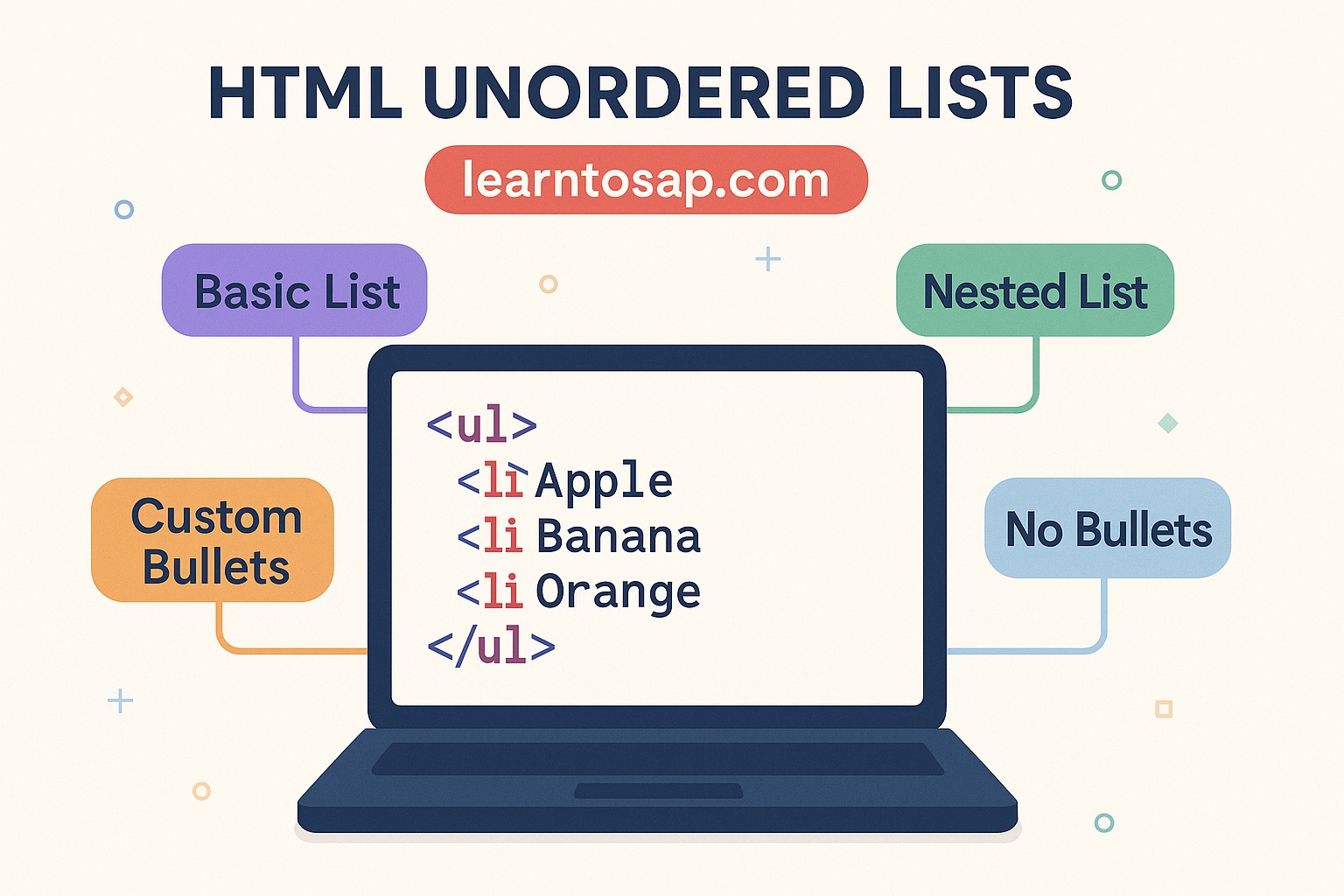
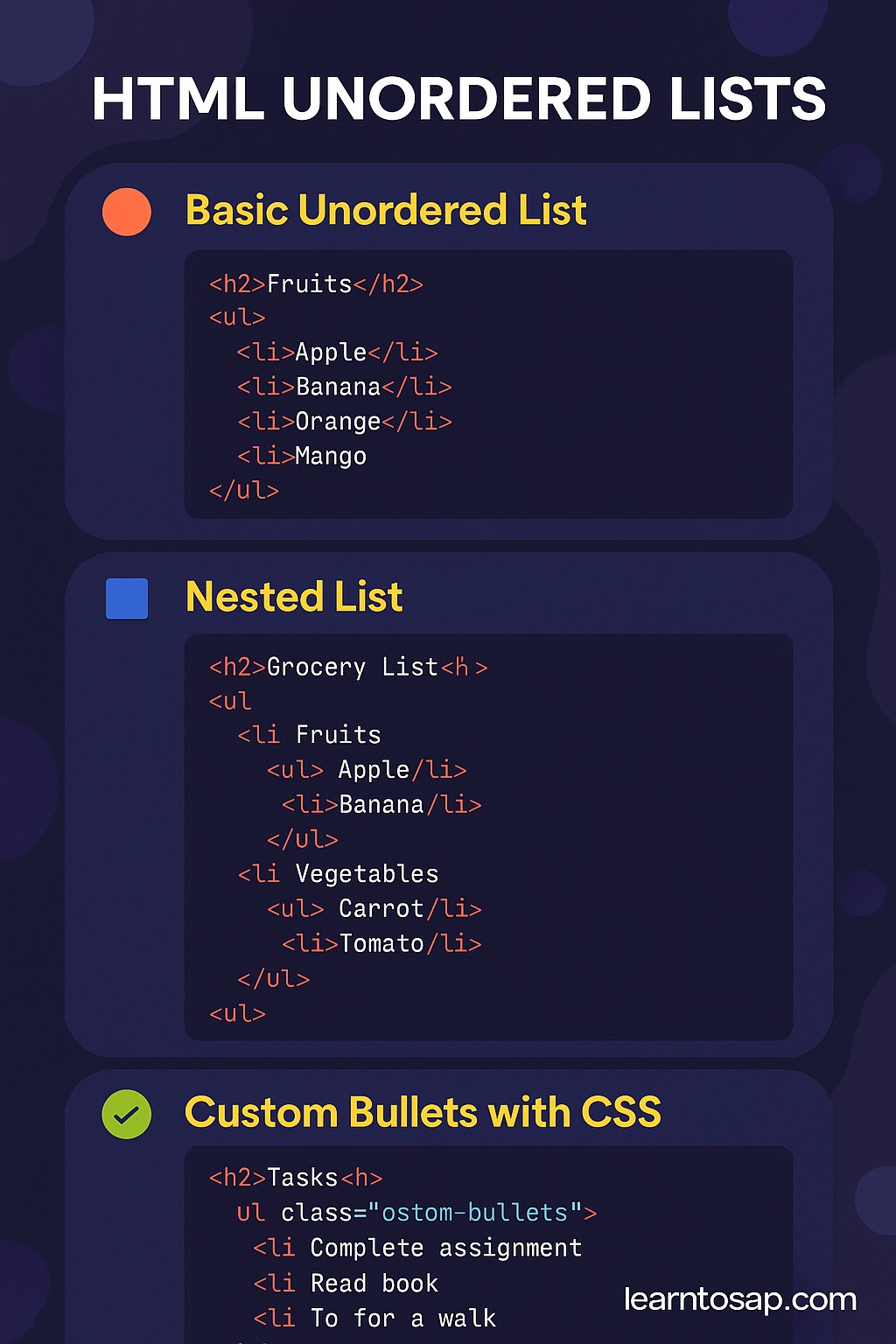
✅ HTML unordered lists are used to group a set of related items in no particular order. They are created using the <ul>(unordered list) tag, and each item inside the list is placed within an <li>(list item) tag:-
Why Use an Unordered List Instead of a Paragraph
Whenever a group of items belongs together but there is no natural first, second, or third position among them, a plain paragraph forces the reader to mentally separate one idea from the next by hunting for commas or line breaks. An unordered list solves that problem instantly: every item gets its own line and its own bullet, so a shopping list, a set of product features, a list of skills, or a collection of navigation links all become easy to scan in a single glance. Because the <ul> tag is a genuine block-level structural element rather than just visual styling, browsers, screen readers, and search engines all understand it the same way as a set of related, equally-ranked items which is exactly the semantic meaning you want when order truly does not matter.
This is also why the unordered list is one of the very first tags every beginner should master after paragraphs and headings. It appears constantly in real websites: blog sidebars, footer link groups, pricing plan feature lists, FAQ bullet summaries, and the navigation bar at the very top of this page are all, underneath the visual styling, nothing more than a <ul> with some CSS applied. Understanding the raw tag first makes every one of those later, more advanced patterns far easier to follow.
✅Unordered List with type="circle"-👇
<ul type="circle">
  <li>HTML</li>
  <li>CSS</li>
  <li>JavaScript</li>
</ul>- HTML
- CSS
- JavaScript
The type="circle" attribute swaps the default solid bullet for a hollow, outlined circle marker. It is a quick way to give a list a slightly lighter visual weight without writing any CSS at all, which can be handy for a short demo page or a legacy project where you want a fast, inline change. In modern production code, most developers achieve the same circle marker using the CSS property list-style-type: circle; instead, since CSS keeps presentation separate from markup, but the HTML attribute still works in every current browser and is worth recognizing when you encounter it in older code.
✅Unordered List with type="square"-👇
<ul type="square">
  <li>Python</li>
  <li>Java</li>
  <li>C++</li>
</ul>- Python
- Java
- C++
Setting type="square" changes the marker to a small, solid square instead of a round dot. Square bullets tend to feel a little more modern and geometric, which is why you will often see them used in technical documentation, changelogs, and feature-comparison sections. As with the circle variant, the CSS equivalent is list-style-type: square;, and using CSS lets you apply the same square-bullet styling consistently across every list on a site just by targeting a shared class, rather than repeating the attribute on every single <ul>.
✅Default Bullet: type="disc"-👇
<ul type="disc">
  <li>Apple</li>
  <li>Banana</li>
  <li>Cherry</li>
</ul>- Apple
- Banana
- Cherry
If you write a plain <ul> with no type attribute at all, the browser renders it with a filled, solid round bullet this is the disc style, and it is the default appearance for every unordered list unless you explicitly change it. Most of the lists you see across the web, including plain bulleted paragraphs in articles and blog posts, are simply using this untouched default rather than any special attribute or CSS rule.
✅Nested Unordered List-👇
<!DOCTYPE html>
<html>
<head>
  <title>Nested Unordered List</title>
</head>
<body>

<h2>Grocery List</h2>
<ul>
  <li>Fruits
    <ul>
      <li>Apple</li>
      <li>Banana</li>
    </ul>
  </li>
  <li>Vegetables
    <ul>
      <li>Carrot</li>
      <li>Tomato</li>
    </ul>
  </li>
</ul>

</body>
</html>
Grocery List
- Fruits
- Apple
- Banana
- Vegetables
- Carrot
- Tomato
A nested unordered list places a complete <ul> element inside a single <li> of an outer list, which is exactly how HTML represents a category together with its own sub-items here, "Fruits" contains "Apple" and "Banana" as its own nested entries, and "Vegetables" contains "Carrot" and "Tomato" the same way. Browsers automatically indent nested lists and, by default, switch the bullet style one level deep from a solid disc to a hollow circle, which makes the hierarchy visually obvious even before any custom CSS is applied. You can nest as many levels as your content genuinely requires, though in practice going beyond two or three levels usually signals that the information would read better as separate sections or a table instead.
✅Unordered List with Custom Bullet Style (CSS) -👇
<!DOCTYPE html>
<html>
<head>
  <title>Styled List</title>
  <style>
    ul.custom-bullets {
      list-style-type: square;
      color: darkblue;
    }
  </style>
</head>
<body>

<h2>Tasks</h2>
<ul class="custom-bullets">
  <li>Complete assignment</li>
  <li>Read book</li>
  <li>Go for a walk</li>
</ul>

</body>
</html>
Tasks
- Complete assignment
- Read book
- Go for a walk
This example moves the bullet styling out of the HTML attribute and into a proper CSS class, .custom-bullets, which sets both the marker shape with list-style-type: square; and the text color with color: darkblue; in one place. The advantage of this approach becomes obvious the moment a page has more than one list: instead of repeating a type attribute on every single <ul>, you add one class name and reuse the same rule everywhere, and if the design changes later you only have to edit the CSS once rather than hunting through every page.
✅Removing Bullets and Styling with Icons (Advanced) -👇
<!DOCTYPE html>
<html>
<head>
  <title>Icon List</title>
  <style>
    ul.no-bullets {
      list-style-type: none;
      padding-left: 0;
    }
    ul.no-bullets li::before {
      content: "✔️ ";
      color: green;
    }
  </style>
</head>
<body>

<h2>Checklist</h2>
<ul class="no-bullets">
  <li>Install software</li>
  <li>Configure settings</li>
  <li>Test application</li>
</ul>

</body>
</html>
Checklist
- ✔️ Install software
- ✔️ Configure settings
- ✔️ Test application
This advanced pattern first strips away the browser's default marker entirely with list-style-type: none; and resets the left padding, then reintroduces a custom marker a green checkmark using the ::before pseudo-element on every <li>. Because the content property can hold any character, emoji, or even a background image, this same technique scales up to arrow bullets, colored dots, or brand-specific icons, and it is the exact foundation behind icon-based feature lists you commonly see on pricing pages and marketing sites.
🔍 ul Tag Attribute Breakdown-
| Attribute / Element | Purpose |
|---|---|
| <ul> | Defines an unordered (bulleted) list container |
| <li> | Defines a single list item inside a ul |
| type="disc" | Solid round bullet the default marker |
| type="circle" | Hollow, outlined round bullet |
| type="square" | Solid square bullet |
Note that the type attribute on <ul> is considered a legacy, presentational attribute in modern HTML5. It still renders correctly in every browser, so you may see it in older tutorials and codebases, but current best practice is to control bullet appearance through CSS instead, which keeps your markup focused purely on structure and meaning.
CSS list-style Properties for ul
CSS gives you complete control over how the markers of an unordered list look, or whether any marker appears at all.
| CSS Property | Effect |
|---|---|
| list-style-type: none; | Removes bullets entirely, commonly used for navigation menus |
| list-style-type: circle; | Hollow round bullet, the CSS equivalent of type="circle" |
| list-style-type: square; | Solid square bullet, the CSS equivalent of type="square" |
| list-style-position: inside; | Moves the marker inside the content box instead of outside it |
| list-style-image: url(...) | Replaces the bullet with a custom image icon |
ul vs ol: Which One Should You Use?
Choosing between <ul> and <ol> comes down to a single question: does the sequence of the items carry meaning? A recipe's cooking steps, a countdown of top-rated products, or a set of instructions where step 2 must follow step 1 all belong inside an <ol>, because renumbering them would change their meaning. A shopping list, a set of website features, or a list of hobbies belongs inside a <ul>, because shuffling the items would not change anything about what they communicate. When in doubt, ask whether reordering the list would confuse the reader if yes, use <ol>; if no, use <ul>.
Using ul to Build Navigation Menus
One of the most common real-world uses of <ul> has nothing to do with visible bullets at all: website navigation bars are almost always built from an unordered list with the bullets removed via CSS, since a nav bar is, structurally, exactly a set of related links with no inherent order.
<ul style="list-style:none; display:flex; gap:1rem; padding:0;">
  <li><a href="#">Home</a></li>
  <li><a href="#">About</a></li>
  <li><a href="#">Contact</a></li>
</ul>
This is precisely the pattern used to build the sidebar you see on the left of this very tutorial page, and it is the standard approach behind nearly every navigation bar on the modern web.
Why Unordered Lists Help SEO and Readability
Search engines parse list markup as a structural signal, and Google frequently pulls bulleted lists directly into featured snippets when a page's content genuinely matches a "types of," "features of," or "examples of" style query. Beyond ranking considerations, unordered lists dramatically improve scannability for human readers: a visitor skimming a page can spot a bulleted set of options far faster than the same information buried inside a dense paragraph, which keeps people on the page longer and reduces bounce rate.
Accessibility Considerations for ul
- Screen readers announce the total number of items in a list and the current item's position, so using a real <ul> (rather than plain paragraphs with dashes) gives assistive technology genuinely useful context.
- Never place content directly inside a <ul> other than <li> elements invalid nesting can confuse how screen readers announce the list.
- When removing bullets for a navigation menu, the list still retains its semantic meaning for assistive technology even though it is visually invisible, which is exactly the accessible behavior you want.
Common Mistakes to Avoid
❌ Mistake 1 – Using ul when the sequence actually matters
Step-by-step instructions should use <ol>, since a bullet gives the reader no signal about which step comes first.
❌ Mistake 2 – Placing text directly inside ul without an li wrapper
Every direct child of a <ul> must be an <li> element; plain text placed directly inside breaks the list's valid structure.
❌ Mistake 3 – Forgetting to close the nested ul before closing the parent li
As shown in the nested list example, the inner <ul> must close before its containing <li> tag does.
❌ Mistake 4 – Relying on the deprecated type attribute for new projects
Prefer the CSS list-style-type property so presentation stays separate from markup and is easier to maintain site-wide.
❌ Mistake 5 – Faking a list with divs and CSS
This discards the accessibility benefits real list markup provides for free.
Unordered List Best Practices Checklist
✔️ 1) Use ul only when order does not matter
Features, ingredients, and tags; otherwise reach for ol.
✔️ 2) Style bullets with CSS, not the type attribute
list-style-type keeps your HTML clean and your styling reusable.
✔️ 3) Nest lists only when the data genuinely has categories
Grocery items under "Fruits" and "Vegetables" is a good fit; forcing unrelated items into a hierarchy is not.
✔️ 4) Build navigation menus from a real ul
Remove bullets with CSS instead of faking a menu with divs.
✔️ 5) Keep list items short and scannable
Concise phrases work better than long paragraphs crammed into a single li.
Try It Yourself (Copy This Code and Paste. See how it works)
Live Code Preview
Practice Exercises: Test HTML Unordered Lists
- Build an unordered list of 5 favorite movies using the default disc bullet.
- Recreate the same list with type="circle", then again with type="square", and compare the visual difference.
- Create a two-level nested list of countries and their major cities, similar to the Grocery List example.
- Style one of your lists with a CSS class that sets list-style-type: square and a custom text color.
- Build a checklist that removes the default bullets and adds a checkmark icon using the ::before pseudo-element.
Frequently Asked Questions About HTML Unordered Lists
What is the HTML unordered list tag used for?
The ul tag groups a set of related items where the order does not matter, such as a shopping list or a set of features, and each item is placed inside an li element.
What is the difference between type="circle" and type="square" in a ul tag?
The type attribute on ul changes the shape of the bullet marker: circle renders a hollow round bullet, while square renders a solid square bullet, instead of the default filled disc.
How do I create a nested unordered list in HTML?
Place a complete ul element inside a single li item of an outer ul, which lets you represent categories with their own sub-items, such as Fruits containing Apple and Banana.
How do I remove bullets from an unordered list?
Apply the CSS property list-style-type: none to the ul element, which is the standard technique used when turning a list into a navigation menu or a custom icon list.
Can I use custom icons instead of bullets in a ul?
Yes, remove the default marker with list-style-type: none and then add a custom character or icon using the CSS ::before pseudo-element on each li, such as a checkmark symbol.
What is the difference between ul and ol in HTML?
The ul tag creates an unordered list with bullet points for items whose order does not matter, while the ol tag creates an ordered list with automatic numbering for items where sequence matters.