HTML Other Lists Tag Tutorial: Complete Guide to Unordered and Description Lists in HTML
By Pramod Behera · Updated: September 15, 2026 · 20 min read
- HTML Other Lists Tag
- Quick Recap: The Three HTML List Types
- 1. Unordered List
- 2. Description List
- Description List with Multiple dd Values
- Tag Breakdown
- Description List vs Unordered List: When to Use Which
- Styling Description Lists with CSS
- Real-World Uses of Description Lists
- Why Description Lists Help SEO and Readability
- Accessibility Considerations
- Common Mistakes to Avoid
- Best Practices Checklist
- Try It Yourself – Live Code Preview
- Practice Exercises
- Frequently Asked Questions
HTML Ordered, Unordered, and Description Lists Explained: Full Guide for Developers
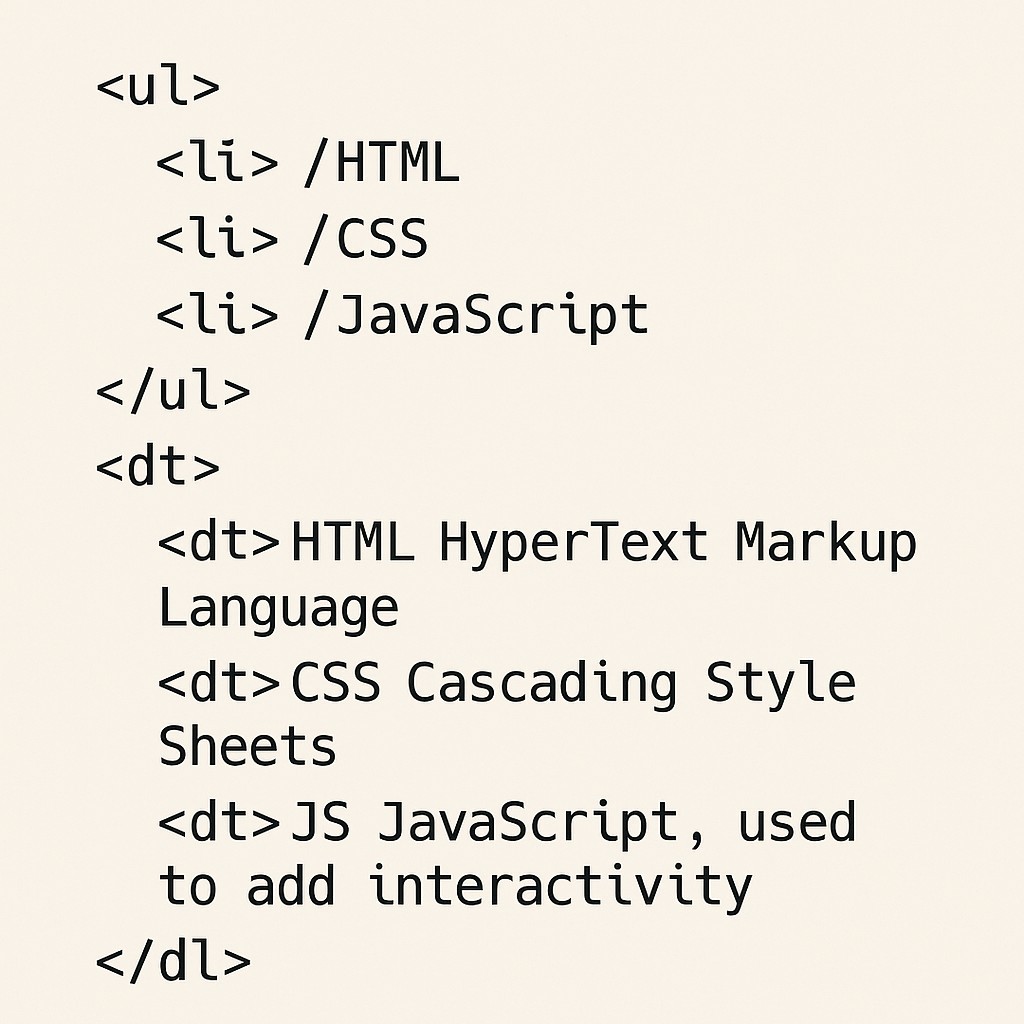
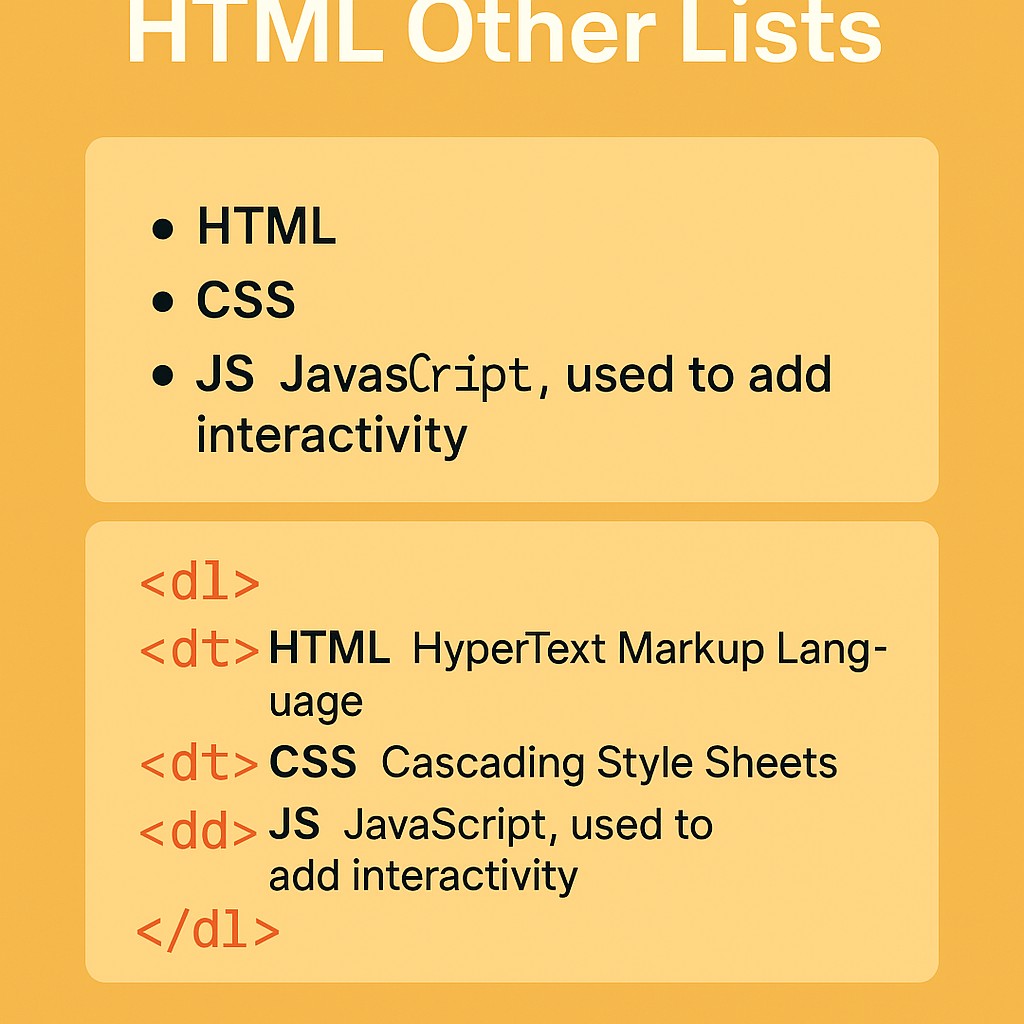
✅ HTML, there are Two other common types of lists. Here's the basic syntax:-
Quick Recap: The Three HTML List Types
Across this HTML list series you have already seen the ordered list (<ol>), which numbers items automatically when their sequence matters, and the unordered list (<ul>), which bullets items whose order carries no meaning. This tutorial rounds out the set by revisiting the unordered list from a fresh angle and introducing the third, often-overlooked list type: the description list (<dl>), which pairs a term with its definition rather than presenting a flat sequence of equal items. Together, these three tags cover almost every list-shaped pattern you will encounter while building real websites.
✅ 1. Unordered List -👇
<ul>
  <li>Apples</li>
  <li>Bananas</li>
  <li>Cherries</li>
</ul>- Apples
- Bananas
- Cherries
This is the same bulleted <ul> pattern covered in depth in the dedicated unordered list tutorial: three fruit names, each wrapped in its own <li>, with no numbering because their order does not matter — Apples, Bananas, and Cherries would communicate exactly the same thing listed in any sequence. It is included again here as the natural starting point before contrasting it with the description list below, since the two tags look deceptively similar in markup but serve very different structural purposes.
✅2. Description List -👇
<dl>
  <dt>HTML</dt>
  <dd>HyperText Markup Language</dd>

  <dt>CSS</dt>
  <dd>Cascading Style Sheets</dd>

  <dt>JS</dt>
  <dd>JavaScript, used to add interactivity</dd>
</dl>- HTML
- HyperText Markup Language
- CSS
- Cascading Style Sheets
- JS
- JavaScript, used to add interactivity
A description list is structurally different from <ul> and <ol>: instead of a flat run of equal items, <dl> groups a term, defined with <dt>, together with its explanation, defined with <dd>. In this example, "HTML" is the term and "HyperText Markup Language" is its description, and the same pairing repeats for CSS and JS. This makes <dl> the natural markup choice any time your content is genuinely a set of name-value or term-definition pairs, such as an abbreviation key, a glossary, or a specification sheet.
Description List with Multiple dd Values
<dl>
  <dt>CSS</dt>
  <dd>Cascading Style Sheets</dd>
  <dd>A language used to style HTML elements</dd>
</dl>- CSS
- Cascading Style Sheets
- A language used to style HTML elements
A single <dt> is not limited to exactly one <dd>. When a term genuinely has more than one description — an expanded name plus a short explanation, or several alternative definitions — you can simply add additional <dd> elements one after another, and the browser will list them all under the same term, which is a pattern you will not see with a plain <ul> or <ol>.
🔍 Tag Breakdown-
| Tag | Purpose |
|---|---|
| <ul> | Defines an unordered (bulleted) list of related items |
| <li> | Defines a single item inside a ul or ol |
| <dl> | Defines a description list container |
| <dt> | Defines a term inside a description list |
| <dd> | Defines the description or value for the preceding dt term |
Description List vs Unordered List: When to Use Which
The deciding question is whether each item is a standalone entry or a term paired with an explanation. "Apples, Bananas, Cherries" are three standalone entries with no internal structure, so <ul> is correct. "HTML: HyperText Markup Language" is a label paired with what that label means, so <dl> is correct. A common mistake is reaching for <ul> and manually bolding the term inside each <li>, such as <li><strong>HTML</strong>: HyperText Markup Language</li> — this looks similar but throws away the semantic term-and-description relationship that <dl>, <dt>, and <dd> communicate directly to browsers, search engines, and assistive technology.
Styling Description Lists with CSS
| CSS Property | Effect |
|---|---|
| dt { font-weight: bold; } | Makes each term visually stand out from its description |
| dd { margin-left: 1.5rem; } | Indents the description under its term for a classic glossary look |
| dl { display: grid; grid-template-columns: 120px 1fr; } | Lays terms and descriptions out in two aligned columns |
By default, browsers render <dt> on its own line and indent <dd> slightly beneath it, but CSS gives you complete freedom to restyle a description list into a two-column table-like layout, a card grid, or an FAQ accordion, all while keeping the underlying term-and-description semantics intact for accessibility and SEO.
Real-World Uses of Description Lists
- Glossaries and dictionaries – pairing a technical word with its plain-language meaning, exactly as shown in the HTML/CSS/JS example above.
- Product specification sheets – pairing a spec name like "Weight" or "Battery Life" with its actual value.
- Metadata blocks – pairing labels like "Author" or "Published Date" with their values on a blog post.
- Abbreviation keys – pairing an acronym with what it stands for, useful in technical documentation.
Why Description Lists Help SEO and Readability
Search engines can recognize the term-and-description structure of a <dl> and sometimes surface it directly in rich results for definitional or "what is" style queries, since the markup itself already signals a clean question-and-answer relationship. For readers, a properly styled description list separates the label from the value at a glance, which is far easier to scan than the same information written as a run-on sentence.
Accessibility Considerations
- Screen readers announce <dl> content as a description list, reading each term together with its associated description so the pairing is never lost for assistive technology users.
- Keep the correct nesting order — one or more <dt> elements followed by one or more <dd> elements — since browsers and screen readers rely on that sequence to associate terms with their descriptions correctly.
- For a plain bulleted list used as a navigation menu, retaining real <ul>/<li> markup (rather than divs) ensures the total item count and current position are still announced.
Common Mistakes to Avoid
❌ Mistake 1 – Using ul with manually bolded terms instead of dl
If each item is genuinely a term-and-description pair, dl, dt, and dd communicate that relationship correctly, while ul does not.
❌ Mistake 2 – Placing a dd before its dt
A dd must follow the dt it describes; reversing the order breaks the semantic pairing.
❌ Mistake 3 – Forgetting that dt and dd are direct children of dl only
Wrapping them in an extra div between dl and dt/dd can break the association for some assistive technology.
❌ Mistake 4 – Using ol when the items in the list have no real sequence
A plain fruit list like Apples, Bananas, Cherries should stay as ul, since numbering would falsely imply an order.
❌ Mistake 5 – Faking a glossary with divs and CSS
This discards the built-in term-description relationship and accessibility benefits that real dl markup provides for free.
Best Practices Checklist
✔️ 1) Use dl only for genuine term-description pairs
Glossaries, specs, and metadata are the natural fit.
✔️ 2) Use ul for flat, unordered collections
Ingredients, features, and tags belong here instead.
✔️ 3) Add multiple dd elements when a term has several descriptions
Do not cram multiple meanings into a single dd separated by commas.
✔️ 4) Style dt and dd independently with CSS
Bold the term, indent or align the description for a clean glossary look.
✔️ 5) Keep terms and descriptions concise
Short, scannable entries work better than long paragraphs crammed into a single dd.
Try It Yourself (Copy This Code and Paste. See how it works)
Live Code Preview
Practice Exercises: Test HTML Other Lists
- Build an unordered list of 5 of your favorite hobbies.
- Create a description list glossary with at least 4 dt/dd term-definition pairs on a topic of your choice.
- Add a second dd to one term in your glossary to show an alternate definition.
- Style your description list with CSS so the dt is bold and the dd is indented.
- Convert a paragraph of product specifications (name, weight, color) into a proper dl.
Frequently Asked Questions About HTML Lists
What are the other list types in HTML besides ordered lists?
Beyond the numbered ordered list, HTML offers the unordered list (ul) for bulleted items with no set sequence, and the description list (dl) for pairing a term with its definition.
What is a description list used for in HTML?
A description list, built from dl, dt, and dd, pairs a term with its definition or description, making it the natural fit for glossaries, abbreviation keys, and FAQ-style content.
Can a dt have more than one dd in HTML?
Yes, a single dt term can be followed by multiple dd elements when a term has more than one description, definition, or value that needs to be listed.
When should I use ul instead of dl?
Use ul for a flat set of related items with no inherent pairing, such as a shopping list, and use dl only when each item is genuinely a term paired with a description, such as HTML standing for HyperText Markup Language.
Is the description list still supported in HTML5?
Yes, dl, dt, and dd remain fully valid HTML5 elements, and HTML5 broadened their definition to cover any name-value grouping, not just traditional dictionary-style glossaries.
Can I style a description list with CSS?
Yes, dt and dd can be styled independently with CSS, such as bolding the dt term and indenting the dd description, to make glossary-style content easier to scan.