HTML Web Workers API Explained: How to Run JavaScript in Background Threads for Faster Web Performance
HTML Tutorials · HTML Web Workers API Tag · Introduction
HTML Web Workers API Tutorial: Run JavaScript in Background Threads for Faster and Smoother Websites
🔹 HTML all complete example of using a Web Worker in a simple HTML/JavaScript project. This example show's how to offload a CPU-intensive task (e.g., calculating prime numbers) to a Web Worker so the main thread (UI) stays responsive.
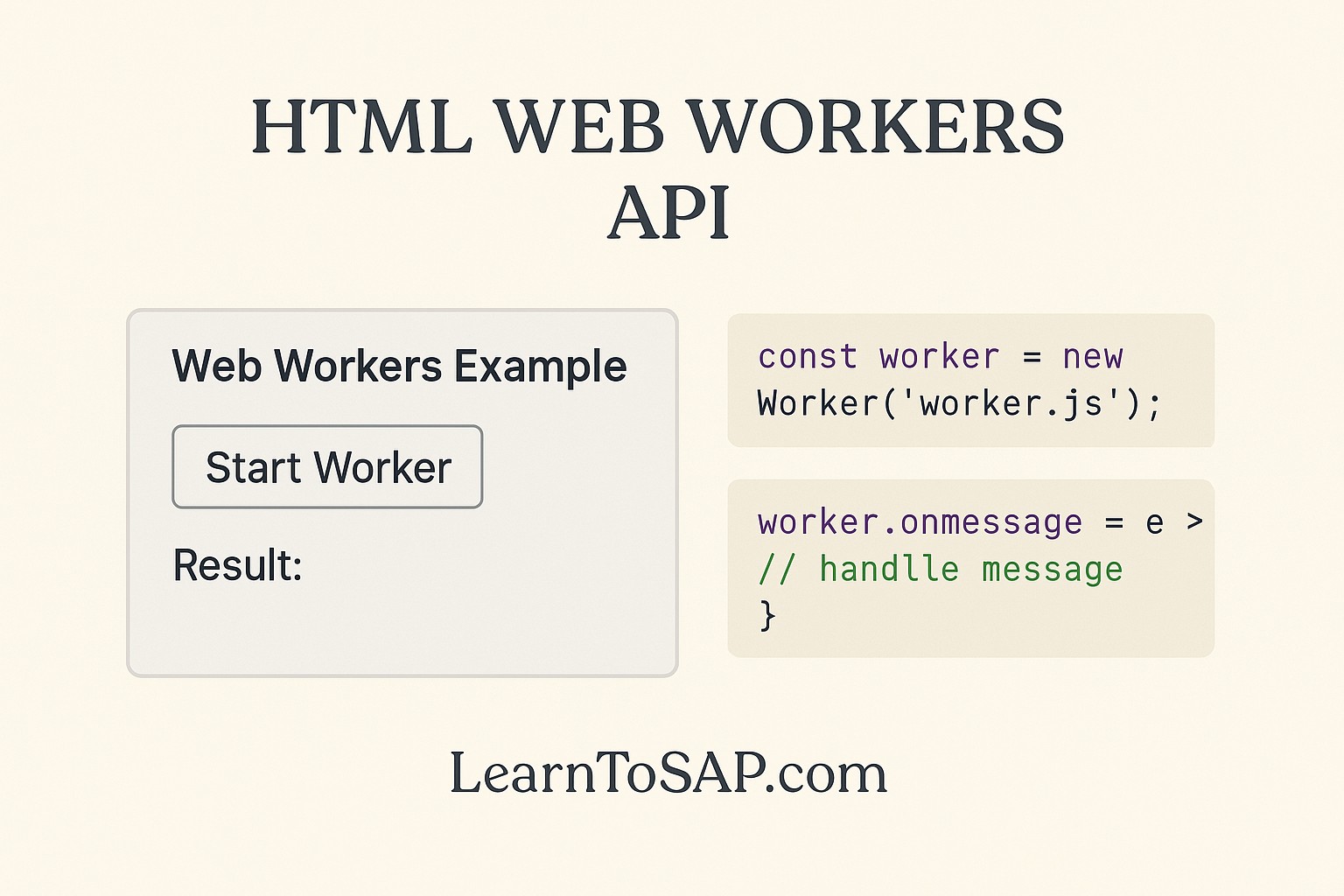
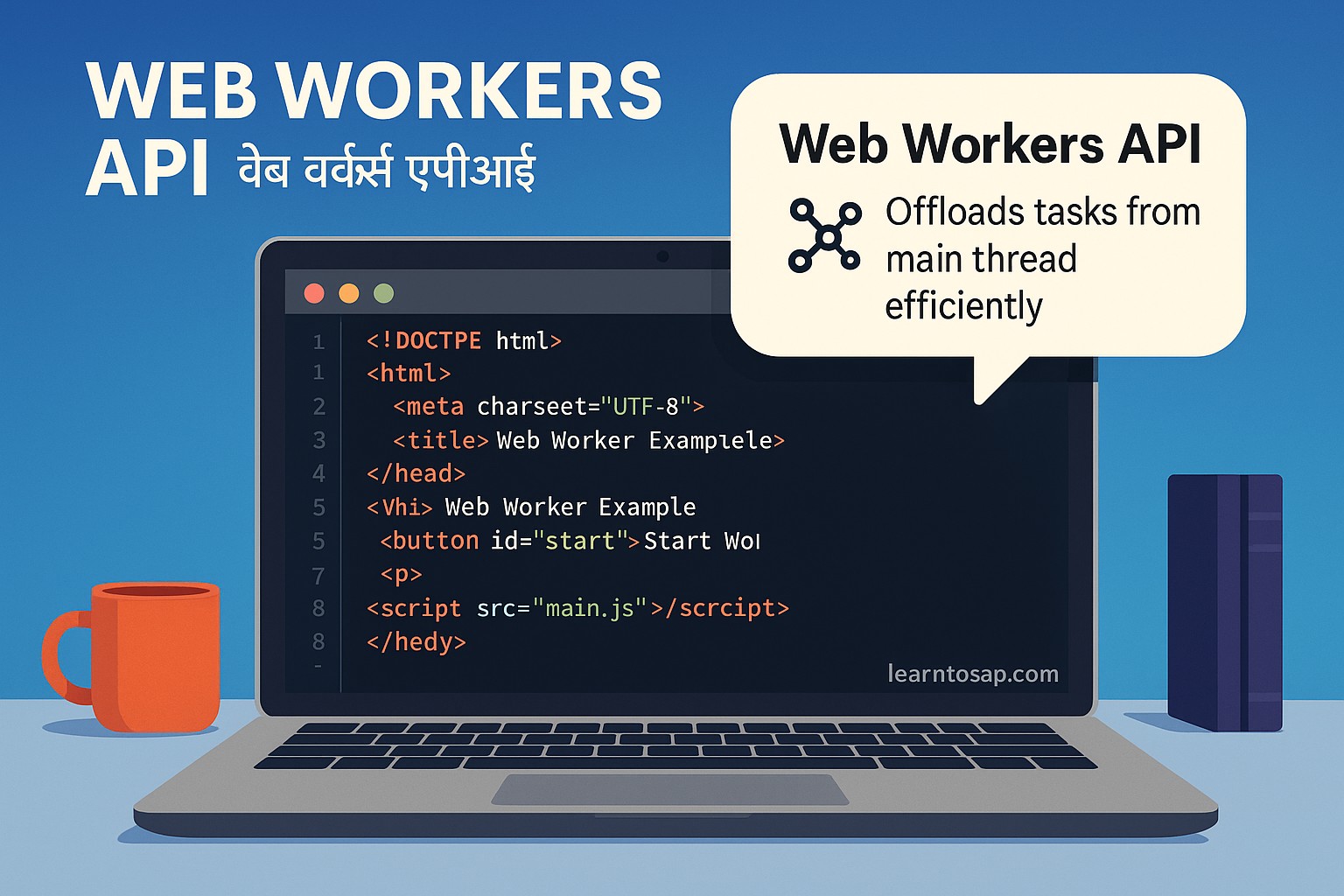
🧠 Why Use Web Workers?
✅ HTML5 allow you to run JavaScript code in the background—separate from the main execution thread of a web page. This means your UI stays responsive even while running heavy computations.
✅ In a JavaScript runs on the main thread of your web browser. If you perform a heavy task (like image processing or looping through large data syntax), it can harden the UI. Web Workers help by unload such (work)tasks to a background thread.
🔹 To see why this matters, remember that the main thread is a single lane. It runs your JavaScript, handles clicks and typing, calculates layout, and paints the screen, one job at a time. While a long calculation occupies that lane, nothing else can happen: buttons stop responding, animations stutter, and the browser may eventually offer to stop the page. A worker gives the heavy job its own lane, so the main lane stays free for the user.
✅ Key Features
✅ Run scripts in background threads
✅ Don’t block the user interface
✅ Communicate via messages (postMessage)
✅ Cannot access the DOM directly
📦 Types of Web Workers
✅ Dedicated Worker – Used by one script only
✅ Shared Worker – Can be accessed by multiple scripts, even from different windows/tabs
✅ Service Worker – Specialized worker for background syncing, caching, etc.
| Type | Created With | Lifetime and Sharing | Typical Use |
|---|---|---|---|
| Dedicated Worker | new Worker(url) | Belongs to the one page that created it, and ends when that page closes | Heavy calculations, data parsing, image processing |
| Shared Worker | new SharedWorker(url) | One instance shared by several tabs or windows of the same origin | Shared state or one connection used by many tabs |
| Service Worker | navigator.serviceWorker.register(url) | Lives independently of any page and can wake up for events | Offline caching, push notifications, background sync |
🔹 This tutorial concentrates on the Dedicated Worker, since it is the type you will use most often and the easiest to learn. Shared and Service Workers follow the same message-passing ideas but add their own rules.
How the Message Flow Works
- The main script creates a worker with new Worker('worker.js'), which starts a new thread running that file.
- The main script sends a task to it with worker.postMessage(data).
- Inside the worker, the onmessage handler receives the data, does the heavy work, and sends the answer back with postMessage(result).
- Back on the main thread, worker.onmessage receives the result and updates the page.
🔹 The two threads never share variables. Everything travels as a message, and the browser copies the data as it crosses the boundary. That is exactly what makes workers safe: there is no way for the two threads to overwrite each other's data by accident.
🧩 Project Structure
web-worker-example/
├── index.html
├── main.js
└── worker.js
✅ Example 1: Basic Example index.html
<!DOCTYPE html>
<html lang="en">
<head>
  <meta charset="UTF-8">
  <title>Web Worker Example</title>
</head>
<body>
  <h1>Web Worker Example: Prime Number Generator</h1>
  <button id="start">Start Calculating</button>
  <p id="output">Waiting...</p>

  <script src="main.js"></script>
</body>
</html>
🔹 The page itself is deliberately simple: one button, one paragraph for the result, and a script tag for the main thread's code. Notice that worker.js is not loaded with a script tag. A worker file is never part of the page; it is started from JavaScript.
✅ Example 2: main.js (Main Thread)
// Create a new Web Worker
const worker = new Worker('worker.js');

const startButton = document.getElementById('start');
const output = document.getElementById('output');

startButton.addEventListener('click', () => {
  output.textContent = 'Calculating primes...';
  // Send message to worker to start calculating
  worker.postMessage({ cmd: 'start', limit: 100000 });
});

// Listen for messages from the worker
worker.onmessage = function(event) {
  output.textContent = `Found ${event.data.count} prime numbers below ${event.data.limit}`;
};
🔹 The message is an ordinary object with a cmd field and a limit field. Giving messages a command name is a handy habit, because a real worker often handles several different tasks and needs to know which one is being requested.
✅ Example 3: worker.js (Web Worker)
// Function to check if a number is prime
function isPrime(n) {
  if (n < 2) return false;
  for (let i = 2; i <= Math.sqrt(n); i++) {
    if (n % i === 0) return false;
  }
  return true;
}

onmessage = function(event) {
  if (event.data.cmd === 'start') {
    const limit = event.data.limit;
    let count = 0;
    for (let i = 2; i < limit; i++) {
      if (isPrime(i)) count++;
    }
    // Send result back to main thread
    postMessage({ count, limit });
  }
};
🔹 Inside a worker there is no window or document. The global object is the worker itself, so onmessage and postMessage are used directly, without any prefix. The loop is the heavy part, and because it runs here, the button and the page stay perfectly usable while it works.
Live Demo: A Real Web Worker Running Right Here
🔹 The demo below runs a genuine Web Worker. Because this page has no separate worker.js file to load, the worker's code is written as text and turned into a temporary file with a Blob (explained further down). Start a calculation and watch the ticker: it keeps counting the whole time, which proves the main thread is not blocked.
UI ticker (should never freeze): 0
Waiting...
Web Worker API Reference
| Member | Where Used | Purpose |
|---|---|---|
| new Worker(url) | Main thread | Creates and starts a dedicated worker from a script file |
| worker.postMessage(data) | Main thread | Sends a message to the worker |
| worker.onmessage | Main thread | Receives messages sent back by the worker |
| worker.onerror | Main thread | Runs when the worker throws an uncaught error |
| worker.terminate() | Main thread | Stops the worker immediately, without letting it finish |
| onmessage / postMessage | Inside the worker | Receives tasks from, and replies to, the main thread |
| self.close() | Inside the worker | Lets the worker shut itself down |
| importScripts(...) | Inside the worker | Loads one or more extra script files into the worker |
Sending Data Between Threads
🔹 When you call postMessage, the browser copies your data using an algorithm called the structured clone. It handles numbers, strings, booleans, arrays, plain objects, dates, maps, sets, and typed arrays, so most everyday data crosses the boundary without trouble. It cannot copy functions, DOM elements, or objects that depend on them, and trying to send one throws an error.
🔹 Copying is safe but has a cost. Sending a huge array means duplicating all of it, which is slow and uses double the memory. For large binary data such as an image buffer, use a transferable object instead. Transferring moves ownership of the buffer to the other thread at almost no cost, but the sender can no longer use it afterward.
const buffer = new ArrayBuffer(50 * 1024 * 1024); // 50 MB

// Second argument lists the objects to TRANSFER instead of copy
worker.postMessage({ buffer }, [buffer]);

console.log(buffer.byteLength); // 0 - ownership moved to the worker
Handling Errors and Stopping a Worker
🔹 Errors inside a worker do not crash the page, but they do not disappear either. Listen for the error event on the worker object to find out what went wrong, and use terminate() when you no longer need the worker, for example when the user cancels a task.
worker.onerror = function (e) {
  console.error("Worker error:", e.message, "in", e.filename, "line", e.lineno);
};

document.getElementById("cancel").addEventListener("click", () => {
  worker.terminate();   // stops immediately, no cleanup runs
  output.textContent = "Cancelled.";
});
🔹 Remember that terminate() is abrupt: the worker gets no chance to finish or clean up. If you want a graceful stop, send it a message such as { cmd: 'stop' } and let the worker call self.close() itself.
Reporting Progress from a Worker
🔹 A worker can send many messages, not just one final answer. This makes progress bars easy: post a short update every so often while the loop runs, and let the main thread redraw a bar each time it arrives.
onmessage = function (event) {
  const total = event.data.limit;
  let count = 0;

  for (let i = 2; i < total; i++) {
    if (isPrime(i)) count++;

    if (i % 50000 === 0) {
      postMessage({ type: "progress", percent: Math.round((i / total) * 100) });
    }
  }
  postMessage({ type: "done", count, limit: total });
};worker.onmessage = function (event) {
if (event.data.type === "progress") {
bar.value = event.data.percent;
} else if (event.data.type === "done") {
output.textContent = `Found ${event.data.count} primes.`;
}
};🔹 Giving every message a type field lets one handler cope with progress updates, results, and errors alike. Keep the updates modest, though: sending a message on every single loop pass would flood the main thread and defeat the purpose.
Inline Workers with a Blob
🔹 Normally a worker lives in its own file, but you can also build one from a string. Create a Blob containing the code, turn it into a temporary address with URL.createObjectURL, and pass that address to new Worker. The live demo above uses exactly this technique. It is useful for single-file demos, code playgrounds, and libraries that want to ship without an extra file.
const code = `
  onmessage = (e) => postMessage(e.data * 2);
`;

const blob = new Blob([code], { type: "text/javascript" });
const worker = new Worker(URL.createObjectURL(blob));

worker.onmessage = (e) => console.log("Result:", e.data);
worker.postMessage(21); // Result: 42
Loading Extra Scripts and Module Workers
🔹 Inside a classic worker, importScripts() loads other script files into the worker's scope, which is handy for sharing a helper library. Modern browsers also support module workers, created with { type: 'module' }, which let a worker use standard import and export statements instead.
// Classic worker: inside worker.js
importScripts("helpers.js", "math-utils.js");

// Module worker: in main.js
const worker = new Worker("worker.js", { type: "module" });

// ...and inside worker.js
import { isPrime } from "./math-utils.js";
What a Worker Can and Cannot Access
| Available in a Worker | Not Available in a Worker |
|---|---|
| postMessage and onmessage | document and the DOM |
| fetch and XMLHttpRequest | window (use self instead) |
| setTimeout and setInterval | Reading or changing page elements |
| IndexedDB and the Cache API | localStorage and sessionStorage |
| navigator (partial) and location (read-only) | Parent-thread variables and functions |
| Typed arrays, WebSocket, console | Alerts and other dialogs |
🔹 The rule of thumb is simple: a worker can compute, fetch, and store data, but only the main thread may touch the page. If a worker needs something changed on screen, it sends a message and the main thread does the drawing.
Web Workers vs Service Workers vs the Main Thread
| Aspect | Main Thread | Web Worker | Service Worker |
|---|---|---|---|
| Touches the DOM | Yes | No | No |
| Blocks the UI when busy | Yes | No | No |
| Lifetime | Page lifetime | Until the page closes or it is terminated | Independent of pages; woken by events |
| Intercepts network requests | No | No | Yes |
| Main purpose | UI and interaction | Heavy computation | Offline support, caching, push |
Real-World Use Cases
- 🔹 Image and video processing: applying filters, resizing, or compressing pictures without freezing the editor.
- 🔹 Parsing large files: reading big CSV or JSON files and turning them into usable data.
- 🔹 Search and filtering: running fuzzy search across tens of thousands of records as the user types.
- 🔹 Encryption and hashing: heavy cryptographic work that would otherwise stall the page.
- 🔹 Games and simulations: physics, pathfinding, and AI calculations kept off the drawing thread.
- 🔹 Data visualization: preparing huge datasets before a chart or map is drawn.
Debugging Web Workers
🔹 Workers show up in your browser's developer tools as separate threads. In Chrome and Edge, open the Sources panel and look for the worker under Threads; in Firefox, look in the Debugger. You can set breakpoints, step through code, and read console.log output from inside a worker just as you would on the main thread. If nothing appears, check the Network panel to see whether the worker file was actually found, since a wrong file path is the most frequent cause of a silent failure.
Common Mistakes with Web Workers
- 🔹 Trying to use the DOM in a worker: document does not exist there, so the code throws an error. Send the result back and update the page from the main thread.
- 🔹 Opening the page from file://: most browsers block worker scripts loaded that way. Serve the folder from a local web server such as localhost.
- 🔹 Wrong worker file path: the path is relative to the page, not to the script that calls new Worker.
- 🔹 Sending functions or DOM nodes: these cannot be cloned and cause a DataCloneError.
- 🔹 Creating too many workers: each one uses memory and a real thread. A small number, often close to the count of processor cores, is plenty.
- 🔹 Forgetting to terminate finished workers: unused workers keep consuming resources until they are stopped.
- 🔹 Using a worker for tiny tasks: starting a worker and copying data has its own cost, so it only pays off for work that takes noticeable time.
HTML Web Workers Best Practices
- 🔹 Move only genuinely heavy, self-contained work into a worker, and keep the UI logic on the main thread.
- 🔹 Give every message a clear type or cmd field so both sides can tell requests apart.
- 🔹 Send small messages, and use transferable objects for large binary data.
- 🔹 Always add an onerror handler so failures are visible.
- 🔹 Terminate workers you no longer need, and reuse one worker for repeated jobs rather than creating a new one each time.
- 🔹 Show a loading state on the page while the worker runs, since the user should know something is happening.
- 🔹 Check for support with if (window.Worker) and provide a fallback for the rare browser without it.
Browser Support and Local Testing
🔹 Dedicated Web Workers are supported by every current major browser on desktop and mobile, including Chrome, Firefox, Safari, and Edge. Module workers and Shared Workers have slightly patchier support, so check the current compatibility tables before relying on them. When testing on your own computer, remember that opening the HTML file by double-clicking usually fails for workers. Start a simple local server instead, for example by running python -m http.server in the project folder and visiting http://localhost:8000.
Try It Yourself (Copy This Code and Paste. See how it works). The playground below contains a complete, working worker; edit it and watch the result change.
Live Code Preview
Practice Exercises: Test the Web Workers API
- Rebuild the prime number example, then change the limit and compare how long different values take.
- Add a "Cancel" button that stops the calculation with worker.terminate().
- Add a progress bar by having the worker post a percentage every 50,000 numbers.
- Send a large array to a worker and have it return the sorted result, then try it again using a transferable buffer.
- Add an onerror handler, then deliberately break the worker code and read the error message it reports.
Frequently Asked Questions About the HTML Web Workers API
What is Web Workers API?
Web Workers API allows JavaScript to run in background threads without blocking the main UI.
Why use Web Workers?
Web Workers improve performance by handling heavy tasks in the background.
Can Web Workers access DOM?
No, Web Workers cannot directly access the DOM.
Are Web Workers supported in all browsers?
Most modern browsers support Web Workers.
How do a Web Worker and the main thread communicate?
They send messages to each other with postMessage and receive them with the onmessage event handler. Data is copied between threads rather than shared.
Why does my Web Worker not load when I open the HTML file directly?
Browsers usually block worker scripts loaded from file:// addresses. Serve the page through a local web server such as localhost instead.
Conclusion
🔹 The Web Workers API gives JavaScript a second lane to run in, so slow work no longer has to freeze the page. The pattern is always the same: create a worker, send it a message, let it compute in the background, and update the page when its reply arrives. Keep messages small, remember that workers cannot touch the DOM, handle errors, and stop workers you no longer need. Try the prime number demo above, then work through the practice exercises, and you will be able to spot the heavy tasks in your own projects that belong in a background thread.