CSS Counters Tutorial: counter-reset, counter-increment And counter() (2026-27)
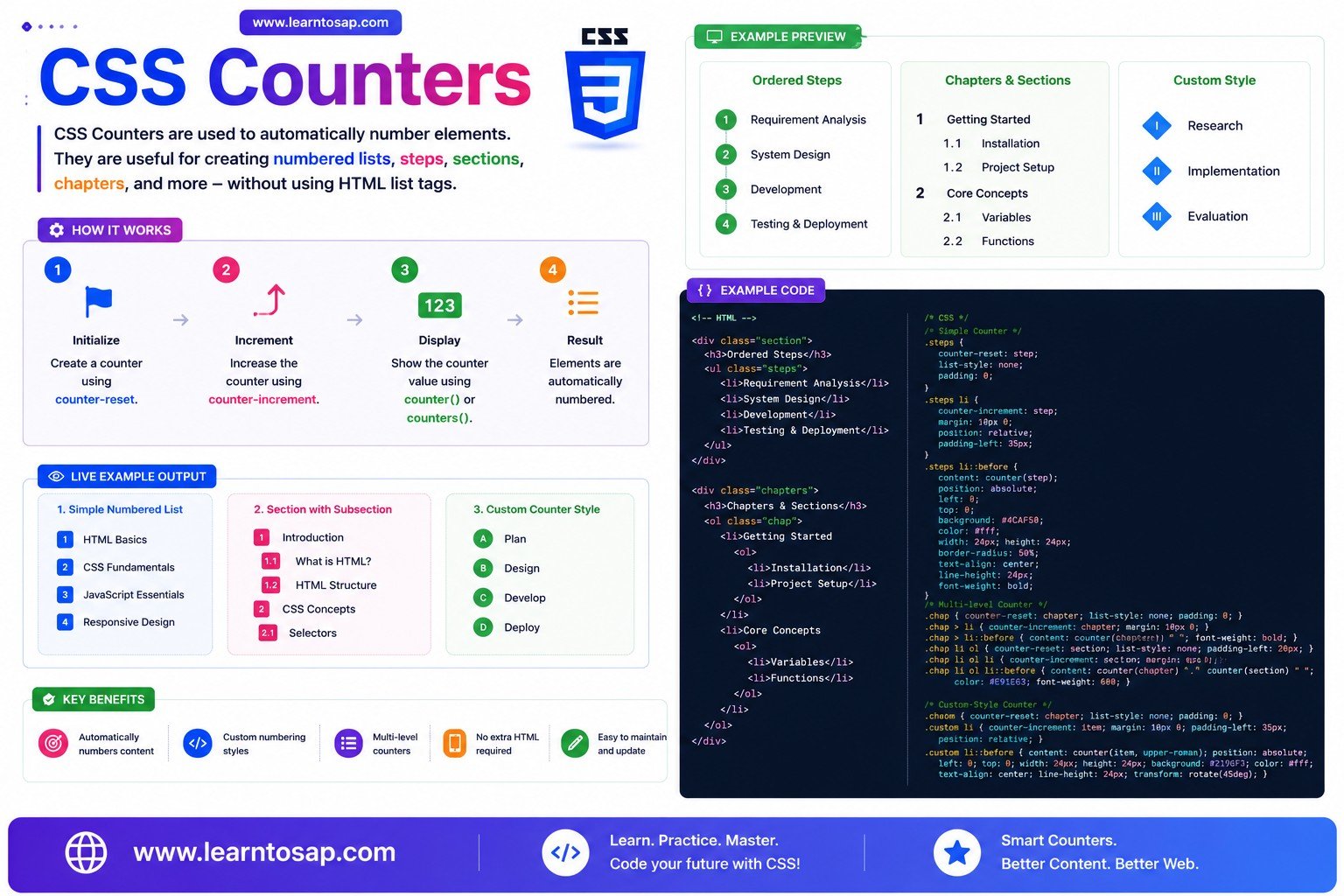
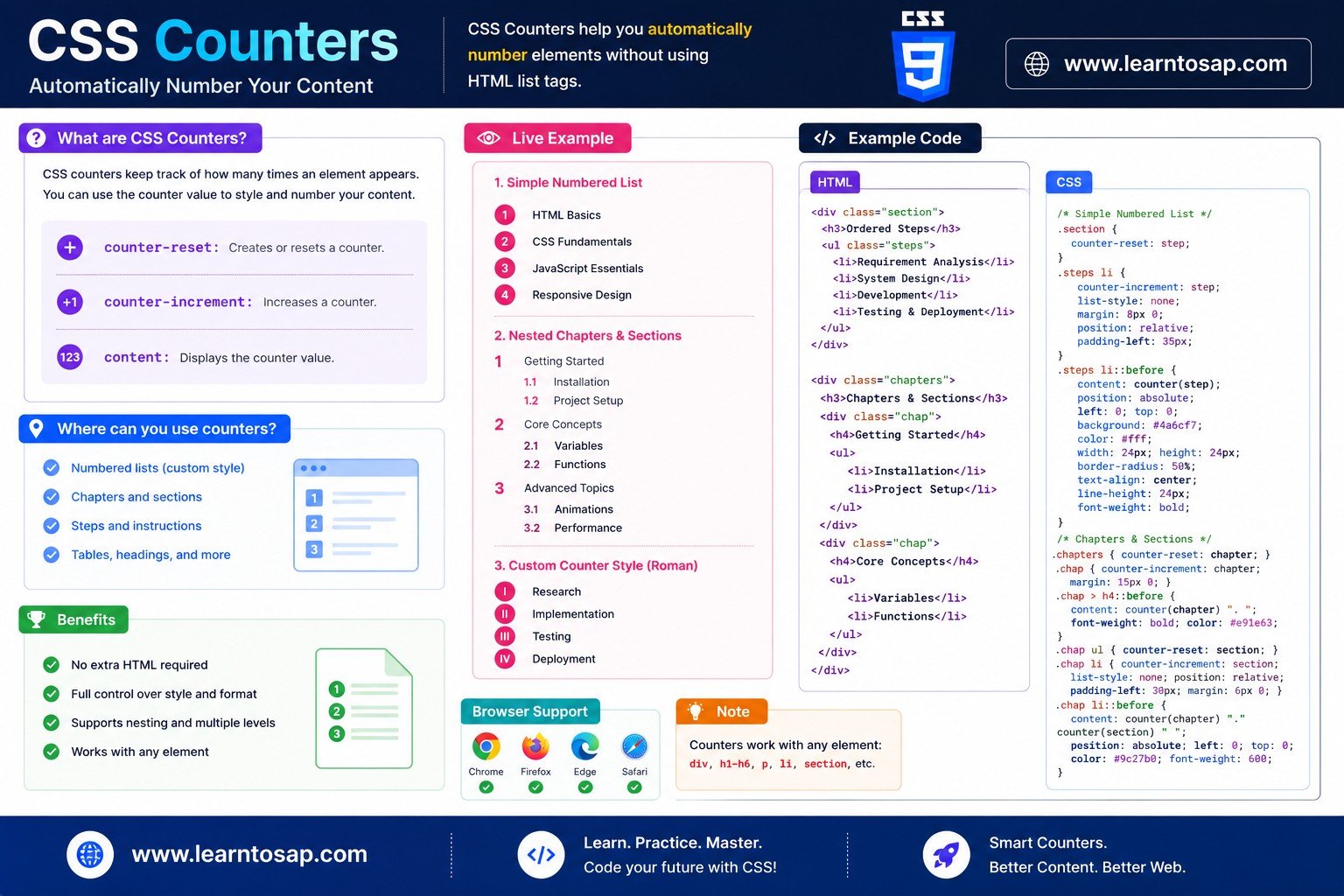
Today we are discuss topic CSS Counters. Anywhere you see automatic numbering on the web - "Step 1," "Step 2," numbered sections in documentation, outline-style "1.1, 1.2, 2.1" headings, custom bullet numbers on a list - there's a good chance CSS Counters are doing the work, with zero JavaScript involved. CSS counters are variables maintained entirely by the browser that increment automatically as matching elements appear in your document, and stay perfectly in sync even if you add, remove, or reorder content later. In this complete guide you will master counter-reset, counter-increment, the counter() and counters() functions, multi-level nested numbering, custom numbering styles (roman numerals, letters), and real-world patterns like automatic heading numbering and step-by-step guides. Includes live code panels, an interactive counter playground, comparison tables, common mistakes, a quiz, and FAQ - everything you need to build professional, maintainable automatic numbering with pure CSS. This tutorial or document breaks down the process step by step, using simple language and real-world examples to help you master the skill.
📋 Table of Contents
- What Are CSS Counters?
- counter-reset
- counter-increment
- The counter() Function
- The counters() Function – Multi-Level Numbering
- Custom Counter Styles (Roman, Alpha, etc.)
- Automatic Heading & Section Numbering
- Step-by-Step Guides with Counters
- Counter Scope & Nesting Rules
- Counter Functions – Reference Table
- Best Practices
- Common Mistakes to Avoid
- Live Code Example
- Try It Yourself – Interactive Editor
- 🎨 Interactive Counter Playground
- Practice Quiz
- Frequently Asked Questions (FAQ)
✅ What Are CSS Counters?
CSS counters are variables, maintained entirely by the browser, whose value can be incremented automatically based on how many times a CSS selector matches in your document. They let you generate custom, automatic numbering - for lists, headings, figures, or any repeating element - without manually typing numbers into your HTML or relying on JavaScript.
✅ counter-reset
counter-reset declares a named counter and sets its value - by default 0 - on the element where counting should begin (usually a parent container, like the ol or body).
/* Creates a counter named "item", starting at 0 */
ol {
  counter-reset: item;
}

/* You can also set a custom starting value */
ol.start-at-five {
  counter-reset: item 5;
}counter-reset is also how you create a counter in the first place - there's no separate "counter-create" property. Every counter must have a counter-reset somewhere before counter-increment can meaningfully count up from it.
✅ counter-increment
counter-increment increases the named counter's value - by default +1 - every time its selector matches, typically once per list item or heading.
list-style: none;
counter-reset: item;
}
ol.custom li {
counter-increment: item;
}
ol.custom li::before {
content: counter(item) ". ";
font-weight: 700;
color: #0EA5E9;
}
- First counted item
- Second counted item
- Third counted item
You can also increment by a custom amount, or even count downward:
li { counter-increment: item 2; }   /* +2 each time */
li { counter-increment: item -1; }  /* counts DOWN  */
✅ The counter() Function
The counter() function displays a counter's current value as generated content - it only works inside the content property of a ::before or ::after pseudo-element.
list-style: none;
counter-reset: step;
}
.steps li {
counter-increment: step;
}
.steps li::before {
content: "Step " counter(step) ": ";
}
- Open your code editor
- Create a new HTML file
- Link your CSS stylesheet
content, you can freely mix quoted strings and counter() calls - content: "Step " counter(step) ": "; builds a fully custom, automatically-numbered label.
✅ The counters() Function – Multi-Level Numbering
The counters() function (note the s) returns the values of a counter at every nesting level, joined by a separator string - exactly what you need for outline-style numbering like 1.1, 1.2, 2.1.
counter-reset: item;
list-style: none;
}
li {
counter-increment: item;
}
li::before {
content: counters(item, ".") " ";
font-weight: 700;
}
- Frontend Basics
- HTML
- CSS
- Backend Basics
- Node.js
counter(item) on a nested item shows only that level's local value (e.g. just "2"). counters(item, ".") shows the full path through every ancestor level (e.g. "1.2") - the version you almost always want for nested outlines.
✅ Custom Counter Styles (Roman, Alpha, etc.)
Both counter() and counters() accept an optional second argument - any list-style-type keyword - to render the number in a different numbering system.
- First
- Second
- Third
- First
- Second
- Third
li::before { content: counter(item, upper-roman) ". "; }   /* I. II. III. */
li::before { content: counter(item, lower-alpha) ") "; }   /* a) b) c) */
li::before { content: counter(item, decimal-leading-zero) " - "; } /* 01 - 02 - */
✅ Automatic Heading & Section Numbering
A very common real-world pattern: number every heading of a certain level automatically, so the numbering never gets out of sync as sections are added or reordered.
counter-reset: section;
}
.doc h4 {
counter-increment: section;
}
.doc h4::before {
content: counter(section) ". ";
color: #0EA5E9;
}
Introduction
Getting Started
Advanced Topics
Insert a new heading anywhere and the numbers automatically re-flow - no manual renumbering needed.
✅ Step-by-Step Guides with Counters
Tutorial sites, recipe pages, and onboarding flows commonly use counters to build "Step 1 / Step 2 / Step 3" badges that never drift out of sync with the actual step order.
.tutorial-steps {
  list-style: none;
  counter-reset: tut-step;
}

.tutorial-steps li {
  counter-increment: tut-step;
  position: relative;
  padding-left: 40px;
  margin-bottom: 14px;
}

.tutorial-steps li::before {
  content: counter(tut-step);
  position: absolute;
  left: 0;
  top: 0;
  width: 26px;
  height: 26px;
  background: #0EA5E9;
  color: #fff;
  border-radius: 50%;
  display: flex;
  align-items: center;
  justify-content: center;
  font-weight: bold;
  font-size: 13px;
}✅ Counter Scope & Nesting Rules
Each counter-reset creates a new, separate instance of that counter, scoped to the element it's declared on (and its descendants). This is what makes nested numbering and multiple independent lists work correctly on the same page.
/* Two SEPARATE counters, both named "item" */
ol.list-a { counter-reset: item; }  /* starts its own count at 0 */
ol.list-b { counter-reset: item; }  /* starts its own count at 0 too */

/* Without a counter-reset on .list-b,
it would continue counting from .list-a instead! */counter-reset. Skipping it on the second list lets the counter keep counting up from where the first list left off.
✅ Counter Functions – Reference Table
| Property / Function | Syntax Example | What It Does |
|---|---|---|
counter-reset | counter-reset: item; | Creates/resets a named counter, starting at 0 (or a custom value) |
counter-increment | counter-increment: item; | Increases the counter by 1 (or a custom amount) per match |
counter() | content: counter(item); | Shows the counter's value at the CURRENT nesting level only |
counters() | content: counters(item, "."); | Shows values from ALL nesting levels, joined by a separator |
| Custom style argument | counter(item, upper-roman) | Renders the number using a different numbering system |
✅ Best Practices
✔️ 1) Always Pair counter-reset with counter-increment
A counter that's only incremented but never reset can behave inconsistently across browsers - always declare both explicitly.
✔️ 2) Use Descriptive Counter Names
Prefer counter-reset: section; over a vague name like counter-reset: c1; - future readers (including you) will thank you.
✔️ 3) Reset Scoped Counters on Every Independent List
If multiple separate lists should each start at 1, give each one its own counter-reset rather than relying on a single page-wide counter.
✔️ 4) Prefer counters() for Any Nested/Outline Numbering
Reaching for counter() on multi-level lists is a common mistake - use counters() whenever you need the full "1.2.3" style path.
✔️ 5) Remember Counters Only Render Inside Generated Content
counter() and counters() only work inside the content property of ::before/::after - they cannot be inserted as plain text content elsewhere.
::before content consistently - for critical step numbers, consider also including the number in your actual HTML text as a backup, especially for accessibility-critical instructions.
✅ Common Mistakes to Avoid
Using only
counter-increment without a matching counter-reset can lead to inconsistent starting values across browsers - always declare the reset.
counter(item) on a deeply nested item only shows that level's local number, not the full "1.2.3" path - use counters(item, ".") for true multi-level numbering.
counter()/counters() only function inside the content property of a ::before/::after pseudo-element - they cannot be used as a regular CSS value anywhere else.
Two separate lists sharing one counter name, with only one of them carrying a
counter-reset, will cause the second list to continue counting from the first instead of starting fresh.
counters(item) without a separator string concatenates nested values with no visual break at all (e.g. "12" instead of "1.2") - always pass a separator like counters(item, ".").
✅ Complete Live Example
A documentation-style numbered outline combining multi-level counters() with custom styling:
counter-reset: sec;
list-style: none;
}
.outline li {
counter-increment: sec;
}
.outline li::before {
content: counters(sec, ".");
background: #0EA5E9;
color: #fff;
padding: 2px 8px;
border-radius: 10px;
margin-right: 8px;
}
- 1Getting Started
- 2Installation
✅ Try It Yourself – Interactive Editor
Edit the HTML and CSS below to experiment with CSS counters. Try switching between flat numbering, multi-level outlines, and step badges. The preview updates automatically.
✅ 🎨 Interactive Counter Playground
Choose a numbering style, separator, prefix/suffix text, and starting value to instantly preview your own custom CSS counter. Copy the generated CSS with one click.
✅ Practice – Yes / No Quiz
1. Does counter-reset both create a new counter AND set its starting value?
2. Does counter() (without the "s") show the values from EVERY nesting level joined together?
3. Can counter() and counters() be used as a value anywhere in CSS, or only inside the content property?
4. Does CSS automatically recalculate counter values if you add or remove matching elements later?
5. Can a counter be rendered using Roman numerals or letters instead of plain numbers, via a second argument to counter()?
✅ Frequently Asked Questions (FAQ)
counter-reset creates a counter and sets (or resets) its value, typically to 0, on a parent or container element. counter-increment increases that counter's value by 1 (or a custom amount) every time its selector matches, typically once per list item or heading. You need counter-reset to initialize the counter before counter-increment can meaningfully count up from it.counter() (no s) returns only the counter's value at the current nesting level, such as just "2" for the second item. counters() (with an s) returns the values of that counter at every nesting level, joined by a separator string, producing outline-style numbering like "1.2" or "2.1.3" for nested lists.content: counter(section) '. '; on the heading's ::before pseudo-element, producing automatic "1. ", "2. ", "3. " style section numbering without manually editing the HTML.counter-reset - without it, some browsers implicitly start the counter at 0 on every matching element instead of accumulating a running total. Other common causes are forgetting the content property entirely (counters only display inside generated content like ::before/::after) or using counter() instead of counters() for multi-level nested numbering.